Advanced settings hold additional product and order options for more specific or advanced use cases.
Menü
Vendor Konnect settings - Advanced settings
⚡ TL;DR
Go to Settings → Setup and configuration → Vendor Konnect settings, open the Sync settings tab and expand Advanced settings. Under Product, set the status of new products and choose whether to add a Mapped tag. Under Order, choose whether to push orders for unsynced products and whether to stop fulfillment status updates. Then click Save and confirm your password.
Who this guide is for
Marketplace admins who want finer control over the status and tagging of imported products, and over how orders for unmapped products and fulfillment updates are handled.
Step-by-step
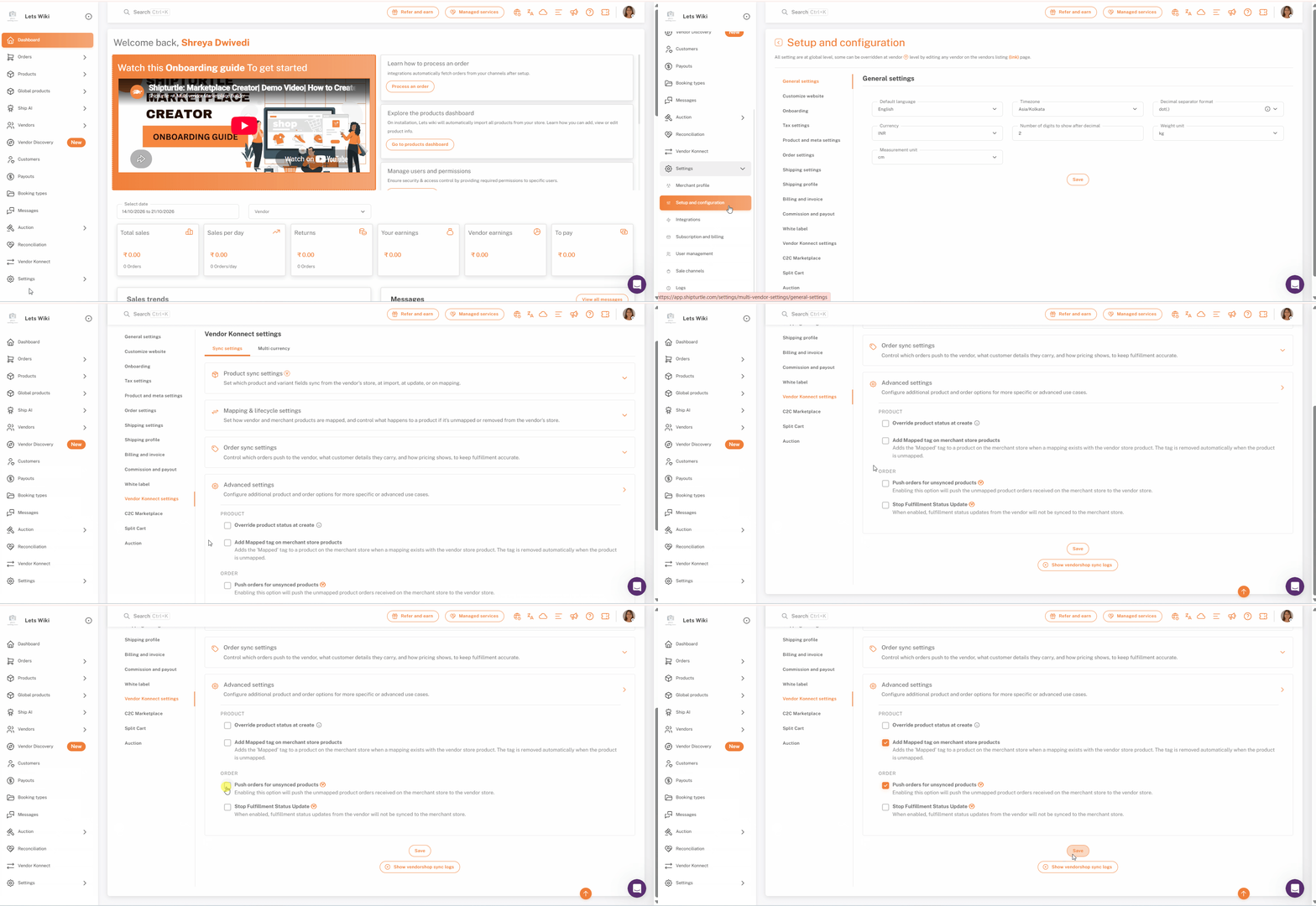
Step 1: Open Setup and configuration
In the left sidebar, click Settings to expand it, then click Setup and configuration.
Step 2: Open Vendor Konnect settings
In the list of settings on the left of the page, click Vendor Konnect settings. It sits near the bottom of the list, so scroll down if you can't see it.
Step 3: Expand Advanced settings
Make sure the Sync settings tab is selected. The other tab is Multi currency. The Sync settings tab has four sections: Product sync settings, Mapping & lifecycle settings, Order sync settings and Advanced settings. Click Advanced settings to expand it.
Note: All settings on this page apply at a global level across your marketplace. A setting marked with the V badge can be overridden for an individual vendor by editing that vendor from the Vendors listing page.
Step 4: Set the status of new products
Under the Product heading, tick Override product status at create to choose the status that new products get when they are added to your store. By default, the status is the same as on the vendor's store. Hover over the info icon beside the option to read the explanation.
Note: If you use this option to set new products to draft, keep Status unticked under At update/On mapping in Product sync settings. Otherwise, the status will be updated again whenever the product data changes on the vendor's store.
Step 5: Add a Mapped tag to mapped products
Tick Add Mapped tag on merchant store products to add a Mapped tag to a product on your marketplace while a mapping exists with the vendor's product. The tag is removed automatically when the product is unmapped.
Step 6: Push orders for unsynced products
Under the Order heading, tick Push orders for unsynced products to push orders for unmapped products received on your marketplace to the vendor’s store. This option has the V badge, so it can be overridden for individual vendors.
Note: Unmapped products may not have their inventory in sync with the vendor’s store. Orders could therefore be pushed for products that are out of stock on the vendor’s side.
Step 7: Stop fulfillment status updates
Tick Stop Fulfillment Status Update if you want orders pushed to the vendor’s Shopify store for them to fulfil, but don’t want later status changes synced back. This option has the V badge, so it can be overridden for individual vendors.
When this option is enabled:
- Synced: When the vendor fulfils the order, the tracking details sync to your Shopify store through Shipturtle.
- Not synced: Any later status changes on the vendor’s Shopify store, such as In transit → Delivered, do not sync to your Shopify store.
Step 8: Save and confirm your password
Scroll to the bottom of the page and click Save. Shipturtle asks you to confirm your password before the changes are applied. Enter your password and click Confirm.
Checklist
- You are on Settings → Setup and configuration → Vendor Konnect settings, on the Sync settings tab
- Advanced settings is expanded
- The Product options (Override product status at create and Add Mapped tag on merchant store products) are set the way you want
- The Order options (Push orders for unsynced products and Stop Fulfillment Status Update) are set the way you want
- You clicked Save and confirmed your password
FAQs
What status do new products get by default?
The same status they have on the vendor's store. Tick Override product status at create to choose a different status.
What does the Mapped tag do?
With Add Mapped tag on merchant store products ticked, a product on your marketplace gets a Mapped tag while a mapping exists with the vendor's product. The tag is removed automatically when the product is unmapped.
What does Push orders for unsynced products do?
It pushes orders for unmapped products, received on your marketplace, to the vendor's store.
What happens when I tick Stop Fulfillment Status Update?
Fulfillment status updates from the vendor are no longer synced to your marketplace.
Can I set these options per vendor?
The two Order options carry the V badge, so they can be overridden for an individual vendor by editing that vendor from the Vendors listing page.
Troubleshooting
New products aren't staying in draft
Status is probably still ticked under At update/On mapping in Product sync settings, so the status is updated again whenever product data changes on the vendor's store. Untick Status there, click Save and confirm your password.
I can't see Vendor Konnect settings in the list
The list of settings on the left is longer than the visible area. Scroll down the list to find Vendor Konnect settings.
My changes didn't apply
Changes are applied only after you enter your password and click Confirm in the Confirm password prompt. Click Save again and complete the prompt.
If you’re stuck, reach us at team@shipturtle.com or raise a ticket on the support page.