The vendor review feature lets customers rate and review your vendors, and lets you moderate those reviews before they appear on the storefront. Reviews show on each vendor's profile page, so shoppers can see a vendor's track record before buying. Use it to build buyer trust and to spot which vendors need attention. This is a paid add-on and must be activated before reviews can be collected.
Who this is for
- Merchant: You activate the add-on, enable the reviews tab, and approve or reject reviews.
- Vendor: Vendors receive reviews on their profile and can use the feedback to improve.
- Customer: Rates vendors and writes reviews from the vendor profile page.
Before you begin
- The review feature is a paid add-on. It is available on the Business, Peak, and Enterprise plans and must be activated first.
- Vendor profiles must already exist, since reviews are displayed and collected on the profile page. See Vendor profile page.
How it works
- Activate the review add-on.
- Enable the reviews tab on the vendor profile page.
- Add the Write a Review block to your Shopify product page template.
- Customers submit ratings and reviews from the profile.
- You approve or reject each review before it appears publicly.
Merchant setup
Confirm vendor profiles exist
- In Shipturtle, go to Vendors.
- Create or verify each vendor profile, and make sure each has its own profile page that can display reviews.
Enable the reviews tab
- Open Customize Website, then go to Manage vendor profile page → Vendor listing page.
- Find the option to select the information shown on the vendor profile page.
- Check the box for the Vendor reviews tab.
- Scroll down and click Save.
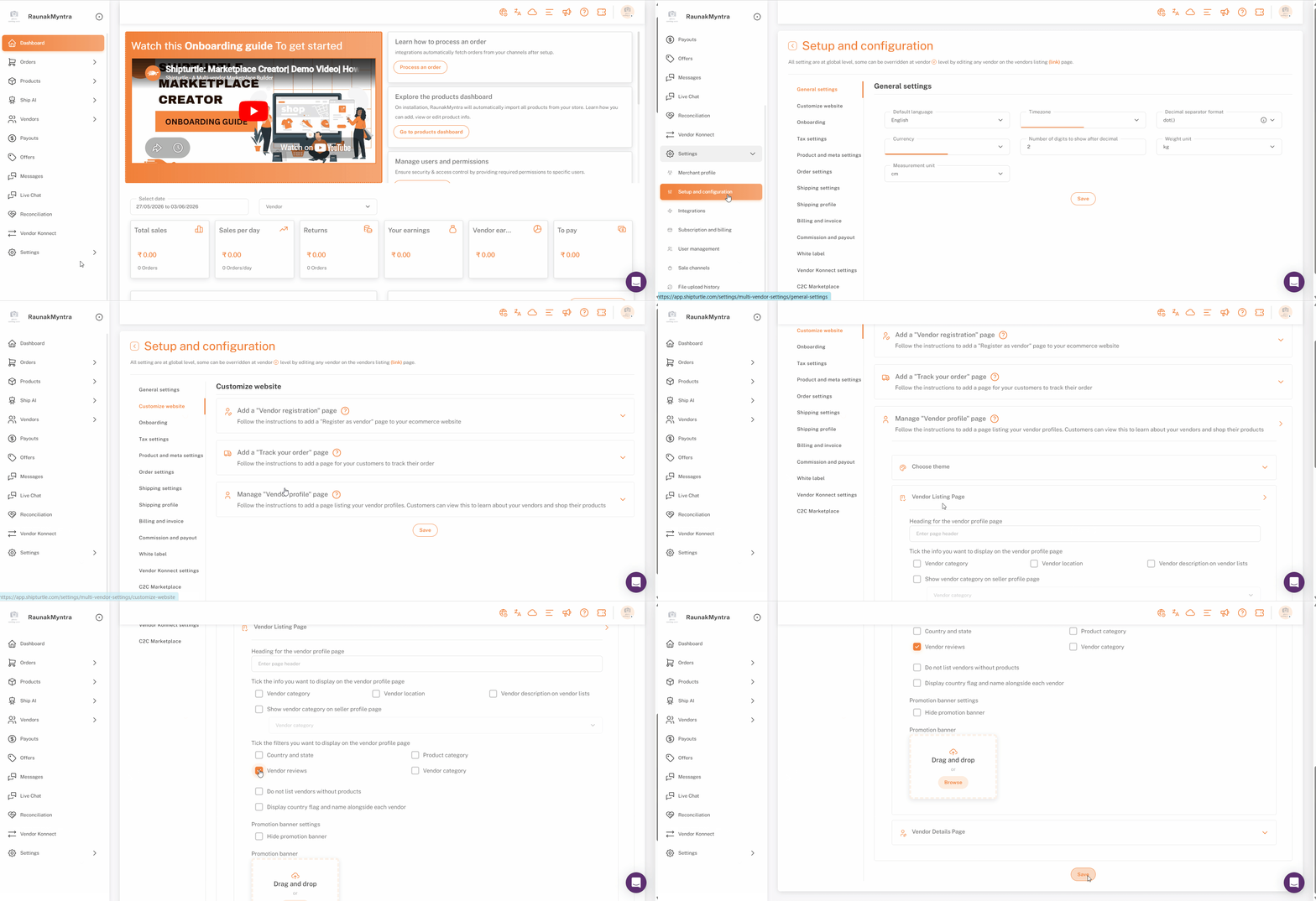
The reviews section now appears on vendor profiles on your storefront.
Approve or reject reviews
- In Shipturtle, go to Vendors and select Approve reviews.
- Review the list of submissions pending moderation.
- For each one, select Approve to publish it on the vendor profile or Reject to keep it off the storefront.
This lets you keep inappropriate or irrelevant reviews from appearing.
How customers leave a review
On your storefront, a customer opens the Vendors page, clicks a vendor to open the profile, and uses the Reviews tab to give a star rating and write a review. The review is stored in Shipturtle and waits for your moderation before it shows publicly, and if a customer tries to leave a review before they're eligible, for example if the order hasn't been delivered yet or was returned, they see a clear, contextual message explaining why they can't review it yet instead of the review form.
Shopify configuration
The review block is a theme app block, so it must be placed in your product page template before buyers can write reviews on product pages.
- In Shopify Admin, go to Online Store → Themes → Edit theme.
- From the top dropdown, select Products → Default product (or the product template of your choice).
- In the left sidebar, expand Product information under Templates.
- Hover over the position where you want the review block to appear and click the + icon.
- In the pop-up, select Apps → Write a Review.
- Click Save.
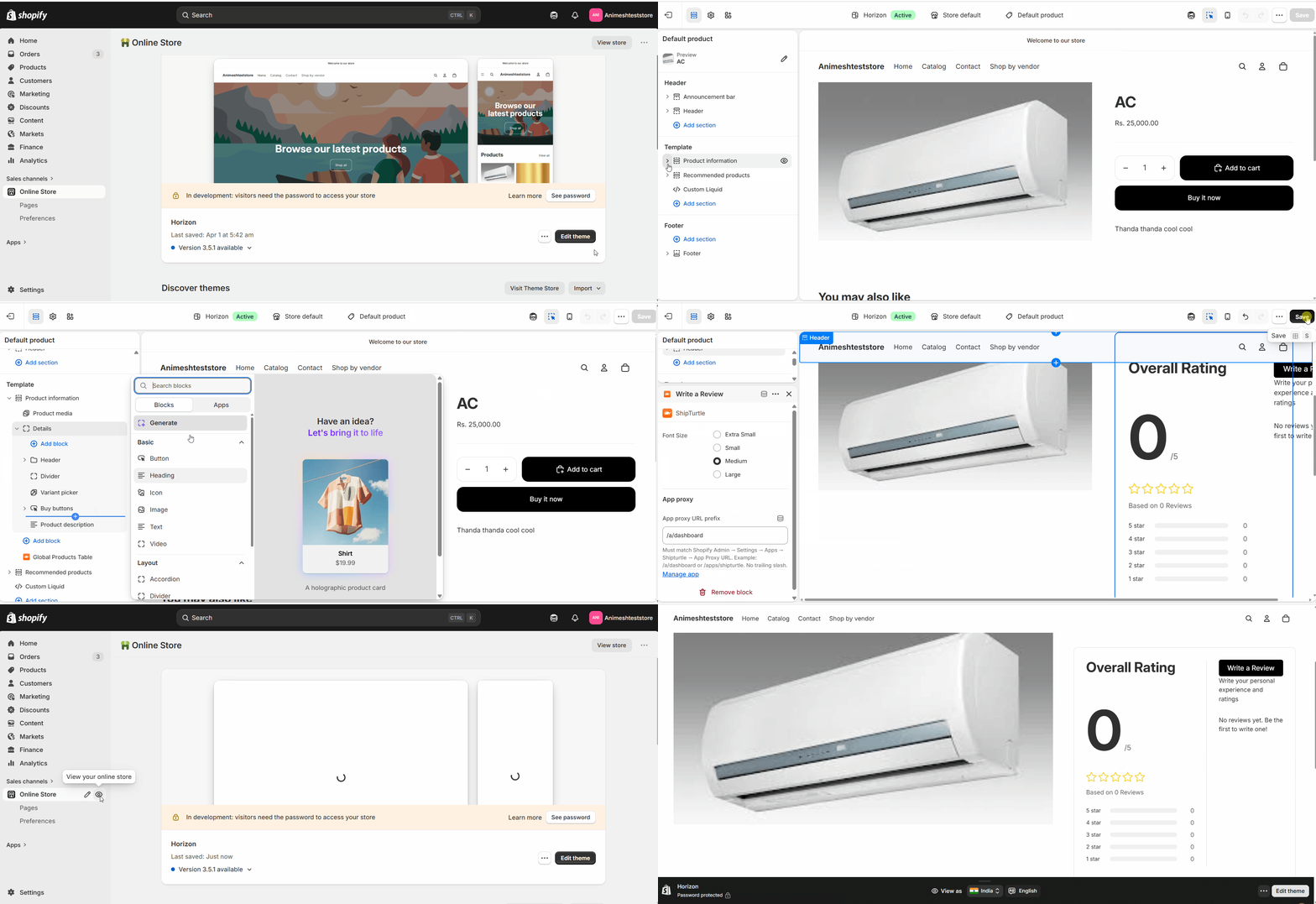
The review block is now placed on the product page template.
FAQs
Do reviews appear immediately? No. Every review waits in the moderation queue until you approve it, so nothing reaches the storefront without your sign-off.
Where do customers leave reviews? On the vendor's profile page, under the Reviews tab. That is why vendor profiles must be set up before you enable the feature.
Can I reject a review after it is published? Reviews are approved or rejected from Vendors → Approve reviews. Handle questionable reviews at the moderation step before they go live.
Troubleshooting
The reviews tab does not show on vendor profiles. First confirm the add-on is active. Then check that the Vendor reviews tab box is ticked in Customize Website → Manage vendor profile page → Vendor listing page, and that you saved the change.
The Write a Review block does not appear on product pages. Open your Shopify theme editor, select the product template you edited, and confirm Write a Review is listed under Product information. If it is missing, repeat the Shopify configuration steps and save the theme.
A submitted review is not appearing on the storefront. Reviews stay hidden until approved. Open Vendors → Approve reviews and approve the pending review.
Related articles
- Vendor profile page — required before reviews can be collected, since reviews display on the profile.
- Add a seller registration page to your website — onboard the vendors who will be reviewed.
If you’re stuck, reach us at team@shipturtle.com or open a ticket on the support page.