Shipturtle supports four login methods for merchants and vendors. You can log in through your Shopify admin (recommended for merchants), directly at the Shipturtle app URL, via Google SSO, or using a one-time password sent to your email. This article also covers password changes, adding new users, and what to do if you lose access.
Who this is for
- Merchant: All four login methods are available. Logging in through Shopify Admin is the fastest.
- Vendor: Logs in at the Shipturtle app URL or via Google SSO using credentials sent by email on first invitation.
How it works (at a glance)
- Merchants install Shipturtle from the Shopify App Store.
- Login credentials are sent to your registered email on installation.
- Choose your preferred login method each session — all four methods access the same dashboard.
- Vendors receive their credentials by email when the merchant invites them.
Merchant setup
Log in through Shopify Admin (recommended)
- Go to your Shopify Admin.
- Click Apps in the left sidebar.
- Select Shipturtle from your installed apps list.
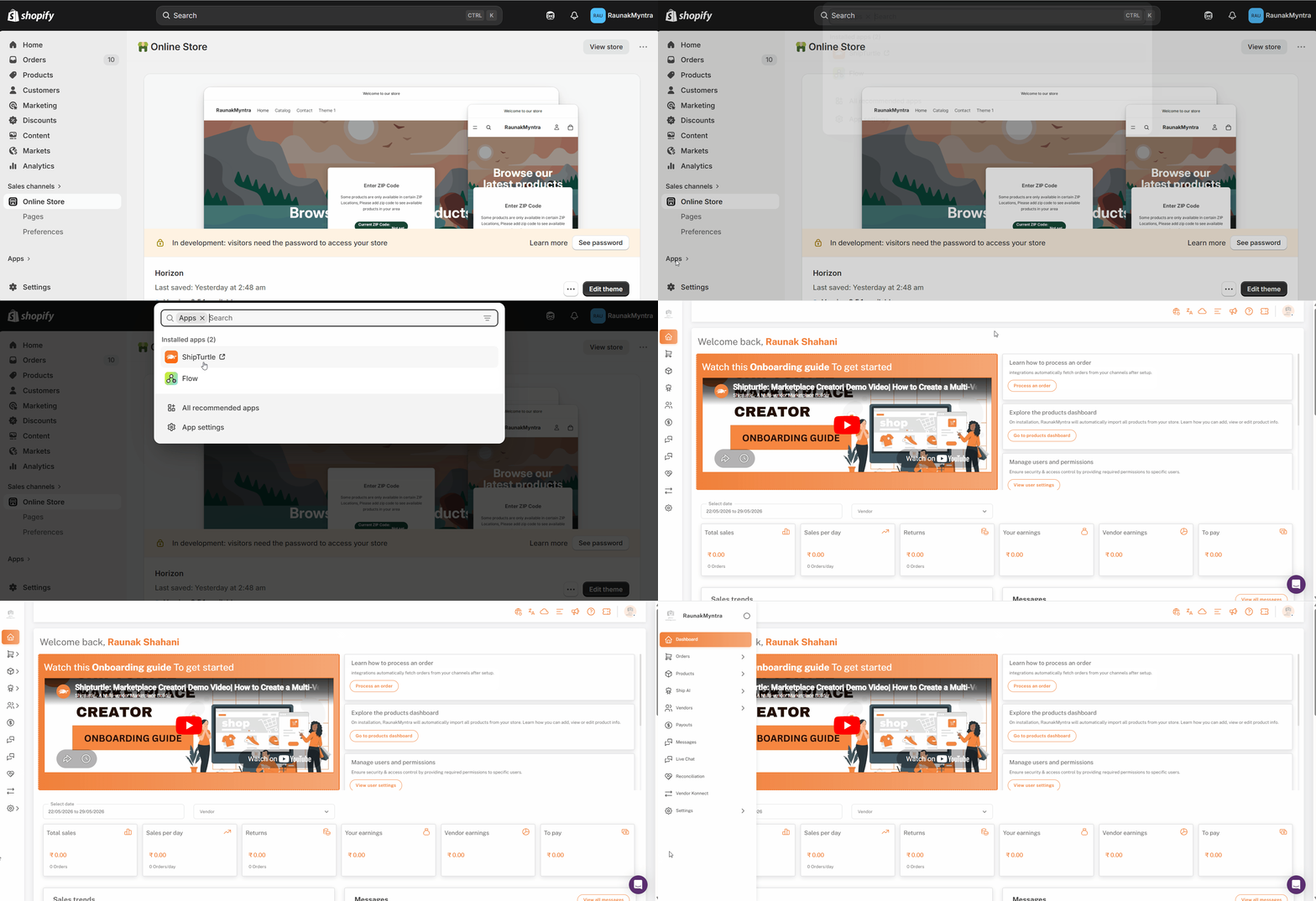
You are logged in automatically and taken directly to the Shipturtle dashboard. This method uses your active Shopify session — no separate Shipturtle password required.
Log in at the Shipturtle app URL
- Open app.shipturtle.com in your browser.
- Enter your username and password.
- Click Log in.
Your login credentials were emailed to you when Shipturtle was installed. If you can't find the email, check your spam or promotions folder.
Log in with Google
- On the login page, click Continue with Google.
- Select the Google account registered with your Shipturtle store.
If you manage multiple Shipturtle stores, select the Google account linked to the specific store you want to access — each store is tied to a specific Google ID.
Log in with OTP
- On the login page, click Login via OTP.
- Enter your registered email address and submit.
- Check your inbox for the OTP email. The code is valid for 5 minutes.
- Enter the OTP on the login screen.
If your email is linked to more than one Shipturtle store, you see a list of stores after entering the OTP. Select the one you want to access.
Vendor setup
Vendors log in the same way as merchants — at app.shipturtle.com or via Google SSO. Vendors receive their login credentials by email when the merchant invites them. The Shopify Admin login method is not available to vendors.
Merchant setup — account management
Change your password
- Click your profile icon in the top-right corner of the dashboard.
- Select Edit User Details.
- Find the Change Password section.
- Enter your current password, then your new password.
- Click Save.
Your next login uses the new password.
Add a new user
- Open User Management from the left sidebar.
- Click Add User.
- Enter the user's details and assign a role or access level.
- Click Save.
The new user receives their login credentials by email and can log in using any of the methods described above. Advanced role permissions are available as an add-on.
Forgot your password
Option A — through Shopify Admin (for merchants only) Go to Shopify Admin → Apps → Shipturtle. Your active Shopify session logs you in automatically without needing your Shipturtle password.
Option B — through the login page
- Go to app.shipturtle.com.
- Click Forgot password.
- Enter your email address.
- Follow the reset link sent to your inbox.
FAQs
I didn't receive my login credentials email. What should I do? Check your spam and promotions folders first. Credential emails sometimes land there. If the email isn't there, open User Management, find your user entry, and resend the invite.
Can a vendor use the Shopify Admin login method? No. The Shopify Admin login is only available to the merchant account owner and Shopify admin users. Vendors log in directly at app.shipturtle.com or via Google SSO.
I manage multiple Shipturtle stores. How do I switch between them? Each store is a separate Shipturtle installation. Log in to each store separately using the credentials associated with that store's installation, or use a Google account linked to the specific store you want.
Troubleshooting
The OTP expired before I could enter it. OTPs are valid for 5 minutes. Request a new one by returning to the login page and clicking Login via OTP again. If OTP emails are consistently delayed, check whether your email provider is throttling transactional mail.
I can log in via Shopify but the direct URL login fails. This usually means the password associated with your direct-login account is outdated or was never set. Use the Shopify Admin login method to access the dashboard, then change your password via the top-right Edit User Details menu.
Related articles
- User Management — configure roles and permissions for admin users.
- Onboarding — next steps after your first login.
If you’re stuck, reach us at team@shipturtle.com or open a ticket on the support page.