Make an Offer lets a buyer propose a price and quantity on a product page, and the vendor can approve, reject, or counter. When an offer is approved or countered, the buyer gets a checkout link reflecting the agreed price and quantity. Use it when your catalog suits negotiation, for example wholesale quantities, used goods, or higher-value items where buyers expect to haggle. This is a paid add-on and needs a button placed on your Shopify product page.
Who this is for
- Merchant: You activate the add-on, place the button on the product page, and can act on any offer.
- Vendor: Vendors receive offers and approve, reject, or counter them from the vendor dashboard.
- Customer: Buyers submit a price and quantity and receive a checkout link if the offer is accepted.
Before you begin
- Make an Offer is a paid add-on. It is available on the Business, Peak, and Enterprise plans and must be activated before the button can appear.
- You need access to your Shopify theme editor to add the button to the product page.
How it works
- A buyer submits a price and quantity on the product page.
- The vendor is notified and approves, rejects, or counters.
- The buyer is notified of the response by email.
- On approval or a counter, the buyer receives a checkout link with the agreed terms.
- You can step in and act on any offer if a vendor is inactive.
Buyer experience
A buyer enters both a price and a quantity, for example $80 per unit for 3 units. The vendor is notified immediately. The buyer receives email updates at each step, and on approval or a counter the email includes a checkout link reflecting the negotiated price and quantity.
Vendor responses
The vendor receives an email with the product, the proposed price, and the requested quantity, and responds in one of three ways:
- Approve — the vendor accepts the price and quantity, and the buyer gets a checkout link with those terms.
- Reject — the vendor declines, and the buyer is notified by email.
- Counter — the vendor proposes a new price, quantity, or both. For example, against an offer of $80 × 3 units the vendor counters $90 × 2 units. The buyer gets an updated checkout link and can accept or keep negotiating.
This flow works in both the B2C and C2C vendor dashboards.
Merchant oversight
You can see every offer in the marketplace and approve, reject, or counter on a vendor's behalf. This keeps negotiations moving if a vendor is slow to respond.
Merchant setup
Activate the add-on
- Open Settings → Subscription & Billing and go to Add-Ons.
- Find Make an Offer and click Add to Plan.
You should now see Make an Offer listed among your active add-ons.
Shopify configuration
The Make an Offer button is a theme block, so it has to be added in your Shopify theme editor before buyers can submit offers.
Add the button to the product page
- In Shopify Admin, go to Online Store → Themes → Edit theme.
- From the top dropdown (which shows the homepage), select Products → Default product.
- In the left panel, expand Product information (click the small arrow in front of it).
- Click Add block.
- Choose Apps → Customer Chat.
- Drag the block to where you want it, for example below the price or above Add to Cart.
- Click Save.
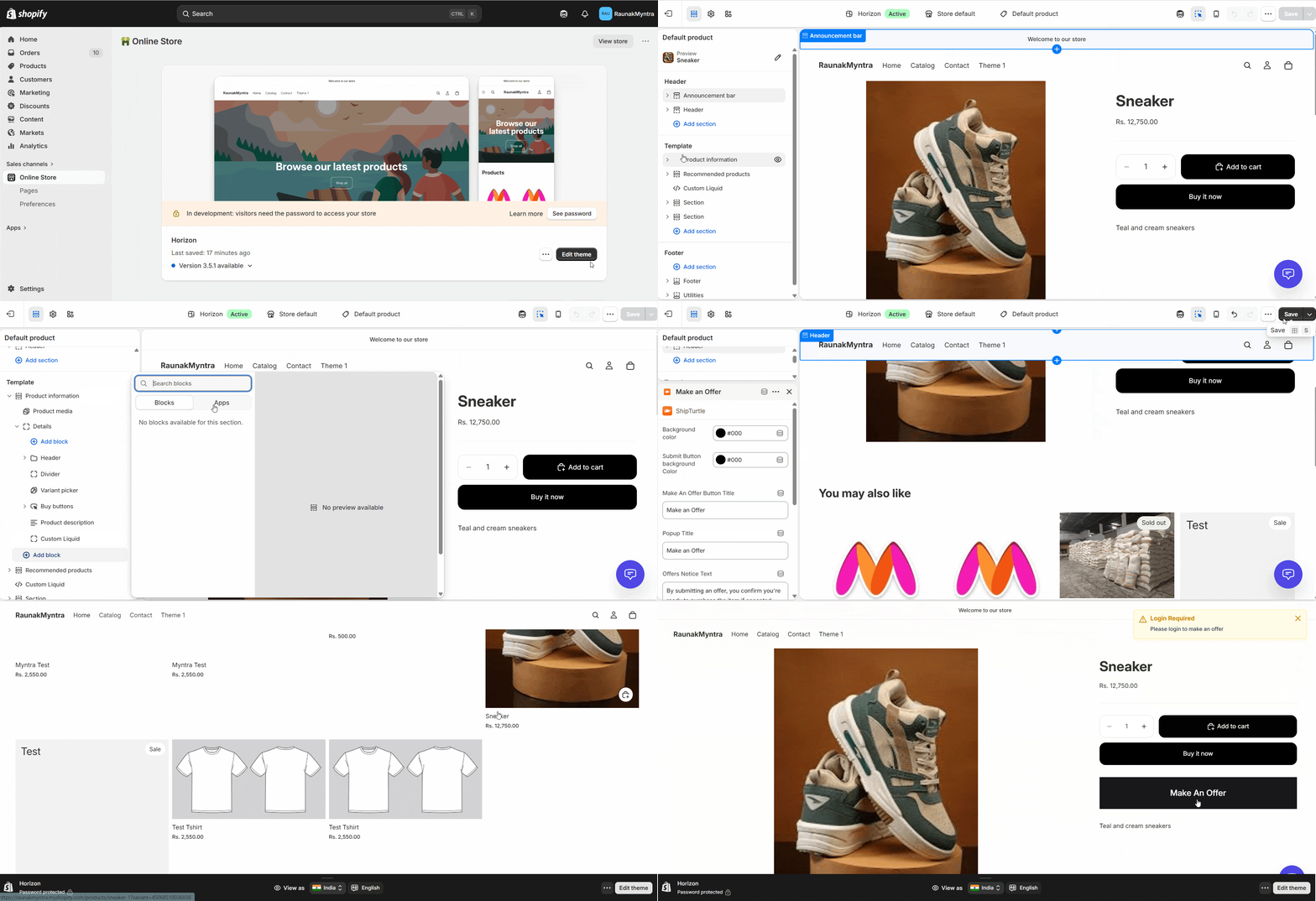
Customize the popup
In the left-side editor you can adjust the background and button colors, the button title, the popup title and notice text, the submit button text, and the text box height. Click Save to apply.
You should now see the Make an Offer button on the product page on your storefront.
FAQs
Can buyers negotiate both price and quantity?
Yes. Buyers specify both, and the vendor can counter either value, so a buyer can ask for a lower unit price, a different quantity, or both at once.
Do buyers need an account to submit an offer?
Not always. Guest buyers can submit offers if your storefront allows guest activity. Otherwise the buyer signs in first.
Where do vendors respond to offers?
In the vendor dashboard under the Offers section. This is available in both the C2C and B2C vendor portals.
How do buyers know when the vendor replies?
By email. A rejection arrives as a direct message, while an approval or counter includes a checkout link with the agreed terms.
Can I override a vendor's decision?
Yes. You can approve, reject, or counter any offer on a vendor's behalf, which is useful when a vendor is inactive.
Troubleshooting
The Make an Offer button does not appear on the product page. Confirm the add-on is active in Subscription & Billing. Then check that the Customer Chat app block was added to the product template in your Shopify theme and that you saved the theme.
A buyer says they never received a checkout link. A checkout link is only sent when the vendor approves or counters an offer. Check the offer's status in the Offers section. A rejected offer sends a notification but no link.
Related articles
- Choose between B2C and C2C user interface — offers work in both vendor dashboards described here.
- Split Cart (add-on) — another checkout add-on for multi-vendor stores.
If you’re stuck, reach us at team@shipturtle.com or open a ticket on the support page.