How money moves from your customer's checkout to your vendors' payouts in Shipturtle, and how your selling model, Vendor SoR or Marketplace SoR, decides which invoices are issued and how payouts are calculated.
Updated for the current Tax Settings flow · September 2026
⚡Quick Summary
Customers pay you directly. Shipturtle never holds the money. Pick your selling model in Shipturtle under Settings → Setup and Configuration → Tax Settings. Shipturtle then calculates each vendor's payout, and you pay and record it.
Who this guide is for
Marketplace owners and admins setting up or reviewing how vendor payouts work, especially if you're deciding which selling model to choose or want to understand what vendors will see on their payout statements.
1. Choose your selling model
Shipturtle supports two selling models. The key question is who the seller of record is, meaning who legally sells the product to the customer and issues the customer invoice.
Vendor Seller of Record (SoR)
This is the classic marketplace (agency) model. The vendor is the seller of record: they sell to the customer, and the customer invoice is issued in the vendor's name. Your marketplace earns a commission on each sale and issues a commission invoice to the vendor for its platform fees.
Marketplace Seller of Record (SoR)
This is a dropshipping or reseller model. Your marketplace is the seller of record: you sell to the customer and issue the customer invoice in your name, while vendors supply and fulfill the orders. The vendor issues a wholesale invoice to your marketplace for the goods they supplied.
Side-by-side comparison
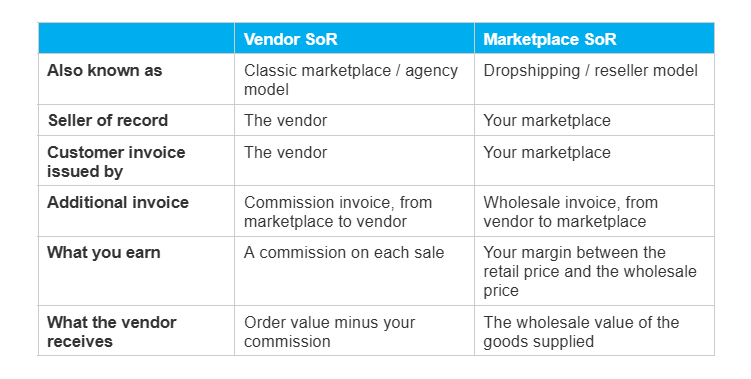
The seller of record is usually also the party responsible for charging and remitting sales tax or VAT on the sale, which is why this setting lives under Tax Settings. Rules vary by country, so confirm the right model for your business with your accountant.
Where to set your selling model
- In your Shipturtle admin, go to Settings → Setup and Configuration → Tax Settings.
- Find the section How does your platform operate? and click the model that matches your business. The highlighted button is the active model, and the note below it summarizes who the seller of record is and which invoices are issued.

Vendor Seller of Record (SoR) selected: the marketplace earns a commission and issues a commission invoice to the vendor.

Marketplace Seller of Record (SoR) selected: vendors fulfill orders and issue a wholesale invoice to the marketplace.
2. How the money flows
Whichever model you choose, the payment journey follows the same five stages.
Step 1: The customer pays you
When a customer places an order, they pay through the payment gateway connected to your store.
- Shopify Payments: If you use Shopify Payments, the funds will land directly into your connected bank account.
- Third-Party Gateways (PayPal, Stripe, etc.): If you use other payment methods, you must connect your PayPal or Stripe account on Shopify, where the money will be deposited.
In all cases, Shipturtle is not part of this payment transaction and never handles customer funds.
Step 2: Shipturtle calculates the payout
Once the order is in Shipturtle, the payment is broken down product by product. Using the commission settings you've configured, Shipturtle works out how much you keep and how much you owe each vendor. Both you and the vendor can see this calculation, so there's no ambiguity about earnings.
Step 3: You review and finalize
Review the calculated amounts and finalize the payout. The supporting document depends on your selling model:
- Vendor SoR: a commission invoice from you to the vendor, showing each transaction and the commission you retained.
- Marketplace SoR: a wholesale invoice from the vendor to you, covering the goods they supplied.
Step 4: You pay your vendors
Send payouts through Shipturtle's integrated payment providers, Stripe or PayPal, for a seamless transfer. You can also pay vendors outside Shipturtle using any method you prefer.
Step 5: You record the payment
After the transfer, record the payment details against each order in Shipturtle. If you paid outside Shipturtle, this step is how the payout gets marked as settled. It keeps an accurate history for bookkeeping and reporting.
Important notes
- Shipturtle is an integrator, not a payment holder. We make the payout flow possible, but we never hold or manage funds. You're responsible for making sure vendors are paid correctly.
- Get tax and accounting advice. Shipturtle calculates payouts from the commission structure you configure, but we aren't accounting experts. Work with your accountant to make sure your chosen model and invoices meet local tax rules.
- Full transparency. Payout calculations, fees and commission structures are visible to both you and your vendors.
Setup checklist
- Selling model chosen in Tax Settings
- Model confirmed with your accountant
- Commission settings configured
- Stripe or PayPal connected (optional)
- First payout reviewed before finalizing
- Payments recorded against orders
FAQs
Which model should I choose?
If vendors sell under their own name and you take a cut of each sale, choose Vendor SoR. If you buy from vendors (or have them dropship) and sell under your own brand at your own prices, choose Marketplace SoR. Because this affects who is responsible for tax on each sale, confirm the choice with your accountant.
Does Shipturtle ever receive customer payments?
No. Customers pay you directly through your store's payment gateway. Shipturtle only calculates payouts and helps you send and record them.
Can I pay vendors outside Shipturtle?
Yes. Pay them by bank transfer or any other method, then record the payment against the relevant orders in Shipturtle so your records stay complete.
Can vendors see how their payout was calculated?
Yes. The payout breakdown, fees and commission are visible to both you and the vendor.
Troubleshooting
The wrong type of invoice is being issued
Check which model is highlighted under Settings → Setup and Configuration → Tax Settings → How does your platform operate? A commission invoice means Vendor SoR is active; a wholesale invoice means Marketplace SoR is active.
A vendor payout amount looks wrong
- Review the commission settings that apply to that vendor and product.
- Open the payout breakdown and check each product line in the order.
- If the numbers still don't add up, contact support before finalizing the payout.
Recommended next step
Confirm your selling model in Tax Settings, then review your commission settings so your first payout calculation matches what you and your vendors expect.
If you're stuck, reach us at team@shipturtle.com or open a ticket on the support page.