How to let Shipturtle move orders to Payable, generate commission invoices and pay vendors automatically, and how to handle orders you want to manage by hand.
Updated for the current Commission and payout settings · September 2026
⚡Quick Summary
Go to Settings → Setup and configuration → Commission and payout → Payout automation. Choose which order statuses move orders to Payable, how often invoices are generated, and whether invoices are paid automatically. Orders you move by hand get an automation lock until you release it.
Who this guide is for
Marketplace owners and admins who want vendor payouts to run on a schedule, with less manual work on the Payouts page.
1. How payout stages work
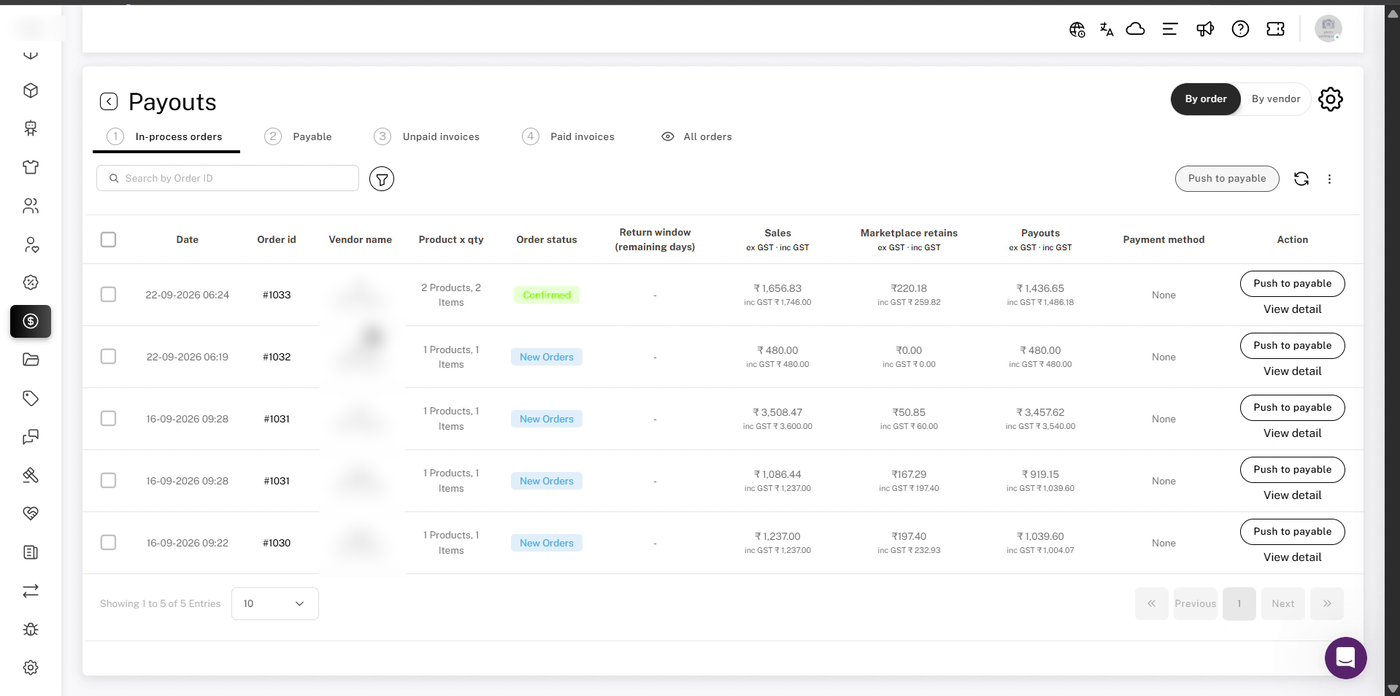
Every order moves through the tabs on the Payouts page. Payout automation can handle each move for you:
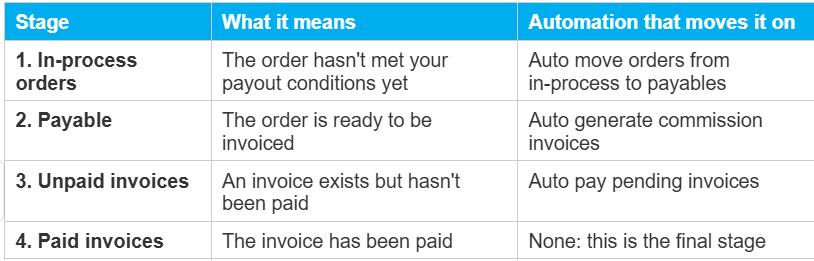
For the manual version of this flow, see Generate commission invoices and payouts.
2. Before you start
- Plan: payout automation is available on the Enterprise plan and the Elite plan.
- Vendor payment methods: automatic payments go to each vendor's default payment method, which must be a payment gateway. Make sure you and your vendors have connected a supported payment gateway.
- Return window: set how long customers have to request a return under Settings → Setup and configuration → Order settings → Return window (remaining days).
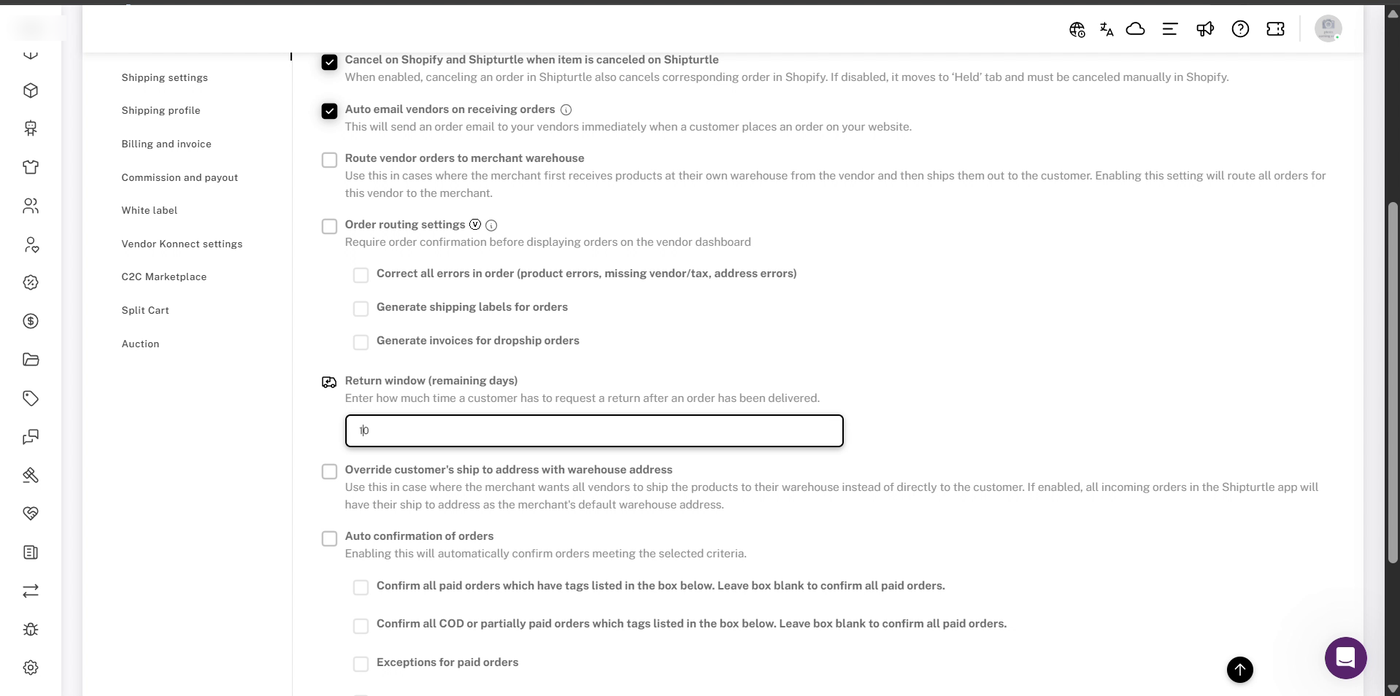
Order settings → Return window (remaining days).
💡 Tip: When you save these settings, Shipturtle asks you to confirm your password. Enter it and click Confirm to apply your changes.
3. Set up payout automation
Go to Settings → Setup and configuration → Commission and payout and expand Payout automation.
A) Auto move orders from in-process to payables
- Tick Auto move orders from in-process to payables.
- Under Order status, tick every status that should move an order to Payable: New orders, Confirmed, Ready to ship, In transit, Exceptions or Delivered. You can select more than one.
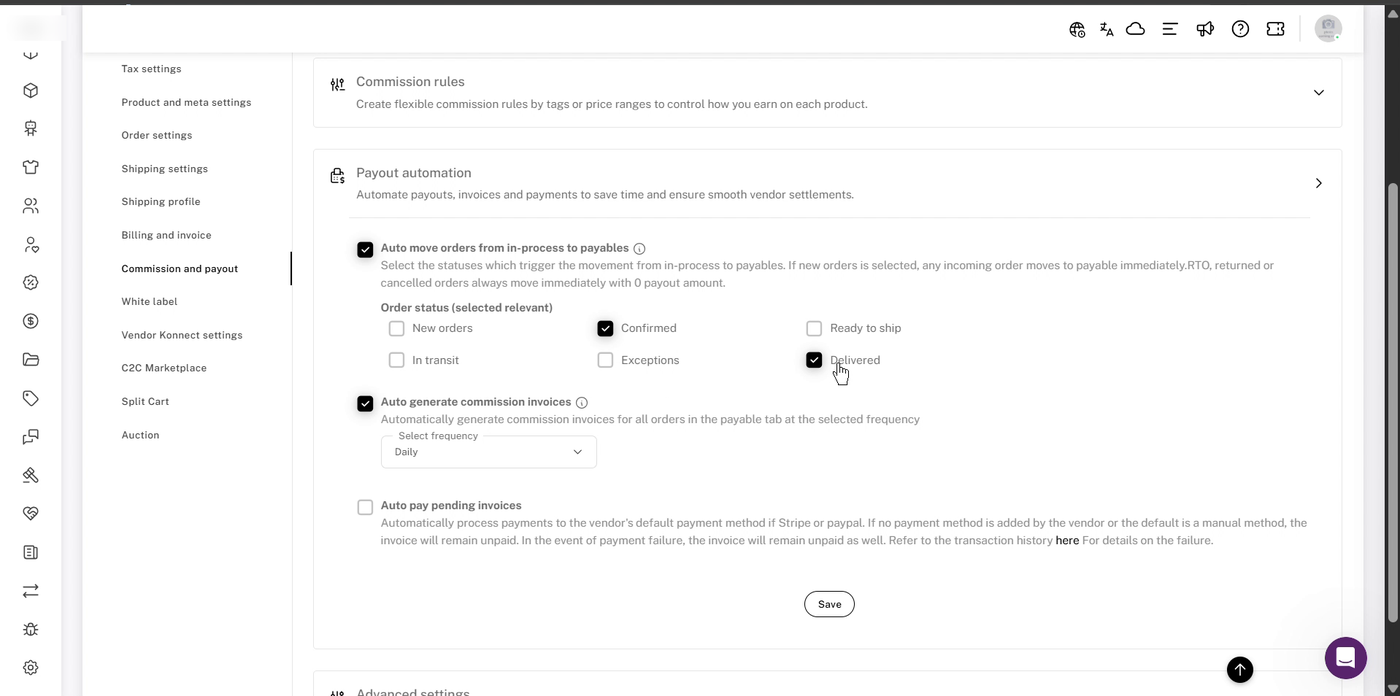
Auto move orders with Confirmed and Delivered selected.
⚠️ Note: If you select New orders, every incoming order moves to Payable immediately. RTO, returned or cancelled orders always move immediately, with a payout amount of 0.
B) Auto generate commission invoices
- Tick Auto generate commission invoices.
- Under Select frequency, choose Daily, Weekly, Biweekly or Monthly. At that frequency, Shipturtle generates commission invoices for all orders in the Payable tab.
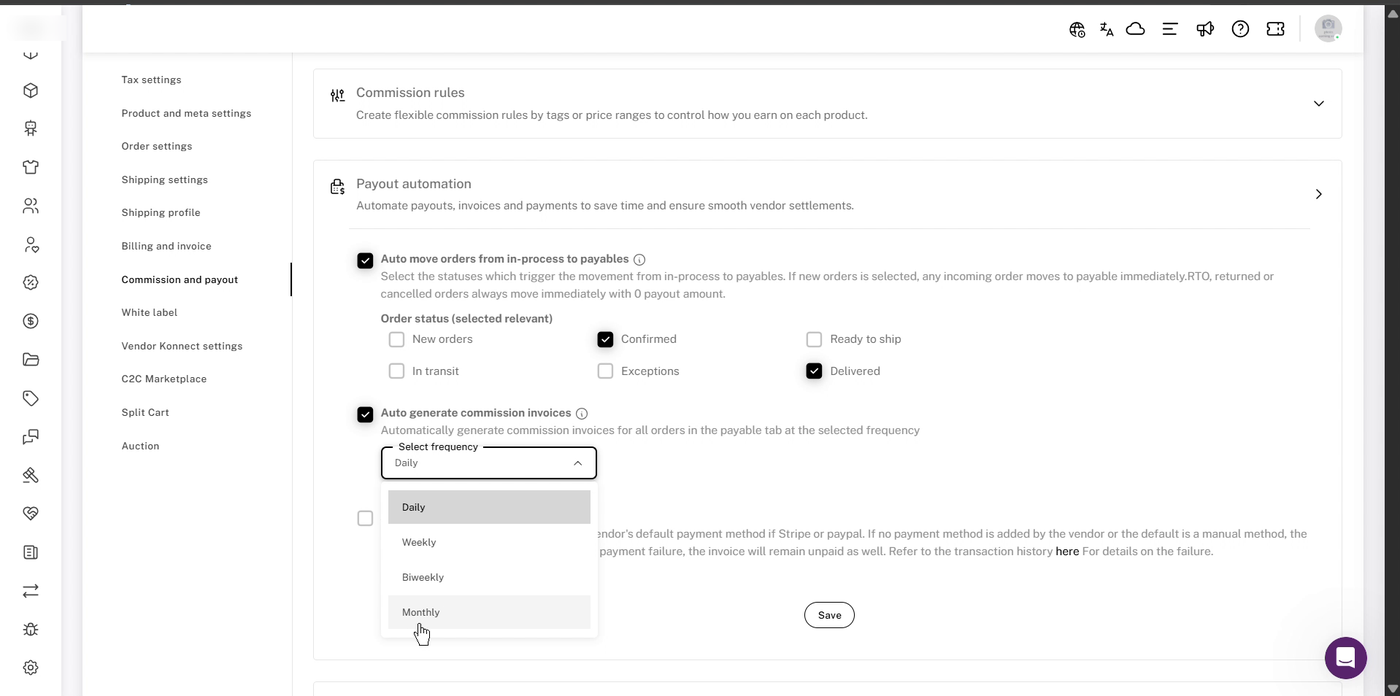
Choose how often commission invoices are generated.
C) Auto pay pending invoices
- Tick Auto pay pending invoices. Shipturtle then pays each invoice to the vendor's default payment method, if that method is a payment gateway.
- Click Save, and confirm your password when asked.
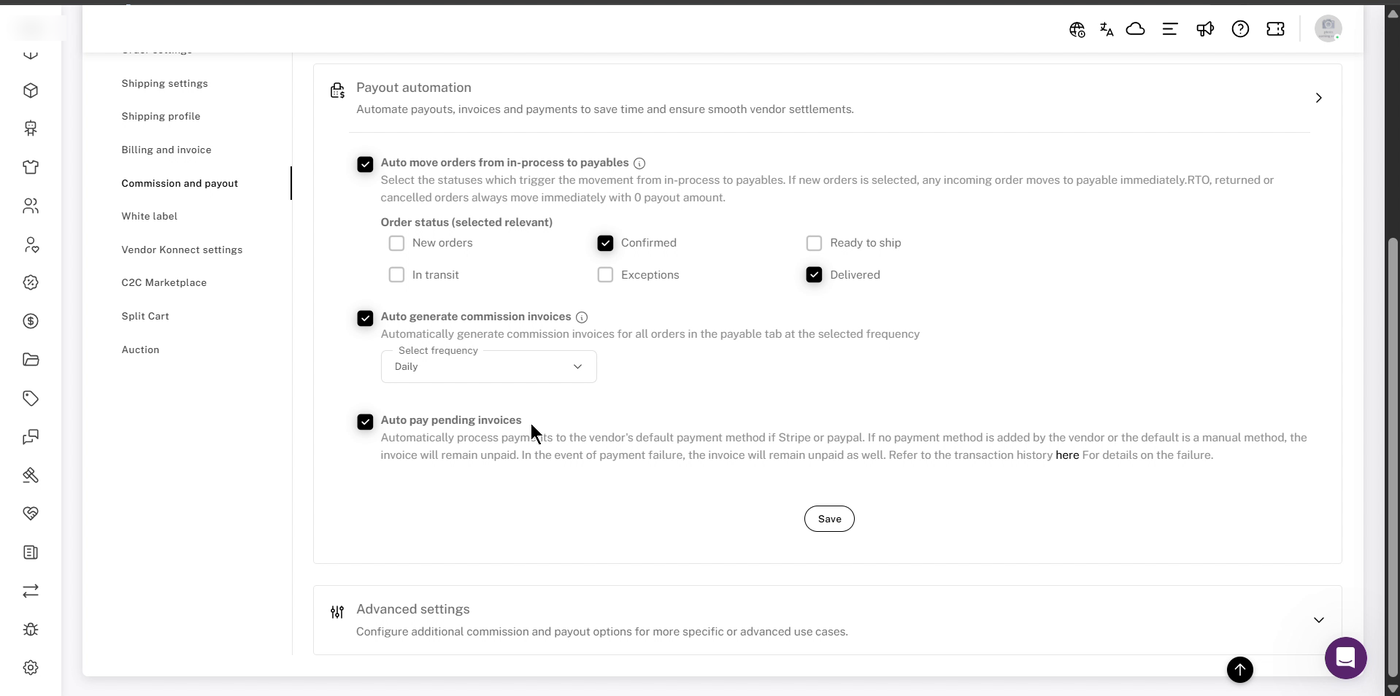
Payout automation with all three options turned on.
⚠️ Note: An invoice stays unpaid if the vendor hasn't added a payment method, if their default method is manual, or if the payment fails. Check Paid invoices → Transaction history for details on any failure.
4. How it works: an example
Say you selected Delivered as the order status, a Weekly frequency and auto pay, with a 10-day return window:
- A customer's order is marked Delivered. This starts the countdown for the order's return window (for example, 10 days). The order stays in In-process orders while the countdown runs.
- Once the countdown finishes and the return window closes, the automation moves the order to Payable.
- At the next weekly run, Shipturtle generates a commission invoice for each vendor's payable orders. The invoices appear in Unpaid invoices.
- The invoices are paid. You can pay through a supported payment gateway, or choose the Manual payment method, settle the amount outside Shipturtle, and mark it as paid in Shipturtle. Once paid, the invoice moves to Paid invoices.
⚠️ Note: The automation always takes the return window into account. A delivered order moves to Payable only after its return window has closed, so vendors aren't paid for orders that could still be returned.
5. Handling orders manually: the automation lock
Sometimes you'll want to take an order out of the automatic flow, for example to hold a payout while you check a dispute. When you move an order by hand, Shipturtle adds an automation lock, so the scheduled job won't push or change it.
When an order gets locked
- You revert it from Payable to In-process (row ⋮ menu → Revert to in-process).
- You push it to Payable manually with Push to payable.
When you revert an order, Shipturtle warns you that the automation lock will be enabled before you confirm.
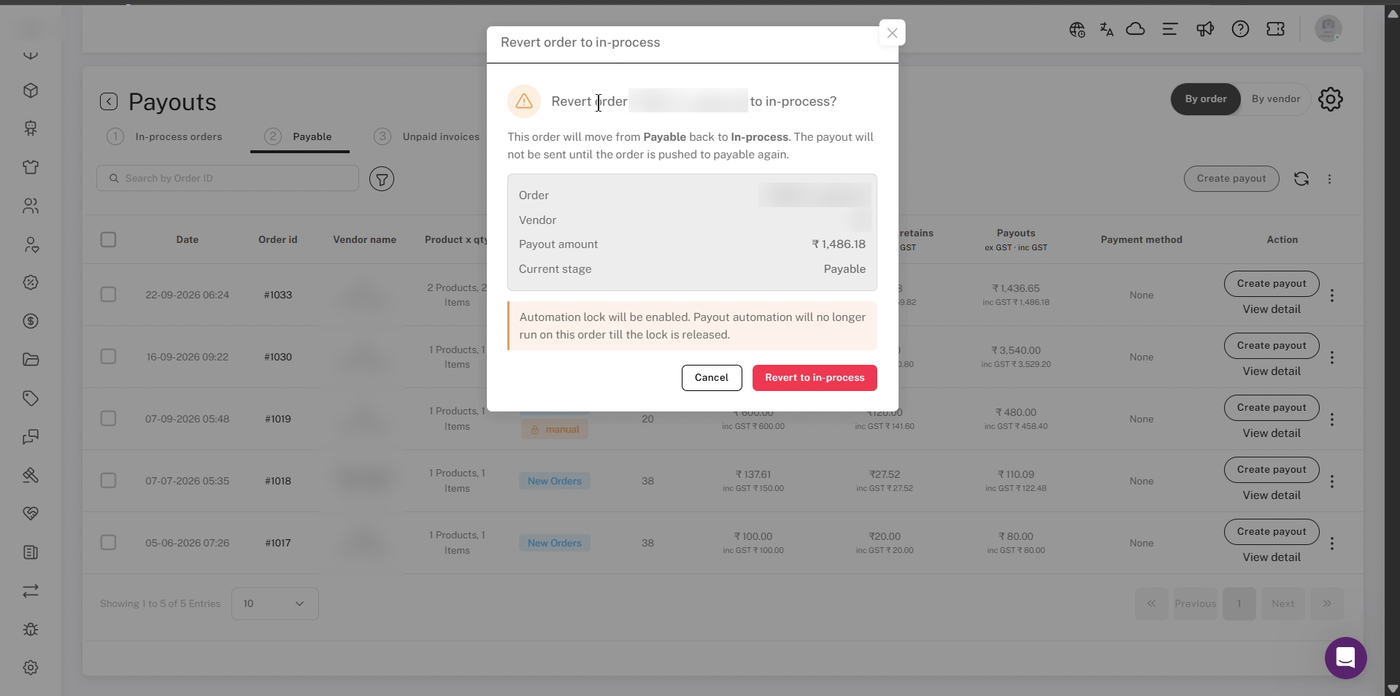
Reverting an order enables the automation lock. Order and vendor details are blurred.
Locked orders show a manual badge with a lock icon under the order status.
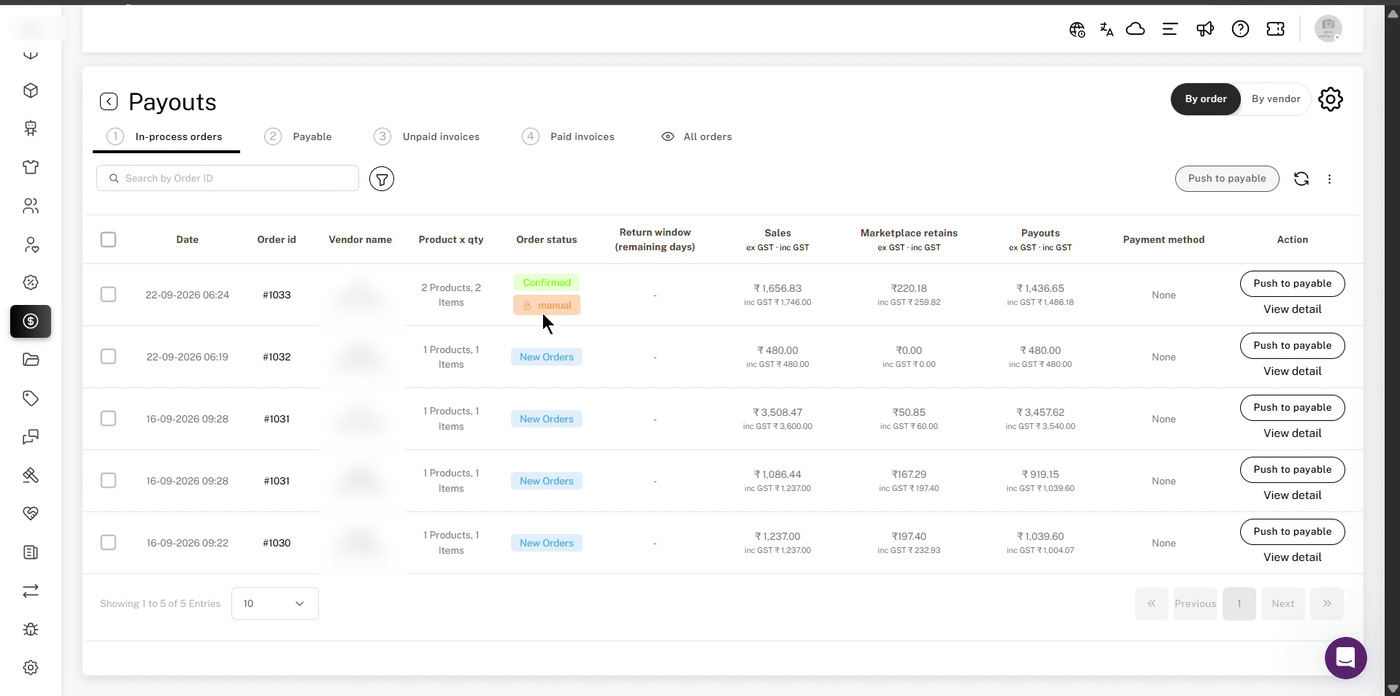
A locked order shows the manual badge. Vendor names are blurred.
Release the lock
- Click the manual badge on the order. The Automation paused window shows who locked the order, when, and why.
- Click Release automation lock. The order returns to automatic processing, and the next scheduled run will push it to Payable if it meets your conditions.
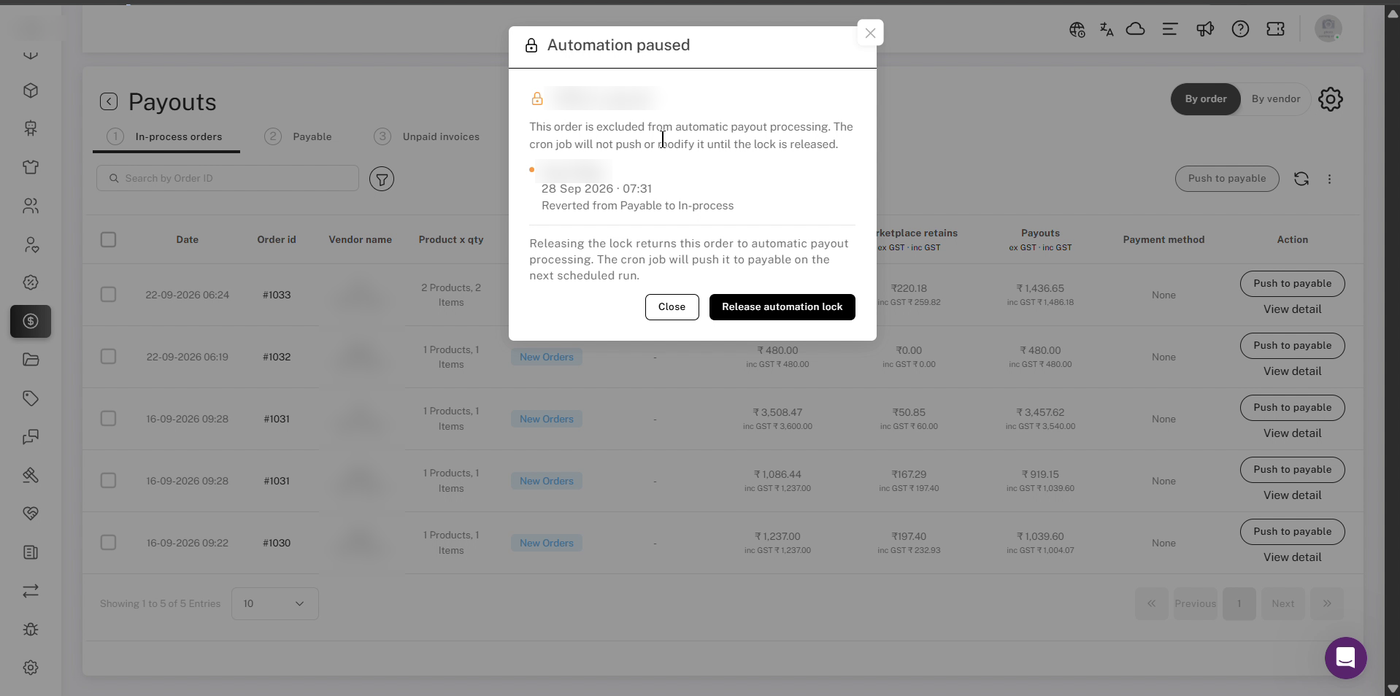
The Automation paused window. Order, user and vendor details are blurred.
After release, the manual badge is gone. Vendor names are blurred.
6. Invoices that stay unpaid
If an invoice can't be paid automatically, it stays in the Unpaid invoices tab. From there you can pay it manually, use Bulk mark as paid for invoices you've settled outside Shipturtle, use Bulk export payout to download the details, or download invoices with Invoice.
Important notes
- Two conditions to move. An order moves from In-process to Payable once it reaches one of your selected statuses and its return window has closed.
- Payment methods matter. Auto pay only works when the vendor's default method is a payment gateway. Manual methods always leave the invoice unpaid.
- Locked orders are skipped. Any order you move by hand stays out of automation until you release its lock.
Setup checklist
- Enterprise plan active
- Payment gateway connected for you and your vendors
- Return window set in Order settings
- Order statuses selected for auto move
- Invoice frequency chosen
- Auto pay turned on (optional) and settings saved
FAQs
Can I select more than one order status?
Yes. Tick every status that should move an order to Payable.
What happens to cancelled or returned orders?
RTO, returned and cancelled orders always move to Payable immediately, with a payout amount of 0.
Can I still create payouts manually when automation is on?
Yes. Anything you move by hand gets an automation lock, so automation won't override your changes.
Why is an order not moving even though it's delivered?
It may still be within its return window, or it may have an automation lock. Look for the manual badge on the order.
Troubleshooting
Invoices are generated but not paid
Check that the vendor has a default payment method set to a payment gateway, not manual. Then check Paid invoices → Transaction history for any failed payment.
An order is stuck in In-process
Make sure its status is one you selected, and that its return window has closed. If it has a manual badge, click it and choose Release automation lock.
My settings didn't save
After clicking Save, confirm your password in the Confirm password window.
Recommended next step
Start with Delivered as your trigger status and a Weekly frequency. Leave auto pay off for your first cycle and review the generated invoices before switching it on.
If you're stuck, reach us at team@shipturtle.com or open a ticket on the support page.