This guide explains how products are added, synced, edited, and managed in Shipturtle—for both merchants and vendors—in a simple, step-by-step way.
1. How Product Sync Works (Before You Add Anything)
When you install Shipturtle:
- All existing products from your Shopify store are automatically imported
- Import usually takes a few minutes, depending on product count
- Shipturtle continuously syncs:
- Product titles & descriptions
- Images
- Categories
- Vendors
- Prices
- Inventory quantities
Important:
Any change made in Shopify is automatically reflected in Shipturtle, and vice versa.
2. Fields You Must Fill Manually in Shipturtle
While most data comes from Shopify, a few fields are specific to marketplace operations and must be filled inside Shipturtle.
Required / Optional Marketplace Fields
Product Dimensions (Required for Shipping)
- Enter box dimensions, not individual product size
- Used for shipping rate calculations on orders page
Tax % (Optional)
Fill this only if you manage tax inside Shipturtle
- If Shopify handles tax, leave this blank
- Refer to the Managing Taxes article for details
Product-Level Commission (Optional)
- Add commission directly on the product
- Overrides:
- Global commission
- Vendor-level commission
- Category-level commission
3. Add a New Product
Steps:
- Go to Products → Manage Products
- Click Add Product
- Fill in all required details
- Click Approve
What Happens After Approval?
- The product will:
- Go live immediately OR
- Wait for merchant approval
(based on merchant settings)
Product Approval Settings (Merchant Only)
- Default: All products require merchant approval
- To enable auto-approval:
- Go to Settings → Multivendor Settings → Product Settings
- Enable Auto-approve products
Pending products can be reviewed at:
Products → Approve Products
4. Add Products with Variants (Size, Color, etc.)
Steps:
- While adding a product, enable “Has Variant”
- Click Add Options
- Add variant attributes (e.g. Size, Color)
- Fill price, quantity, and other details
- Click Approve
Variants will be created automatically under the product.
5. Edit or Update Existing Products
Both merchants and vendors can edit products they have access to.
Steps:
- Go to Products → Manage Products
- Click the product you want to edit
- Make changes
- Click Approve
Changes sync automatically with Shopify.
6. Quick Edit Price & Inventory (Without Opening Product)
You can update price and quantity directly from the product list.
Steps:
- Go to Products → Manage Products
- Click Show Variants
- Use the Edit (✏️) icon to update:
- Price
- Quantity
- Click Save or Discard
- Use Delete icon to remove a variant if needed
This is the fastest way to manage inventory.
7. Bulk Import & Export Products
(Available from Peak plan onwards)
Bulk Add Products
- Go to Products → Manage Products → Import
- Click New Product Template
- Fill in product details as per instructions
- Import the Excel file
- Track progress under:
- Hamburger Menu → Files Uploaded Earlier
Bulk Edit Products & Variants
- Go to Products → Manage Products
- Export products or variants
- Edit the Excel file
- Import the updated file back
Ideal for:
- Bulk price updates
- Inventory corrections
- Large catalogs
8. Delete Products
Delete a Single Product
- Go to Products → Manage Products
- Click Delete (🗑️) under Actions
Delete Products in Bulk
- Select multiple products using checkboxes
- Click Bulk Actions → Delete
Deleted products are removed permanently unless restored from backups (available on the enterprise plan).
9. Digital Products
You can sell digital products like PDFs, videos, or licenses.
Add custom fields for digital files
- Go to Settings → Multivendor Settings
- Open Product Meta Settings
- Add a Custom Field with the appropriate field type
- Enable Digital Product
Enable Digital Product
- On Add/Edit Product page
- Toggle Product is → Digital
- Attach digital files in the custom fields.
When a customer purchases the product:
- They automatically receive an email with the digital file after fulfillment
10. Viewing a Product in Your Store
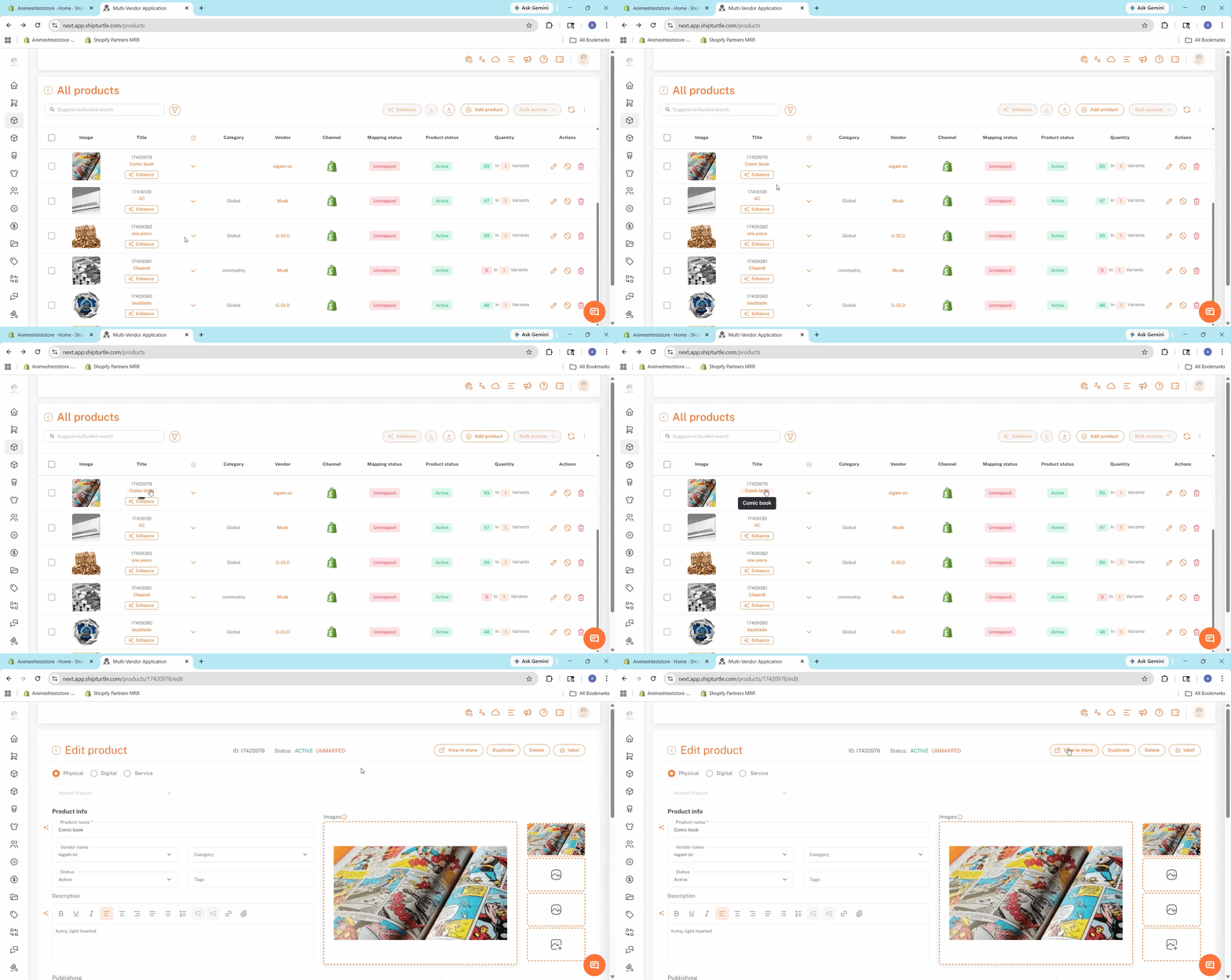
If you need to quickly check how a product looks or functions on your live storefront, the View in Store feature allows you to instantly redirect to that specific product in your Shopify store, completely eliminating the hassle of searching for it manually.
How to view a product in your store:
- Navigate to Products → Manage Products on the left sidebar.
- Locate and click on the specific product you want to view.
- Once inside the Edit Product tab, look to the top right corner of the screen and click the View in Store button.
- You will be immediately redirected to that exact product page within your Shopify store.
11. Key Things to Remember
- Shopify ↔ Shipturtle sync is bi-directional
- Product-level commission overrides all other commission rules
- Approval flow depends on merchant configuration
- Bulk actions save time for large catalogs
- Quick edit is best for daily inventory management
If you’re stuck, reach us at team@shipturtle.com or open a ticket on the support page.