Let vendors sell products with recurring billing plans using the Seal Subscriptions app
⚡ Quick Summary
Add the add-on in Settings → Subscription and billing. Copy the API token from the Seal Subscriptions app in Shopify and paste it in Settings → Integrations → Seal subscription. Create rules in the Seal app, then pick one in the Subscription Rule dropdown on a product.
Overview
Seal Subscription is an add-on ($30/month) that connects Shipturtle to the Seal Subscriptions Shopify app. Vendors can offer monthly, annual, or lifetime plans on their products. Once a plan is assigned, the subscription widget appears on your storefront automatically.
Setup in five steps:
- Enable the add-on.
- Get the API token from the Seal app.
- Connect Seal in Shipturtle.
- Create subscription rules in the Seal app.
- Assign a rule to a product.
1. Enable the add-on
- Settings → Subscription and billing → Additional Add-ons → Product & Listings
- On the Seal Subscription card ($30/month), select Add. Active add-ons show Added.
- Check the You have selected panel → Proceed to payment
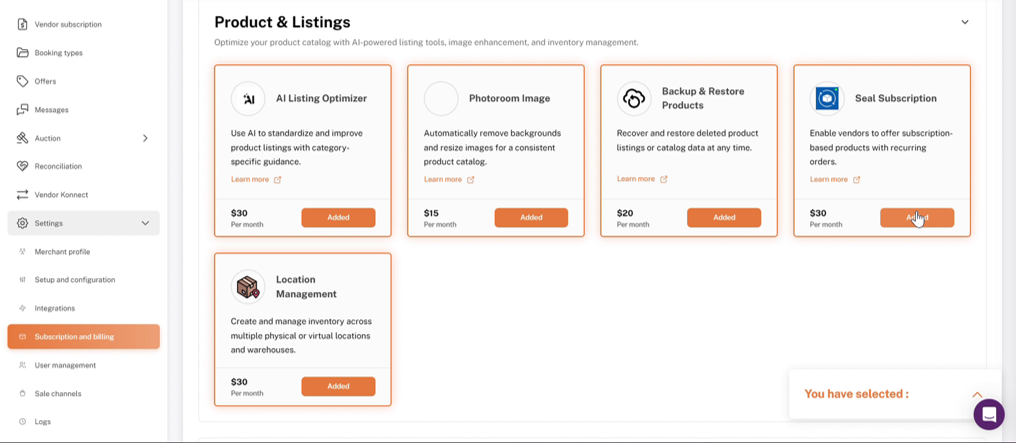
Additional Add-ons → Product & Listings: Seal Subscription card
2. Get the API token from Seal
Important: Enable API must stay ticked at all times, not just during setup. If it is unticked later, the integration stops working in Shipturtle.
- Shopify admin → Apps → Seal Subscriptions
- Settings → General Settings → API
- Tick Enable API
- Copy the token. It starts with seal_token_.
3. Connect Seal in Shipturtle
- Settings → Integrations → Other integrations → Seal subscription → Configure
- Paste the token in Access token.
- Connect
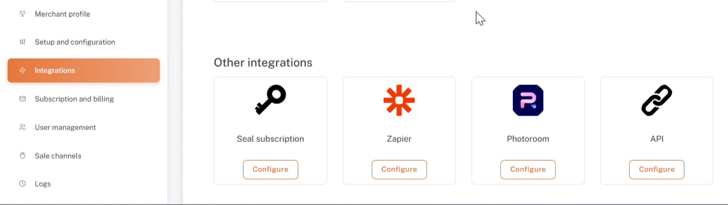
Settings → Integrations: Seal subscription with Configure button
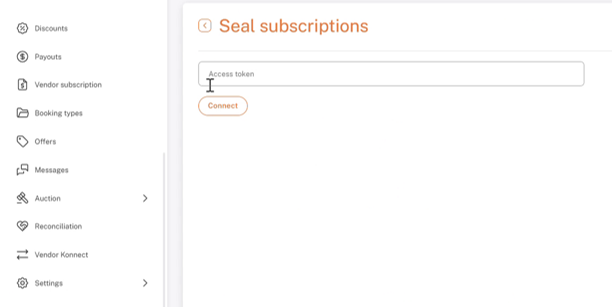
Seal subscriptions page: Access token field and Connect button
4. Create subscription rules in Seal
Rules set the billing plans customers can choose. Create them in the Seal app, not in Shipturtle.
- Shopify admin → Apps → Seal Subscriptions → Subscription rules
- Create rule and set the plan (Monthly, Annual, or Lifetime).
- Save. Repeat for each plan.
- Examples: Monthly + Annual, Annual + Lifetime, Lifetime only (one-time purchase), or all options.
- Create as many rules as you need.
- Deleting a rule does not cancel active subscriptions. They keep working.
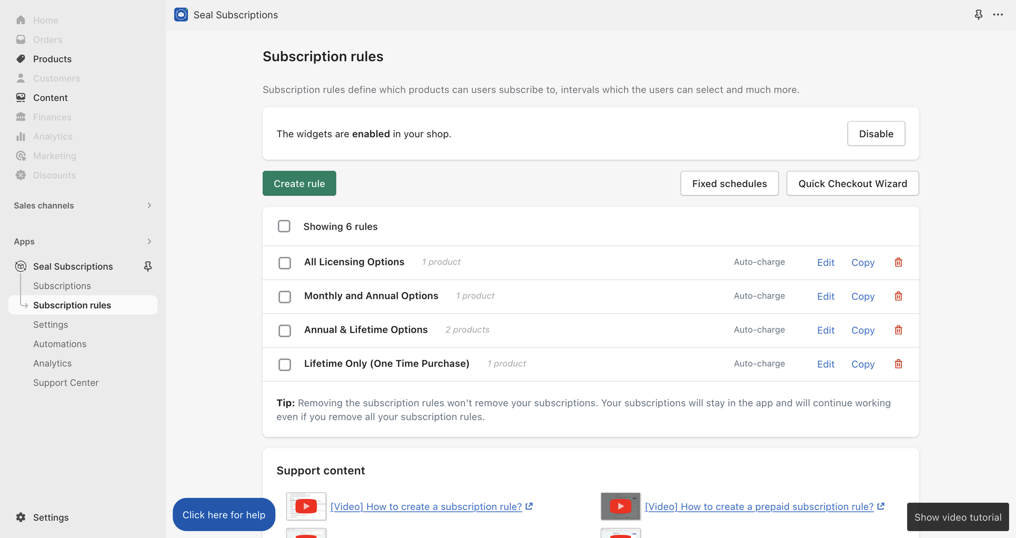
Seal Subscriptions app → Subscription rules: Edit, Copy, and Delete actions
5. Assign a rule to a product
Admins and vendors can do this.
- Products → Add products, or Products → Manage products → ✎ on an existing product
- Scroll to Seal Subscription.
- Subscription Rule → choose a plan (for example, Lifetime or Yearly).
- Save
Once the product is published, the Seal widget appears on its storefront page automatically. Customers can then subscribe for recurring orders.
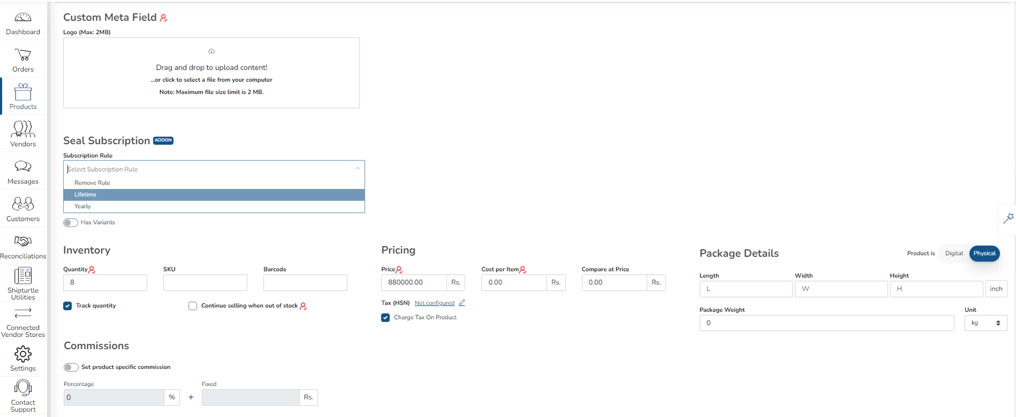
Product form → Seal Subscription: Subscription Rule dropdown
6. Manage or remove a rule
- Products → Manage products. Products with a rule show the Seal subscription badge.
- To remove a rule: open the product → Subscription Rule → Remove Rule → Save
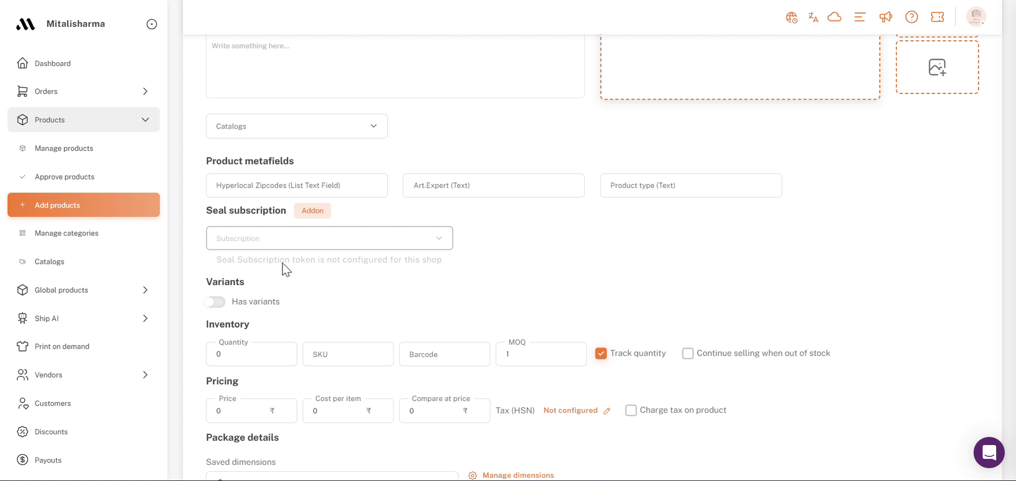
Products → Manage products: Seal subscription badge
FAQs & Troubleshooting
- The Subscription Rule dropdown is empty.
The access token is missing or invalid, or Enable API is unticked in Seal. Check Settings → Integrations → Seal subscription in Shipturtle, then Settings → General Settings → API in the Seal app. - Customers can't see the subscription widget.
Confirm the product has a rule and is published. In the Seal app's Subscription rules page, check for the banner "The widgets are enabled in your shop." If widgets are disabled, select Enable. - Can vendors assign rules themselves?
Yes, once the integration is connected and you have created rules in the Seal app. They pick a rule from the Subscription Rule dropdown when adding or editing their products. - Does removing a rule cancel active subscriptions?
No. Existing subscriptions keep working even after the rule is deleted. - Where are recurring payments managed?
In the Seal Subscriptions app in your Shopify admin. Shipturtle shows the plans on the product form but does not process billing.
Need Help?
If you're stuck, contact the Shipturtle support team at team@shipturtle.com or raise a support ticket through the Shipturtle support page.