How to set up VAT in Shipturtle, from the add-on and your tax details to country-wise VAT rates and vendor tax exemption, and how to read VAT in each payout.
Updated for the current Tax settings · October 2026
⚡Quick Summary
Add the VAT Invoicing & Tax Compliance add-on, enter your tax number in Merchant profile → Billing & invoice, then set everything else in Settings → Setup and configuration → Tax settings: your tax source, standard VAT rate, country-wise VAT rates and vendor tax exemption. Hover over any amount in a payout's Payment breakdown to see the VAT applied.
Who this guide is for
Marketplace owners and admins who sell in VAT countries and need VAT handled correctly on customer invoices, commission or wholesale invoices, and vendor payouts.
What the VAT add-on does
The VAT add-on makes Shipturtle VAT-aware across your marketplace. Once it's set up, Shipturtle:
- applies VAT to customer orders, either as sent by your store or calculated by Shipturtle,
- calculates VAT on the invoices between you and your vendors (commission invoices or wholesale invoices),
- decides, per vendor, whether VAT is removed from their payout (tax exemption), and
- shows every VAT component in the payout breakdown, so you can check each order.
1. Add the VAT add-on
- Go to Settings → Subscription and billing and open the Payouts tab.
- Find VAT Invoicing & Tax Compliance and click Add. Once active, the button shows Added.
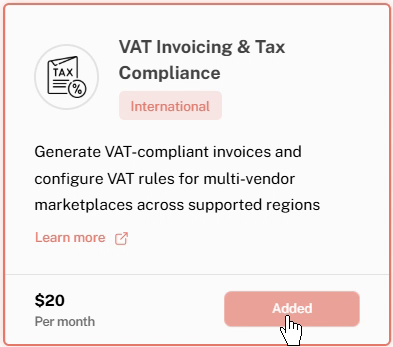
The VAT Invoicing & Tax Compliance add-on.
2. Enter your tax details
- Go to Settings → Merchant profile and open the Billing & invoice tab.
- Enter your Tax number (GST / VAT), and your NIF number if it applies to you.
- Scroll down and click Save.
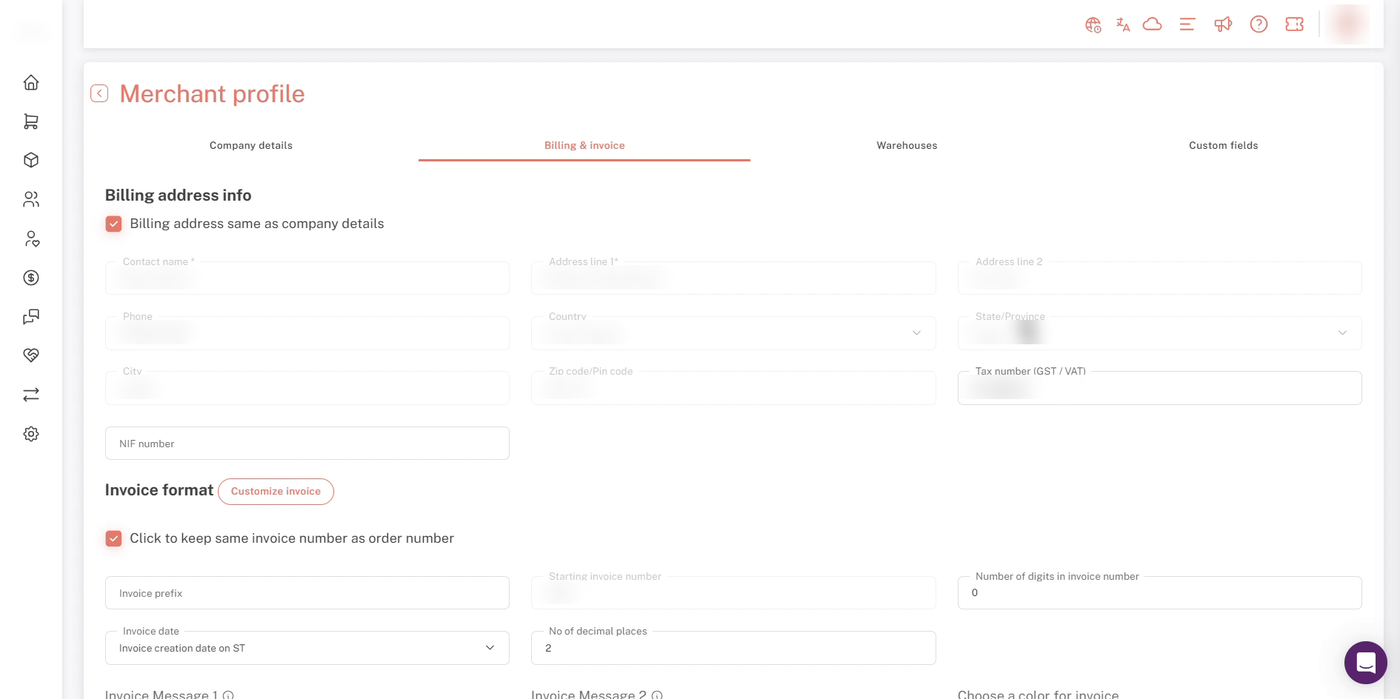
Merchant profile → Billing & invoice. All business details are blurred.
3. Configure Tax settings
All remaining VAT settings are under Settings → Setup and configuration → Tax settings. They apply at the global level, and some can be overridden for individual vendors from the vendors listing page.
A) How does your platform operate?
Choose Vendor Seller of Record (SoR) or Marketplace Seller of Record (SoR). This decides which invoice carries VAT between you and your vendors: a commission invoice under Vendor SoR, or a wholesale invoice under Marketplace SoR. See Payment flow from customer to vendors for more on selling models.
B) Tax source
Tell Shipturtle whether your store platform (for example, Shopify) already sends tax information with orders:
- Store sends tax info: Shipturtle uses the tax your store calculated. It checks that tax information, the tax system, and product and shipping tax lines are being received, and shows the detected tax system (GST or VAT).
- Shipturtle calculates tax: use this when your store doesn't send tax information. Shipturtle calculates taxes internally. Select the tax system your store uses: GST or VAT.
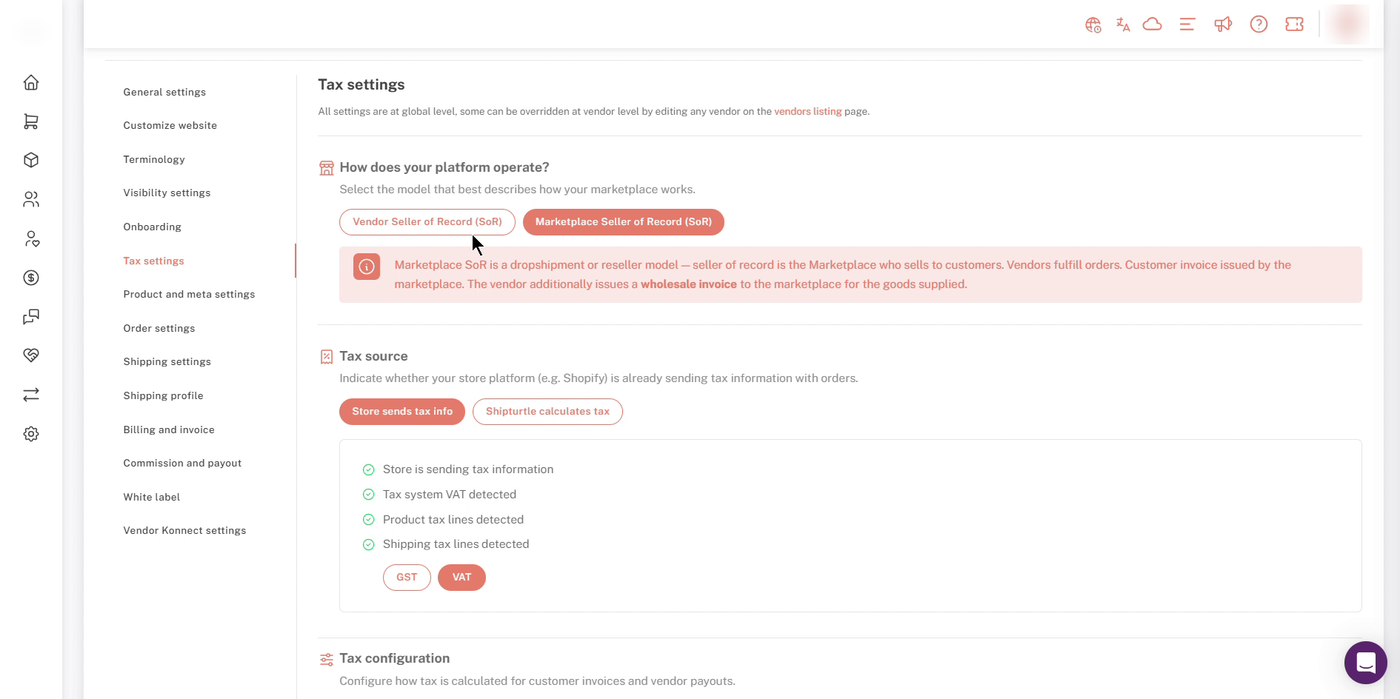
Store sends tax info: Shipturtle confirms what it detected.
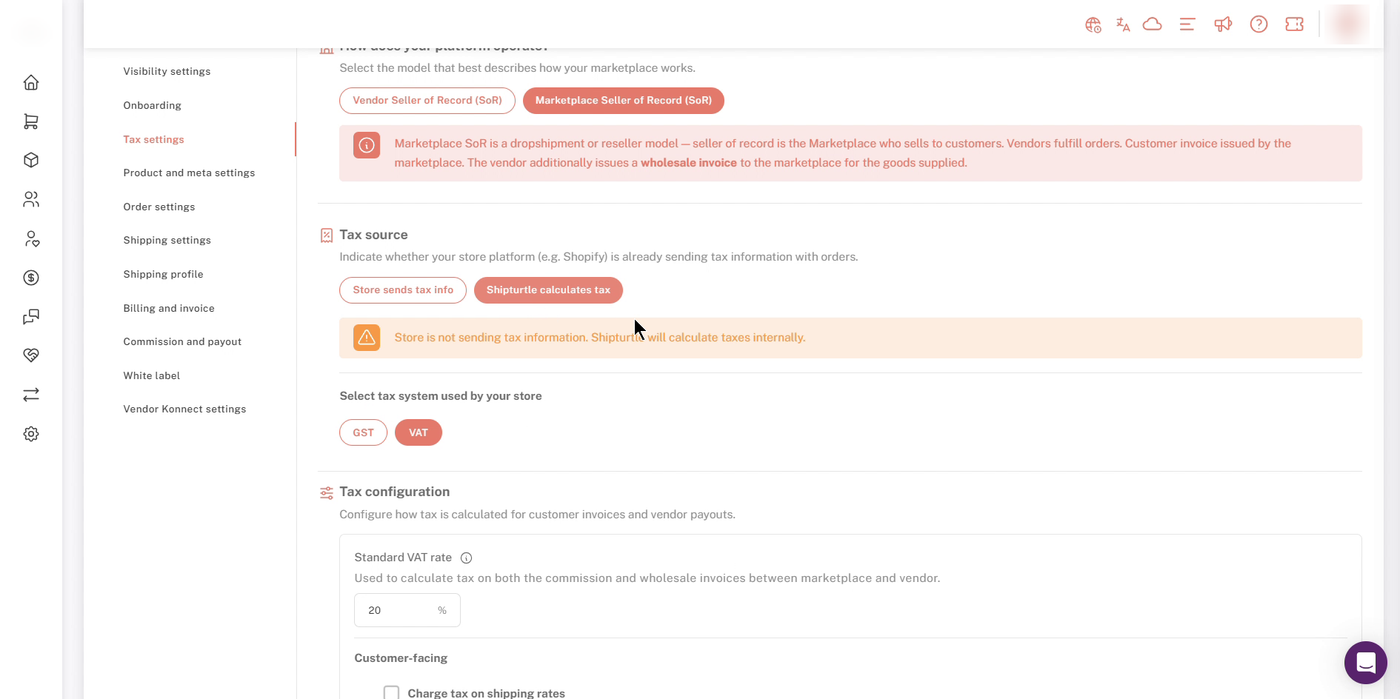
Shipturtle calculates tax: select your tax system.
C) Tax configuration
Standard VAT rate: the rate used to calculate tax on both the commission and wholesale invoices between you and your vendors (for example, 20%).
Customer-facing settings depend on your tax source:
- With Store sends tax info, customer tax is calculated by your store and taken as-is, so there's nothing to configure here.
- With Shipturtle calculates tax, you can tick Charge tax on shipping rates and enter the rate, and set country-wise VAT rates for customer invoices.
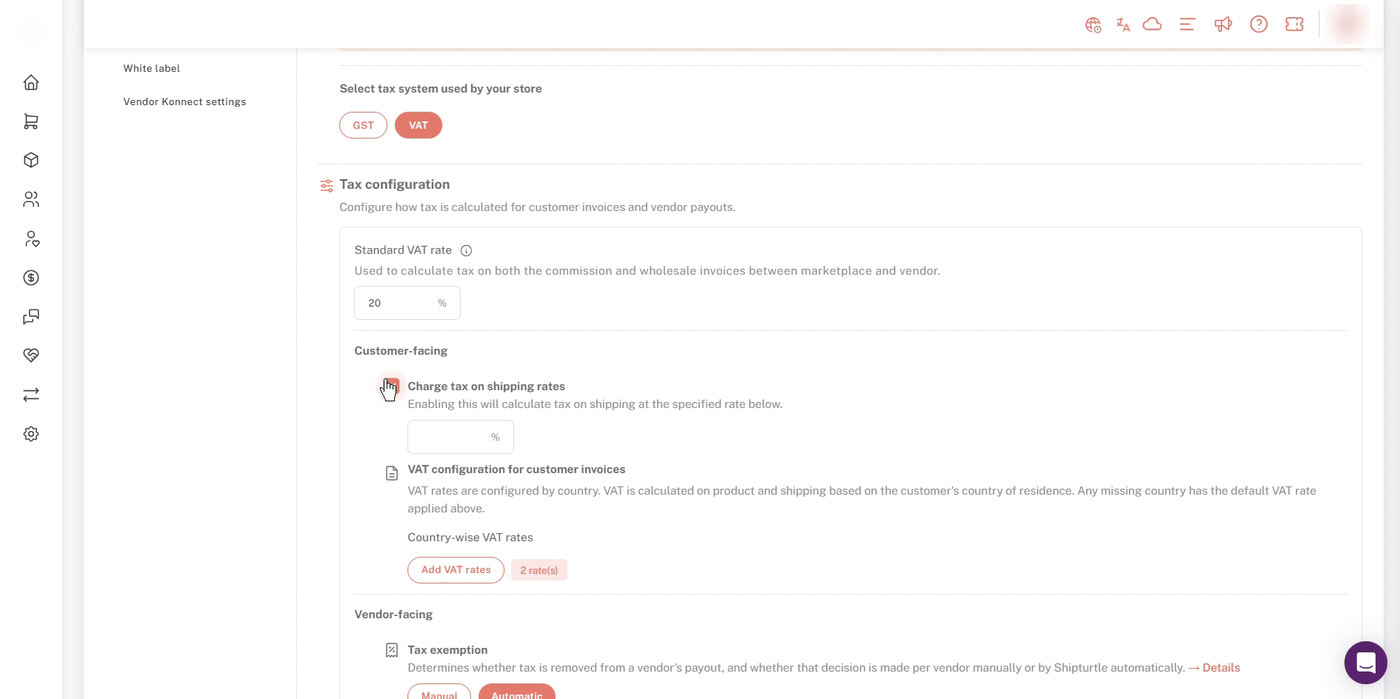
Customer-facing settings when Shipturtle calculates tax.
To add country-wise VAT rates:
- Under VAT configuration for customer invoices, click Add VAT rates.
- Select a Country, enter the Vat rate %, and click Add.
- Repeat for each country you sell to. Use the edit and delete icons to change a rate later.
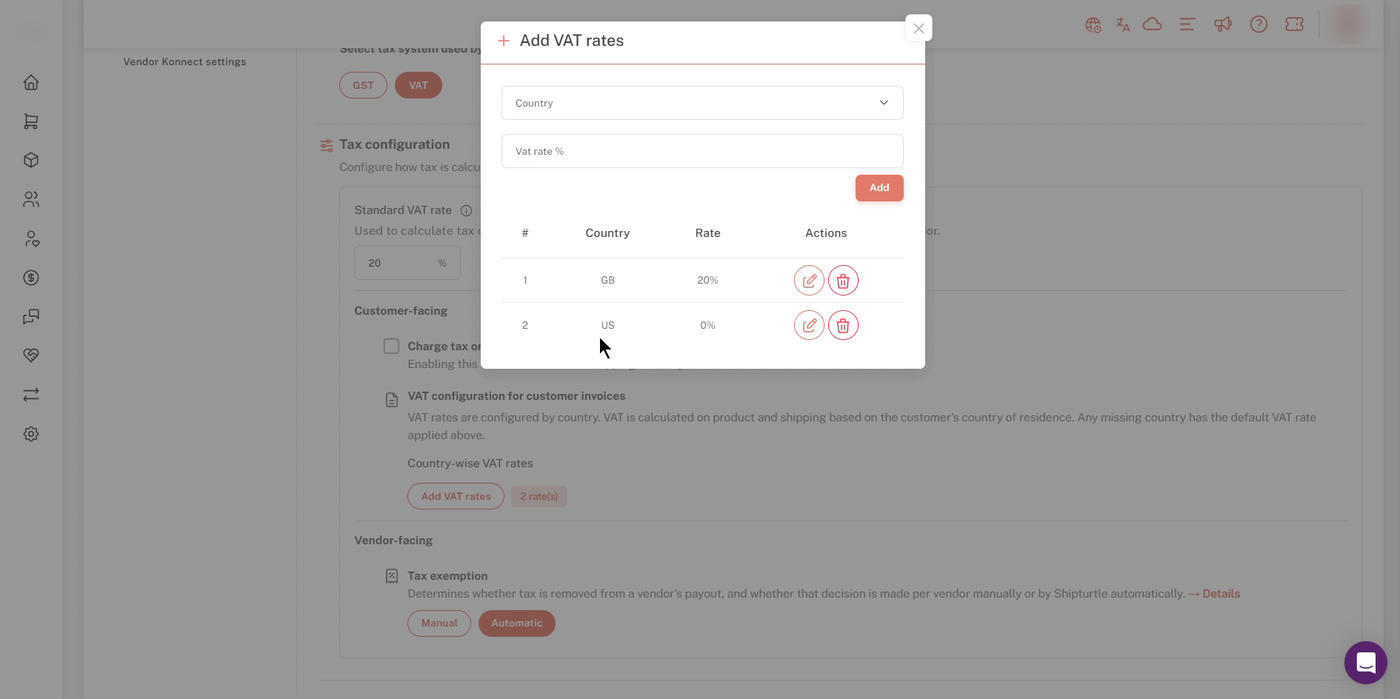
Add VAT rates: one rate per country.
⚠️ Note: VAT on product and shipping is calculated from the customer's country of residence. Any country without its own rate uses the Standard VAT rate.
D) Vendor-facing: tax exemption
Tax exemption decides whether tax is removed from a vendor's payout, and whether that decision is made per vendor (Manual) or by Shipturtle (Automatic).
- Manual: you decide for each vendor.
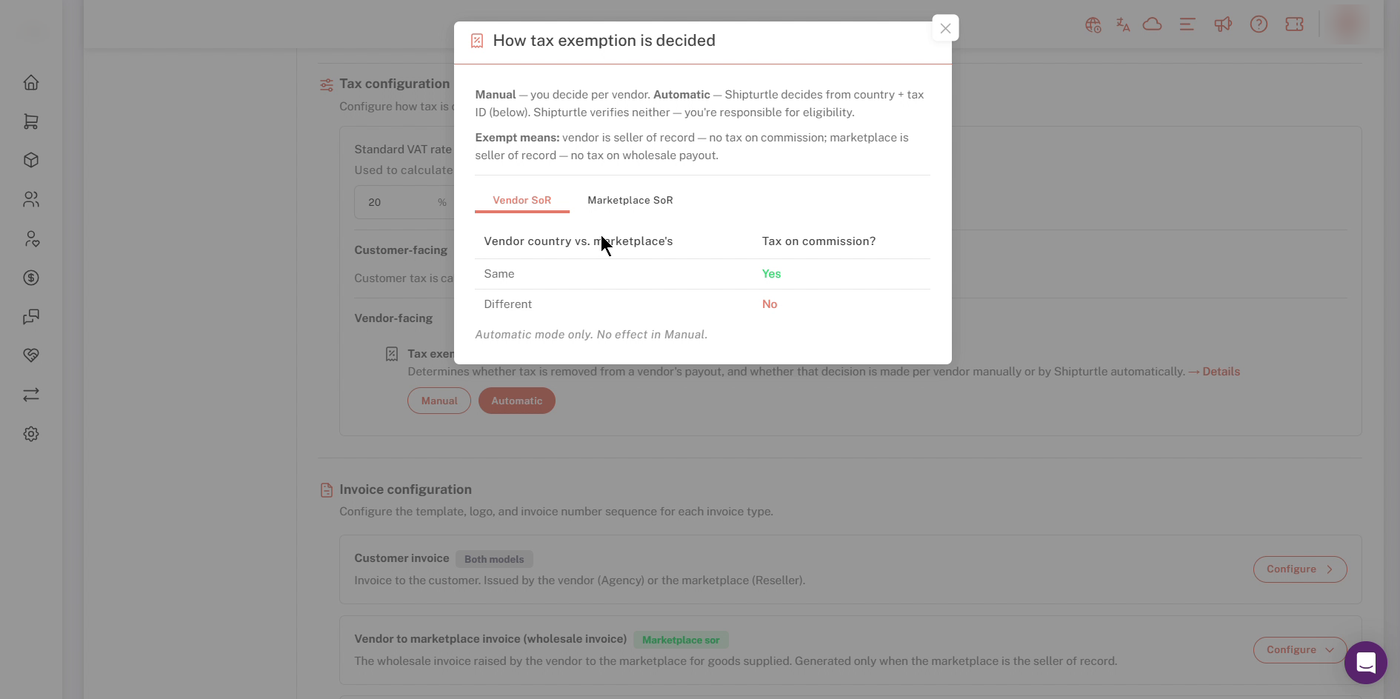
- Automatic: Shipturtle decides from the vendor's country and tax ID, using the rules below.
"Exempt" means: under Vendor SoR, no tax on the commission; under Marketplace SoR, no tax on the wholesale payout. Click Details to see the rules Shipturtle uses in Automatic mode:
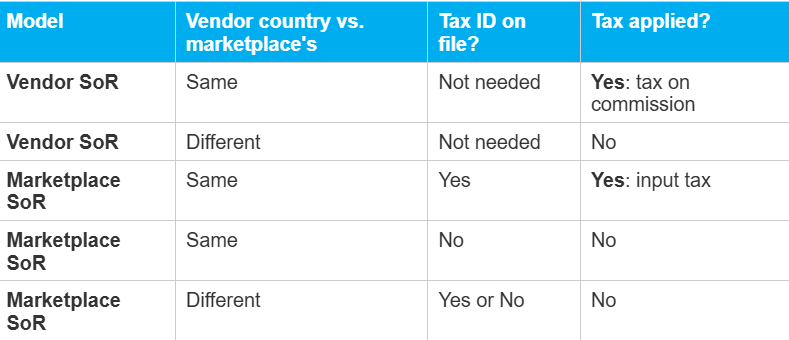
How tax exemption is decided: Vendor SoR rules.
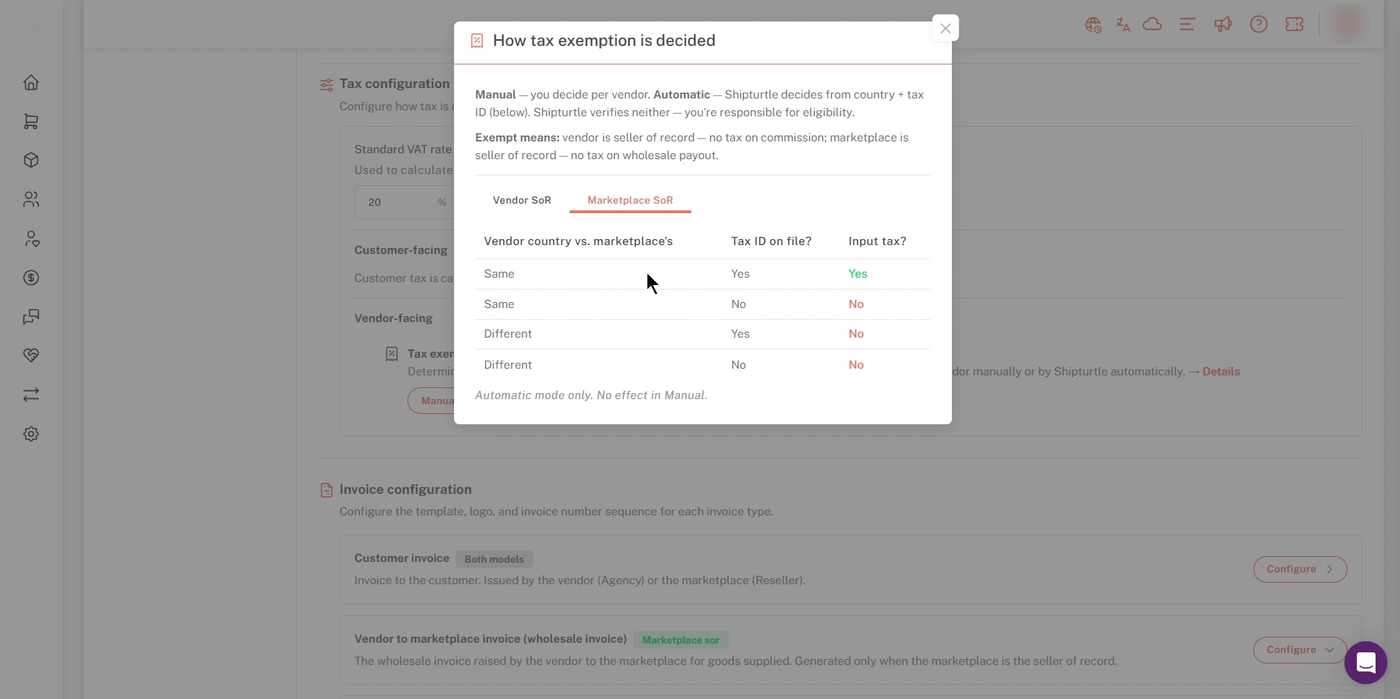
How tax exemption is decided: Marketplace SoR rules.
⚠️ Note: Shipturtle does not verify vendor countries or tax IDs. You're responsible for each vendor's eligibility. Switching from Manual to Automatic recomputes exemption for every vendor, and your manual settings are overwritten and won't be restored if you switch back.
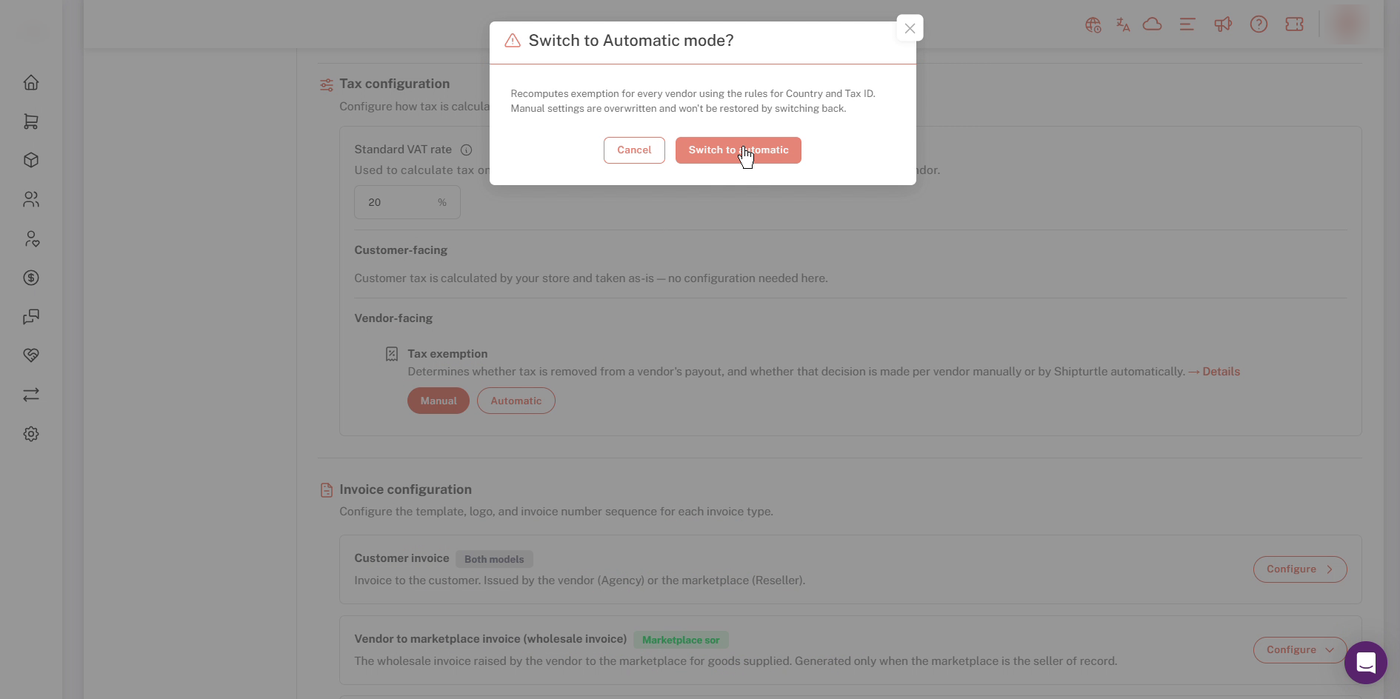
Switching to Automatic mode asks you to confirm.
E) Invoice configuration
Below Tax configuration, Invoice configuration lets you set the template, logo and invoice number sequence for each invoice type, such as the Customer invoice (both models) and the Vendor to marketplace invoice (wholesale invoice) (Marketplace SoR only). Click Configure next to an invoice type to set it up.
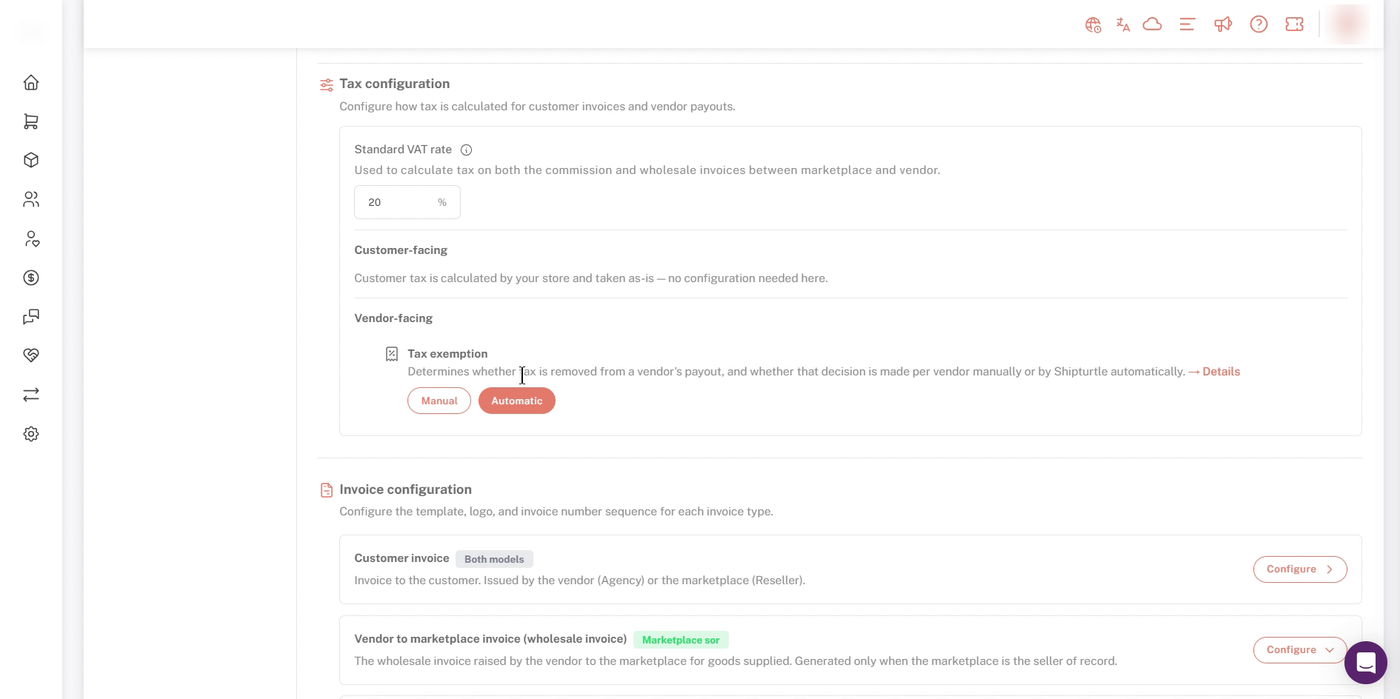
Tax exemption and Invoice configuration.
4. Vendor setup
For Automatic tax exemption to work correctly, each vendor needs an accurate country and tax ID (VAT number) in their profile. Ask your vendors to add their VAT number under their Billing & invoice settings and save.
5. View VAT in payouts
On the Payouts page, every amount is shown ex VAT and inc VAT. Under each vendor's name you'll see their selling model and whether they're VAT registered.
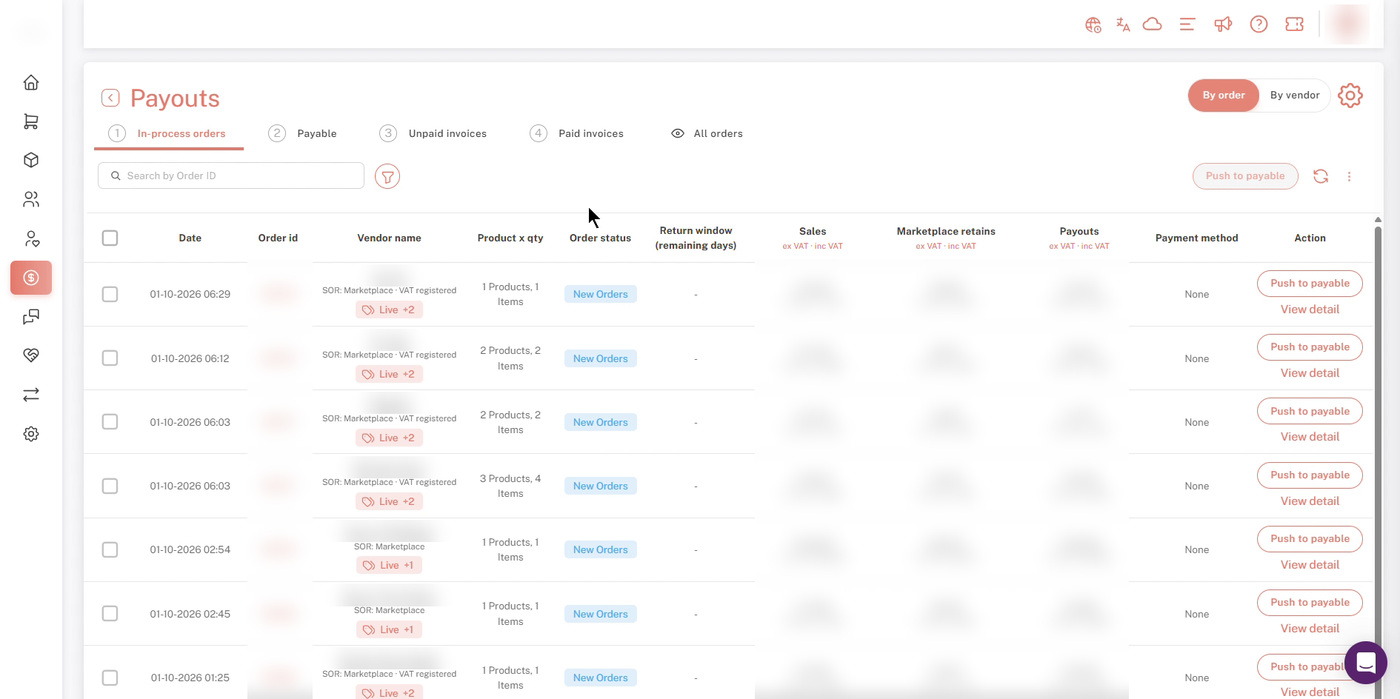
Payouts list with ex VAT and inc VAT amounts. Order IDs, vendor names and amounts are blurred.
Click View detail on an order to open the Payment breakdown. The header shows the vendor's tax badges, for example VAT registered, Marketplace SoR and Tax exempt.
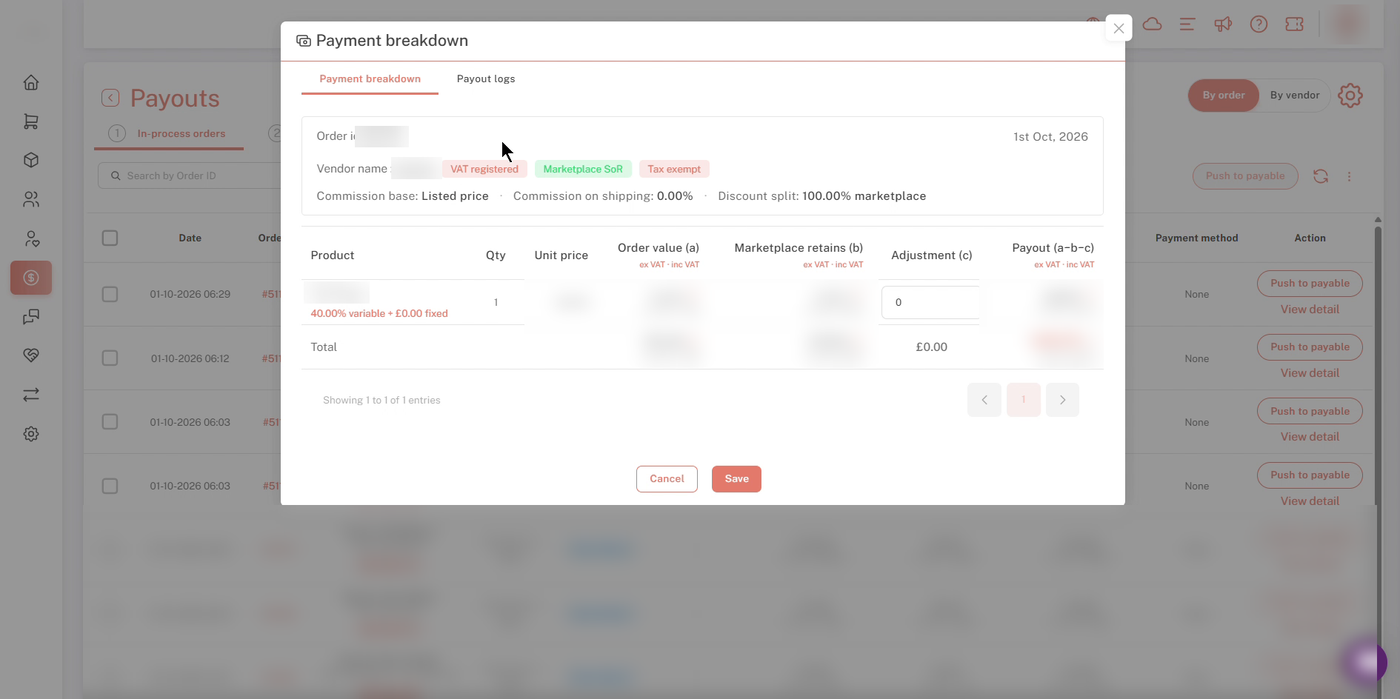
Payment breakdown with the vendor's tax badges. Order, vendor, product and amounts are blurred.
Hover over the ⓘ icon next to any amount to see how VAT was applied:
- Order value breakdown: product cost, shipping cost, order discount, subtotal ex VAT, tax on product and tax on shipping (with the rate), and what the customer pays.
- Marketplace retains breakup: commission on product and shipping, discount borne by the marketplace, and net tax retained.
- Payout breakup: product and shipping net of commission, the vendor's discount share, tax on vendor invoice (with the product and shipping VAT rates), adjustment, vendor payout (transfer) and vendor earnings ex VAT.
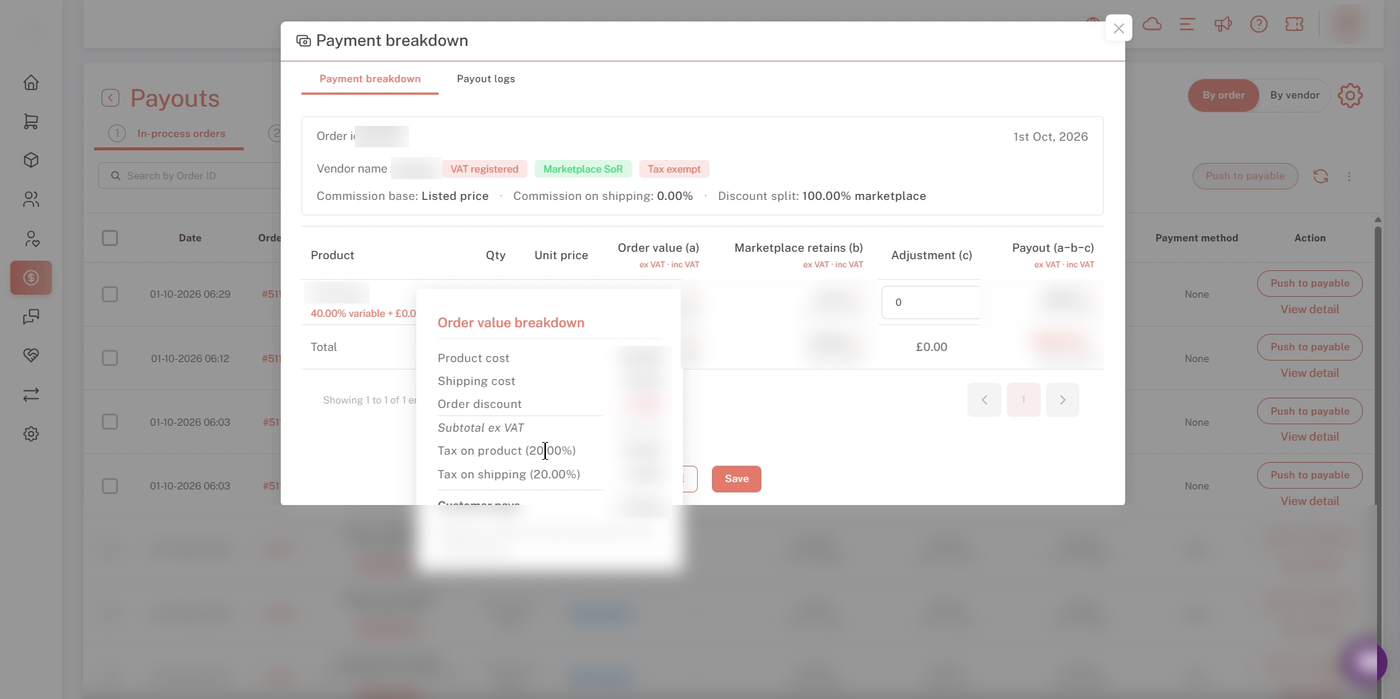
Order value breakdown, including tax on product and shipping.
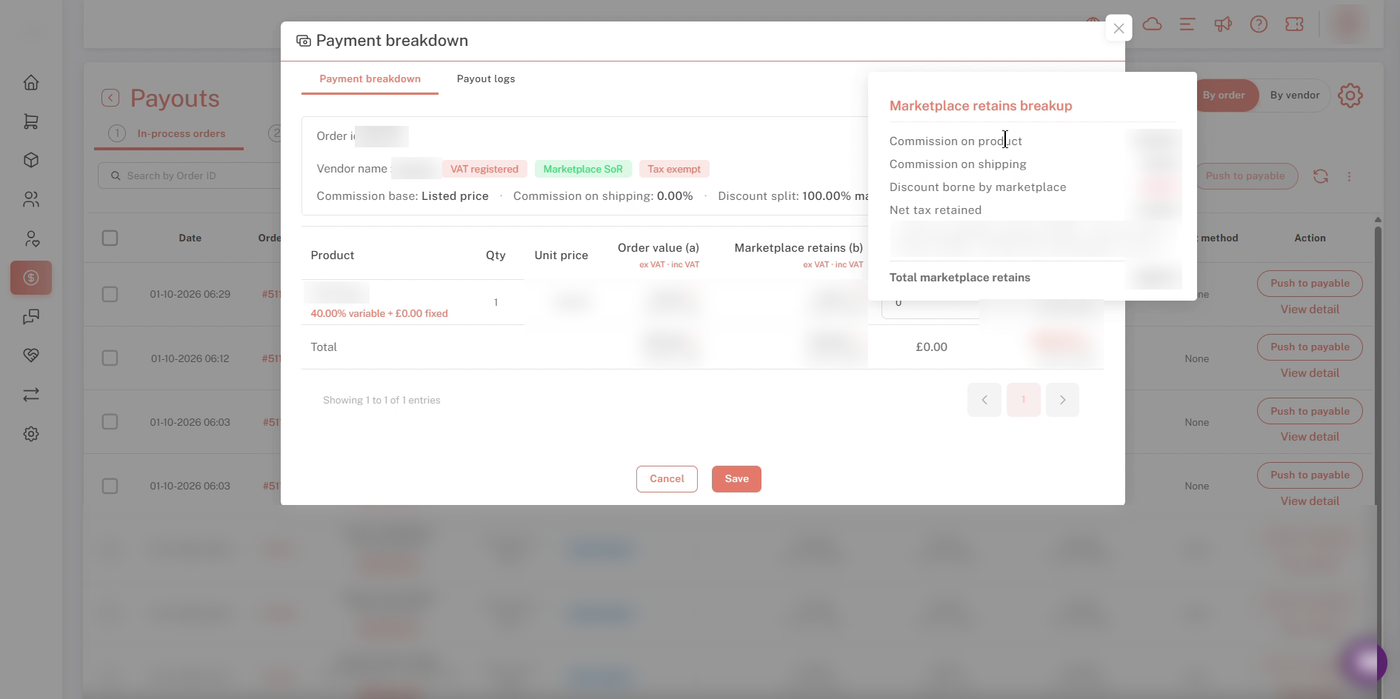
Marketplace retains breakup, including net tax retained.
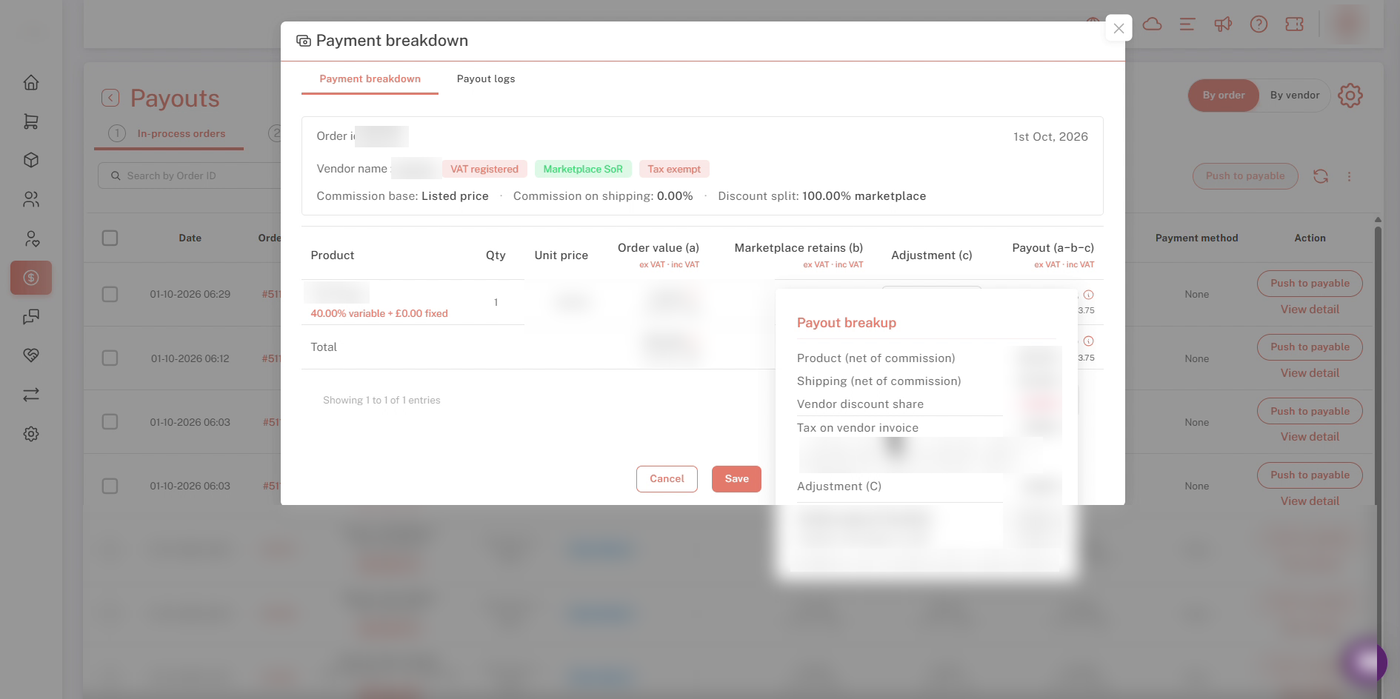
Payout breakup, including tax on the vendor invoice.
💡 Tip: Net tax retained is the tax on the customer invoice minus the tax on the vendor invoice. It is tax you hold to pay to the tax authority, not marketplace income.
6. Example: how VAT flows through an order
This example uses round numbers for illustration. A marketplace runs Marketplace SoR with a 20% VAT rate and a 40% commission. A customer buys a product priced at £100 ex VAT.
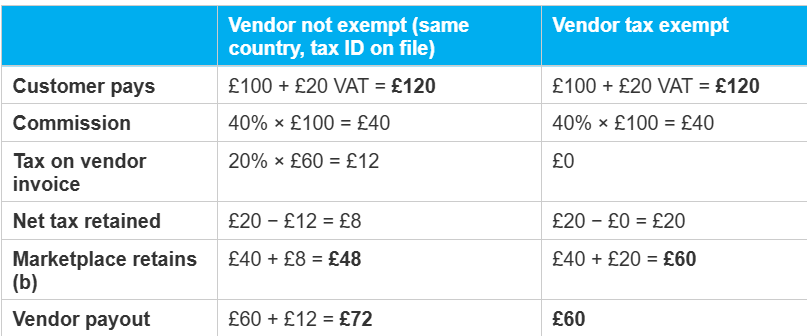
In both cases the validator holds: what the customer paid, minus what the marketplace retains, equals the vendor payout.
Important notes
- Missing countries use the standard rate. If a customer's country has no VAT rate of its own, the Standard VAT rate applies.
- Shipturtle doesn't verify tax status. Vendor countries and tax IDs are taken as entered. Check them, and confirm your setup with your accountant.
- Switching to Automatic is permanent for manual choices. Manual exemption settings are overwritten and aren't restored if you switch back.
Setup checklist
- VAT Invoicing & Tax Compliance add-on added
- Tax number (and NIF, if needed) saved in Merchant profile
- Selling model chosen in Tax settings
- Tax source and tax system set
- Standard VAT rate entered
- Country-wise VAT rates added (if Shipturtle calculates tax)
- Tax exemption mode chosen, and vendor countries and tax IDs checked
- A test order's payment breakdown reviewed
FAQs
What happens if I haven't added a VAT rate for a country?
Orders from that country use your Standard VAT rate.
Should I choose "Store sends tax info" or "Shipturtle calculates tax"?
If your store platform already calculates tax and sends it with each order, choose Store sends tax info. Shipturtle will show what it detected. If it doesn't, choose Shipturtle calculates tax and add your country-wise VAT rates.
Is net tax retained part of my earnings?
No. It's the VAT you hold on the order after the vendor's share, and it isn't marketplace income.
Why is a vendor marked "Tax exempt"?
In Automatic mode, Shipturtle applies the rules in section 3D. For example, under Marketplace SoR a vendor in a different country, or one without a tax ID on file, is exempt.
Troubleshooting
VAT on a customer order uses the wrong rate
Check that the customer's country has its own rate under Add VAT rates. If it doesn't, the Standard VAT rate is used.
A vendor's payout includes (or excludes) VAT unexpectedly
Check the vendor's badges in the Payment breakdown, then their country and tax ID. In Automatic mode, these decide whether the vendor is tax exempt.
My manual exemption settings disappeared
Switching to Automatic overwrites manual settings. Switch back to Manual and set each vendor again.
Recommended next step
Set your tax source and Standard VAT rate first, add VAT rates for the countries you sell to most, then place a test order and check its Payment breakdown before going live.
If you're stuck, reach us at team@shipturtle.com or open a ticket on the support page.