How to set commission by product tag or by price range, which rule wins when several could apply, and how the commission is calculated.
Updated for the current Commission and payout settings · October 2026
⚡Quick Summary
Go to Settings → Setup and configuration → Commission and payout → Commission rules. Use tag-based commission to give tagged products their own rate, and price based commission to charge different rates by price range. Exactly one rule applies to each product, and tag rules always win over price rules.
Who this guide is for
Marketplace owners and admins who need different commission rates for special product groups (for example, exclusive or premium items) or for different price points.
This article covers the third type of commission. For MRP - cost price and percentage-based commission at the global, vendor, category and product levels, see Configuring commissions.
1. How commission rules fit in
Shipturtle checks commission settings in a fixed order and uses the first one that applies. Rates are never combined.
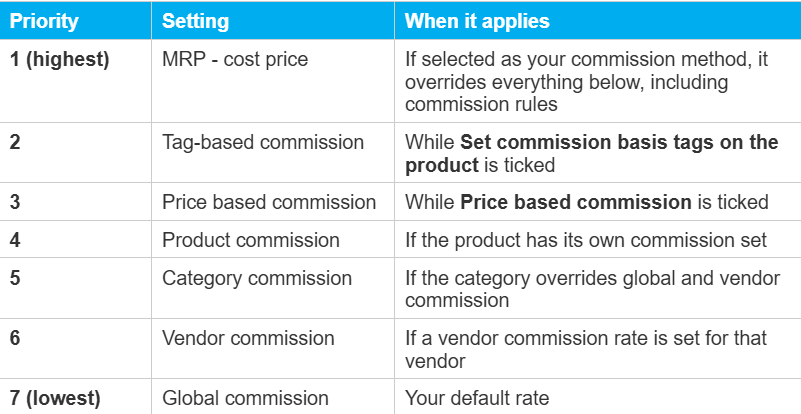
⚠️ Note: Commission rules only work with percentage-based commission. If your commission method is MRP - cost price, tag and price rules are ignored.
2. Where to find commission rules
Go to Settings → Setup and configuration → Commission and payout and expand Commission rules.
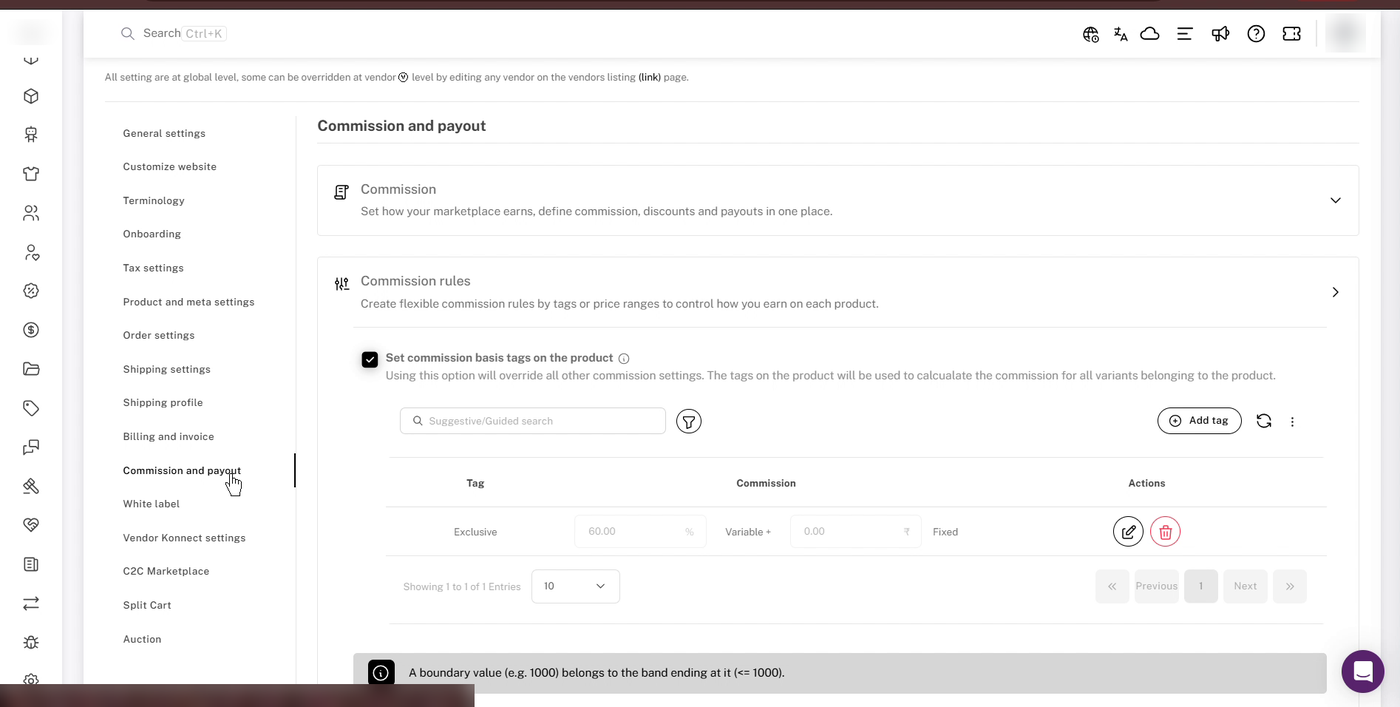
Commission rules, with tag-based commission switched on.
3. Set up tag-based commission
Use tag-based commission to charge a specific rate on every product that carries a tag, for example 60% on products tagged "Exclusive". The rate applies to all variants of the tagged product.
- Tick Set commission basis tags on the product. Tag rules only apply while this is ticked.
- Click Add tag, type the tag, press Enter, and click Save.
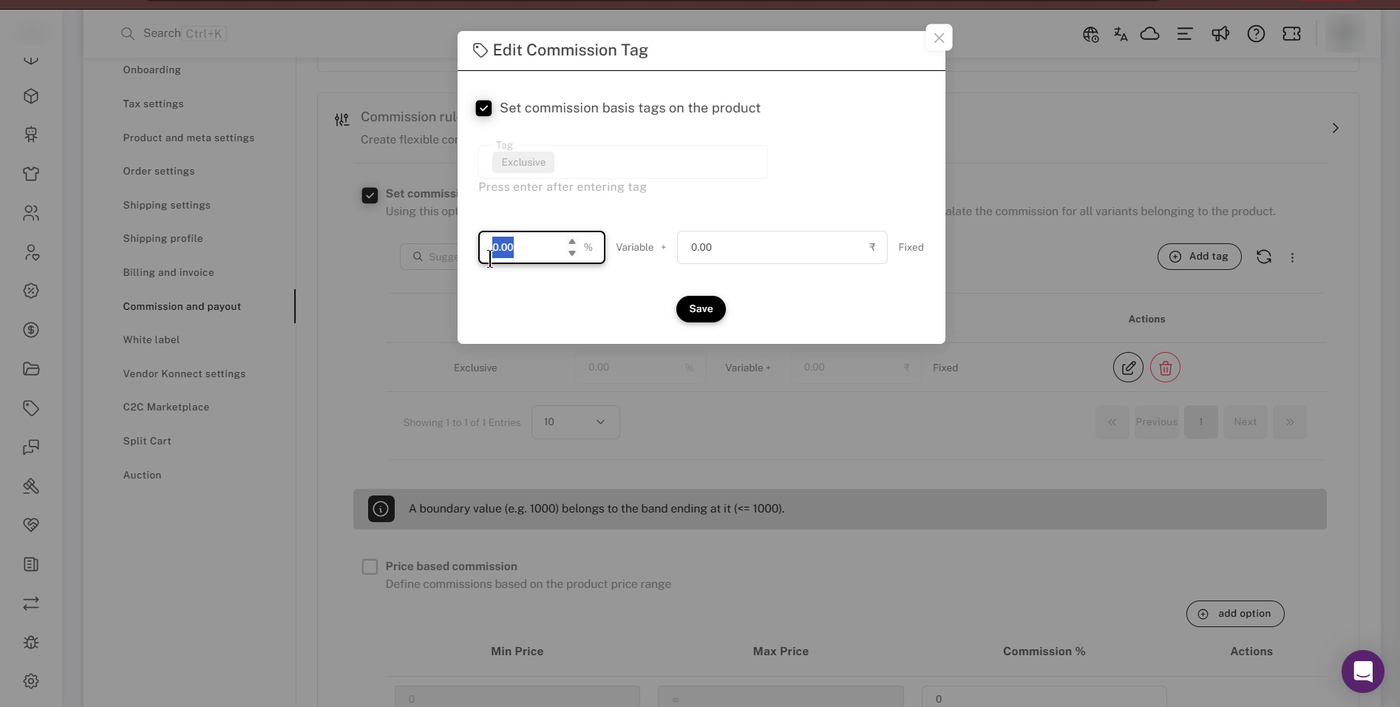
- Click the Edit (pencil) icon next to the new tag.
- Make sure Set commission basis tags on the product is ticked in the window, enter the Variable % and/or the Fixed amount, and click Save.
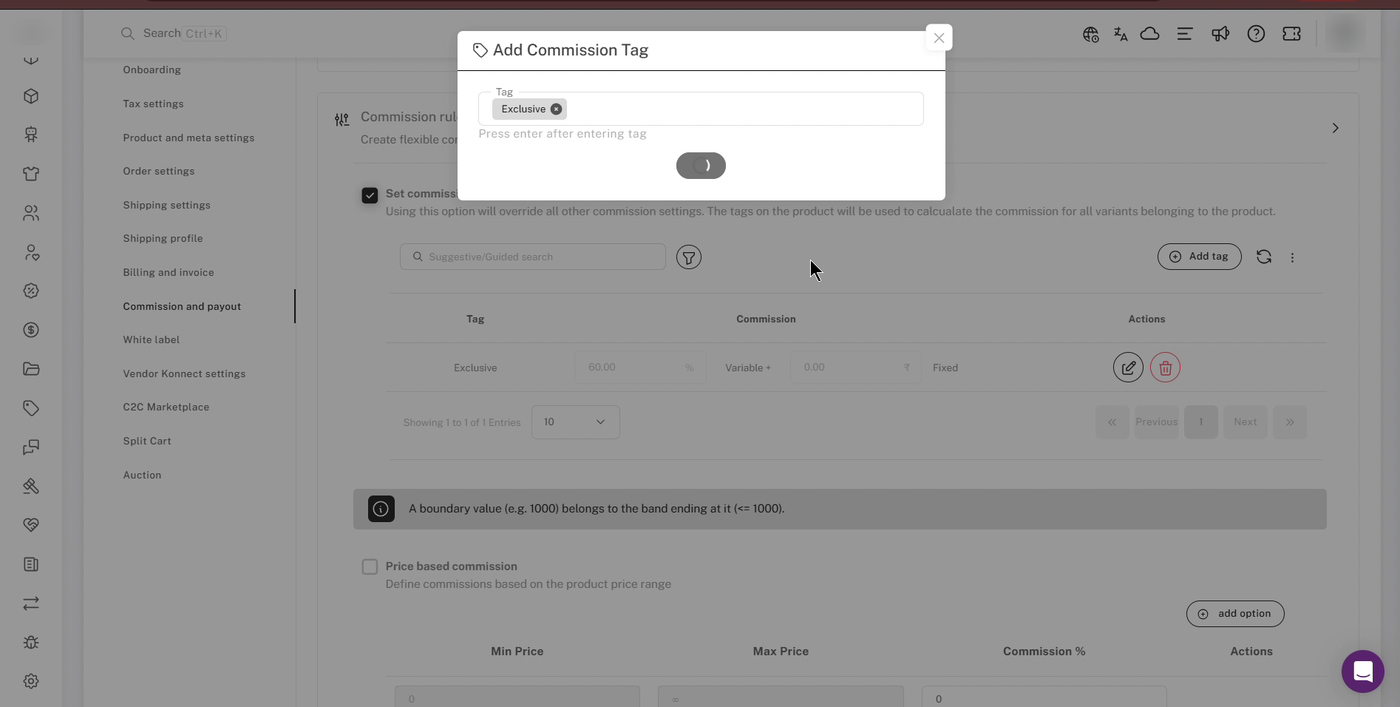
Add Commission Tag: type the tag and press Enter.
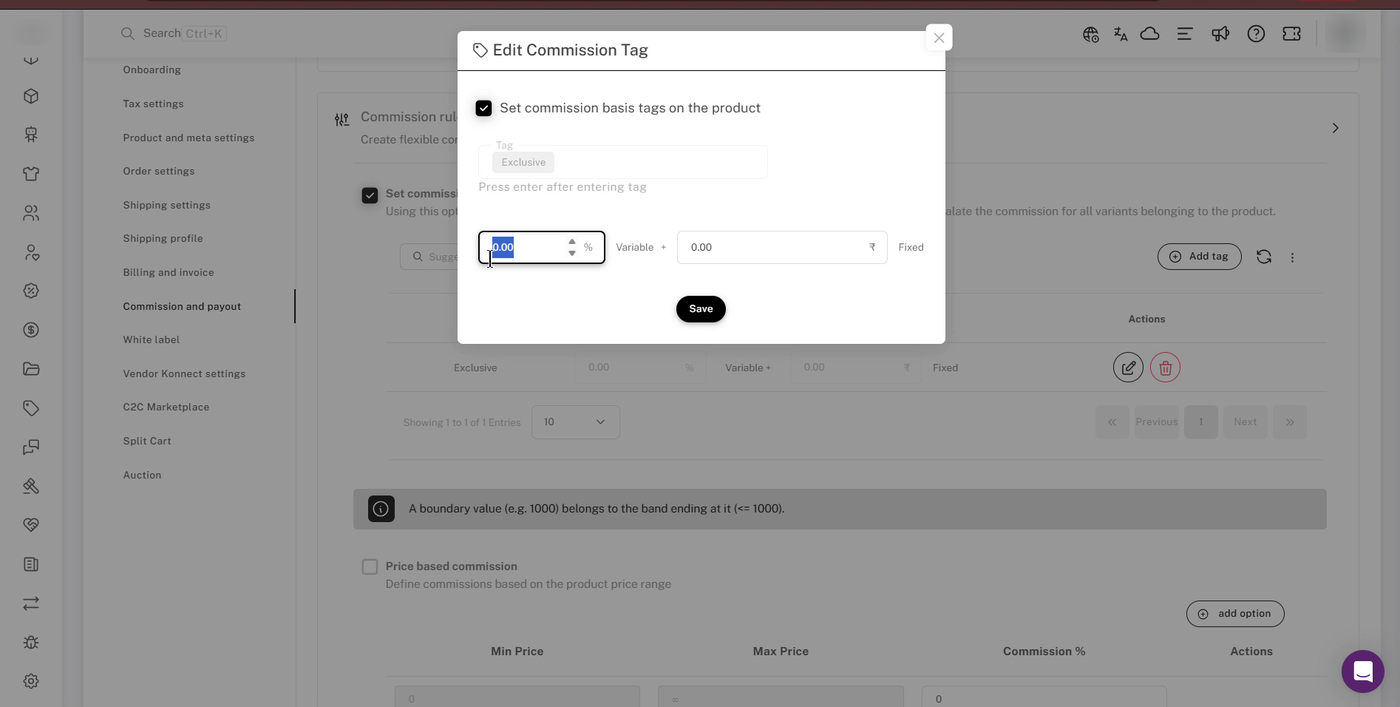
Edit Commission Tag: set the Variable % and Fixed amount.
The tag and its commission appear in the list.
To remove a tag rule, click the Delete (bin) icon next to it. You'll see Commission Tag Deleted Successfully.
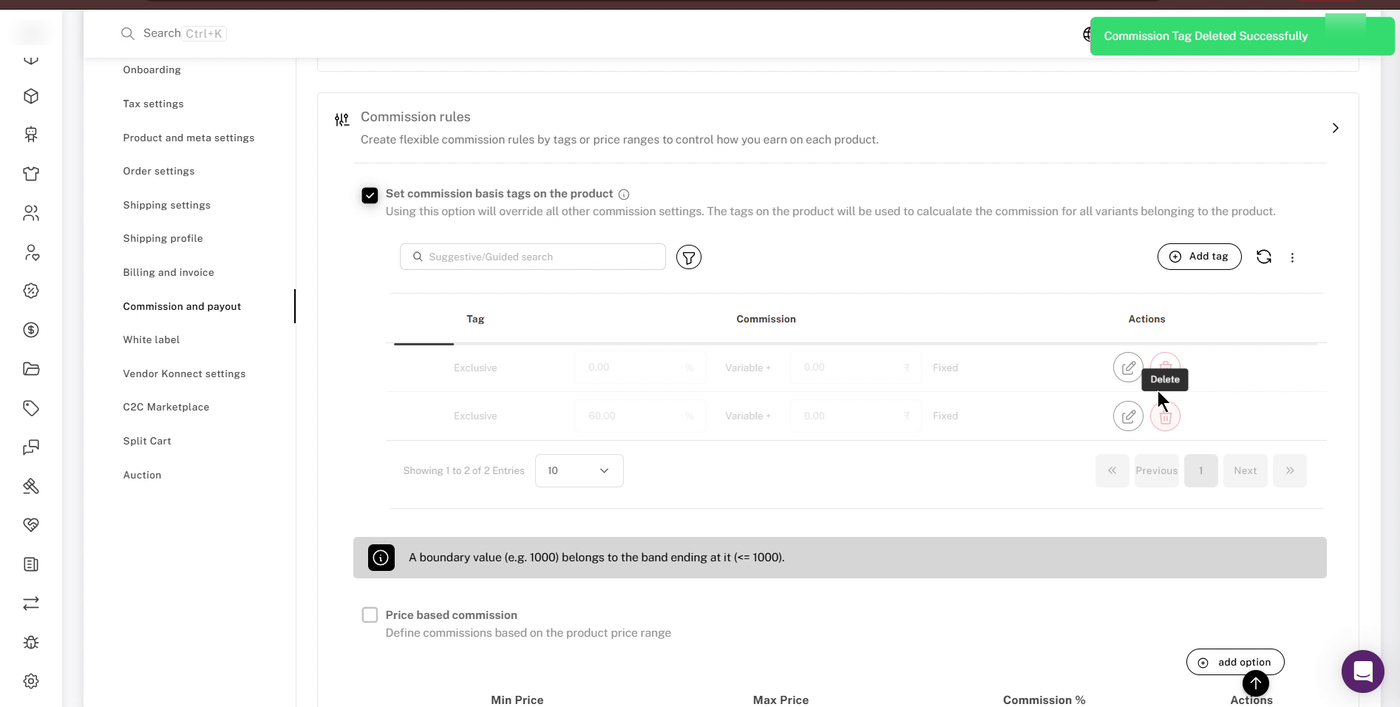
Delete a tag rule with the bin icon.
Things to know about tag rules
- Tags must match exactly. The tag in your rule must match the tag on the product, so check the spelling.
- Products without a matching tag earn 0%. While tag-based commission is switched on, a product that carries none of your configured tags gets 0% commission. It does not fall back to price, product, category, vendor or global commission.
- If a product has several configured tags, the list order decides. Shipturtle goes down your Commission rules list and uses the first tag in the list that the product carries, not the first tag on the product.
- Avoid duplicate tags. You can add the same tag twice, but only the first one in the list is used. Delete any duplicates.
4. Set up price based commission
Use price based commission to charge different rates depending on a product's price, for example 10% up to $1,000 and 15% up to $2,000.
- Tick Price based commission.
- In the first row, enter the Max Price for the band (for example, 1000) and its Commission %.
- Click add option to add another band. Each new band starts where the previous one ended.
- Enter a Commission % for the final band too (above your highest Max Price, up to ∞).
- Click Save.
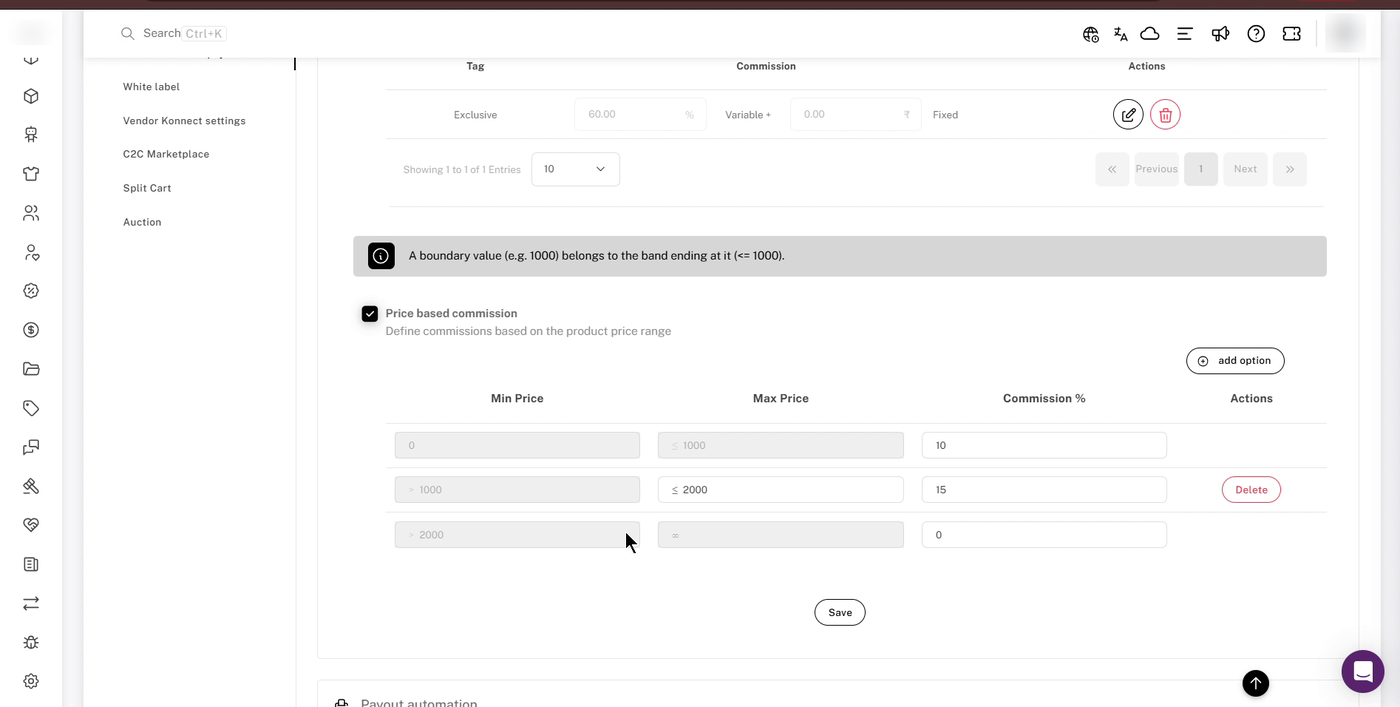
Price based commission with three price bands.
Things to know about price bands
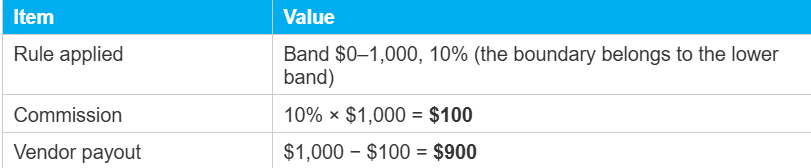
- Boundaries belong to the lower band. A product priced exactly at a band's Max Price falls in that band. For example, a $1,000 product falls in the "≤ 1000" band at 10%, not the "> 1000" band.
- Each product gets exactly one band. Bands never overlap or combine.
- The unit price decides the band. Shipturtle uses the product's original price per unit, before discounts. Quantity doesn't change the band.
- Every band needs a percentage. A band with a blank Commission % can't be saved. Entering 0 is allowed, and means no commission for that band.
- Fill in the final band. The open-ended top band defaults to 0%, so products above your highest Max Price earn no commission unless you set it.
5. How the commission is calculated
Once Shipturtle has picked the rule, the commission on each line item is:
Commission = (Fixed amount × quantity) + (Variable % × line price)
The line price is either the full or the discounted price, depending on your Commission calculated on full price / discounted price setting. The vendor's payout is what the customer paid minus what the marketplace retains: the commission, plus any tax on commission, TCS or TDS, minus the marketplace's share of any discount.
The examples below assume no tax on commission, no shipping, and no TCS or TDS.
Example 1: tag rule and price band both match
Product price $800, tagged "Premium". The tag rule for "Premium" is 15%, and the price band for $0–1,000 is 10%.

Example 2: a price on the boundary
Tag rules are off. Price bands are $0–1,000 at 10% and $1,000–2,000 at 15%. Product price $1,000.
💡 Tip: If you charge tax on commission, it's added on top. For example, with 18% tax on commission, a $100 commission means the marketplace retains $118 and the vendor's payout is $882.
Important notes
- One rule per product. Only the highest-priority rule that applies is used. Rates are never added together.
- Tag rules come first. If a product matches a tag rule and a price band, the tag rule wins.
- Tag rules need a matching tag. With tag rules switched on, untagged products earn 0% commission.
- MRP - cost price turns rules off. If your commission method is MRP - cost price, commission rules don't apply.
Setup checklist
- Commission method set to percentage-based (not MRP - cost price)
- Tag rules added, with tags spelled exactly as on your products
- Tag rules listed in the order you want them to win
- Every product you sell carries a configured tag (if tag rules are on)
- Price bands added, with the final band filled in
- Commission checked on a test order
FAQs
Can tag-based and price based commission be switched on together?
Yes. When a product matches a tag rule, the tag rule is used. Keep in mind that while tag rules are on, products with no matching tag earn 0%.
A product has two of my configured tags. Which rate is used?
The tag that appears first in your Commission rules list.
Does a discount move a product into a lower price band?
No. The band is chosen from the original unit price, before discounts.
Can I leave a band's Commission % blank?
No. Every band needs a value to save. Use 0 if you want no commission for that band.
Troubleshooting
Some products are earning 0% commission
If tag rules are on, those products probably don't carry any of your configured tags. Add a matching tag to the product, or add a rule for the tag it has. If they're high-priced, also check that the final price band has a Commission % set.
My tag or price rules aren't being used at all
Check that the rule's checkbox is ticked, and that your commission method is not MRP - cost price.
The wrong tag rate is applied
The product probably carries more than one configured tag. Reorder or remove tags so the one you want comes first in the list.
I can't save my price bands
Make sure every band has a Commission % between 0 and 100.
Recommended next step
Start with one or two tag rules or a simple set of price bands, then check the Payment breakdown on a test order to confirm the rate before applying rules across your catalogue.
If you're stuck, reach us at team@shipturtle.com or open a ticket on the support page.