How to move orders through the Payouts page, review each payout, generate commission invoices, and record vendor payments in Shipturtle.
Updated for the current Payouts page · September 2026
⚡Quick Summary
Go to Payouts. Orders move through four tabs: In-process orders → Payable → Unpaid invoices → Paid invoices. Push ready orders to Payable, click Create payout to generate the invoice, then pay now or later.
Who this guide is for
Marketplace owners and admins who settle vendor payouts on a regular cycle (weekly, bi-weekly or monthly) and need to generate invoices and record payments in Shipturtle.
What is a commission invoice?
A commission invoice summarizes a vendor's earnings and the commission your marketplace retains for the orders in a payout. It gives both you and the vendor a clear record of what was sold, what was deducted, and what was paid.
The invoice type follows your selling model. Under Vendor Seller of Record (SoR) it is a commission invoice from you to the vendor. Under Marketplace Seller of Record (SoR), the vendor supplies you with the goods, so the document is a wholesale invoice (purchase settlement). See Payment flow from customer to vendors for more on selling models.
⚠️ Note: This module works globally, but tax rules vary by country. If you need adjustments for your country's tax rules, contact team@shipturtle.com.
1. The Payouts page at a glance
Open Payouts from the left menu. Every order moves through the tabs from left to right:
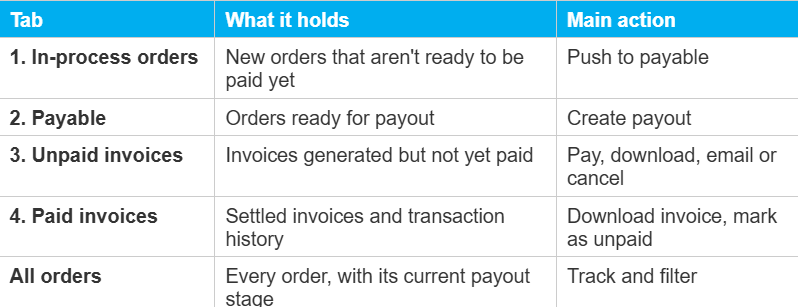
Use the By order / By vendor toggle at the top right to see orders one by one, or grouped per vendor. Each row shows Sales, Marketplace retains (your commission and deductions) and Payouts (what the vendor receives), both excluding and including tax.
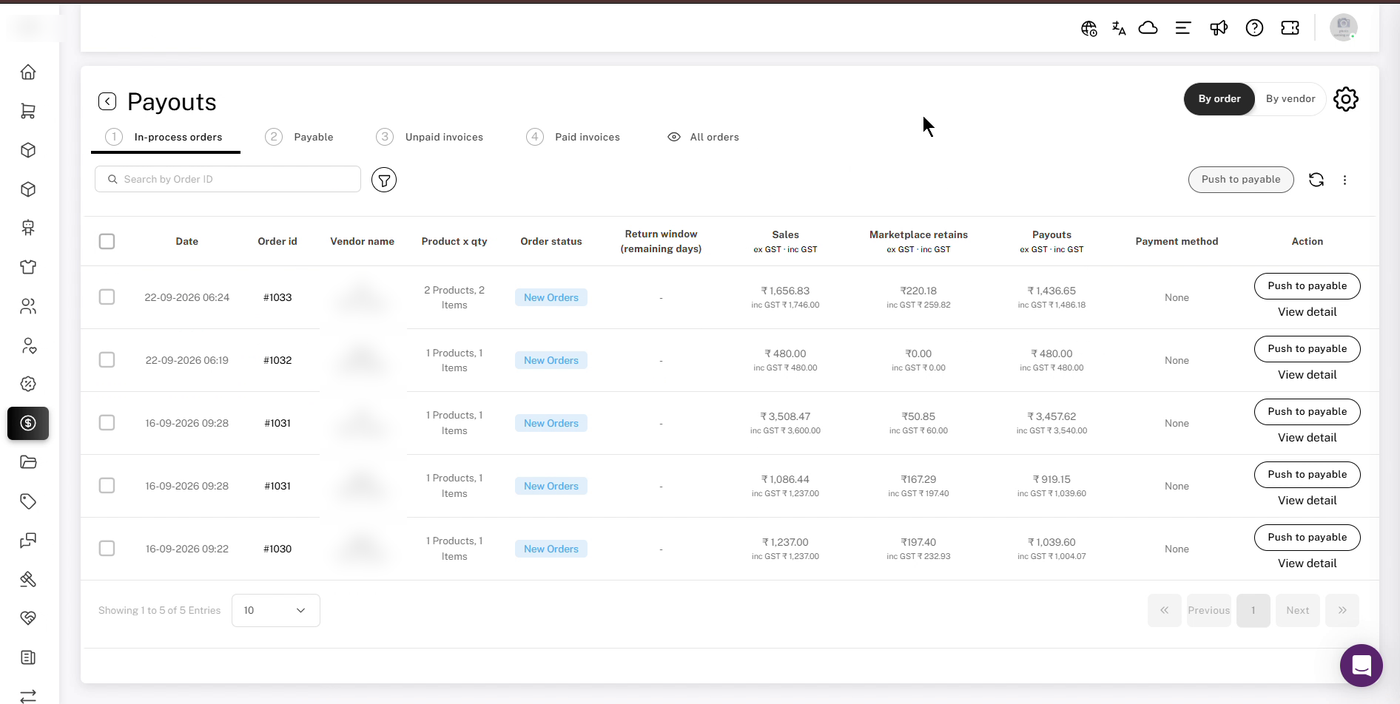
The Payouts page, open on In-process orders in the By order view.
2. Review a payout before you pay
Click View detail on any order to open the Payment breakdown. The top of the window shows the settings used for that order: commission base, commission on shipping, discount split, tax on commission, TCS and TDS.
The table breaks the order down product by product:
- Order value (a): what the customer paid for the product.
- Marketplace retains (b): your commission and deductions.
- Adjustment (c): an optional manual amount for exceptions.
- Payout (a − b − c): what the vendor receives.
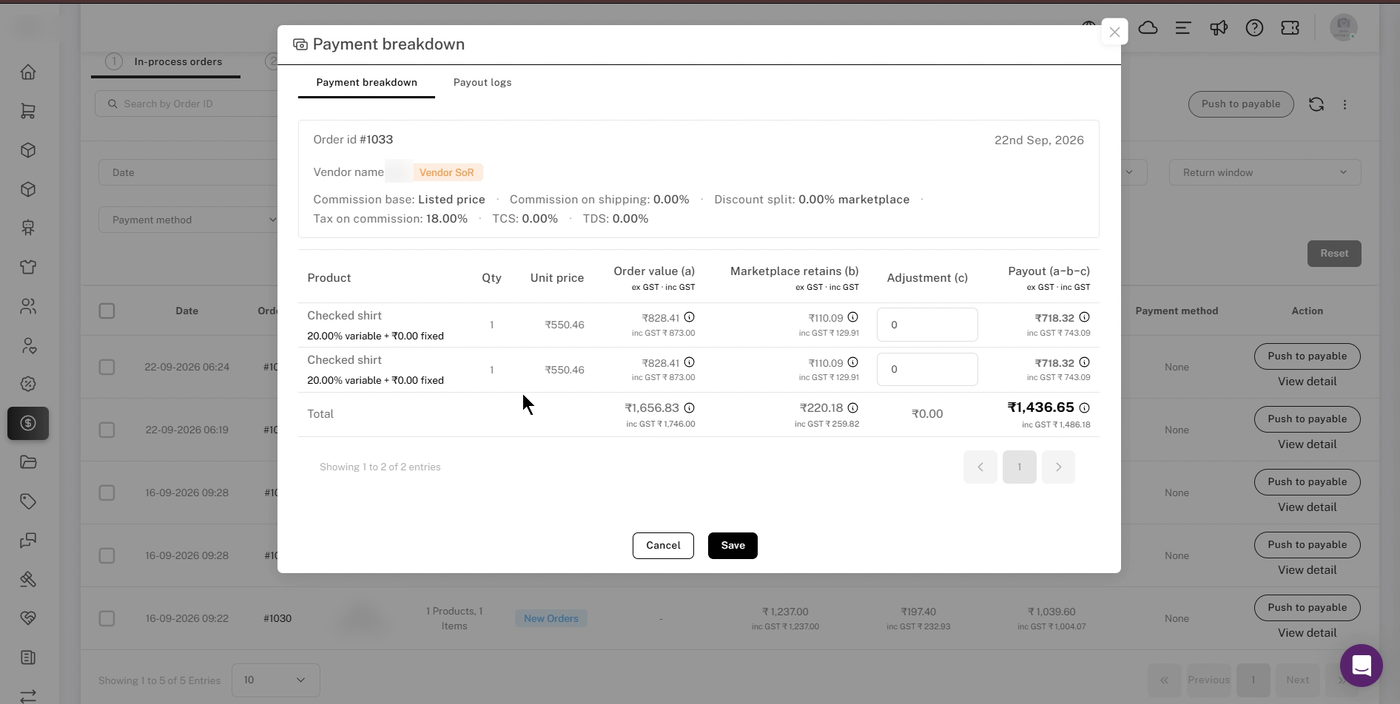
Payment breakdown for one order, with an Adjustment field on each product line.
Hover over the ⓘ icon next to any amount to see how it was calculated.
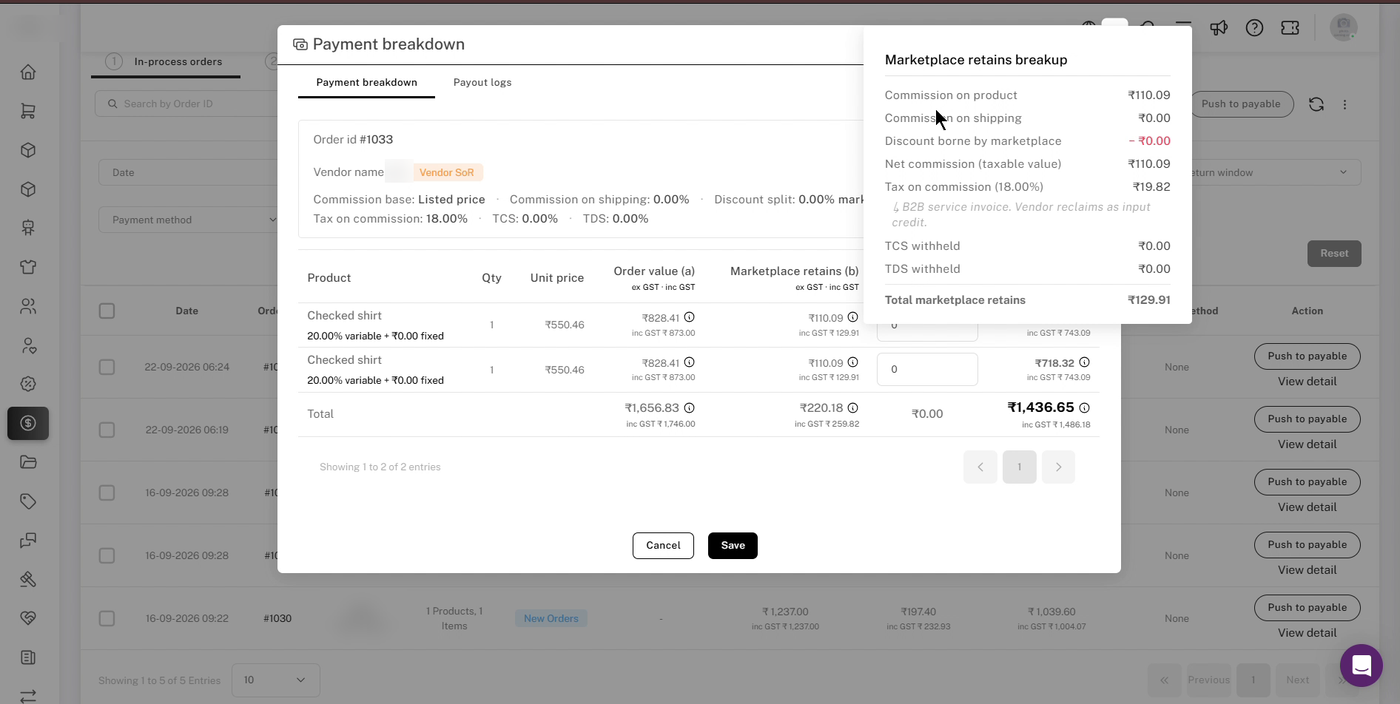
Marketplace retains breakup: commission on product and shipping, discount, tax on commission, TCS and TDS.
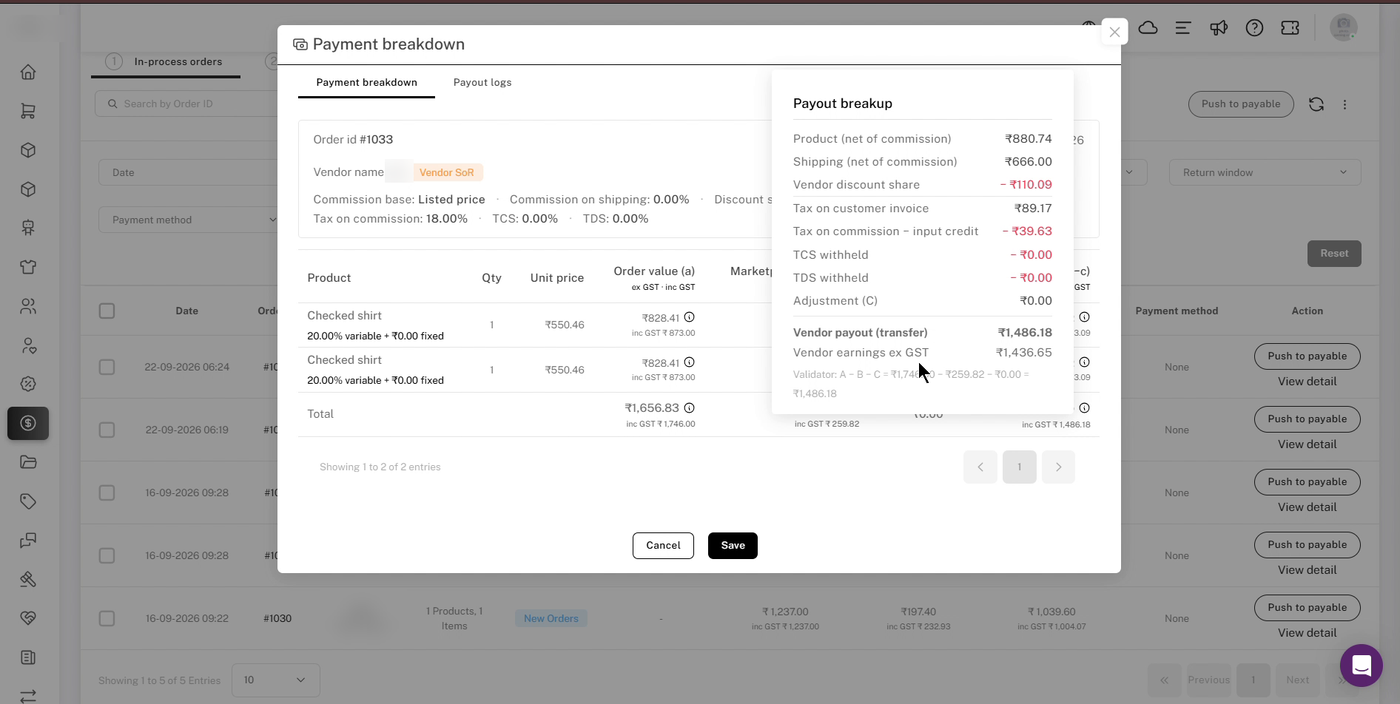
Payout breakup: every component of the vendor's payout, with a validator line.
To adjust a payout, enter an amount in Adjustment and click Save. Because the payout is a − b − c, a positive adjustment reduces the vendor's payout and a negative adjustment increases it. The Payout logs tab keeps a history of changes for the order.
Example: Order value (a) is $100 and marketplace retains (b) is $10, so the payout is $90. To pay the vendor $85, enter an adjustment of 5. To pay nothing, enter 90 (the full a − b amount). Don't enter the order value as a negative number, because that increases the payout.
3. Step 1: Move orders to Payable
Start in the In-process orders tab.
- Click the filter icon to narrow the list. You can filter by Date (for example, your weekly or monthly payout period), Order ID, Vendor name, Vendor Tags, Order status, Return window and Payment method. Click Reset to clear filters.
- Check each order's Order status and Return window (remaining days). We recommend paying out only once an order is delivered and its return window has closed.
- Click Push to payable on an order, or tick several orders and click Push to payable at the top of the list.
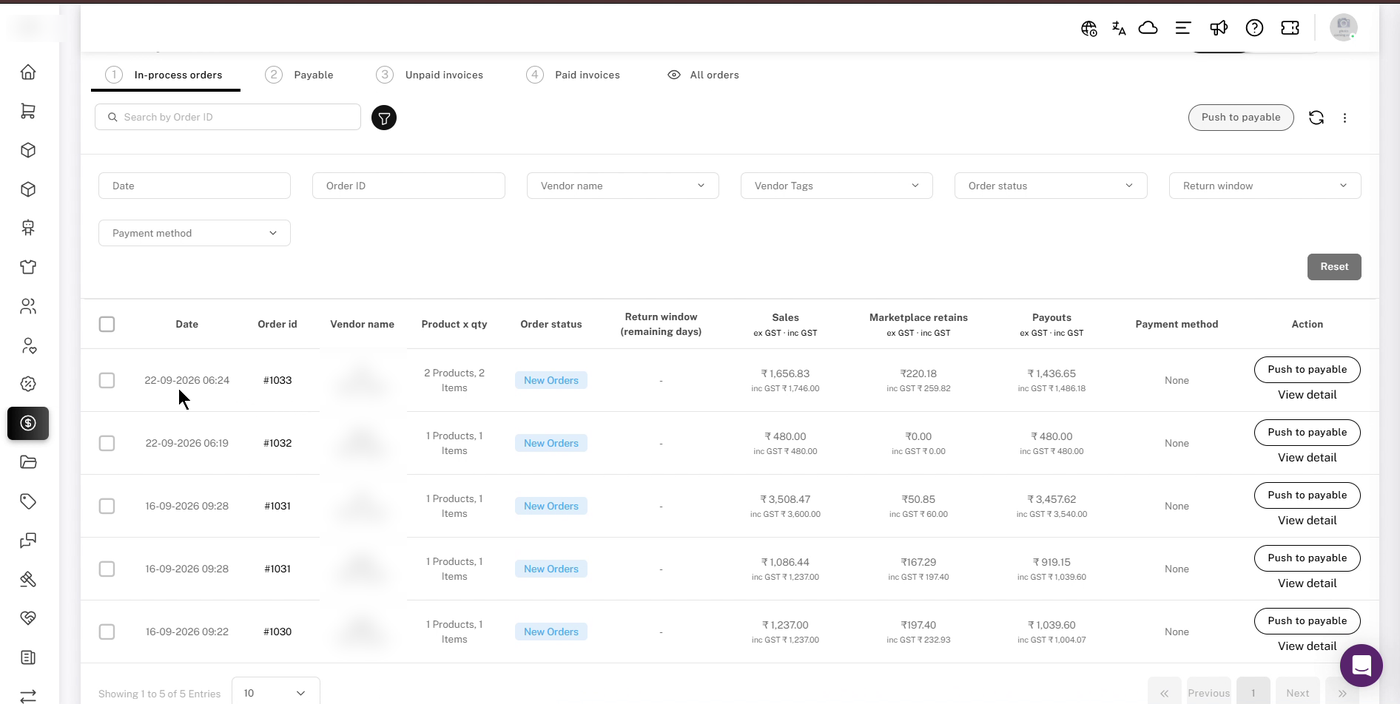
Filters on the In-process orders tab.
💡 Tip: Only 10 orders are shown per page by default. Use the dropdown at the bottom of the list to show more.
4. Step 2: Create payouts
Open the Payable tab. The Age (days) column shows how long each order has been waiting.
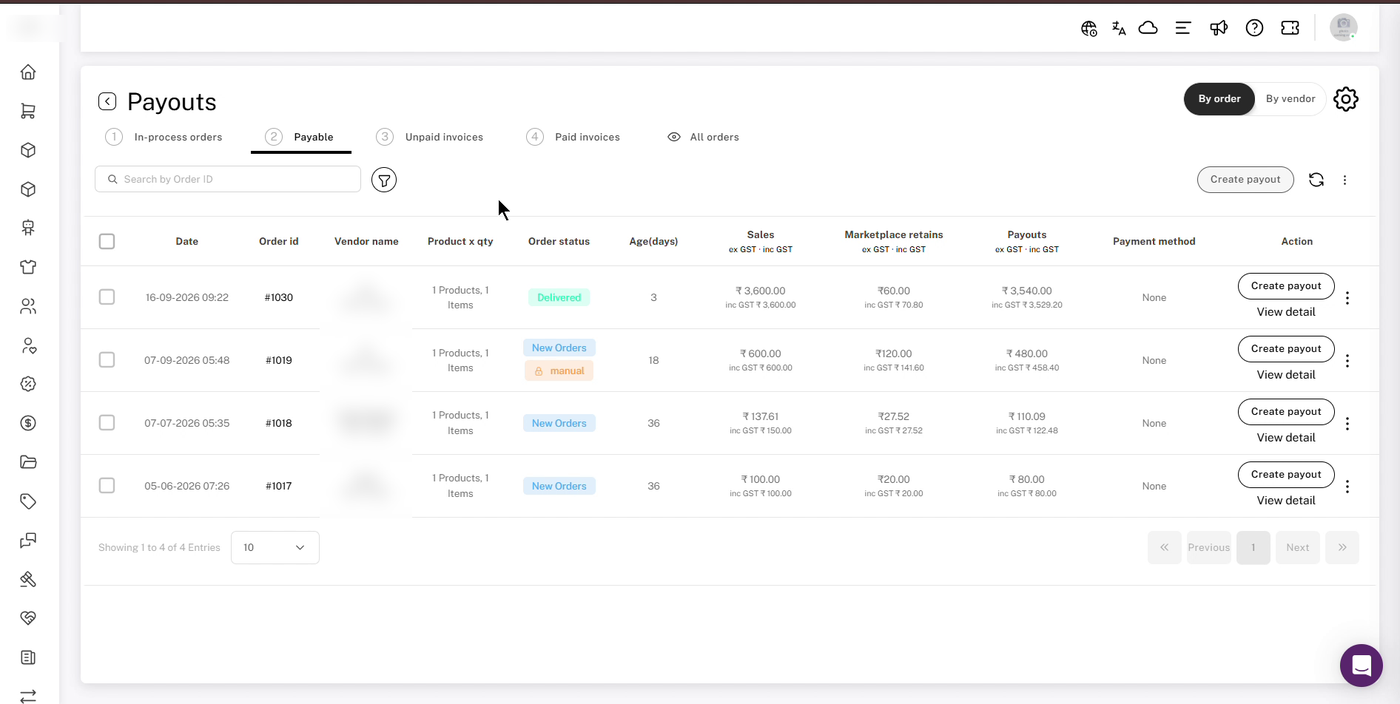
The Payable tab. Vendor names are blurred.
Generate the invoice
- Click Create payout on an order, or tick several orders and click Create payout at the top.
- In the Generate payout window, check the Payout summary: order count, sales, marketplace retains, adjustments, taxes and payouts for each vendor, plus the Total payout.
- Optionally edit the Date and Invoice ID with the pencil icons. Invoice numbers auto-increment for each subsequent vendor's invoice.
- Add any Payout notes (optional).
- Choose how to finish: select a Payment method and click Generate invoice(s) & pay to create the invoice and record the payment together, or click Generate invoice(s) - pay later to create the invoice now and pay from the Unpaid invoices tab later.
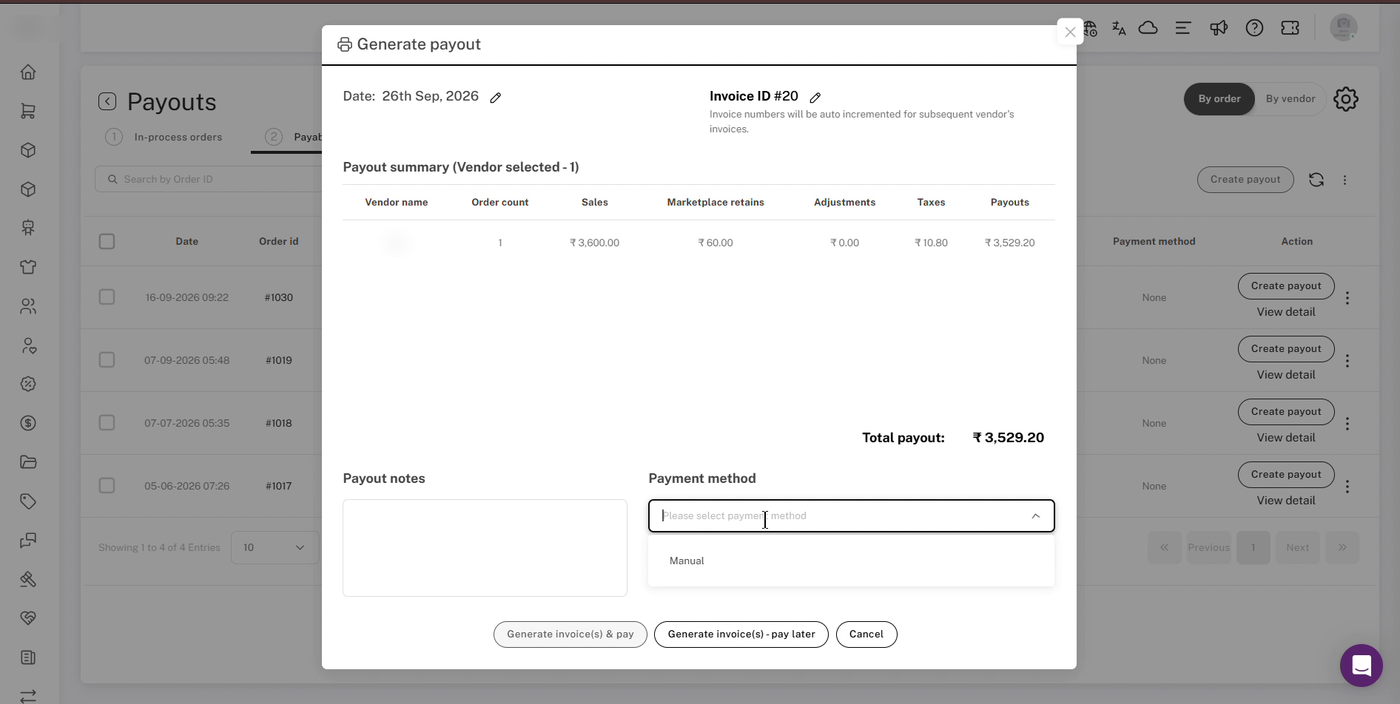
Generate payout: payout summary, notes and payment method.
⚠️ Note: Each invoice covers one vendor. To record a payment you made outside Shipturtle, choose Manual as the payment method and enter the payment reference number.
More actions on the Payable tab
Tick one or more orders, then open the ⋮ menu at the top right:
- Revert to in-process: moves the order back to the In-process orders tab.
- Recalculate commission: recalculates the order using your current commission settings.
- Export payouts: downloads the selected payouts as a file.
- Organize columns: chooses which columns the table shows.
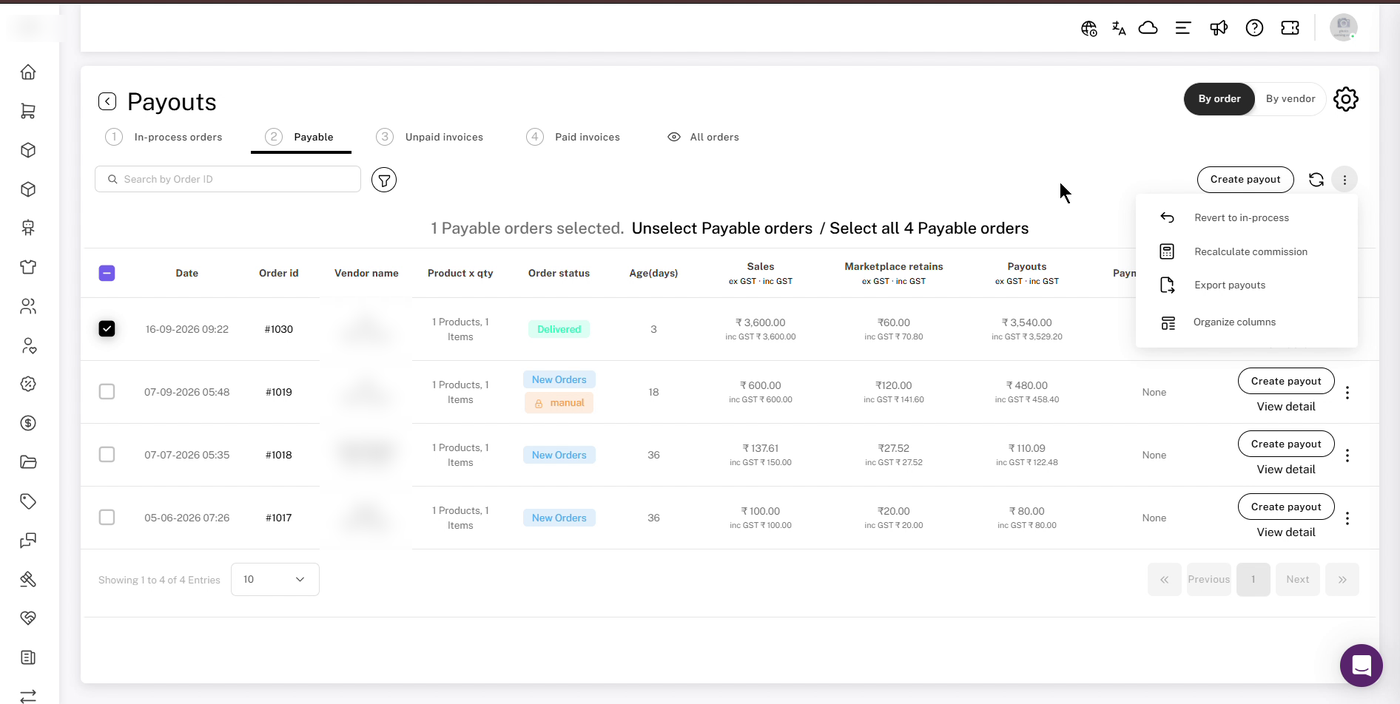
The ⋮ menu on the Payable tab. Vendor names are blurred.
Export payouts lets you pick exactly which fields go into the file. Start from a preset (Minimal, Standard, Full or Custom), click any field to toggle it on or off, then click Export payouts.
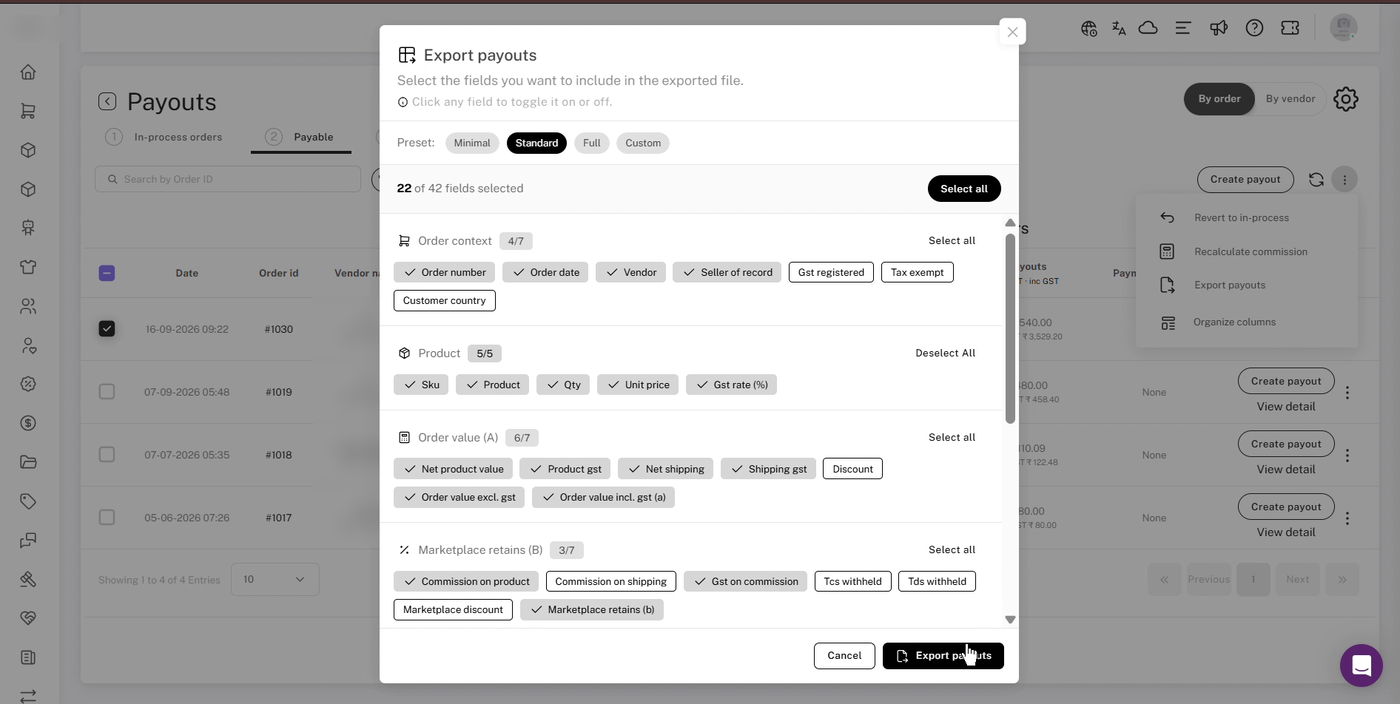
Export payouts: choose a preset or toggle individual fields.
Switch to By vendor to see one row per vendor with their order count and totals, and create a payout for all of that vendor's payable orders at once. To invoice only some of a vendor's orders, use the By order view and tick the orders you want.
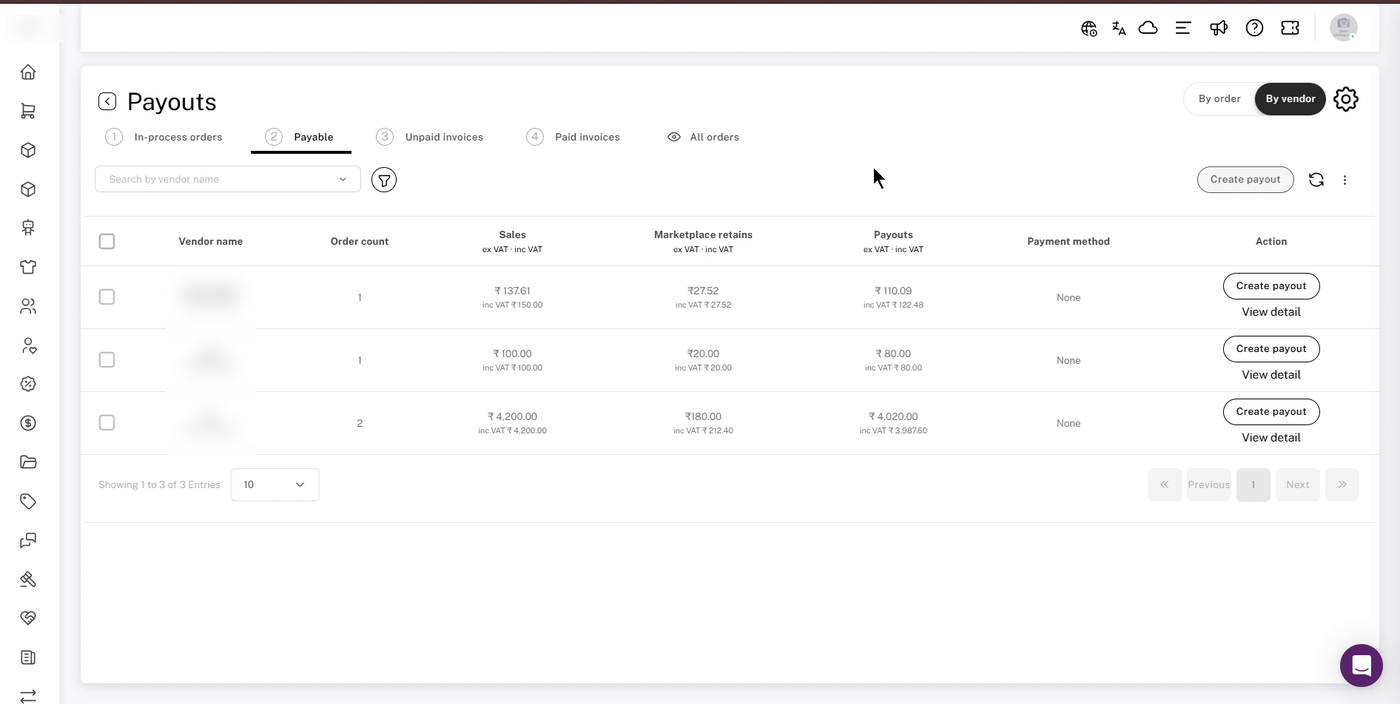
The Payable tab in the By vendor view. Vendor names are blurred.
5. Step 3: Pay and manage invoices
A) Unpaid invoices
Invoices created with Generate invoice(s) - pay later appear in the Unpaid invoices tab. From here you can:
- Pay the invoice.
- Download the invoice.
- Email the invoice to the vendor.
- Cancel the invoice if needed.
The invoice number is shown against every order included in that invoice.
B) Paid invoices
Once paid, an invoice moves to the Paid invoices tab, showing the invoice number, vendor, order count, amounts, payment method and payment status.
- Search by invoice number, or use the filter icon.
- Click Invoice on a row to download that invoice.
- Click Transaction history to see all recorded payments.
- Use the ⋮ menu on a row and choose Mark as unpaid to move it back to Unpaid invoices.
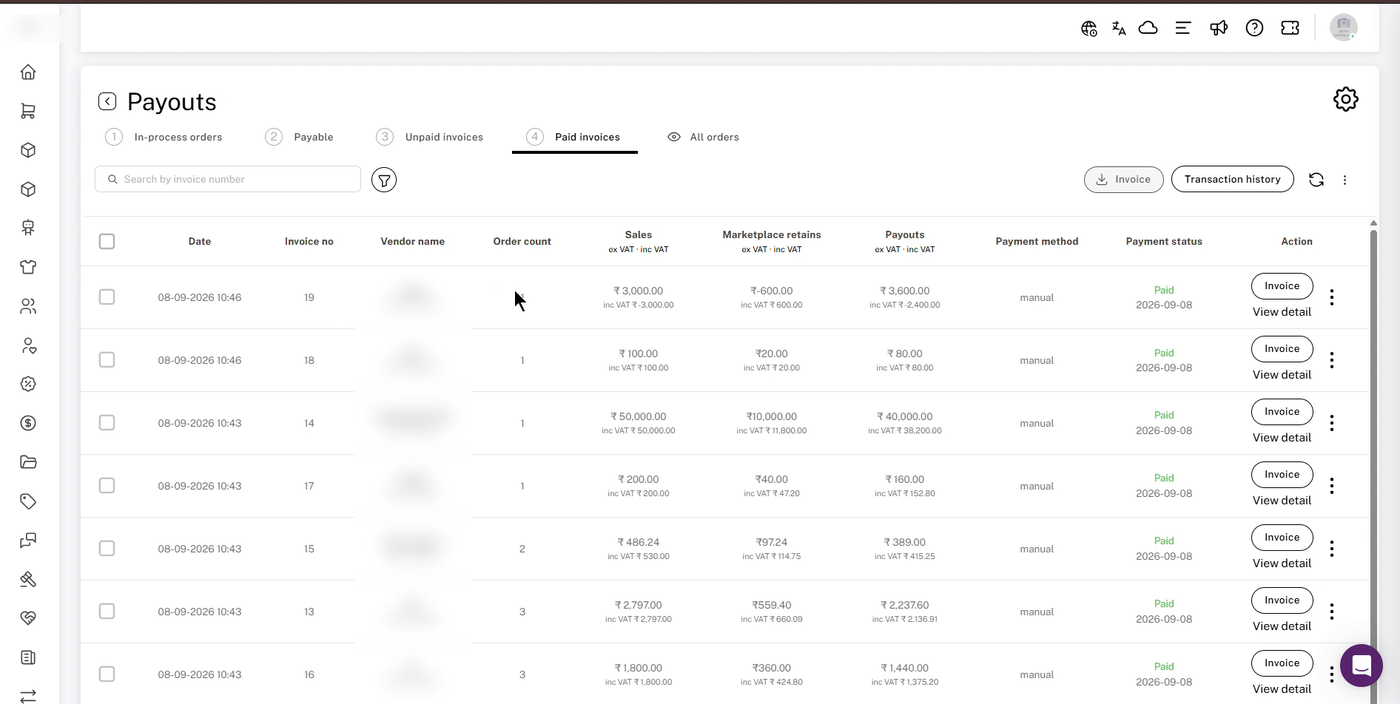
The Paid invoices tab. Vendor names are blurred.
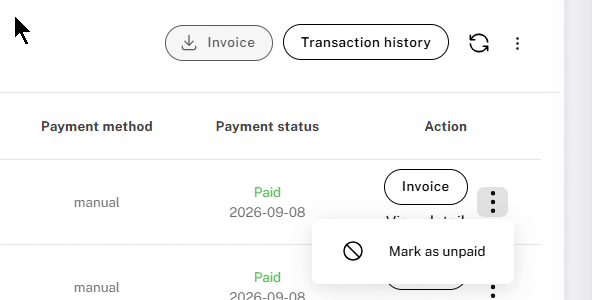
Mark as unpaid, from the row's ⋮ menu.
The downloaded invoice shows who it is from (your marketplace) and billed to (the vendor), the payout period, the selling model, and the totals, followed by a product-level breakdown.
6. Track every order in All orders
The All orders tab lists every order with a Payout stage column (In-process, Payable or Paid), so you can see at a glance where each order stands. Use the filter icon to filter by Payout stage, as well as date, vendor, order status and return window.
All orders with the Payout stage column. Vendor names are blurred.
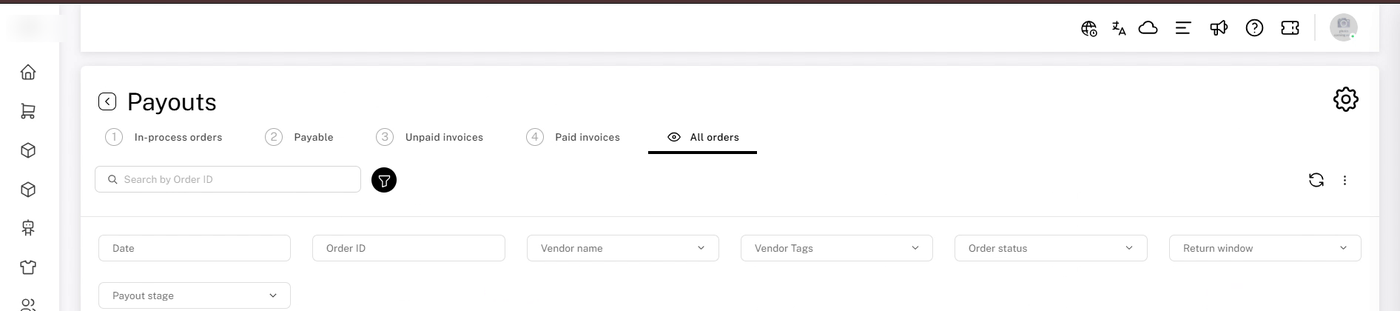
All orders filters, including Payout stage.
7. Cancelled and returned orders
Cancelled, returned and RTO orders move to the Payable tab with a payout of 0. They stay there for your records, but the vendor isn't paid for them.
If a cancelled or returned order still shows a payout amount:
- Tick the order on the In-process orders or Payable tab and choose ⋮ → Recalculate commission.
- Click View detail and check the Adjustment field. Clear any adjustment entered for the order, and click Save.
- If the payout still isn't 0, contact team@shipturtle.com with the order ID before you create a payout for that vendor.
⚠️ Note: Don't use a negative adjustment to cancel out a payout. Because the payout is a − b − c, a negative adjustment increases the payout instead of reducing it.
8. Example: invoice one vendor for one month
Say you pay vendors monthly and want one invoice per vendor for September's orders:
- Go to Payouts → In-process orders and make sure the By order view is selected.
- Click the filter icon. Set Date to the month (for example, 1–30 September) and Vendor name to the vendor.
- Tick the delivered orders whose return window has closed, and click Push to payable.
- Open the Payable tab, still in the By order view, and use the filter icon to show that vendor's orders for the same month (filter by Vendor name and Date).
- Tick only the orders you want on this invoice, and click Create payout.
- Check the Payout summary, then click Generate invoice(s) & pay or Generate invoice(s) - pay later.
💡 Tip: In the By vendor view, Create payout includes all of that vendor's payable orders. To invoice only some of them, use the By order view. If you pushed too many orders to Payable, tick the extras and choose ⋮ → Revert to in-process. With payout automation on, reverted orders get an automation lock until you release it.
⚠️ Note: Push to payable is on the Payouts page, not the Orders page. Orders → Bulk actions → Generate invoices creates order (customer) invoices, not commission invoices.
Important notes
- No double invoicing. Orders that are already invoiced or paid can't be added to a new invoice. To invoice them again, cancel the invoice or mark it as unpaid first.
- One vendor per invoice. Each invoice covers a single vendor's orders.
- Taxes and adjustments. The module is flexible but not tax-specific. Check any tax treatment or special adjustments with your accountant.
Payout checklist
- In-process orders filtered by your payout period
- Delivered orders with a closed return window pushed to Payable
- Payment breakdowns reviewed and adjustments saved
- Invoices generated, and paid now or later
- Manual payments recorded with a reference number
- Paid invoices downloaded or shared with vendors
FAQs
How do I move an order back out of Payable?
Tick the order, open the ⋮ menu on the Payable tab, and choose Revert to in-process.
What does the "manual" badge on an order mean?
You moved the order by hand (with Push to payable or Revert to in-process), so payout automation won't move or change it. Click the badge and choose Release automation lock to hand it back to automation. See the Payout automation article for details.
The commission on a payable order is wrong. How do I fix it?
Update the commission setting, then tick the order on the Payable tab and choose ⋮ → Recalculate commission.
Can I change the invoice number or date?
Yes. Use the pencil icons next to Date and Invoice ID in the Generate payout window.
Can I pay vendors outside Shipturtle?
Yes. Pay them your usual way, then record it with the Manual payment method and the payment reference number.
How do I undo a payment I recorded by mistake?
In Paid invoices, open the row's ⋮ menu and choose Mark as unpaid.
How do I invoice one vendor for one month only?
Filter In-process orders by date and vendor, push those orders to Payable, then create the payout from the By order view. See the example in section 8.
Troubleshooting
An order isn't showing in the Payable tab
It's probably still in In-process orders. Find it there and click Push to payable. Check All orders to see its current payout stage.
I can't find Push to payable
Push to payable is on Payouts → In-process orders, in the By order view. It isn't on the Orders page. Orders → Bulk actions → Generate invoices creates order (customer) invoices, not commission invoices.
An order can't be added to a new invoice
It has already been invoiced or paid. Cancel the existing invoice, or mark it as unpaid, and try again.
A payout amount looks wrong
Click View detail and hover over the ⓘ icons to see each part of the calculation. If a commission setting was wrong, fix it and use Recalculate commission.
A payout looks higher than the product price
A payout can include more than the product price, for example shipping passed to the vendor (when commission on shipping is below 100%), tax on the customer's invoice, or a negative adjustment. Click View detail and hover over the ⓘ icons to see each part. A payout should never be more than the customer paid. If it is, contact team@shipturtle.com with the order ID before creating the payout.
A cancelled order still shows a payout
Recalculate the commission, clear any adjustment, and contact support if a value remains. See section 7.
Recommended next step
Pick a regular payout cycle, filter In-process orders by that period, and run your first payout end to end: push to Payable, review, generate the invoice and record the payment.
If you're stuck, reach us at team@shipturtle.com or open a ticket on the support page.