Warehouses control where orders ship from and which vendors can fulfill them. This guide covers adding and editing warehouses, giving vendors their own warehouses, and where the navigation has moved since the last version of this article.
Warehouses now live under Settings → Merchant profile → Warehouses (not a standalone Settings → Warehouses page). Adding one is a two-step form — Pickup Address, then Return Address — with an option to mark it default. Vendors maintain their own separate warehouse list under their own Vendor profile → Warehouses tab, rather than picking from the merchant's list.
Who this guide is for
Marketplace admins setting up warehouses for the first time, or checking an existing setup after a Shipturtle update.
Before you begin
- Admin access to your Shipturtle account.
- On installation, Shipturtle automatically imports your Shopify “Locations” as warehouses, so you may already have one or more before you add anything manually.
Step-by-step
Step 1: Open the Warehouses tab
From the left sidebar, go to Settings → Merchant profile, then select the Warehouses tab. You'll see every warehouse you have, including any locations Shipturtle auto-imported from Shopify.
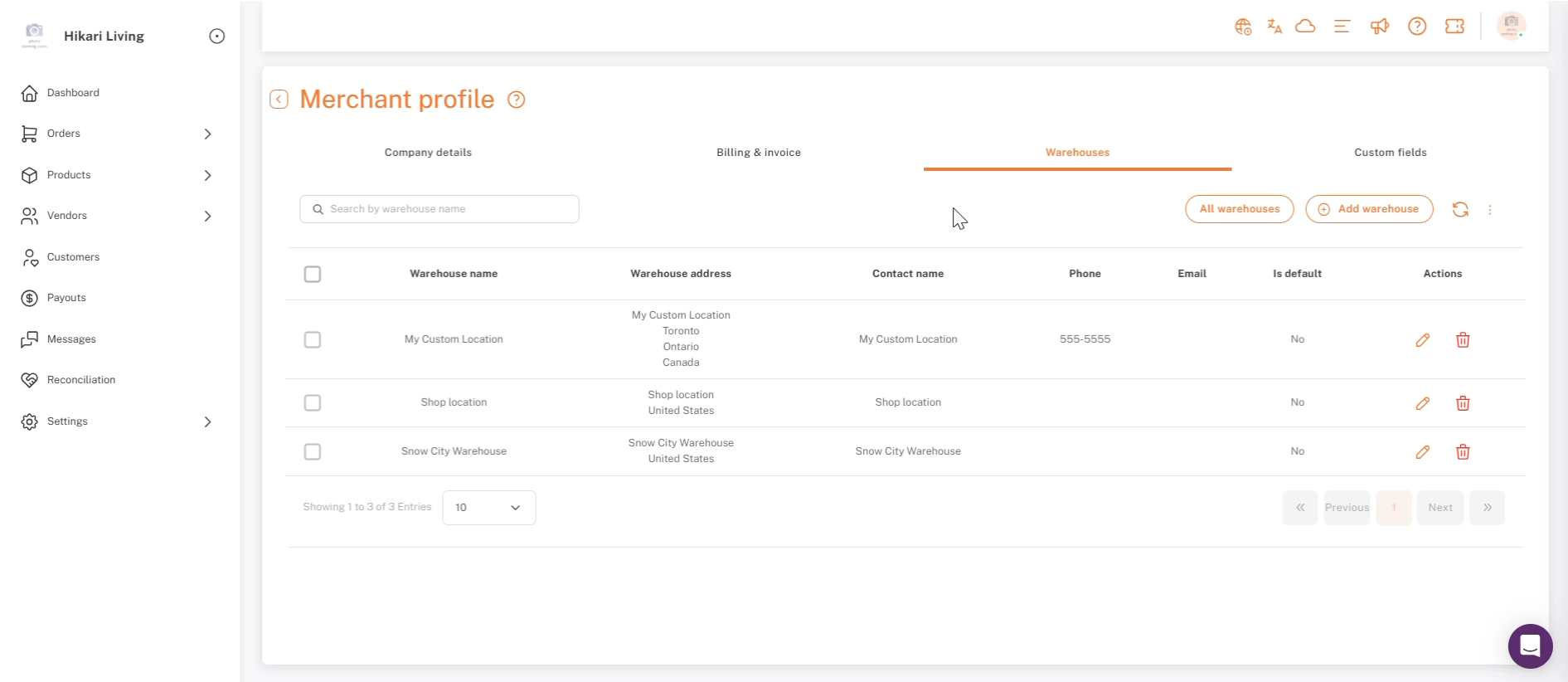
Merchant profile → Warehouses — the full warehouse list with Add warehouse in the top right.
Step 2: Add a new warehouse: pickup address
Click Add warehouse to open the form. It opens on the Pickup Address tab first. Check “Check to keep the same as company details” if the warehouse address matches your company address — otherwise fill in each field:
- Warehouse name / Contact name: A label for the warehouse and who to contact there.
- Phone / Email: Both required, used for shipping and carrier communication.
- Address line 1 / Address line 2, Country, State/Province, City, Zip/pin code: The physical pickup address carriers will use.
- Steps: Optional access notes (e.g. loading dock instructions).
- Check to make this warehouse as default: Sets this as the warehouse new orders are assigned to automatically.
- Offer pickup from default warehouse: Lets customers choose local pickup (available as an Add On) from this warehouse at checkout, when it's the default.
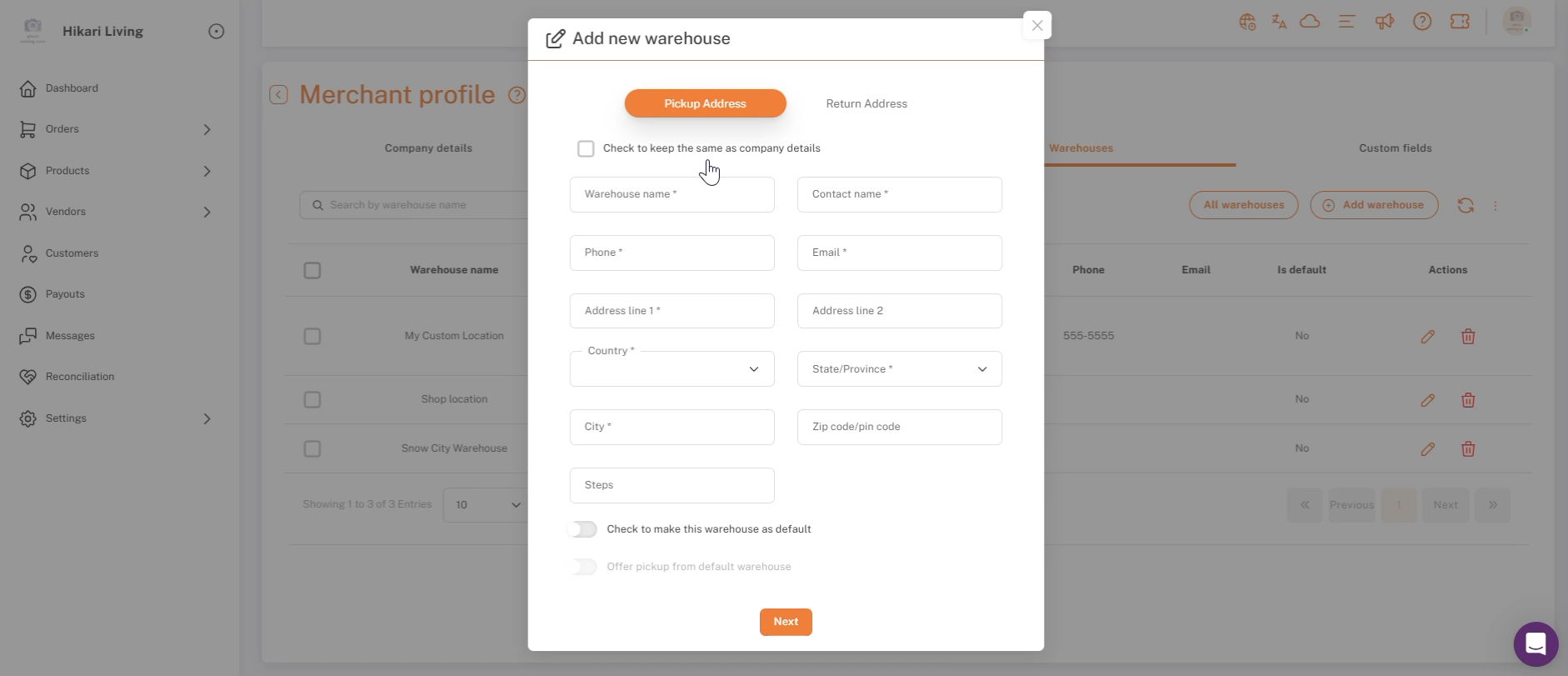
Add new warehouse: Pickup Address tab.
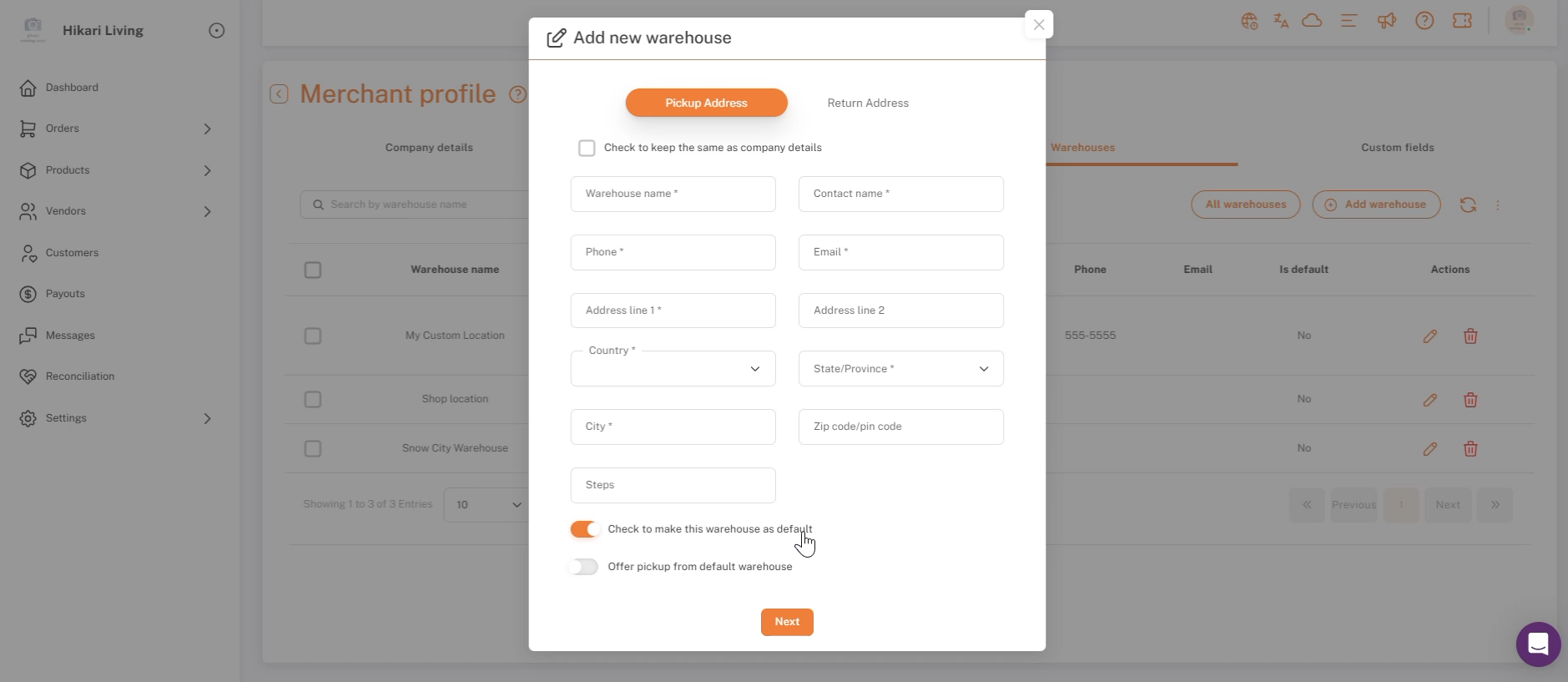
Marking a warehouse as default.
Step 3: Add a new warehouse: return address
Click Next (or the Return Address tab) to set where returned packages should go. Check “Check to keep the same as pickup details” if returns go to the same place as pickups — otherwise fill in the mirrored set of return fields, then Save.
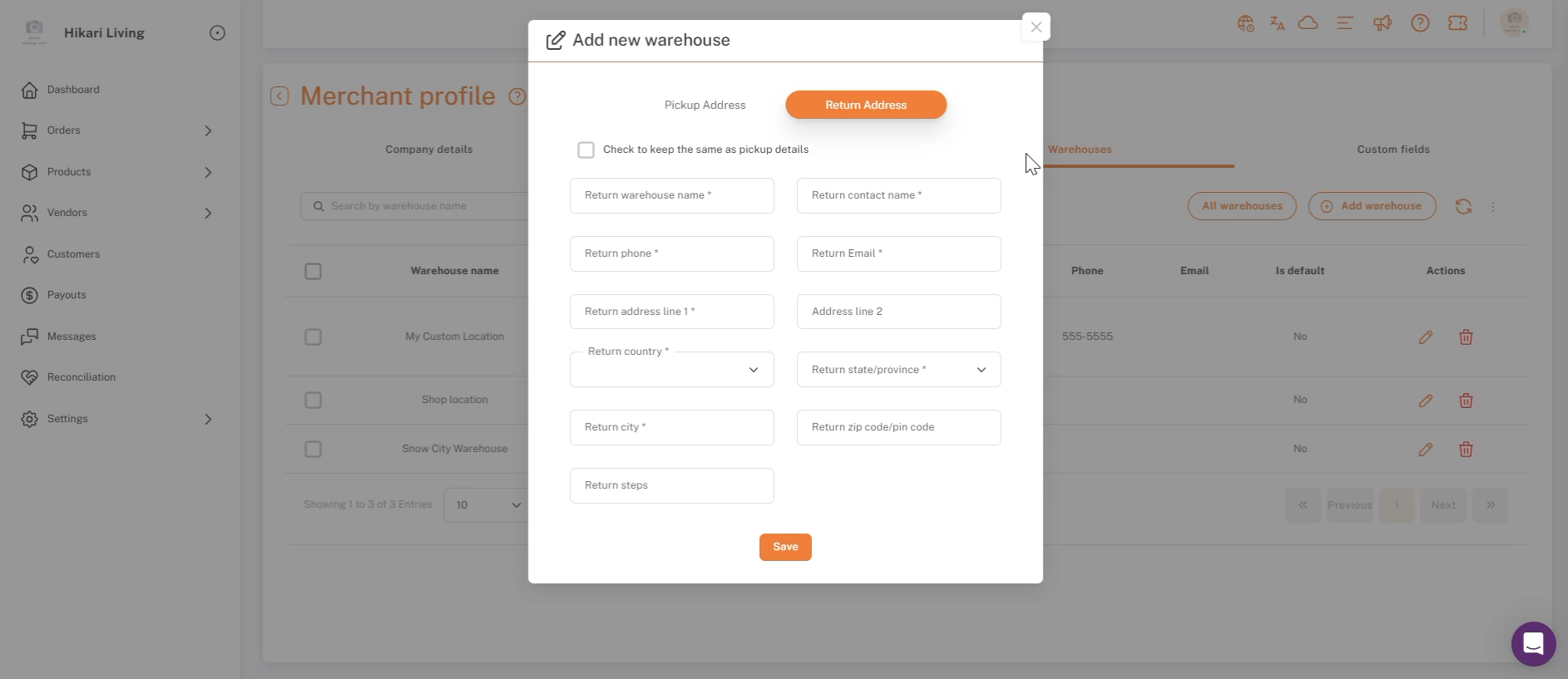
Add new warehouse: Return Address tab, with its own set of fields.
Step 4: Edit an existing warehouse
From the same Warehouses list, click the pencil icon in the Actions column next to any warehouse to reopen this same two-tab form pre-filled with its details. This step wasn't shown in the recording this update is based on, so double-check the pencil icon still opens the same form before relying on this description.
You can add as many warehouses as you need, and mark whichever one you use most often as your default.
Assign Warehouses to Vendors
This works differently than you might expect: vendors don't get assigned warehouses from the merchant's list. Instead, each vendor maintains their own, separate warehouse list, added the same way the merchant adds theirs.
To set a vendor up with a warehouse:
- Go to Vendors → Manage vendors and find the vendor.
- Open that vendor's dashboard (the merchant can log in to a vendor's dashboard directly from the Actions column).
- Inside the vendor's own Settings → Vendor profile, select the Warehouses tab.
- Click Add warehouse and fill in the same Pickup Address / Return Address form described in Steps 2–3 above — this time it creates a warehouse that belongs to that vendor specifically.
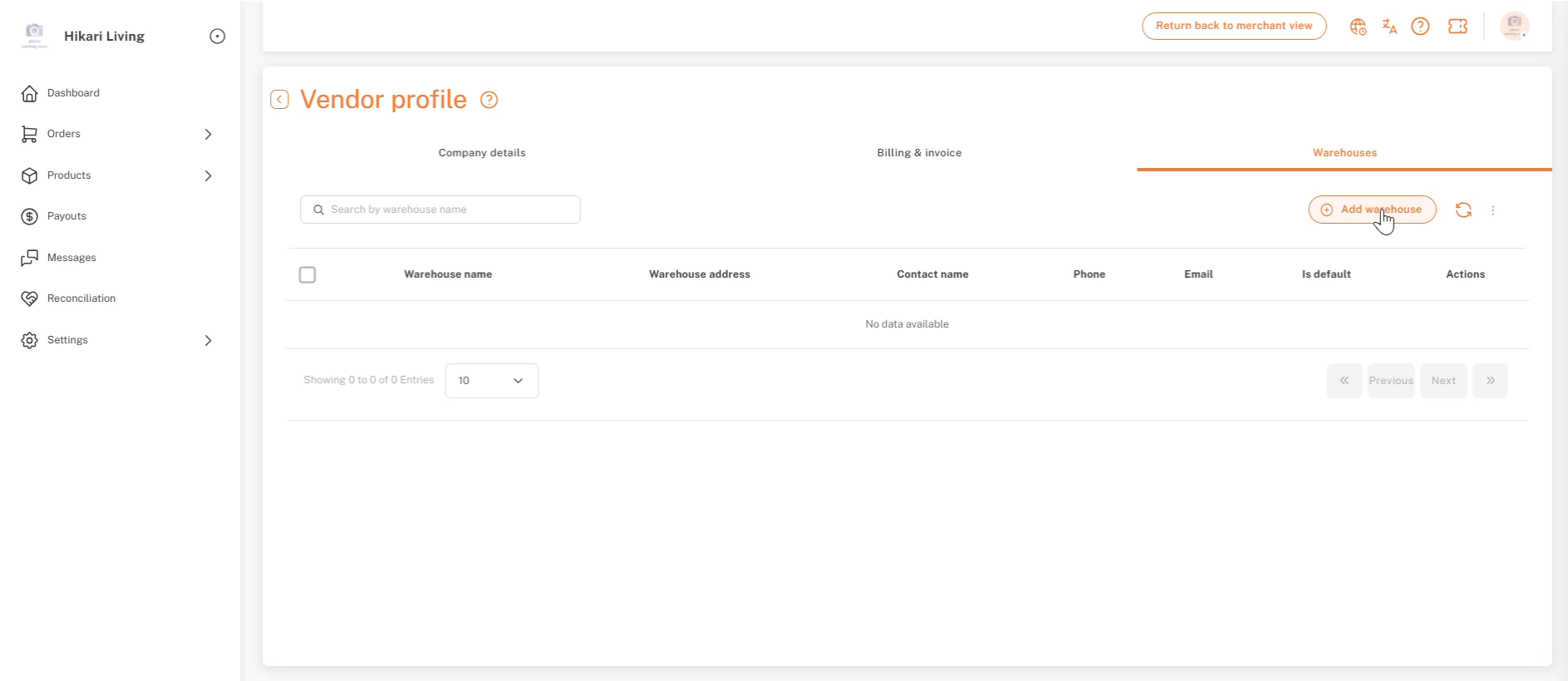
A vendor's own Vendor profile → Warehouses tab — empty until that vendor (or the merchant, on their behalf) adds one.
In multi-vendor marketplaces, a vendor's orders can only be processed from warehouses that exist in that vendor's own list — so a vendor with no warehouses of their own won't have anywhere to fulfill from until one is added.
Assign Warehouses to Orders Default assignment
Your default warehouse is automatically assigned to all incoming orders.
Changing the assigned warehouse
- Locate the order and click the + symbol next to “Pickup address.”
- A pop-up displays all available warehouse options for this order or vendor.
- Select the desired warehouse.
Checklist
- Confirmed the new location: Settings → Merchant profile → Warehouses.
- At least one warehouse added, with pickup and return addresses both set.
- A sensible warehouse marked as default.
- Any vendor who needs to fulfill their own orders has at least one warehouse under their own Vendor profile → Warehouses.
FAQs
Where did the standalone Warehouses page go?
It's now a tab inside Settings → Merchant profile, alongside Company details, Billing & invoice, and Custom fields, rather than its own item in the Settings menu.
Do I need to fill in a return address, or can I reuse the pickup address?
Check “Check to keep the same as pickup details” on the Return Address tab to reuse the pickup address instead of re-entering it.
How do I assign one of my existing warehouses to a vendor?
You don't assign an existing warehouse to them directly — the vendor (or the merchant, logged into that vendor's dashboard) adds their own warehouse under that vendor's own Vendor profile → Warehouses tab.
What does “Offer pickup from default warehouse” do?
When enabled on the default warehouse, it lets customers choose local pickup from that location at checkout.
What happens to a vendor's orders if they have no warehouse of their own?
Vendor orders can only be processed from warehouses in that vendor's own list, so an order can't be fulfilled from a vendor account with no warehouses set up yet.
If you're stuck, reach the Shipturtle team at team@shipturtle.com or open a ticket through the support page.