Amazon Multi-Channel Fulfillment (MCF) lets you fulfill non-Amazon orders using Amazon's own warehousing and logistics network. This guide covers what it does, how to connect it, and where the navigation has moved since the last version of this article.
Benefits of Amazon MCF
- Leverage Amazon's Fulfillment Network: Fulfill non-Amazon orders using Amazon's trusted logistics and warehousing.
- Fast and Reliable Shipping: Improve customer satisfaction with Amazon's efficient shipping speeds.
- Centralized Management: Track inventory and shipments in one place through the Shipturtle dashboard.
Additional Advantages with Shipturtle
- Inventory Synchronization: Real-time sync between your marketplace and Amazon FBA inventory.
- Automated Order Routing: Automatically route eligible orders to MCF using your configured rules.
- Fulfillment Status Tracking: Track fulfillment and shipping updates directly inside Shipturtle.
Prerequisites
Before you begin, ensure:
- You have an active Amazon Seller Central account with MCF enabled.
- Products to be fulfilled are enrolled in Fulfillment by Amazon (FBA).
Setting Up Amazon MCF Integration
Step 1: Configure Amazon Seller Central
- Log in to your Amazon Seller Central account.
- Go to Settings > Fulfillment by Amazon.
- Adjust MCF shipping speeds and preferences.
- Ensure your GST number is updated for compliance.
Step 2: Connect Amazon MCF to Shipturtle
From the left sidebar, go to Settings → Integrations to see every carrier's connection status at a glance. Amazon's MCF integration appears here as “Amazon Fulfilment India”, click Configure to go to Shipping partners, or Explore add-ons if it isn't purchased yet.
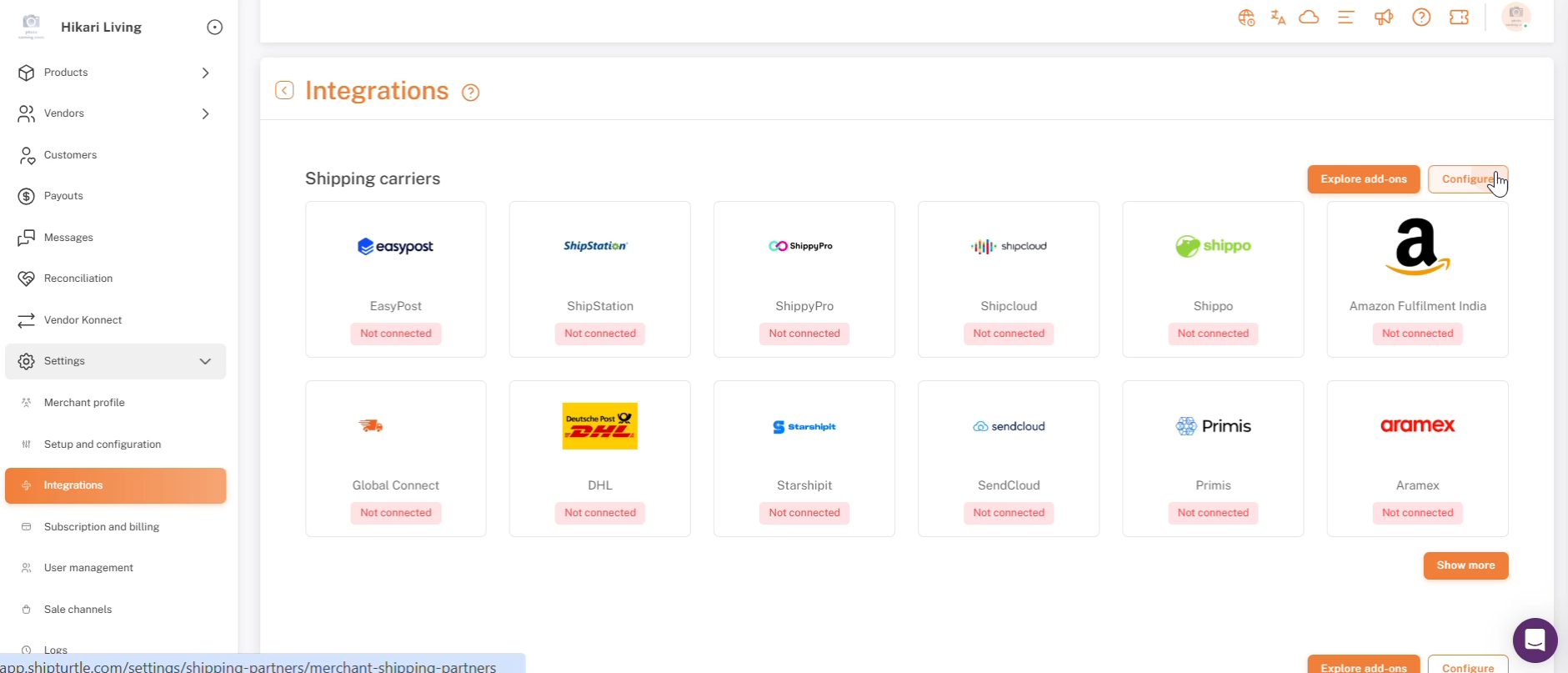
Settings → Integrations, carrier connection status at a glance, with Explore add-ons and Configure.
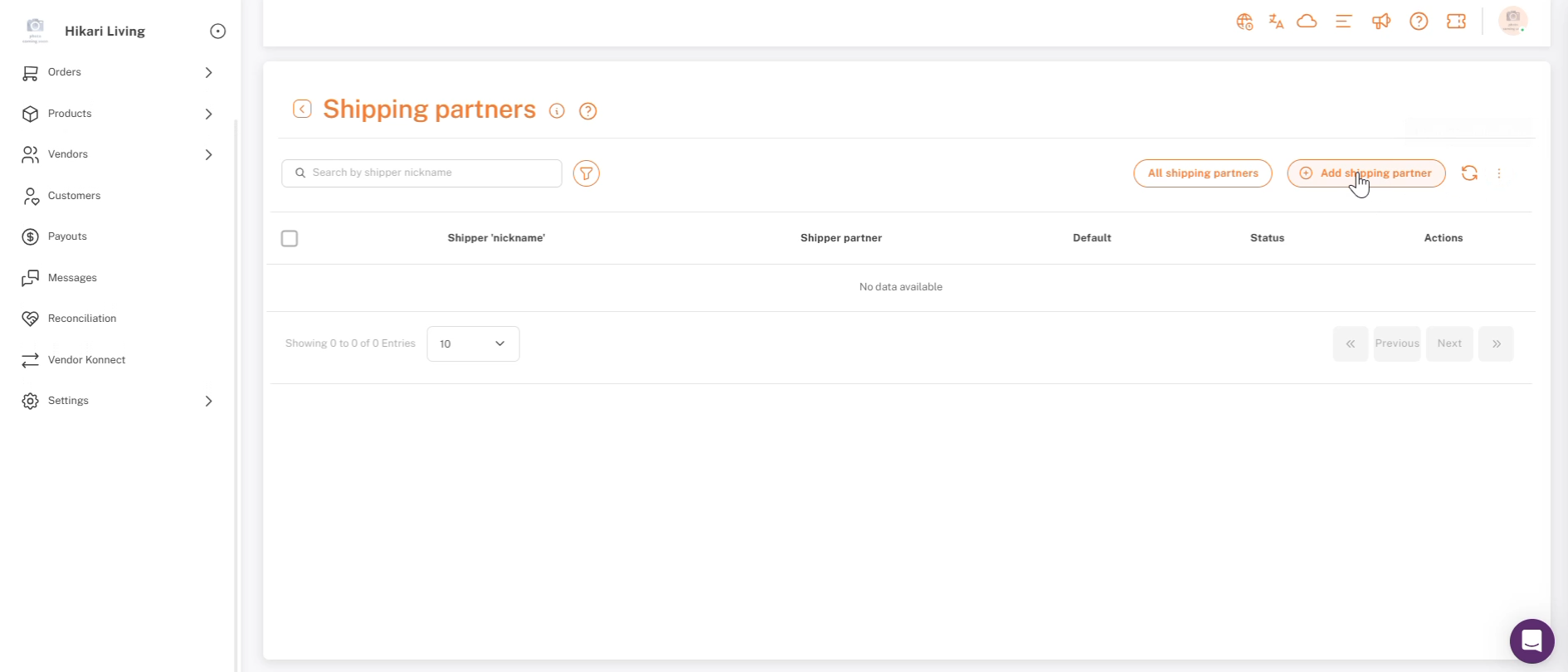
Settings → Shipping partners, click Add shipping partner to connect a new carrier.
On the Add shipping partner screen, search the Shipping company dropdown for “amazon.” You'll see a few similarly-named options. Pick Amazon Warehouse for MCF. (Amazon India is a separate integration; don't confuse the two.)
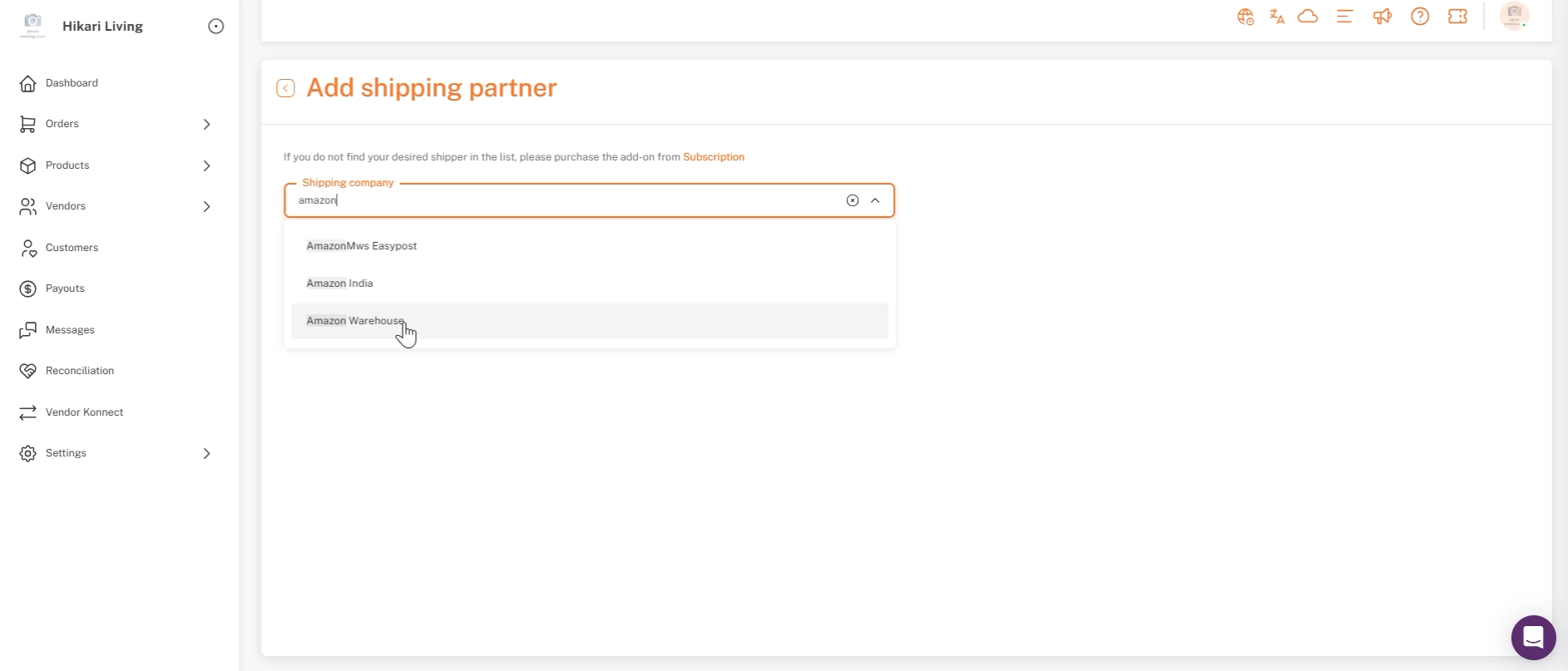
Searching “amazon” in the Shipping company dropdown — Amazon Warehouse is the MCF integration.
Selecting Amazon Warehouse opens its connection form:
- Nick name: A label for this connection, so you can tell it apart from other shippers.
- GST number: Required for compliance on shipments fulfilled through Amazon.
- Day after shipping label generated pickup date: Input 0 for same-day pickup or 1 for next-day pickup.
- Check to make this shipper service as default: Optional, makes Amazon MCF the default shipping method.
- Allow access of this shipper to vendors to generate their labels: Optional, lets vendors use this connection to generate their own labels.
Fill these in, then click Authenticate. You'll be redirected to Amazon Seller Central to authorize the connection.
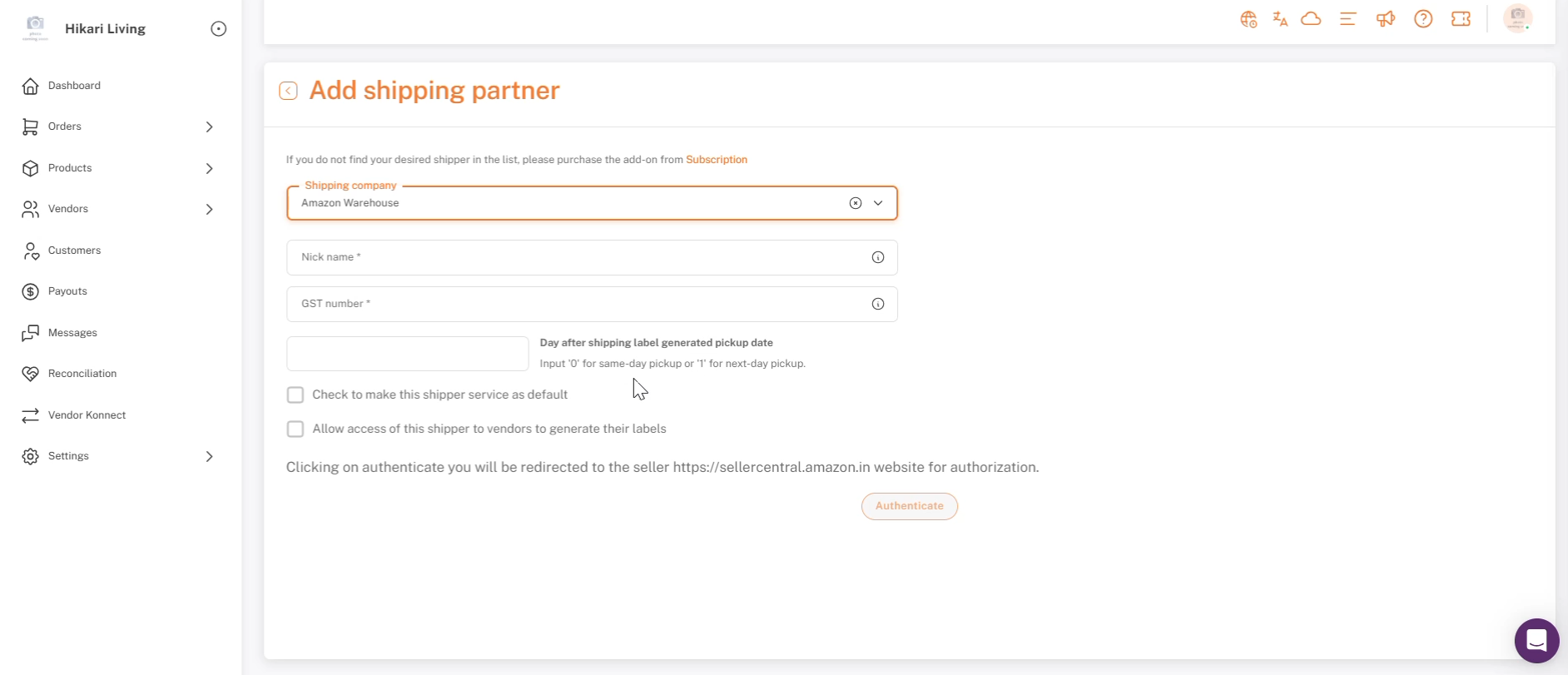
The Amazon Warehouse connection form: nickname, GST number, pickup-date offset, and the Authenticate redirect.
Step 3: Map Products and Inventory
- Use the Product Mapping Tool to link your marketplace products with their FBA SKUs.
- Enable Inventory Sync to maintain up-to-date stock levels.
Step 4: Label Generation
Go to Settings > Warehouses > Add a Warehouse to configure your warehouses.
- Navigate to the Orders Panel.
- Test label generation on sample orders.
- Resolve any errors.
- Click Generate Label once everything is working smoothly.
Key Features
- Real-Time Inventory Sync: Prevent overselling with live updates from Amazon FBA.
- Automated Order Fulfillment: Automatically fulfill eligible orders without manual steps.
- Shipment Tracking: End-to-end tracking from Shipturtle, no external tools needed.
Checklist
- Amazon MCF enabled and shipping speeds configured in Seller Central.
- Amazon Warehouse connected under Settings → Shipping partners, with GST number and nickname set.
- Authentication completed via the Amazon Seller Central redirect.
- Products mapped to their FBA SKUs, with Inventory Sync enabled.
- A warehouse configured and a sample order's label generation tested end to end.
Troubleshooting
Connection Errors
Double-check your GST number, account region, and Amazon credentials.
Inventory Mismatch
Ensure SKUs match exactly between Shipturtle and FBA.
Order Routing Issues
Review routing rules in Settings → Shipping partners → Amazon Warehouse.
If you're stuck, reach the Shipturtle team at team@shipturtle.com or open a ticket through the support page.