Quick Summary
Live rates need four things in place first: a Shopify plan with 3rd-party carrier calculated shipping, at least one connected carrier, a warehouse for every vendor, and default package dimensions set (otherwise Shopify calculates rates using 1×1×1). Once those are ready, switch your Shipping profile setup mode to 3rd party live carrier rates only (or Hybrid mode), then point Shopify's own checkout at Shipturtle as the rate calculator.
Prerequisites
Check off each of these before you start — skipping any of them is the most common reason live rates come back wrong or don't show at checkout.
- Shopify plan supports carrier-calculated shipping — Your Shopify plan must include “3rd party carrier calculated shipping.” See Shopify's guide to enabling shipping carriers.
- At least one shipping carrier connected — Live rates have nothing to quote from without a connected carrier. See Add Shipping Partners.
- Every vendor has a warehouse — Accurate rates require each vendor to have a warehouse set up. If any vendor lacks one, backup rates apply to the entire cart, not just that vendor's items. See Add and Assign Warehouses.
- Default package dimensions are set — Without these, Shopify calculates rates using incorrect 1×1×1 dimensions. Covered in Step 2 below.
⚠ What changed since the last version of this guide
This version restructures the old prose into explicit steps and separates prerequisites from setup. Default package dimensions — previously a buried note pointing to “Settings > Shipping Partners > Shipping Label Settings” — now live at Settings → Setup and configuration → Shipping settings → Package dimensions, confirmed end-to-end in the current UI with real screenshots below.
Step-by-step setup
Step 1: Switch to live carrier rates in your Shipping profile setup mode
Go to Settings → Setup and configuration → Shipping profile. Under Shipping profile setup mode, choose:
- 3rd party live carrier rates only — Use live carrier rates exclusively, with no vendor-wise Shipping Profiles in play.
- Hybrid mode (live rates + shipping profiles) — Use live rates alongside Shipping Profiles, with one as a fallback for the other.
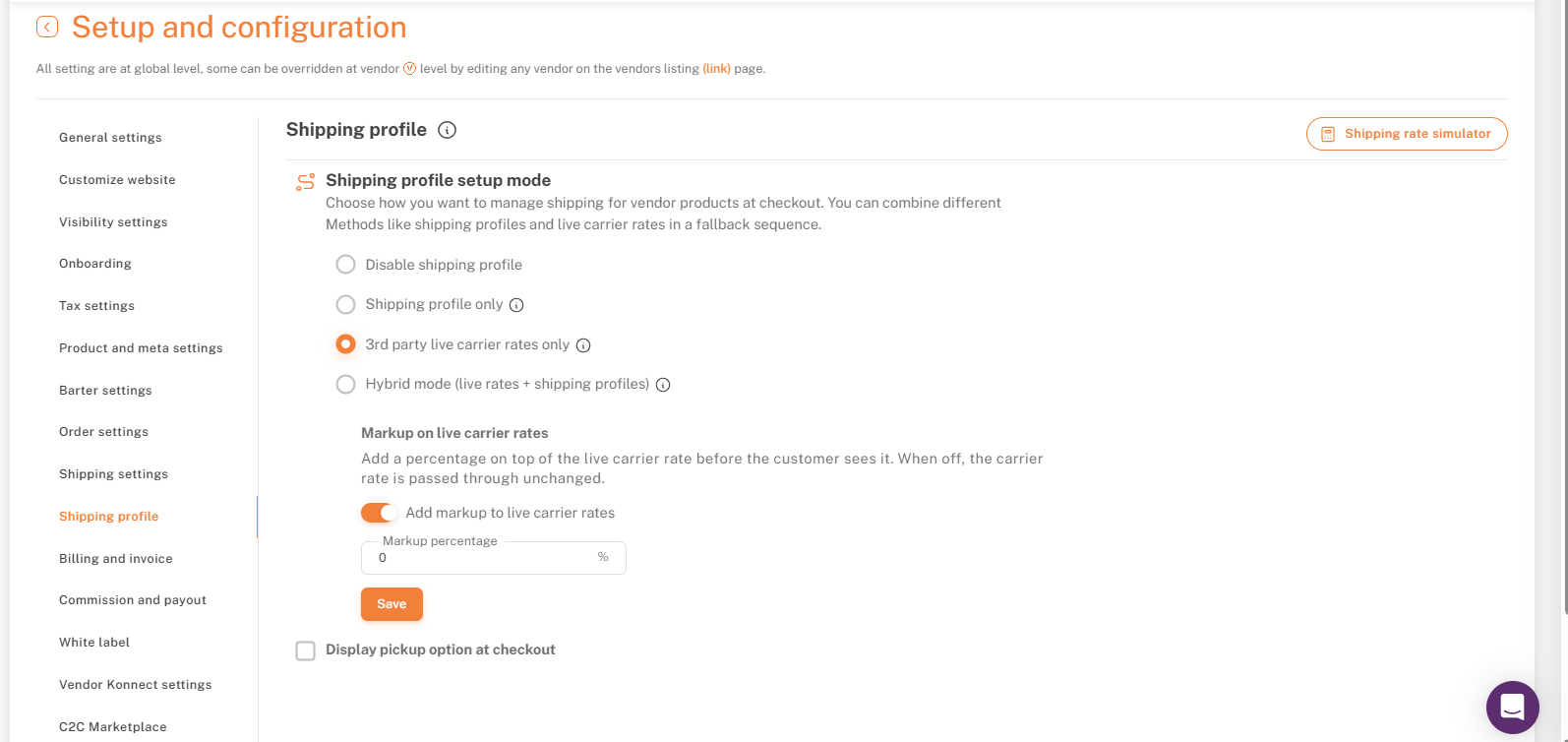
Shipping profile setup mode — choose 3rd party live carrier rates only or Hybrid mode.
Step 2: Set default package dimensions
Go to Settings → Setup and configuration → Shipping settings → Package dimensions.
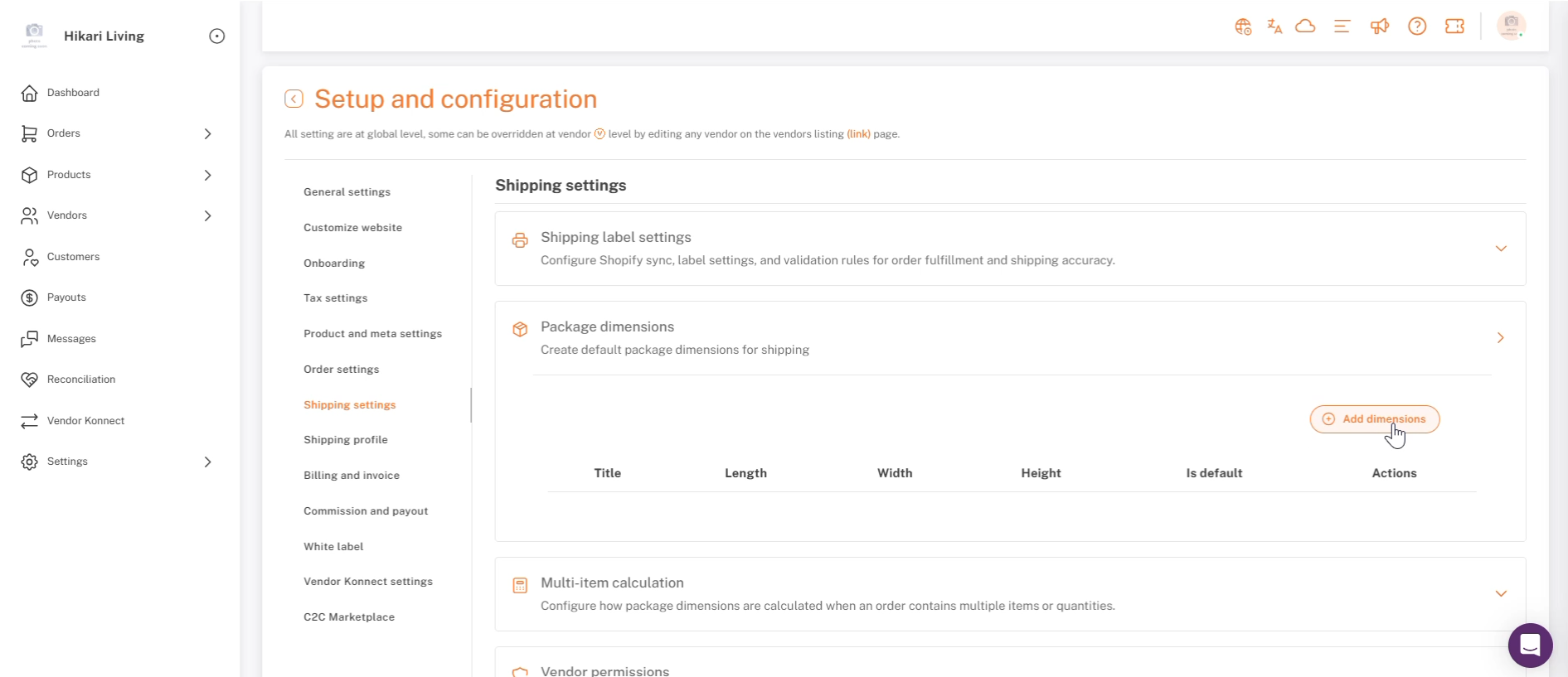
Package dimensions: click Add dimensions.
Click Add dimensions, give it a title, fill in Length, Width and Height, and turn on “Check to make this dimensions as default.”
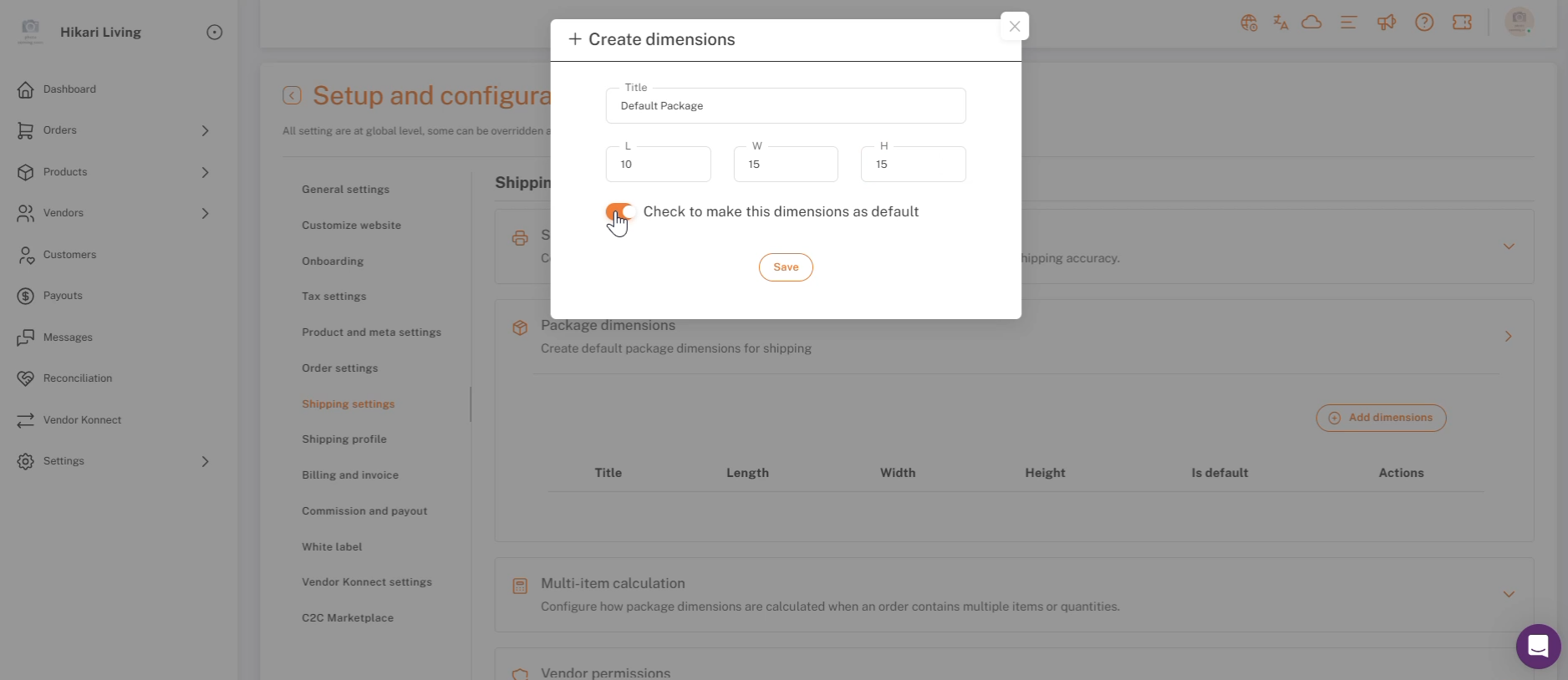
Create dimensions — title, L/W/H, and marked as default.
Click Save. The new default now appears in the table, and live rates will use it for any product that doesn't have its own dimensions set.
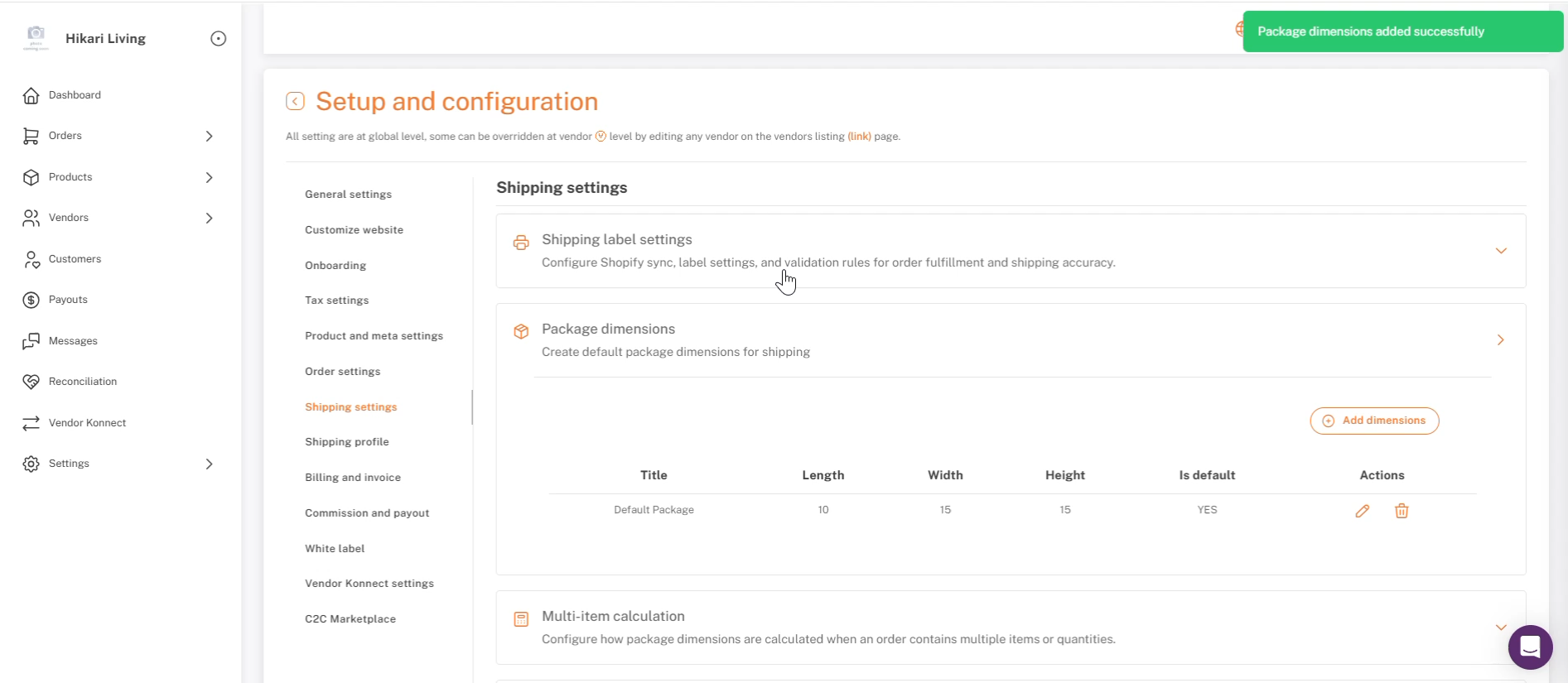
Package dimensions added successfully — shown in the table as the default.
You can also set dimensions per product instead of relying on the default — a product's own dimensions take priority when present.
Step 3: Point Shopify's checkout at Shipturtle
This part happens in Shopify, not Shipturtle. In a shipping zone's rate settings, set Rate type to “Carrier or app calculated,” then pick Shipturtle as the Carrier or app:
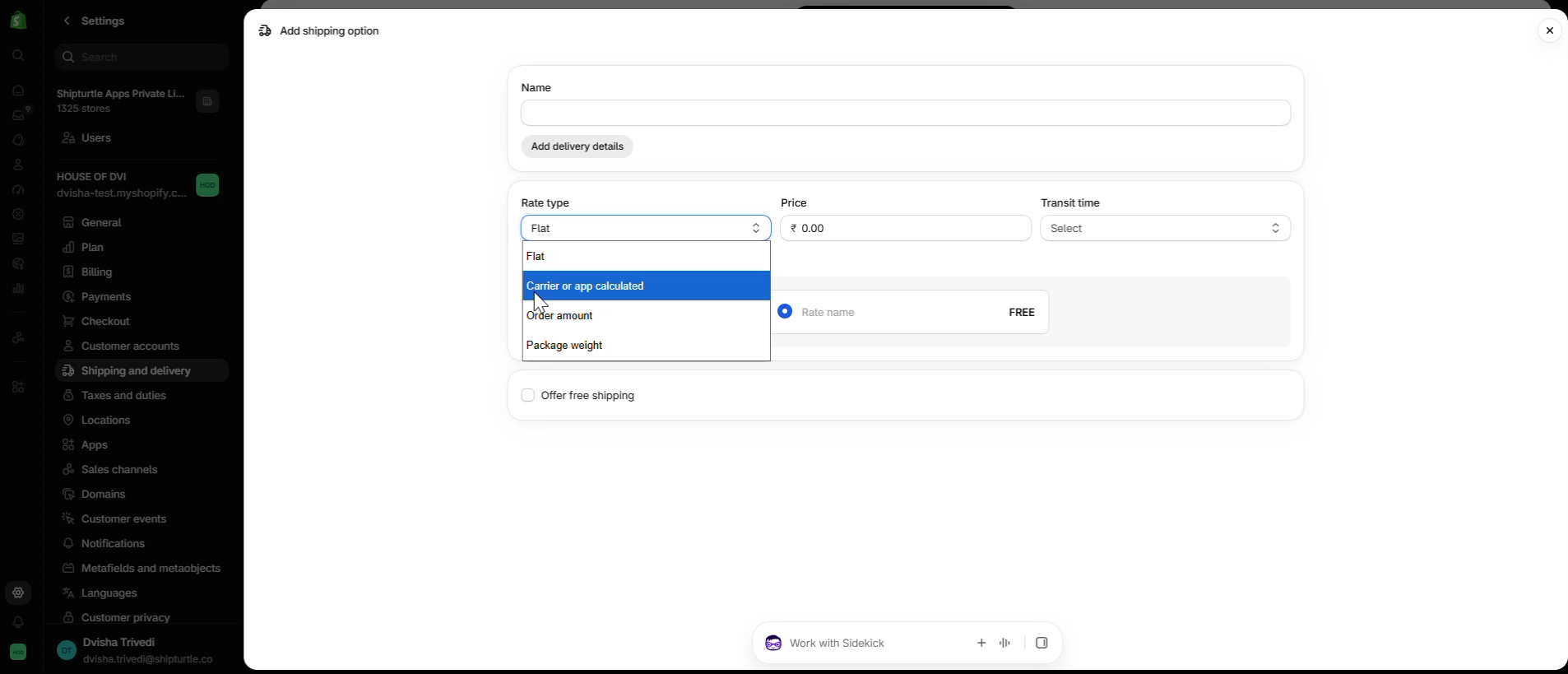
Shopify — Rate type set to Carrier or app calculated.
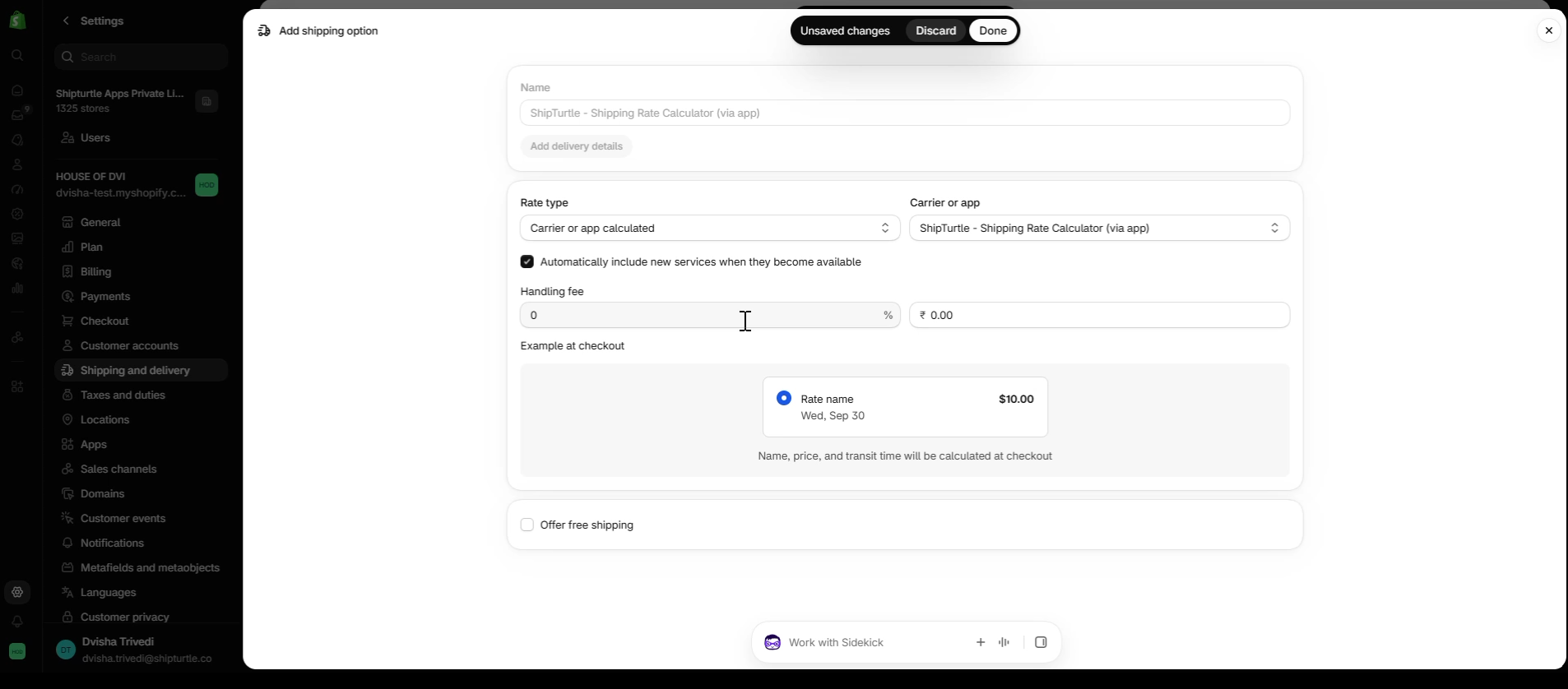
Shopify — ShipTurtle selected as the rate calculator.
For the full walkthrough of creating the zone and rate, see Setup Your Own Shipping Profiles.
Step 4: Remove conflicting Shopify shipping profiles
If you still have Shipping Profiles created directly in Shopify, delete them. Otherwise both the Shopify-created rates and Shipturtle's live rates will show at checkout side by side.
How multi-vendor carts are calculated
For carts with products from multiple vendors, the total shipping rate shown to the customer is the combined sum of the live rate calculated for each vendor's share of the cart.
Limits to keep in mind
- Shopify's time limit — Shopify limits how long it waits for a shipping rate. Carrier APIs can take anywhere from under a second to several seconds — if a shipper's API exceeds Shopify's allowed time, Shopify falls back to a backup rate instead.
- Up to 4 shippers — Shopify can calculate rates for up to four shippers at checkout. Deactivate any shippers you don't use often so an idle one doesn't crowd out one you need.
Setting up backup rates on Shopify
In the rare case a rate isn't returned in time (Shopify allows roughly 10–15 seconds), Shopify uses a backup rate instead, and Shipturtle emails the merchant when this happens. See Shopify's guide to customizing backup shipping rates to configure what that backup rate should be.
Checklist
- Shopify plan confirmed to support carrier-calculated shipping.
- At least one carrier connected under Shipping partners.
- Every vendor has a warehouse assigned.
- Default package dimensions created and marked as default (or set per product).
- Shipping profile setup mode set to 3rd party live carrier rates only or Hybrid mode.
- Shopify zone rate set to Carrier or app calculated, with Shipturtle selected.
- Any conflicting Shopify-native shipping profiles removed.
- A test checkout completed to confirm live rates appear correctly.
FAQs
- Why is my cart showing a flat or backup rate instead of a live rate?
Check, in order: whether every vendor in the cart has a warehouse, whether default package dimensions are set, whether the relevant carrier is active (and within the 4-shipper limit), and whether that carrier's API responded within Shopify's time limit. - Do I need default package dimensions if every product already has its own dimensions set?
No — product-level dimensions take priority. The default only matters as a fallback for products that don't have their own dimensions. - Can I use Shipping Profiles and live rates at the same time?
Yes — choose Hybrid mode in the Shipping profile setup mode, which uses one as a fallback for the other.
If you're stuck, reach the Shipturtle team at team@shipturtle.com or open a ticket through the support page.