Shipturtle lets you generate shipping labels through any of your 200+ connected carriers, one order at a time or in bulk, and keeps tracking status in sync automatically. This guide walks through the full flow, end to end.
Pick a shipper from the Select shipper dropdown on an order and click Generate label — or select multiple orders and use Bulk actions → Generate → Shipping labels. If a label was created outside Shipturtle, use Add tracking manually instead. Shipturtle then tracks status automatically (an “A” badge) where the carrier supports it, or manually (an “M” badge) where it doesn't.
Before you begin
- At least one shipping carrier connected — see Add Shipping Partners.
- The “Ship to” address, “Pick-up” address, weight, and package dimensions filled in and correct for the order. If there's an error, Shipturtle won't generate a label.
Generate a Shipping Label
Step 1: Compare rates (optional)
To compare rates across your connected carriers before choosing one, make sure the order's package dimensions and weight are filled in, then open the Select shipper dropdown — it shows live rates side by side where your carriers support it.
Step 2: Single order
- Open the order and choose a carrier from the Select shipper dropdown.
- Click Generate label.
- Download the Shipping label.
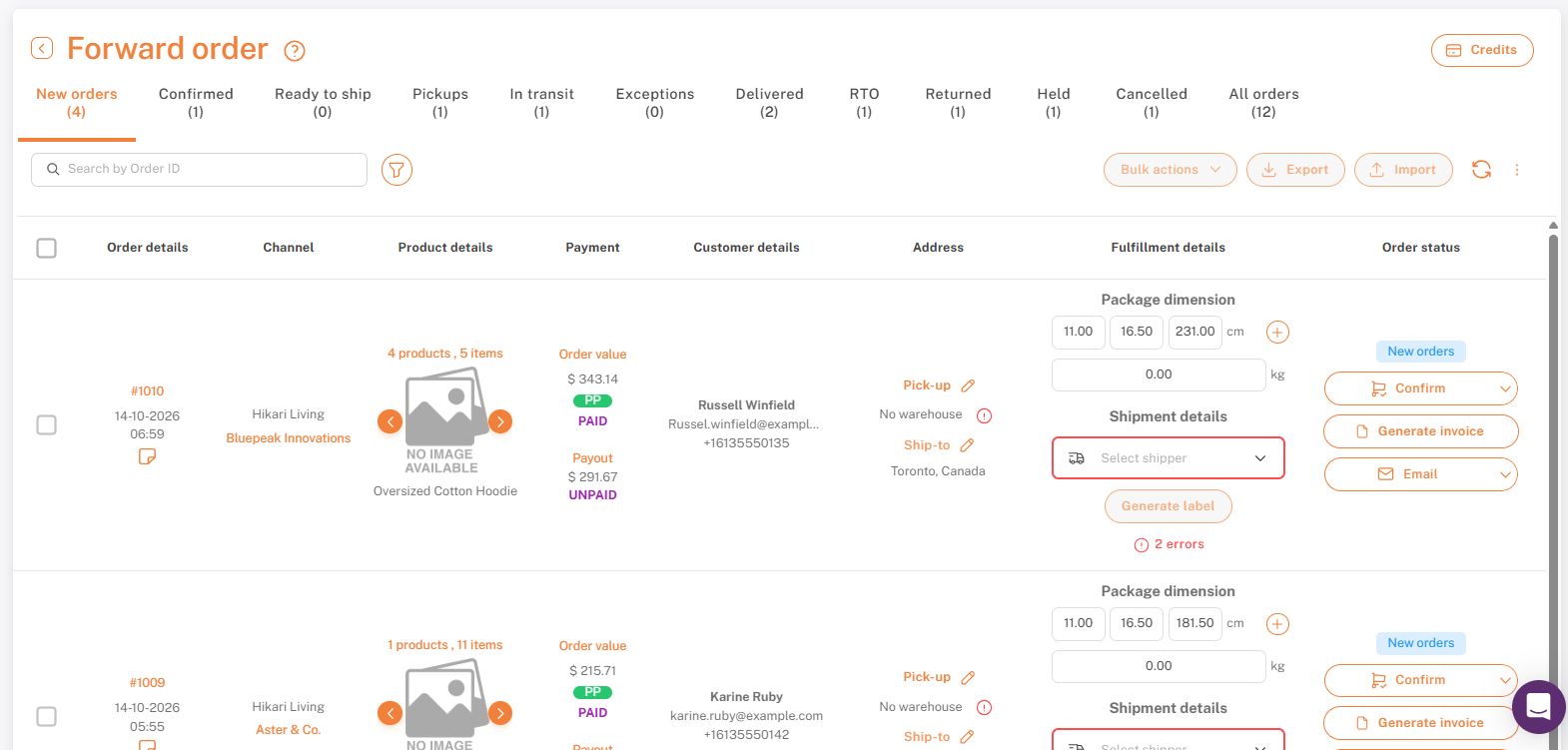
An order ready to ship — shipper selected, Generate label ready to click.
Step 3: Bulk orders
Select multiple orders, then use Bulk actions → Generate → Shipping labels to generate labels for all of them at once.
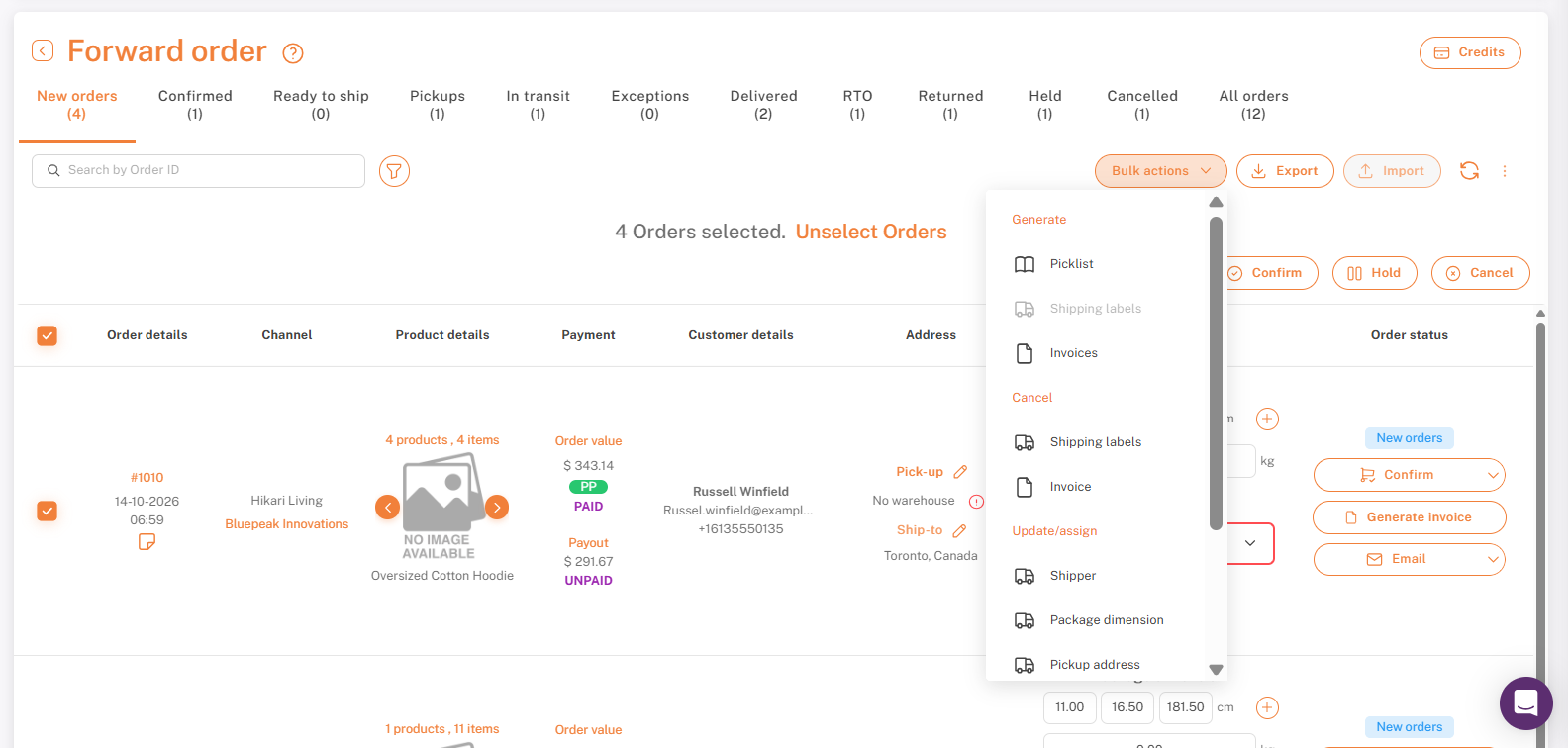
Bulk actions → Generate → Shipping labels. (Background order details blurred.)
Add a Tracking Number Manually
If a label was created outside Shipturtle — common for drop shippers or one-off shipments with an ad-hoc carrier — you can still record it against the order instead of generating a label through Shipturtle.
- Open the Select shipper dropdown and click Add tracking manually.
- In Other courier partner, enter the Shipping carrier name, Tracking number, Tracking URL, and Estimated cost.
- Click Save and generate label.
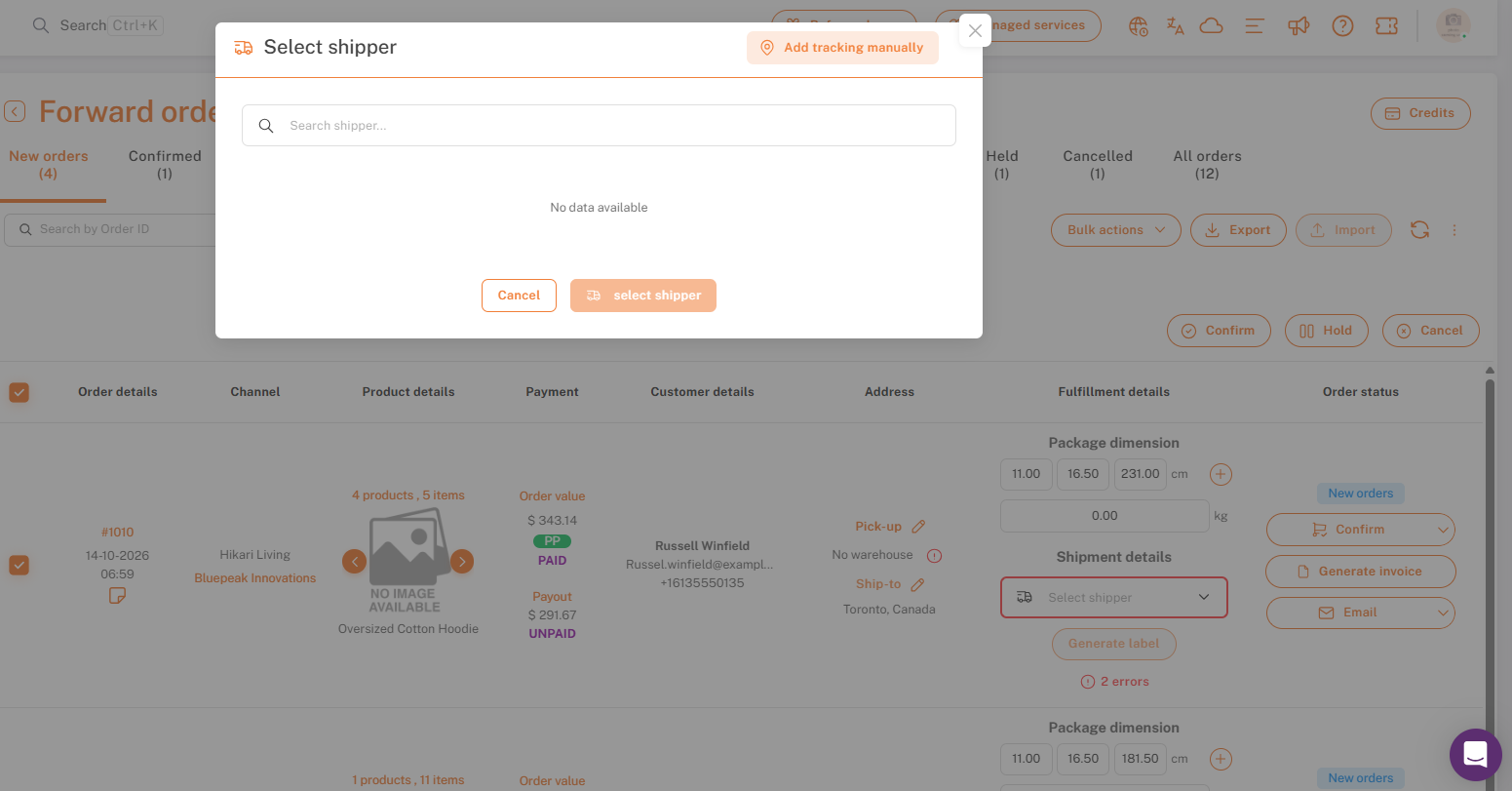
Select shipper — Add tracking manually, top right.
Tracking Status Retrieval and Maintenance
Once a label is generated, the tracking number appears under Shipment details, clicking it takes you straight to the carrier's tracking page. Shipturtle also tracks status inside the app:
- Automatic — Shown for carriers with tracking integration. Shipturtle automatically retrieves and updates the shipment status every hour.
- Manual — Shown for carriers without tracking integration. You'll need to update the shipment status by hand.
If a shipping partner ever returns an incorrect status, you can switch that order from automatic to manual using the toggle next to the status badge.
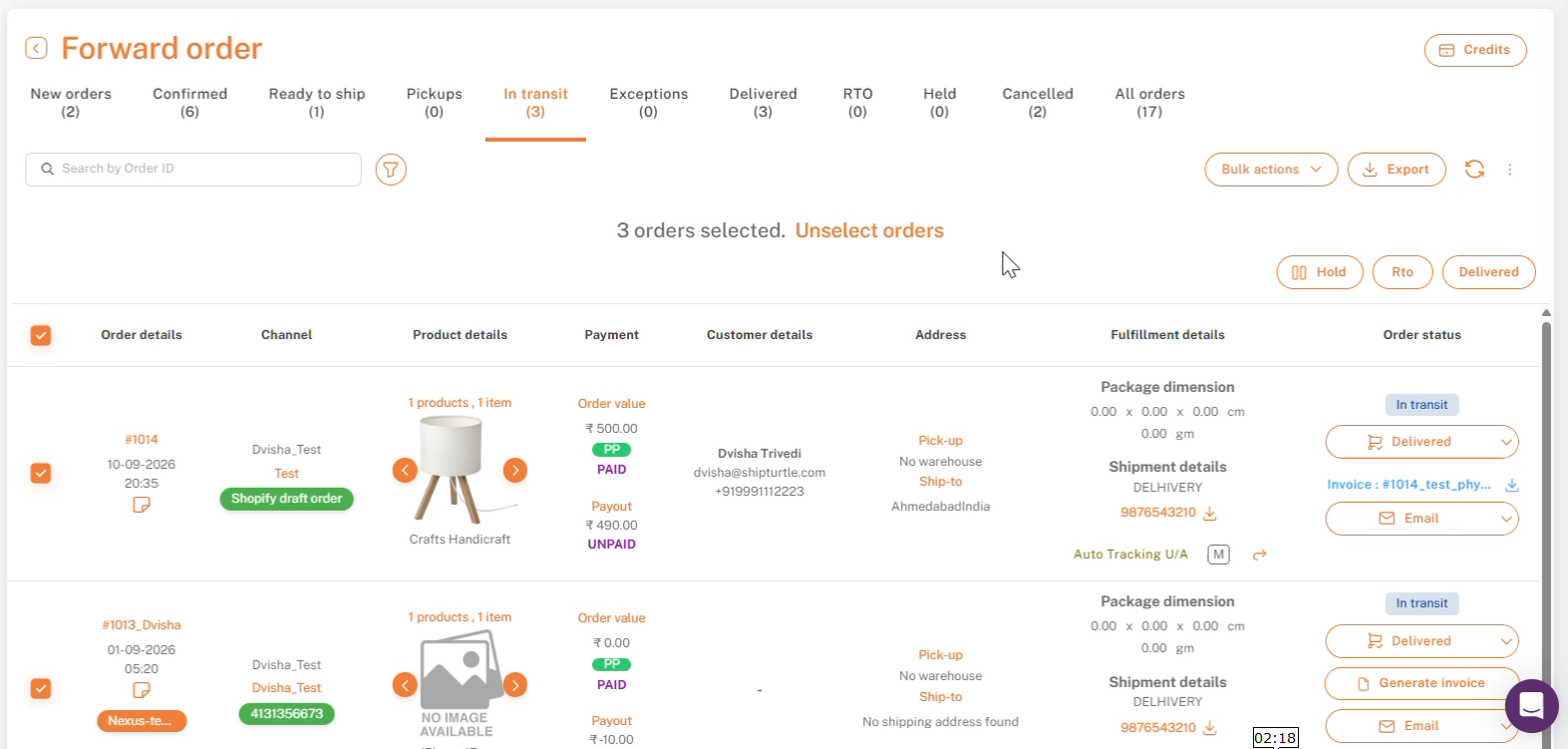
Automatically Assign Shippers
Under Settings → Setup and configuration → Shipping settings, Shipping automation lets you create rules that assign a shipper to an order automatically, instead of picking one manually every time:
- Rules are evaluated from top to bottom.
- The first rule that's true for an order is applied, and every rule below it is skipped.
- If no rule matches, the default shipper set in Shipping partners is used instead.
Update Order Status on Your Store
Go to Settings → Setup and configuration → Shipping settings → Shipping label settings, and enable “Automatically update order status on Shopify.” Once a shipment is created, the shipping details and tracking number are sent to your store automatically — choose whether that happens On Shipment (label created) or On Movement (package picked up).
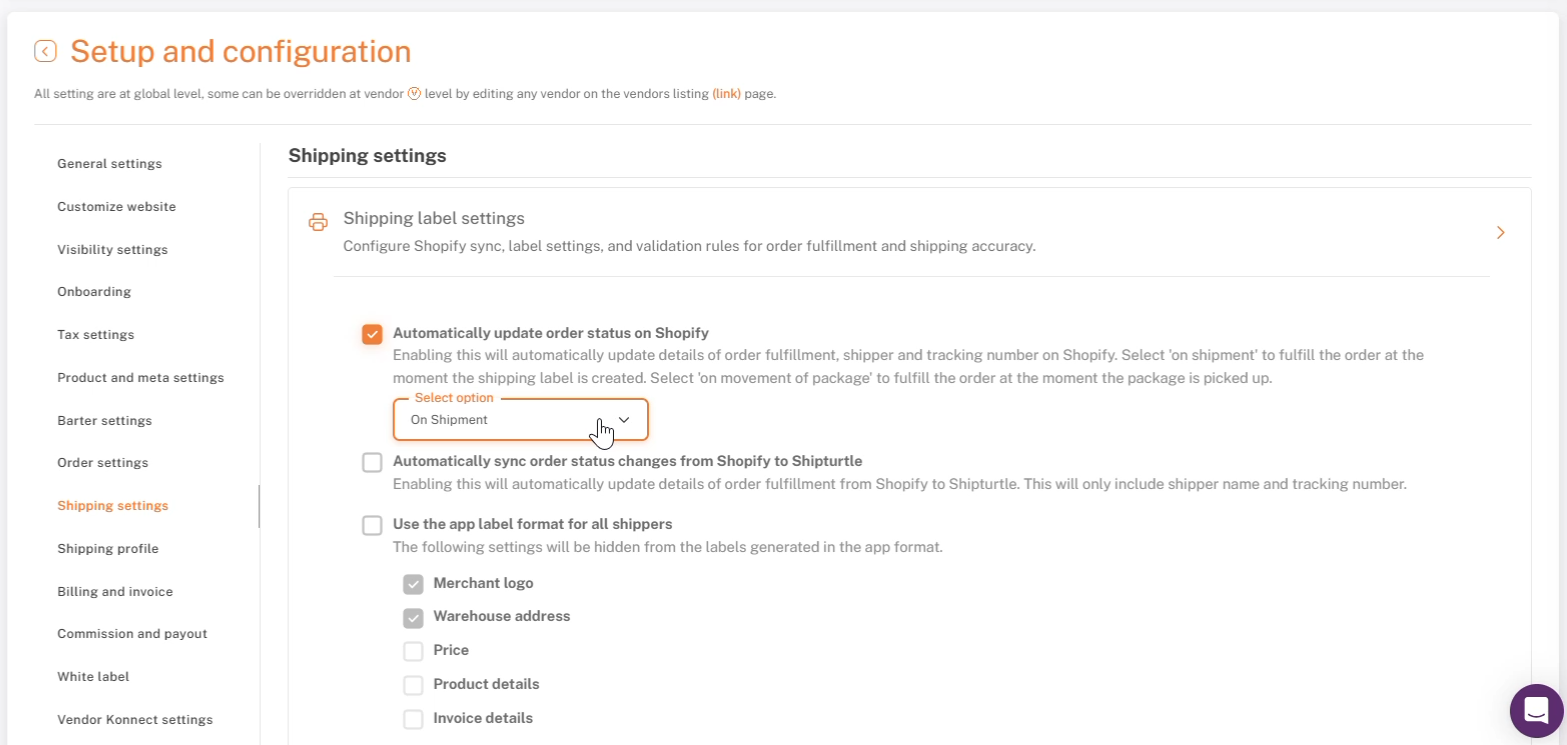
Shipping label settings — Automatically update order status on Shopify.
Cancel a Shipping Label
Select the orders you want to cancel labels for, then go to Bulk actions → Cancel → Shipping labels.
Send Shipping Labels via Email and WhatsApp
Email a copy of the shipping label and order details by clicking the email icon on an individual order, or use “Email Orders to Vendors” under Bulk actions for several at once.
- Multi-vendor orders: the email goes to the vendor and the warehouse, with the merchant CC'd.
- Non-multi-vendor orders: the email goes to the merchant and the warehouse.
See Email Configuration and WhatsApp Integration for setup details.
Download Shipping Details for Accounting / Analysis
Filter your orders as needed, then click Export. Choose a preset (Minimal, Standard, Full) or build a Custom export by picking exactly the fields you need across Order context, Product, Order value, and more.
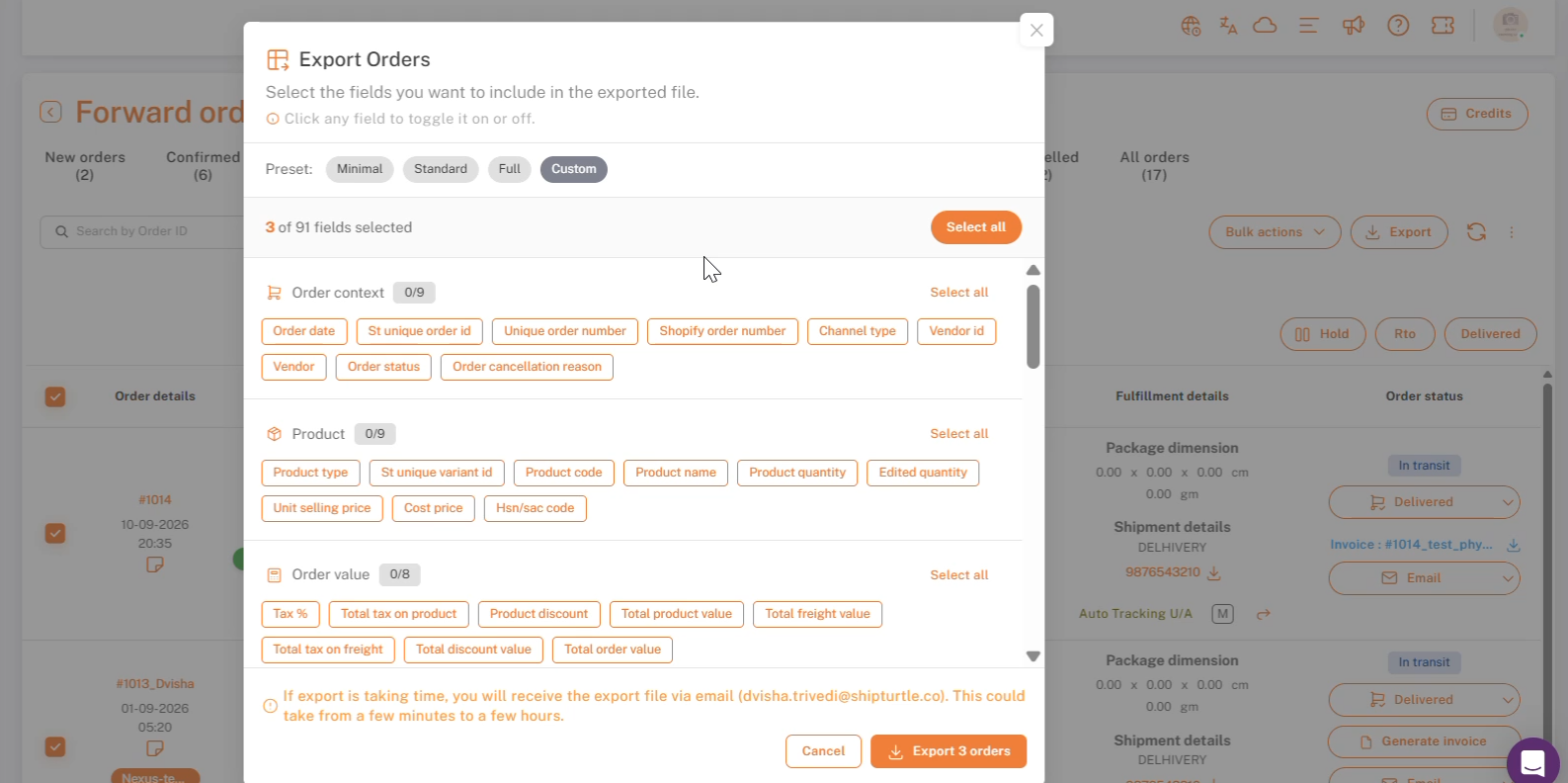
Export Orders — field presets and custom field selection. (Merchant email blurred.)
Larger exports are emailed to you rather than downloaded immediately. Use the Freight reconciliation utility afterward to compare estimated versus actual shipping costs.
Checklist
- At least one carrier connected.
- Ship-to address, pickup address, weight, and package dimensions confirmed correct on the order.
- Label generated, via Select shipper (single order), Bulk actions (multiple orders), or Add tracking manually (external label).
- Automatic order-status sync enabled, if you want your store updated without manual work.
- Shipping automation rules set up, if you want shippers assigned without manual selection.
Troubleshooting / FAQs
Why is the shipping icon grey and I can't generate a shipping label?
Two likely causes:
- An error on the order — Usually missing warehouse details, package dimensions/weight, or a selected shipper. Look for a small red error icon on the relevant cell — click it to see what's missing.
- A vendor without label-generation access — Go to Settings → Setup and configuration → Shipping settings → Vendor permissions and enable “Generate shipping labels” for vendors.
If you're stuck, reach the Shipturtle team at team@shipturtle.com or open a ticket through the support page.