Create custom product fields in Shipturtle and keep them in sync with Shopify
菜单
6 min 最少阅读时间
Add and Sync Custom Metafields
⚡ Quick Summary
Settings → Product and meta settings → Metafields settings → Add metafield. Pick a field type, choose who sees it (vendor, category, or both), and save. Values sync in real time between Shipturtle and Shopify. Variant-level metafields are not supported.
Overview
Metafields are extra product fields for data Shopify's default fields don't cover, such as care instructions, certifications, or warehouse references. Shipturtle and Shopify stay in sync in real time, in both directions: a value you create, update, or delete in either place appears in the other. Shipturtle supports product-level metafields only. Variant-level metafields are not supported.
In this guide you will:
- Create a metafield and choose who sees it.
- Add values on a product.
- Check the sync in Shopify.
- Show the value on your product page.
1. Open Metafields settings
Path:
- Settings → Product and meta settings → Metafields settings
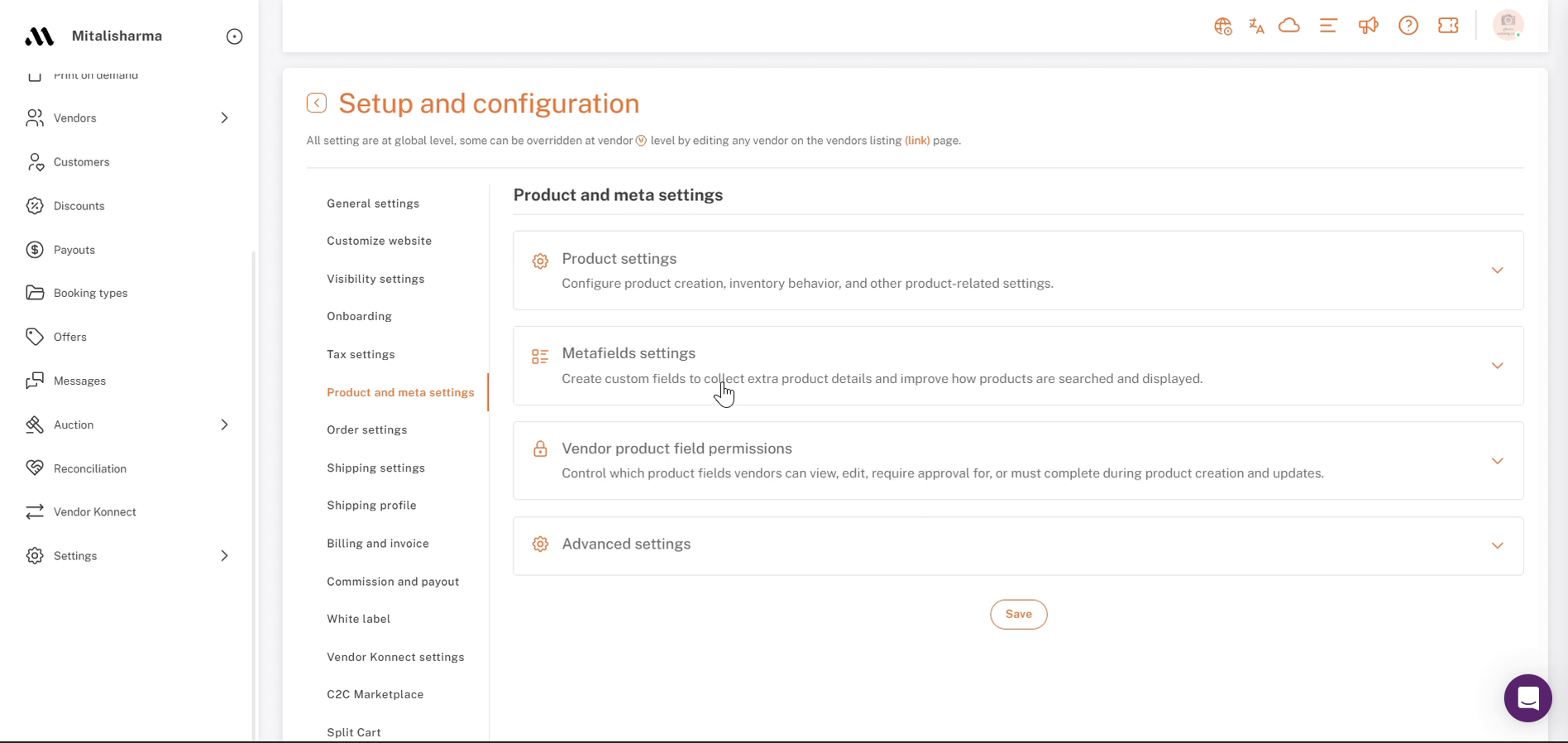
Settings → Product and meta settings: Metafields settings section
2. Add a metafield
The list shows each field's name, level, and type, with Edit, Generate code, and Delete actions. To create one:
- Select Add metafield. Keep Field for as Product (variant-level metafields are not supported).
- Enter a Field name and choose a Field type (both required).
- Optional: add a Description.
- Optional: tick Digital product for files such as photos, MP3, or docs. Customers get the file as a link by email after purchase.
- Optional: tick Make this field mandatory so vendors must fill it in.
- Optional: choose Vendor and Category to limit where the field appears (see step 3).
- Select Save.
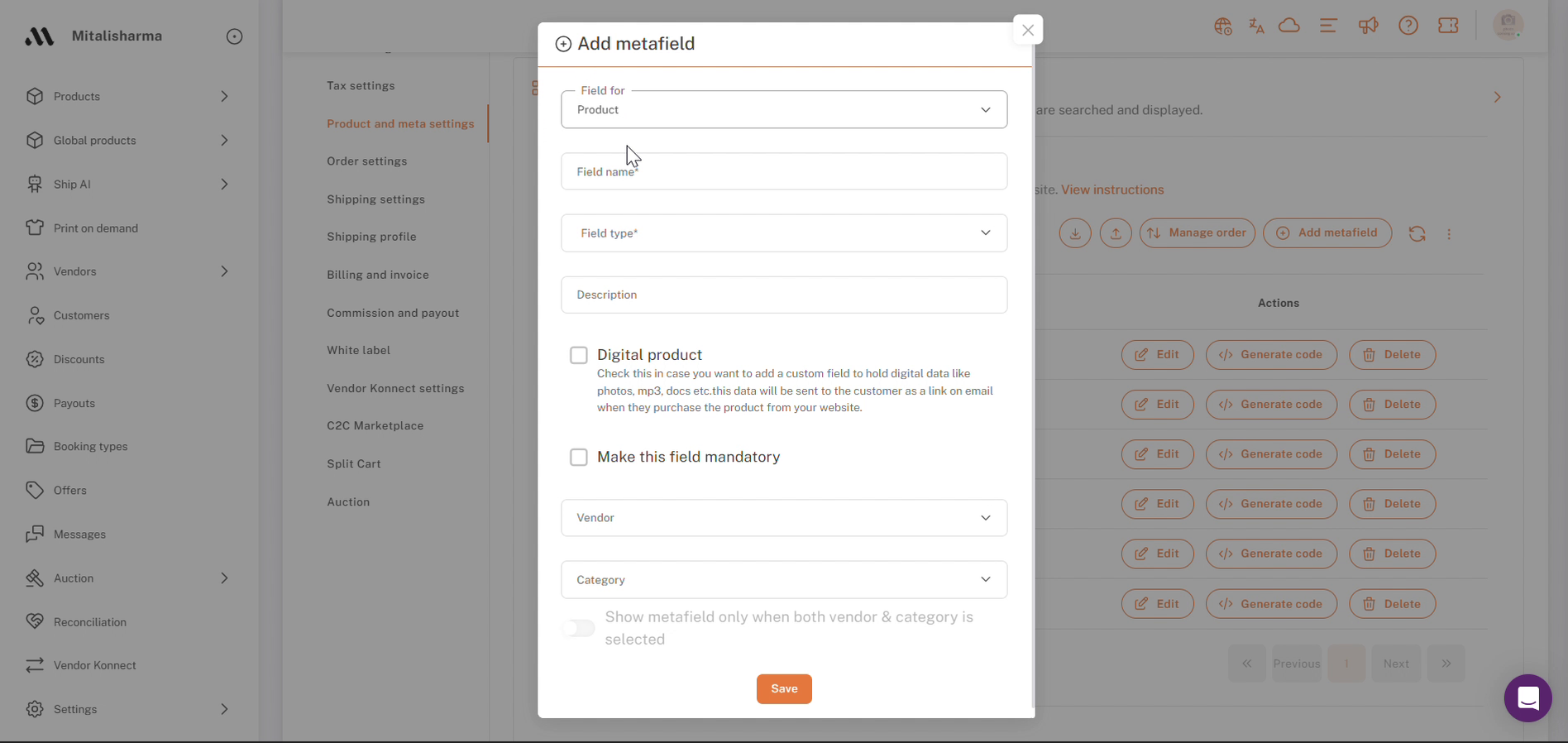
Metafields settings → Add metafield: field details and visibility options
3. Choose who sees the field
Leave Vendor and Category empty to show the field to everyone. Otherwise:
- Vendor only — only the selected vendors see it. Example: spec fields for electronics vendors.
- Category only — shows only when the product is in that category. Example: Fabric Material for Clothing.
- Vendor and category — select both, then turn on Show metafield only when both vendor & category is selected. Example: Warranty Period only for ElectroWorld in Smartphones.
How the toggle works
- Off — OR logic: the field shows if either condition matches.
- On — AND logic: the field shows only if both match.
4. Field types
Choose a type from the Field type dropdown:
- Text — Single line text, Multi-line text, Rich text, Choice list, Multi-select choice list, Email
- Number — ID, Money, Integer, Decimal, Rating, Dimension, Volume, Weight
- Date and time — Date, Date and time
- Other — True or false, Color, Language (not on C2C marketplaces)
- Advanced — JSON
- Shipturtle — Large choice list, Photos Gallery, File (.docx, .pdf, etc.)
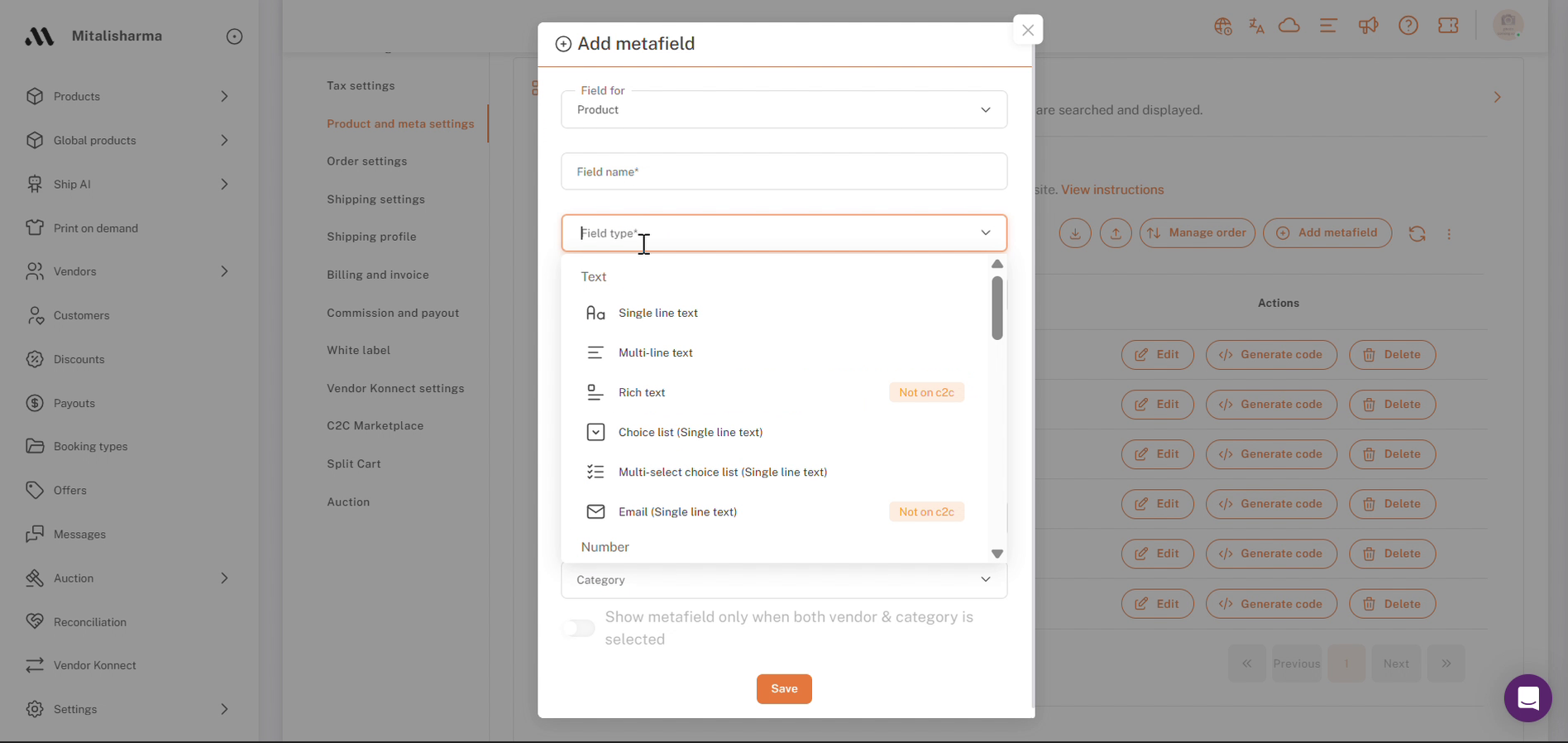
Add metafield: Field type dropdown
5. Add values on a product
- Products → Add products (or open an existing product)
- Scroll to Product metafields
- Enter the value → Save
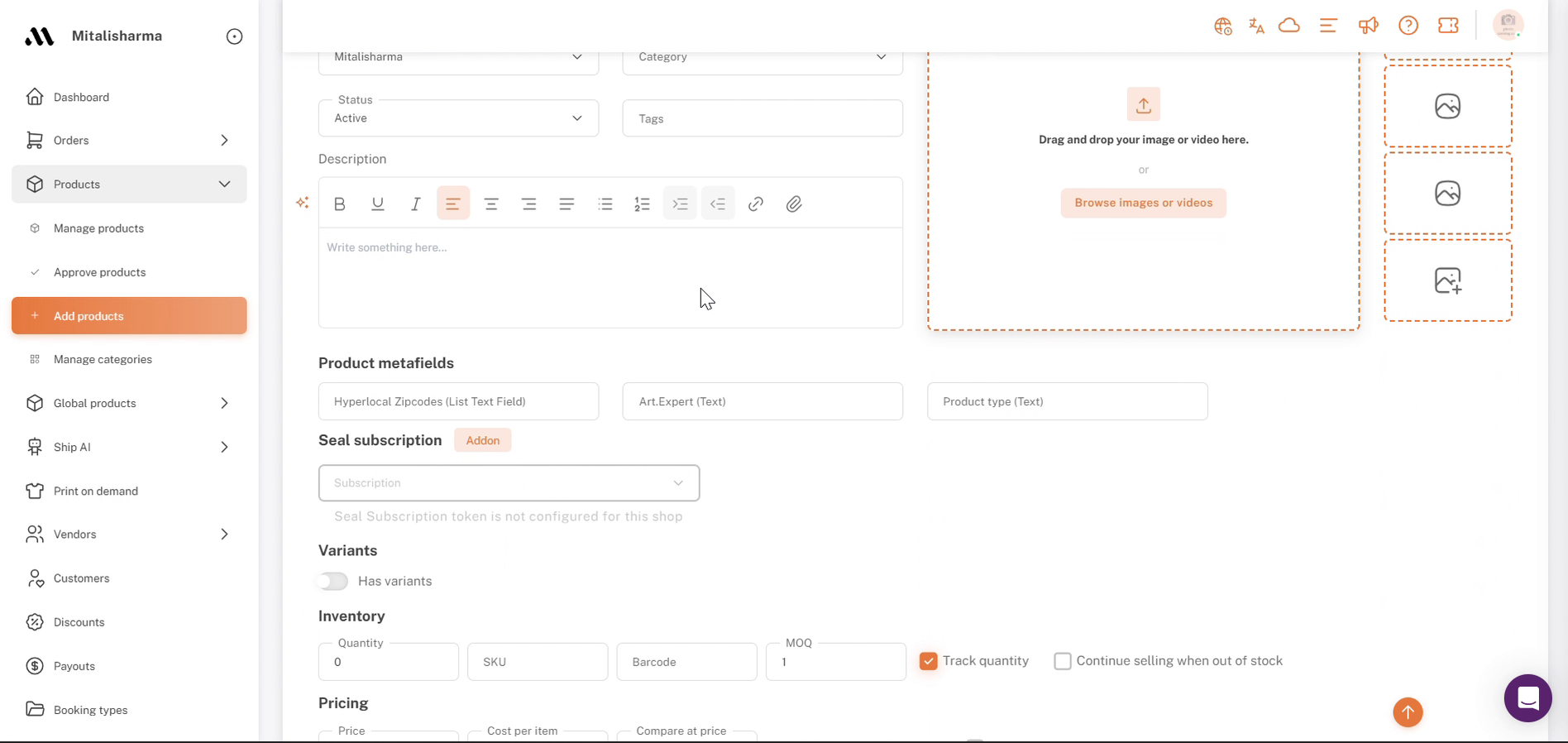
Products → Add products: Product metafields section
For more information, see Add and Update Products in Shipturtle
6. Check the sync with Shopify
Once saved, the metafield exists in Shopify. Values sync in real time in both directions: create, update, and delete.
- Shopify admin → Settings → Custom data → Products to see the definition.
- Open a product in Shopify to see the value under its metafields.
- Edit the value in Shipturtle or Shopify. The other side updates in real time.
- Create and delete metafields from Shipturtle.
- Values that existed before the sync was active are not back-filled. Contact support if you need them synced.
- Shipturtle does not support variant-level metafields. Only product-level metafields sync.
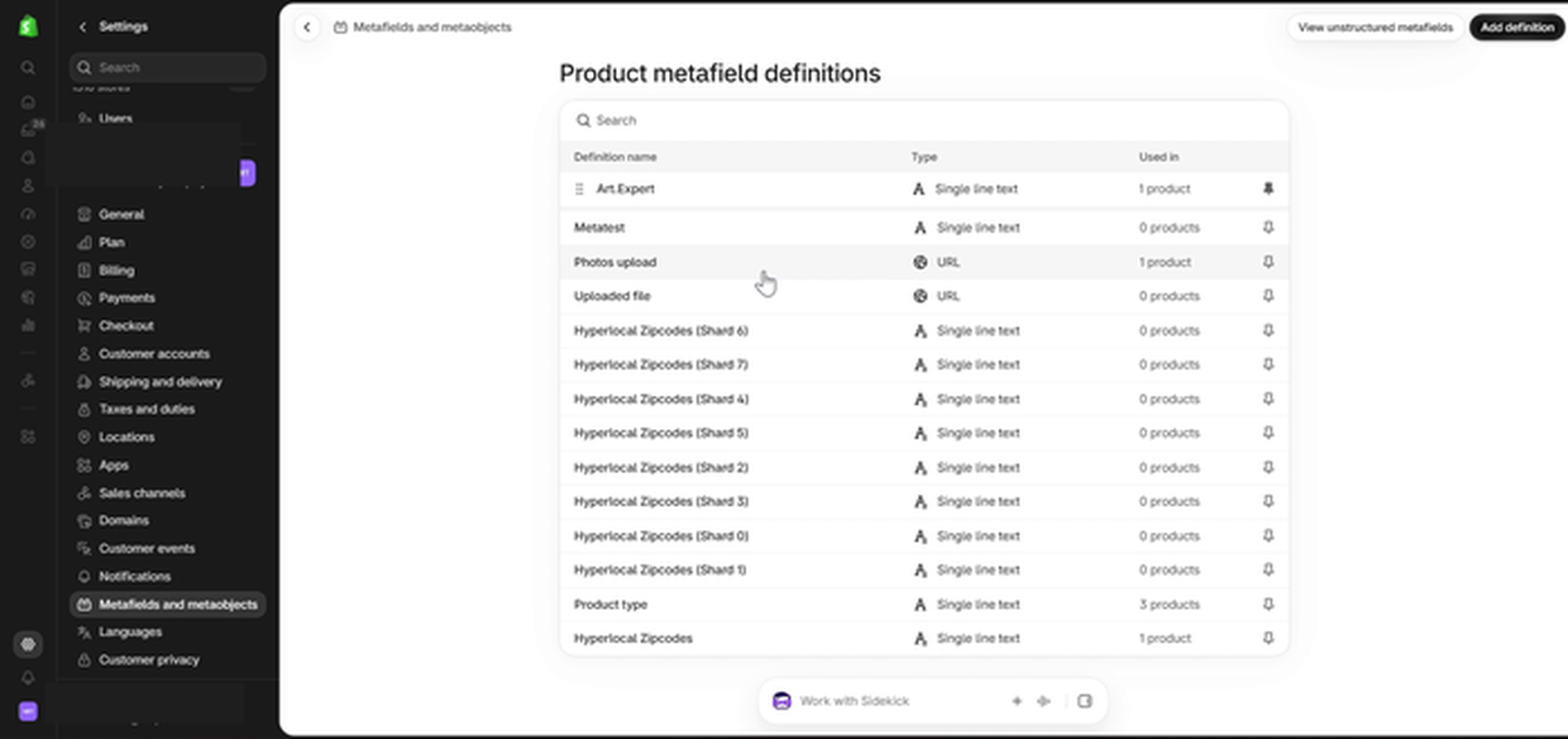
Shopify admin: Product metafield definitions
7. Bulk update (optional)
To edit many products, use the import and export options above the metafield list, or Shipturtle's CSV import and export. The namespace and key must match the metafield definition, or the wrong field may be overwritten.
8. Show a metafield on your product page
Works for text and description metafields only. For dropdowns or other complex types, contact support.
- Shipturtle: Metafields settings → Generate code next to the field. Copy the code.
- Shopify admin: Online Store → Themes → Customize
- Select the Products template (for example, Default product).
- Template → Add block → Custom Liquid
- Paste the code → Save
FAQs & Troubleshooting
Why can't vendors see my metafield?
Check the field's Vendor and Category settings. If either is set, only matching vendors or categories see it. If the both-vendor-and-category toggle is on, both must match.
Why is my metafield under Unpinned in Shopify?
Shopify places new metafields under Unpinned by default. Pin it in Shopify if needed; Shopify limits how many can be pinned.
Which metafields are supported?
Product-level metafields with simple value types. Variant-level metafields, metaobjects, reference metafields (to products, collections, pages, or metaobjects), and shop metafields are not supported and won't sync.
Can I add metafields to variants?
No. Shipturtle does not support variant-level metafields. Add them at product level.
A value saved in Shipturtle isn't showing in Shopify.
Sync is real time, so check that the metafield was created from Shipturtle and that its namespace and key match in Shopify.
A value changed in Shopify isn't showing in Shipturtle.
Shopify sends changes through webhooks. Check the Shipturtle app's webhook permissions in Shopify admin → Settings → Notifications → Webhooks. Reinstalling the app refreshes them.
Why do image metafields show as URLs in Shopify?
Images added through Shipturtle may be saved as URLs. Your developer can render them as images on the storefront.
What happens if I delete a metafield in Shipturtle?
It is removed from the product form. Values already stored in Shopify stay until you delete them in Shopify.
Can I manage metafields through an API?
Yes. Developers can use the Shopify API, and Shipturtle APIs if enabled for your setup.
Related Articles
- Introduction to Products
- Add and Update Products in Shipturtle
- Review Product Settings
- Organize Products in Your Marketplace
Need Help?
If you're stuck, contact the Shipturtle support team at team@shipturtle.com or raise a support ticket through the Shipturtle support page.