This article explains how to push marketplace orders into your vendors' own stores, which orders get pushed, what customer details they carry and which price appears on the vendor's order. It is written for marketplace admins using Vendor Konnect.
Menu
3 min read
Vendor Konnect settings - Order sync settings
Overview
When vendors connect their own store through Vendor Konnect, Shipturtle can automatically create each marketplace order on the vendor's store so they can fulfil it from the system they already use. The Order sync settings control:
- Which orders are pushed — all orders, or only paid orders.
- Which customer details the vendor sees — the customer's billing details, or your own.
- Which price appears on the vendor's order — your marketplace price, the vendor's current price or the payout price.
The Order options under Advanced settings add control over orders for unsynced products and fulfillment status updates coming back from vendors.
How to Access
Both Vendor Konnect sync articles use the same path. Follow these steps from your Shipturtle admin panel:
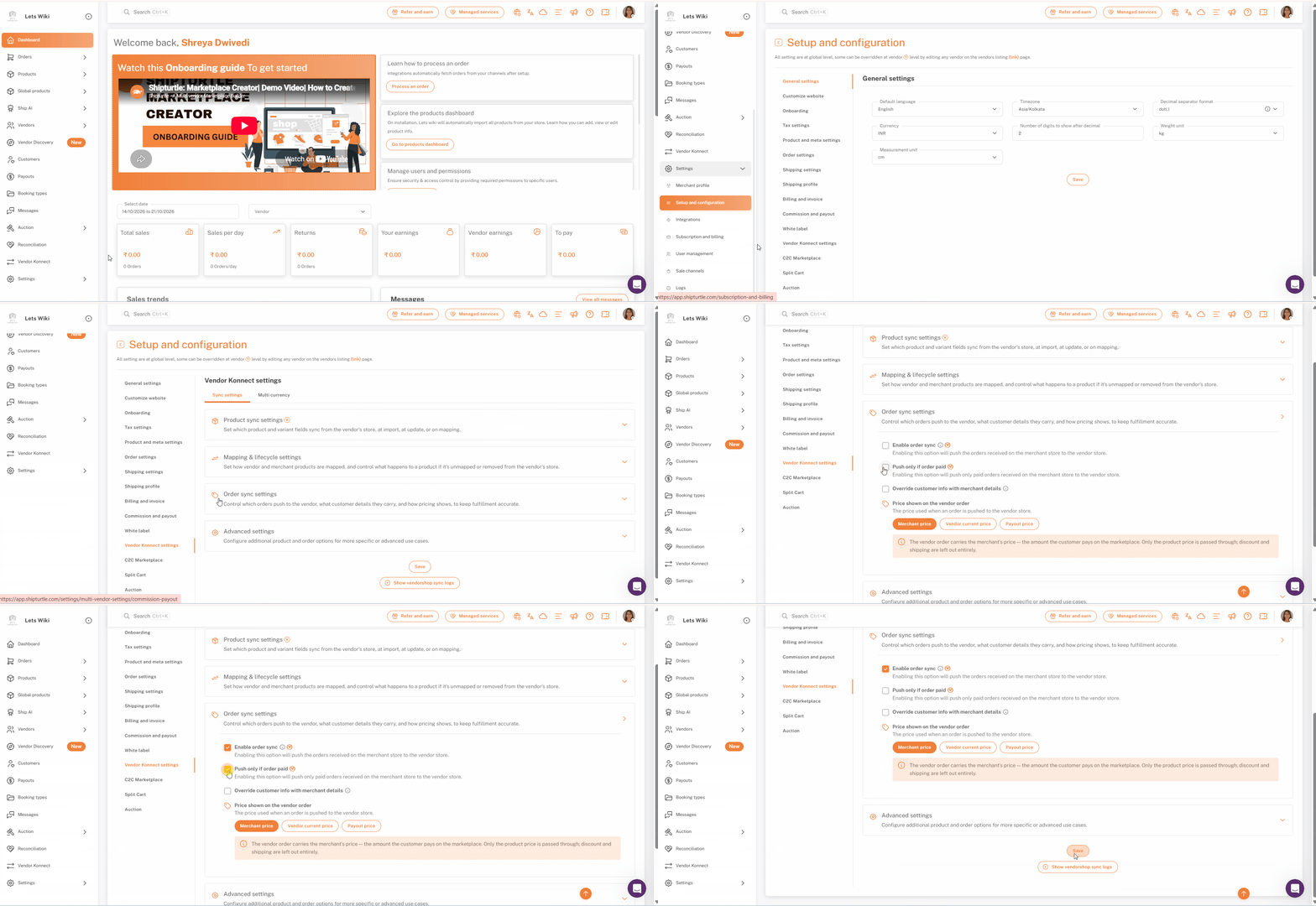
- In the left sidebar, click Settings, then click Setup and configuration.
- In the list of settings on the left, click Vendor Konnect settings.
- Make sure the Sync settings tab is selected. You will see four collapsible sections: Product sync settings, Mapping & lifecycle settings, Order sync settings and Advanced settings. Click a section to expand it.
Note: All settings on this page apply at a global level across your marketplace. Settings marked with the V badge can be overridden for an individual vendor by editing that vendor from the Vendors listing page.
Step-by-Step
Step 1: Open Order sync settings
Click Order sync settings to expand it. All options are off by default in a new setup.
Step 2: Turn on order sync
Tick Enable order sync. This pushes the orders received on your marketplace to the vendor's store.
Note: Enable order sync carries the V badge, so you can turn it on globally and switch it off for particular vendors, or the other way round, by editing the vendor from the Vendors listing page.
Step 3: Choose whether to push only paid orders
Tick Push only if order paid if you only want paid orders pushed to the vendor's store. Leave it unticked to push orders regardless of payment status.
Tip: If your marketplace accepts cash on delivery or manual payments, turning this on keeps vendors from fulfilling orders before payment is confirmed.
Step 4: Decide whether to hide customer billing details
Tick Override customer info with merchant details to replace the customer's billing information, including their email, with your own details on every order pushed to the vendor's store. Shipping information always stays the customer's, since the vendor needs it to fulfil the order.
Tip: Shipturtle recommends keeping this on, so order updates reach the customer through your marketplace instead of directly from the vendor.
Step 5: Choose the price shown on the vendor order
Under Price shown on the vendor order, select the price used when an order is pushed to the vendor's store:
- Merchant price (default) — the vendor order carries your marketplace price, the amount the customer paid. Only the product price is passed through; discounts and shipping are left out entirely.
- Vendor current price — the vendor order carries the price currently set for the product on the vendor's own store.
- Payout price — the vendor order carries the amount the vendor is paid for the item.
A description box below the buttons updates to explain the option you select.
Tip: Choose Payout price if you want the vendor's order totals to match what they will actually receive from you, which makes reconciling payouts easier for them.
Step 6: Save and confirm your password
Scroll to the bottom of the page and click Save. Shipturtle asks you to confirm your password before the changes are applied. Enter your password and click Confirm.
Tip: The Show vendorshop sync logs button below Save opens the sync logs, which help you check what has synced between vendor stores and your marketplace.
Configuration Options
| Setting | What it does | Default seen |
|---|---|---|
| Enable order sync (V) | Pushes marketplace orders to the vendor's store. | Off |
| Push only if order paid (V) | Pushes only paid orders to the vendor's store. | Off |
| Override customer info with merchant details | Replaces customer billing details (including email) with yours. Shipping details stay the customer's. | Off |
| Price shown on the vendor order | Merchant price, Vendor current price or Payout price. | Merchant price |
| Push orders for unsynced products (V) | Pushes orders for unmapped products to the vendor's store. | Off |
| Stop Fulfillment Status Update (V) | Stops vendor fulfillment updates from syncing to your marketplace. | Off |
Note: The "Default seen" column reflects the values shown in the demo store used for this article. Your marketplace may differ if these settings have been changed before.
FAQs
Orders aren't appearing on my vendor's store. What should I check?
Check that Enable order sync is ticked, both globally and on that vendor's profile if it has been overridden. If Push only if order paid is on, unpaid orders won't be pushed. If the order contains products that aren't mapped, turn on Push orders for unsynced products.
Will vendors see my customers' email addresses?
Not if Override customer info with merchant details is on — billing details, including email, are replaced with yours. The customer's shipping details are always passed on so the vendor can deliver the order.
Are discounts and shipping charges passed to the vendor?
With Merchant price selected, no — only the product price is passed through. Discounts and shipping are left out entirely.
Can I sync orders for only some vendors?
Yes. Enable order sync carries the V badge, so you can override it for individual vendors by editing them from the Vendors listing page.
Will fulfillment updates from the vendor show on my marketplace?
Yes, by default. Turn on Stop Fulfillment Status Update in Advanced settings if you don't want vendor fulfillment updates to sync back.
Related Articles
- Product Sync Settings — Vendor Store Sync Settings
- Connecting a vendor store with Vendor Konnect
- Viewing vendorshop sync logs
If you’re stuck, reach us at team@shipturtle.com or raise a ticket on the support page.