Who this guide is for: Marketplace admins who want control over which product and variant details come from vendor stores, and which ones they would rather manage themselves on their own marketplace.
Step-by-step:
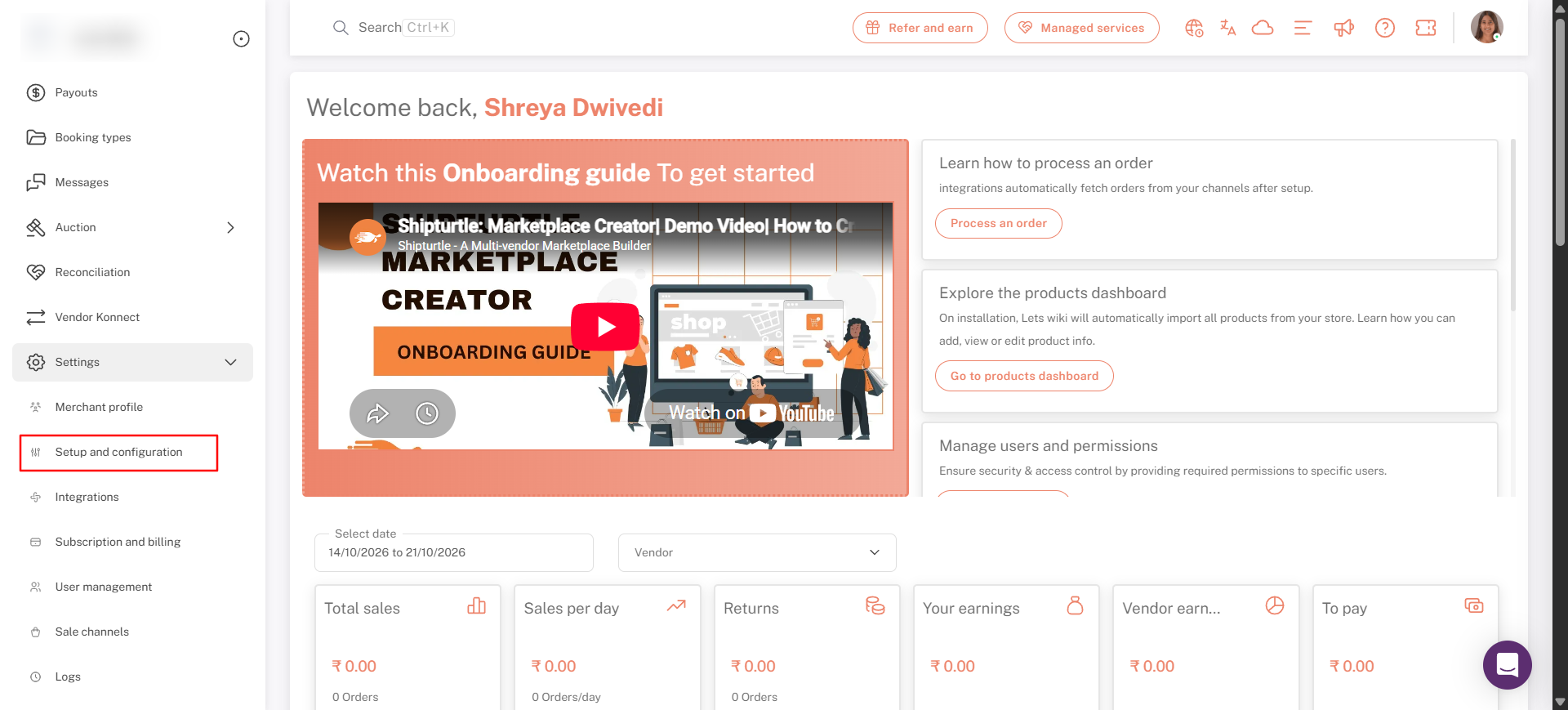
Step 1: Settings > Open Setup and configuration
In the left sidebar, click Settings to expand it, then click Setup and configuration.
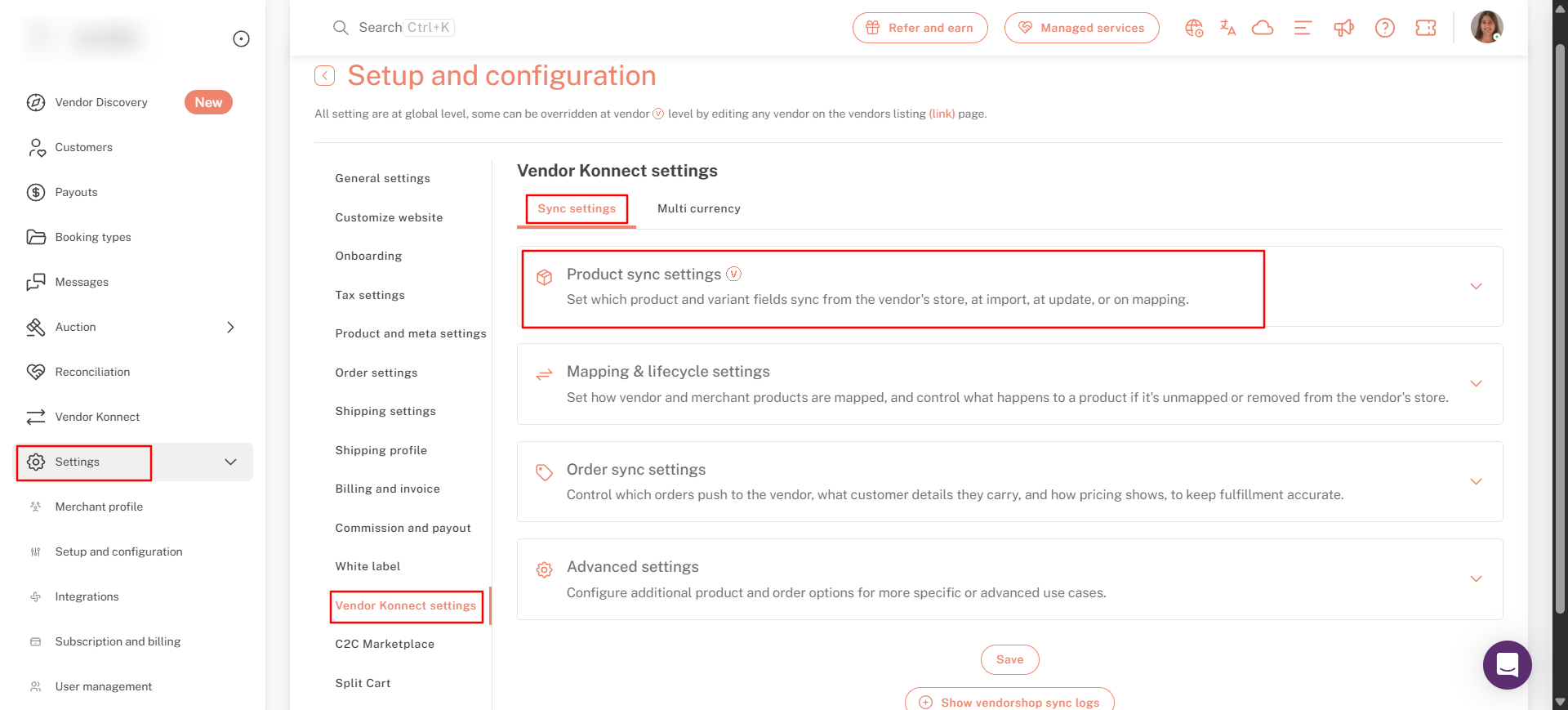
Step 2: Open Vendor Konnect settings
In the list of settings on the left of the page, click Vendor Konnect settings. It sits near the bottom of the list, so scroll down if you can't see it.
Step 3: Expand Product sync settings
The Vendor Konnect settings page has two tabs: Sync settings and Multi currency. Make sure Sync settings is selected. It has four sections:
- Product sync settings: which product and variant fields sync from the vendor's store. This guide covers this section.
- Mapping & lifecycle settings: how vendor and merchant products are mapped, and what happens to a product if it's unmapped or removed from the vendor's store.
- Order sync settings: which orders are pushed to the vendor, which customer details they carry and how pricing shows.
- Advanced settings: additional product and order options for more specific use cases.
Note: All settings on this page apply at a global level across your marketplace. A setting marked with the V badge can be overridden for an individual vendor by editing that vendor from the Vendors listing page.
The Product Sync Settings determine how products from a Vendor’s online store (Shopify, WooCommerce, Magento, Wix, etc.) sync into your Merchant store through Shipturtle.
These settings control:
- What information is synced when a product is first added (At Create)
- What information is synced when the vendor later updates that product (At Update)
Step 4: Understand the two Sync Points
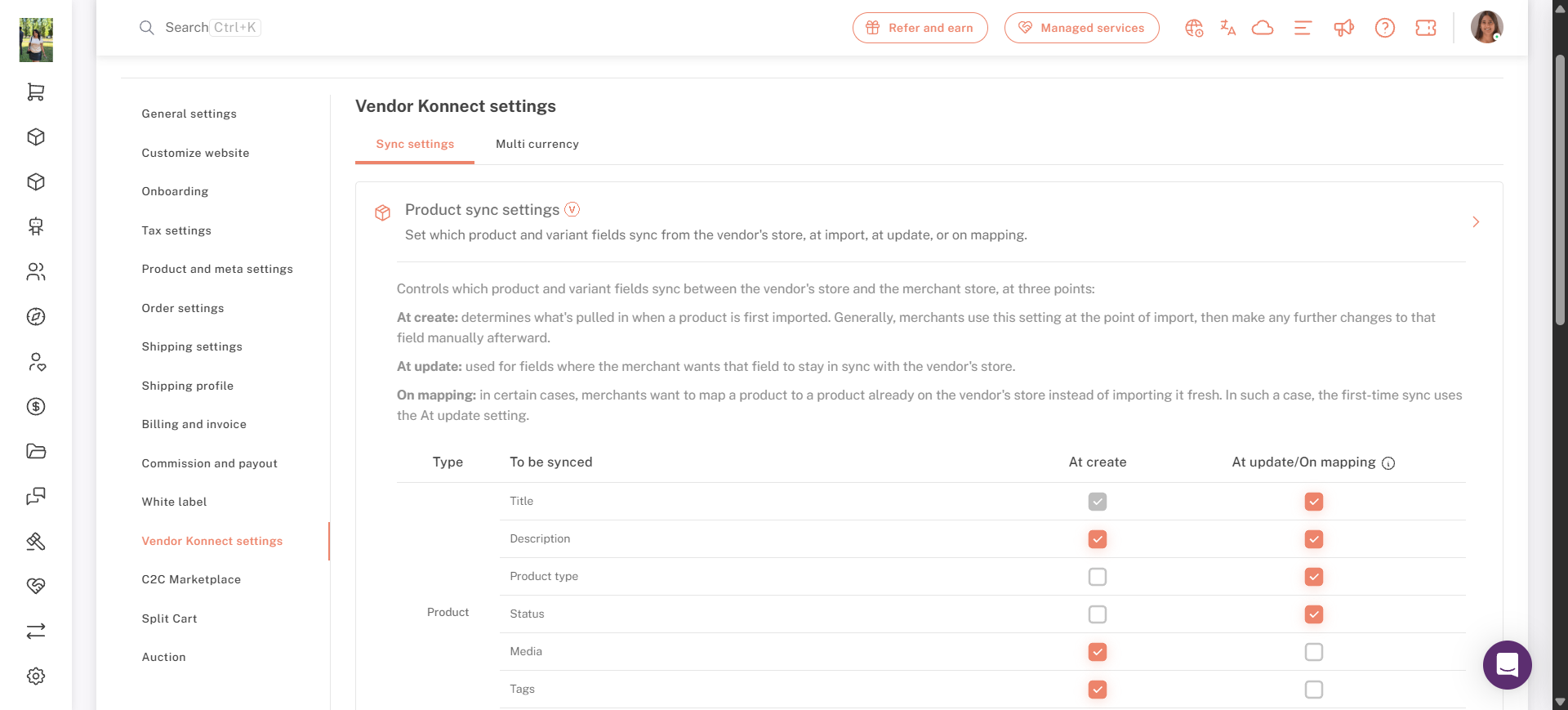
The top of the section explains that fields can sync at three points. Each field has two independent checkboxes that control these points.
- At create decides which fields are pulled in when a product is first imported from the vendor's store. Merchants generally use this setting at the point of import, then make any further changes to that field manually afterwards.
- At update is for fields you want to stay in sync with the vendor's store. When it's on, changes made on the vendor's store overwrite that field on your marketplace.
- On mapping applies when you map a vendor product to a product that already exists instead of importing it fresh. In that case, the first-time sync uses the At update setting.
For more information, see
5. Understand the Sync Table
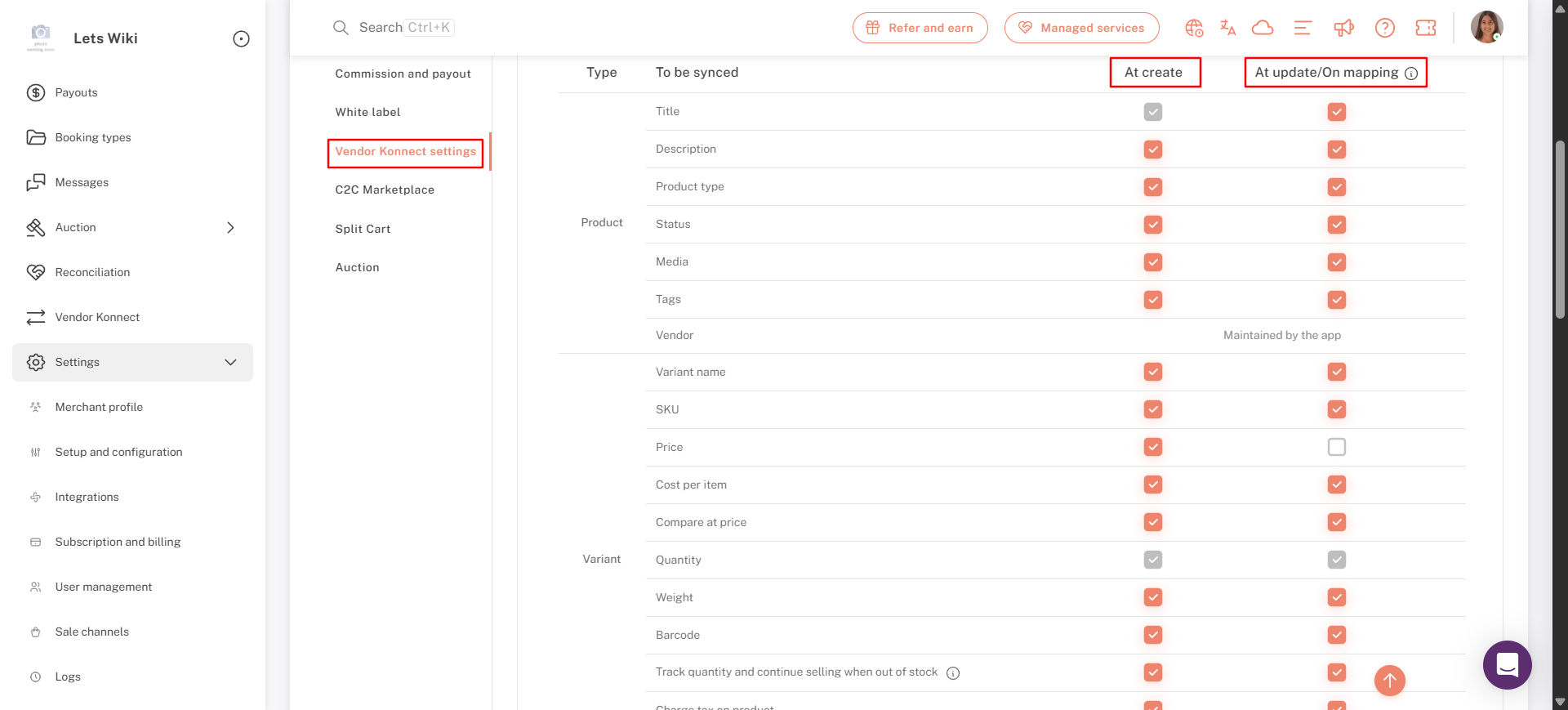
Below the explanation is a table with four columns: Type, To be synced, At create and At update/On mapping. Each row is a field, and the two checkbox columns are where you choose when it syncs.
Product fields
- Title
- Description
- Product type
- Status
- Media (images)
- Tags
- Vendor: this row has no checkboxes and reads Maintained by the app, so Shipturtle manages it automatically.
Variant fields
- Variant name
- SKU
- Price
- Cost per item
- Compare at price
- Quantity
- Weight
- Barcode
- Track quantity and continue selling when out of stock
- Charge tax on product
- Require shipping
Note: Some checkboxes appear greyed out: Title under At create, and Quantity in both columns. These are fixed and can't be changed from this screen.
6. Choose Which Fields Sync
- Click a checkbox to tick or untick it.
- Work down the At create column first and tick every field you want pulled in when a product is imported.
- Then work down the At update/On mapping column and tick only the fields you want to keep in sync with the vendor's store after that.
Combining the two columns
A field can be ticked in one column, both, or neither. The remaining variant fields are at the bottom of the table.
Tip: Untick a field under At update/On mapping if you want to edit it yourself on your marketplace, for example your own product descriptions or prices. If it stays ticked, the vendor's version will overwrite your changes on the next update.
7. Example: Stop a Field from Updating
To stop a field being refreshed from the vendor's store, untick it under At update/On mapping.
Price imported once, then managed on your marketplace
In the screenshot below, Price is unticked under At update/On mapping but still ticked under At create. The price is brought in when the product is imported, but later price changes in the vendor's store are not synced.
Price unticked under At update/On mapping and ticked under At create
Checklist
- You are on Settings → Setup and configuration → Vendor Konnect settings, on the Sync settings tab.
- Product sync settings is expanded.
- Each field is ticked under At create, At update/On mapping, both or neither, as you intend.
- Status override, deletion and unmapping actions match how you want synced products to behave.
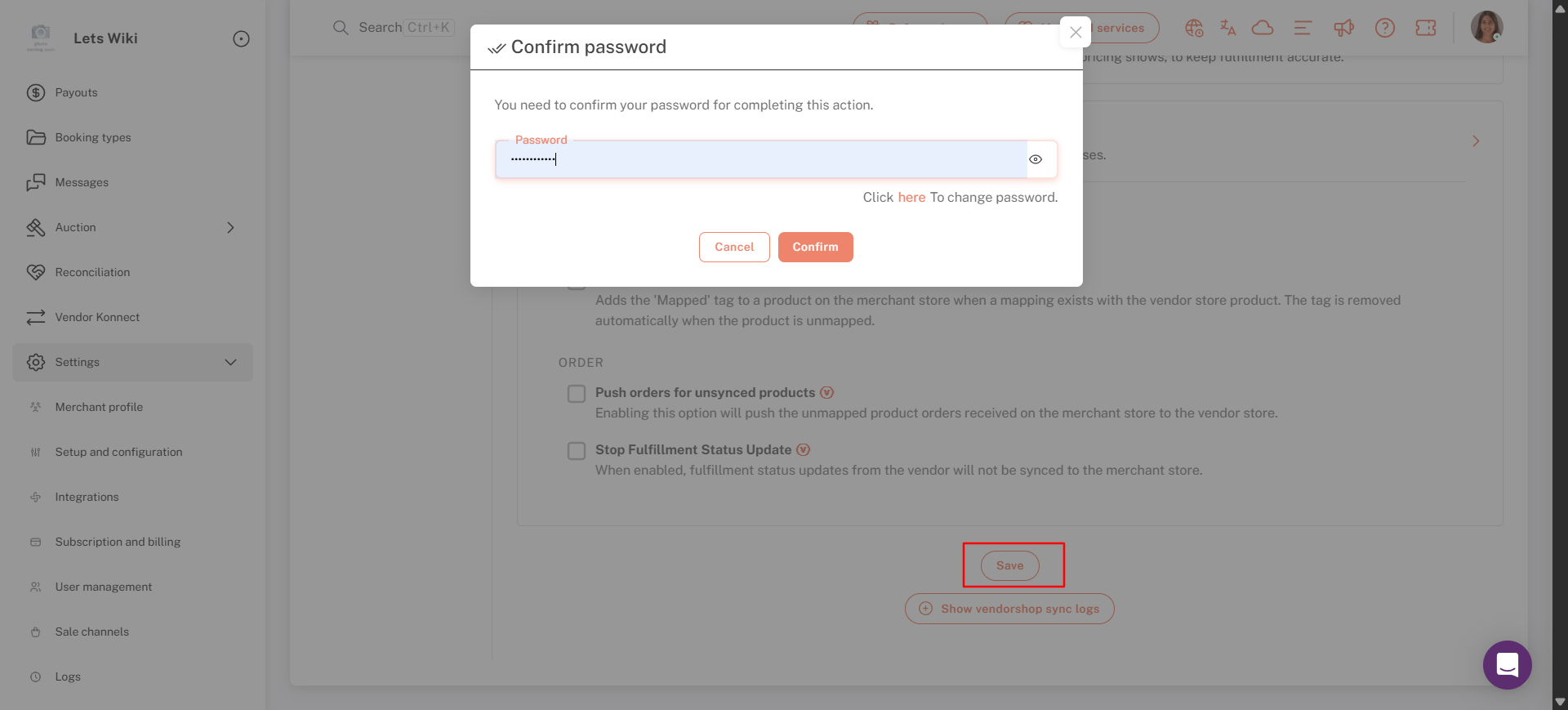
- You clicked Save and confirmed your password.
The Confirm password prompt that appears after clicking Save
FAQs & Troubleshooting
What is the difference between At create and At update/On mapping?
At create applies once, when a product is first imported. At update/On mapping keeps the field in sync every time the vendor changes it, and also applies the first time you map a product. Tick a field under At create only if you want the vendor's value as a starting point and plan to manage it yourself afterwards.
I mapped an existing product. Which column applies?
The At update/On mapping column. When you map a product that already exists instead of importing it fresh, the first-time sync uses the At update setting.
Can I use different settings for a single vendor?
Yes, for settings marked with the V badge, which includes Product sync settings. Edit the vendor from the Vendors listing page to override the global setting for that vendor.
Why can't I change some checkboxes or the Vendor row?
The Vendor row reads Maintained by the app and has no checkboxes. Title under At create and Quantity in both columns appear greyed out because they are fixed.
I set imported products to Draft, but they became Active. Why?
Status is ticked under At update/On mapping, so the vendor's status replaces yours on the next update. Untick Status under At update/On mapping, click Save and confirm your password.
My product edits keep getting overwritten.
The field is ticked under At update/On mapping, so the vendor's value replaces yours on every update. Untick that field, click Save and confirm your password.
I can't see Vendor Konnect settings in the list.
The list of settings on the left is longer than the visible area. Scroll down the list to find Vendor Konnect settings.
My changes didn't apply.
Changes are applied only after you enter your password and click Confirm in the Confirm password prompt. Click Save again and complete the prompt.
If you’re stuck, reach us at team@shipturtle.com or open a ticket on the Support page.