Product Sync Settings
Products on the vendor's website will sync with those on your website according to the settings below. Syncing differs between product creation and product updates.
For example, if "Description" is checked for Product Addition, it will appear on your website when you import it. However, if "Description" is unchecked for Product Update, it will not be updated on your website, even if it changes on the vendor's website.
Steps:
- Go to Settings > Setup and Configuration > Vendor Konnect Settings > Product Sync Settings
- Configure the settings based on your store requirements
- Click Save to apply the changes
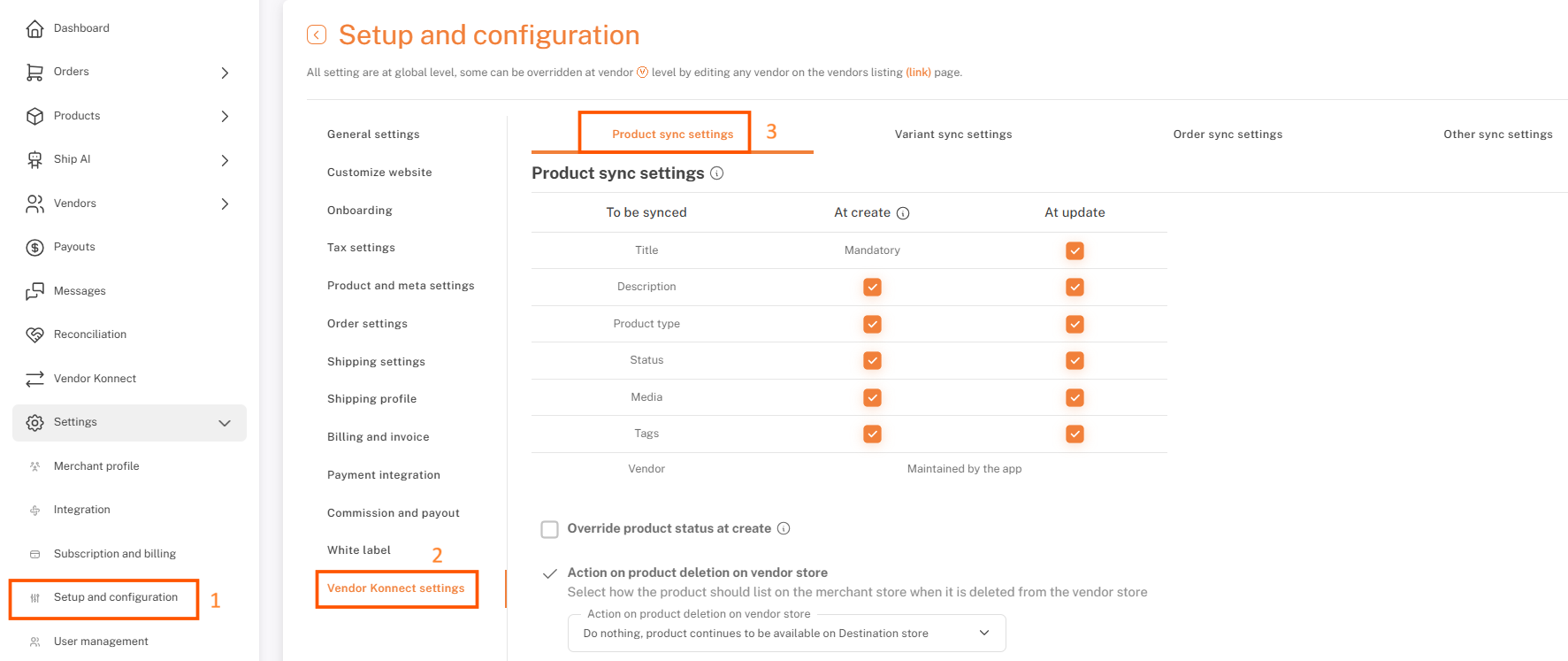
Override Product Status at Creation
Select the status of new products when they are added to your store. By default, the status will match that on the vendor's store.
If you select "Draft" below, it is recommended to keep the sync for the "Status" field turned off for updates. Otherwise, the status will change whenever the product data is updated on the vendor's store.
Action On Product Deletion on Vendor store
Select how the product should be listed on the merchant store when it is deleted from the vendor store
Action On Product Unmapping on the App
Select how the product should be listed on the merchant store when it is unmapped on the app
Variant Sync Settings
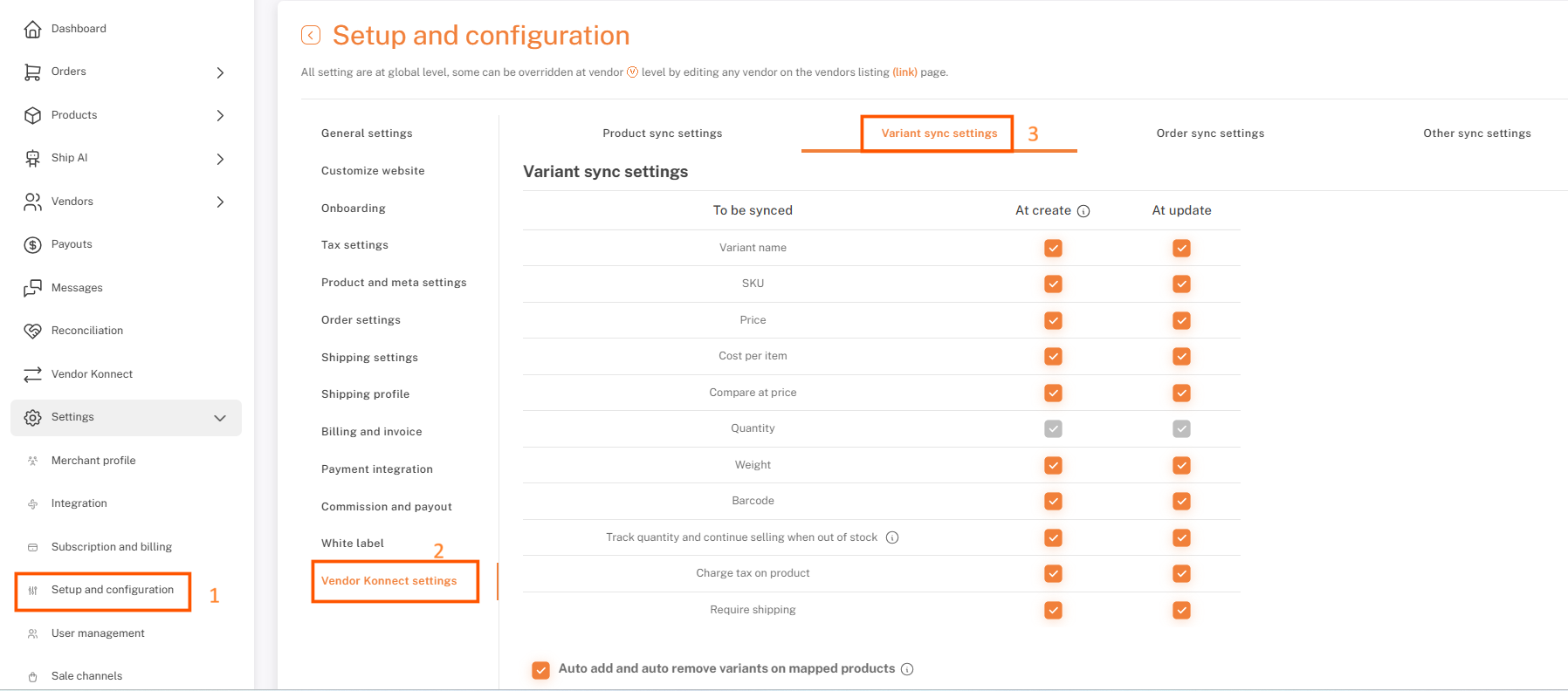
Variants on the vendor's website will sync with those on your website according to the settings below. Syncing differs between variant creation and variant updates.
Steps:
- Go to Settings > Setup and Configuration > Vendor Konnect Settings > Variant Sync Settings
- Configure the settings as per your store requirements
- Click Save to apply the changes
Order Sync Settings
Enabling this option will push the orders received on the Merchant store to the Vendor store. The fulfillment status and the tracking number of the Order will be synced from the vendor's website.
Note: Please do not install vendor sync on the merchant store
(If you install vendor sync, your merchant stores all scope permissions are gone)
If you’re stuck, reach us at team@shipturtle.com or open a ticket on the support page.
For detailed guidance on this module, please refer to the video tutorial here.