Add Shipping Partners in Shipturtle
Connecting a carrier is a two-part process: buy the carrier add-on, then connect your own account details. This guide walks through both parts and where each one now lives.
Shipturtle integrates with 200+ carriers, most via aggregators like EasyPost, ShipStation, Shippo, and others — each aggregator is its own paid add-on (priced per month) purchased from Settings → Subscription and billing, under the Shipping filter. Once purchased, connect your own carrier account under Settings → Shipping partners → Add shipping partner, where you'll enter your API keys and other carrier-specific details.
Who this guide is for
Marketplace admins connecting a new shipping carrier for the first time, or checking an existing setup after a Shipturtle update.
Before you begin
- Admin access to your Shipturtle account.
- Your carrier's API keys or account credentials, reach out to the shipping service provider directly to get these if you don't have them yet.
- If your desired carrier isn't integrated at all, custom integration may be available, contact team@shipturtle.com.
Step-by-step
Step 1: Buy the carrier add-on
From the left sidebar, go to Settings → Subscription and billing, then filter by Shipping to see every available carrier integration. Each carrier is priced and purchased individually as a monthly add-on — you only need to buy the ones you plan to use.
Settings → Subscription and billing — where carrier add-ons are purchased.
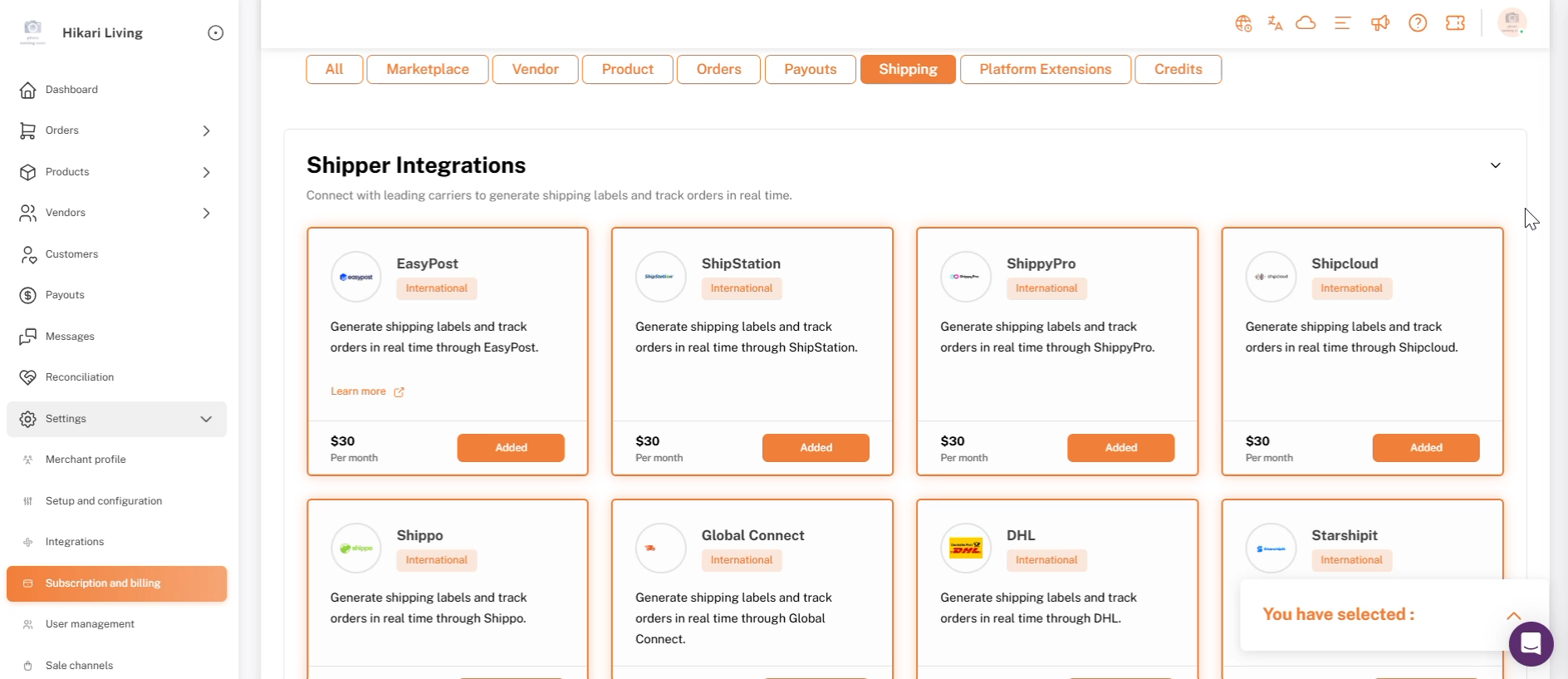
Shipper Integrations, filtered to Shipping: each card shows monthly pricing and an Added/Add button.
Most carriers here are actually aggregators: EasyPost, ShipStation, Shippo, and others — each of which bundles dozens of individual carrier services (for example, buying EasyPost gives you access to FedEx, UPS, USPS, DHL Express, Canada Post, and many more through one add-on).
Step 2: Open Shipping partners
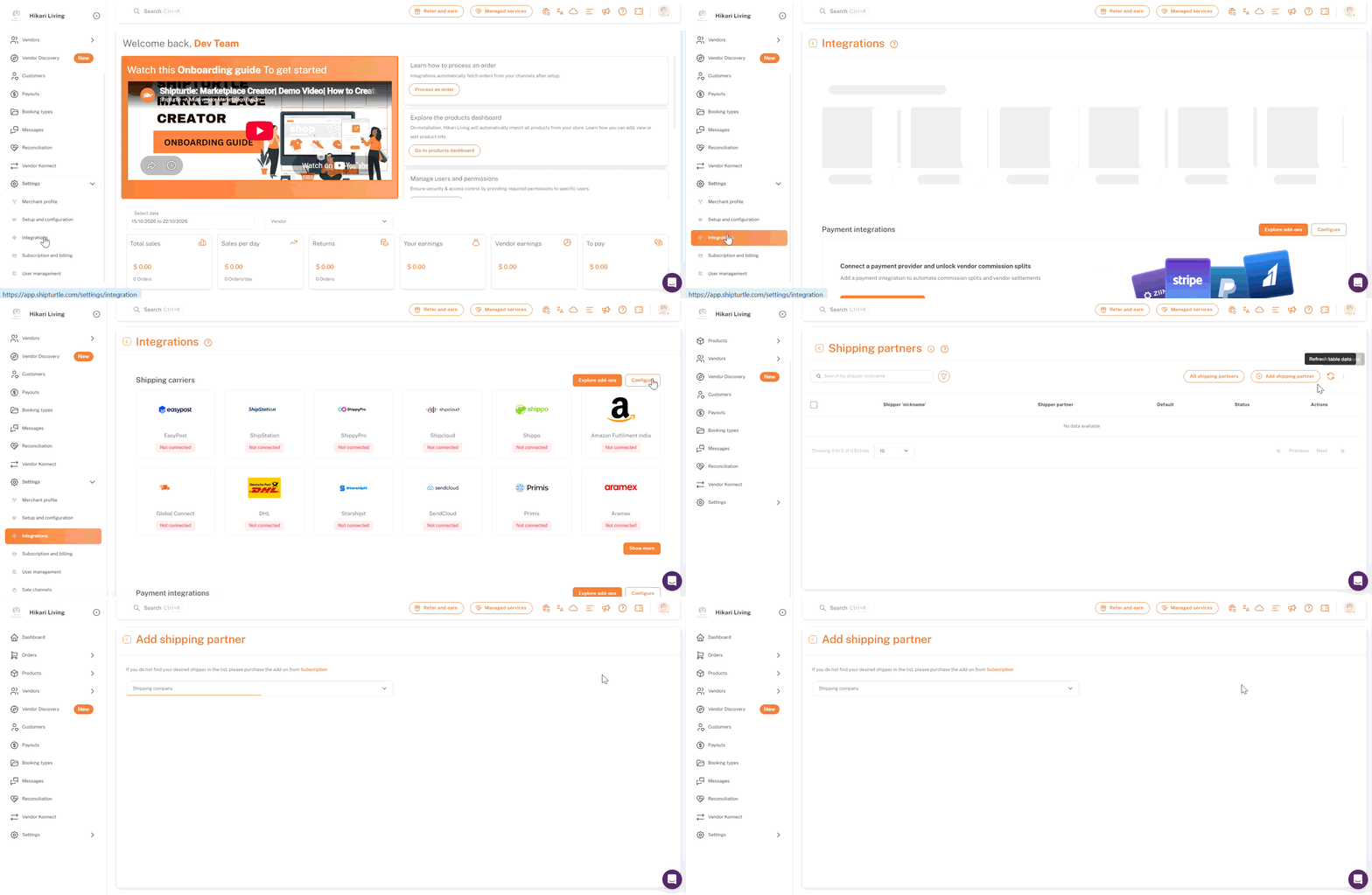
Go to Settings → Integrations → Shippers → Configure → Shipping partners. This list shows every carrier connection you've configured so far — it starts empty until you add one.
Step 3: Choose your shipping company
Click Add shipping partner. If the carrier you want isn't in the Shipping company dropdown, the page links straight back to Subscription to purchase its add-on first. Otherwise, search the dropdown . It lists every individual carrier service available under each add-on you've purchased.
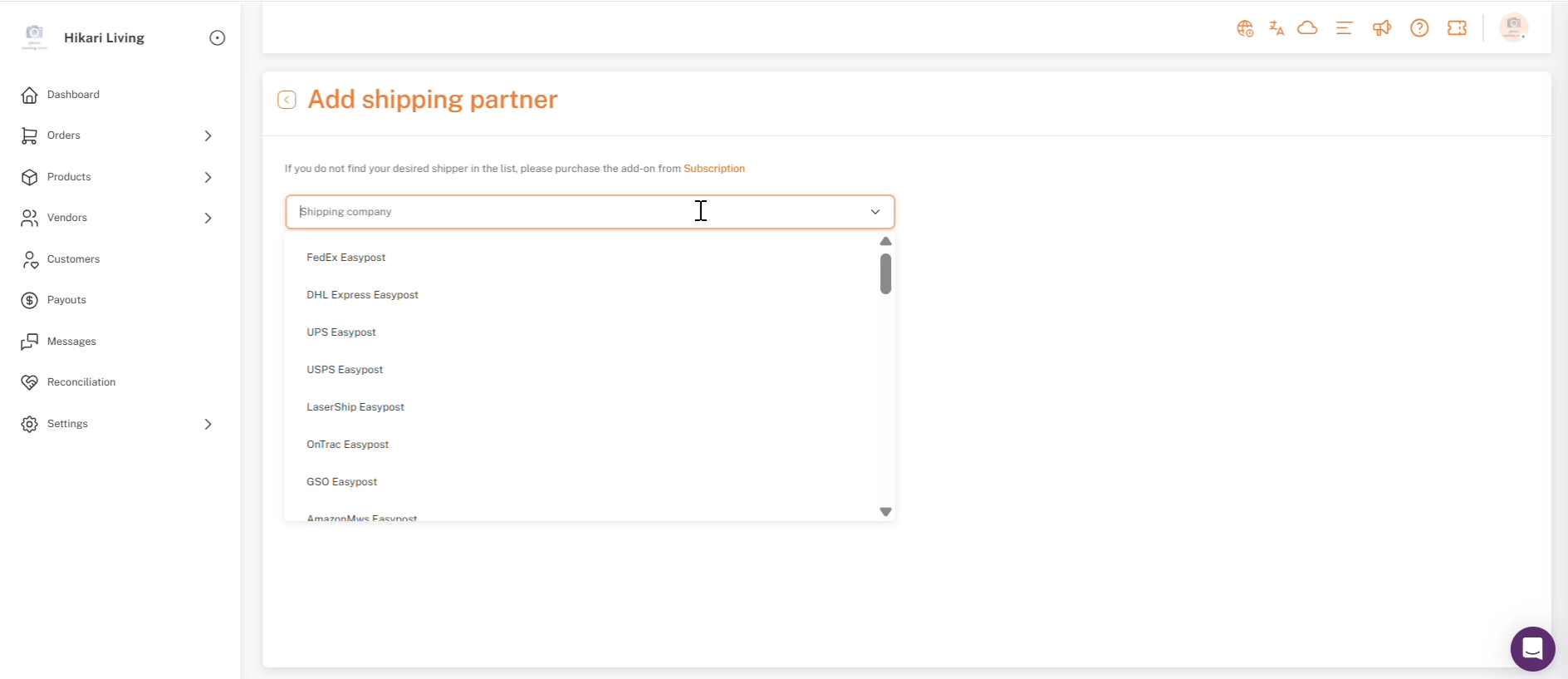
Add shipping partner, the Shipping company dropdown, listing individual carriers under the shippingt add-on.
Step 4: Fill in your carrier details
Once you pick a carrier, Shipturtle shows a short integration note (and often a “Download documentation” link) plus the fields that carrier needs. These vary by carrier, but for an EasyPost-based integration they typically include:
- Production API key / Test API key: Your live and sandbox keys from the carrier, used to authenticate requests.
- Test server: Whether to run against the carrier's sandbox instead of production.
- Incoterm: The default international trade term used for customs on cross-border shipments.
- Allow access of this shipper to vendors to generate their labels: Lets vendors use this carrier connection to generate their own labels.
- Auto courier selection by lowest rate: When the carrier bundles multiple services, automatically picks the cheapest one at label time.
Some carriers also show a “Fetch courier accounts” button to pull in sub-accounts once your API key is entered. Fill in what's required, then Save.
Confirming the Connection
Look for a “Connected” status on the shipping partner in your list that means the connection was successful.
- Check that the shipper you connected appears in the shipper dropdown on the order page.
- If you have questions specific to a carrier's fields while connecting, contact team@shipturtle.com.
Checklist
- Carrier add-on purchased under Settings → Subscription and billing (filtered to Shipping).
- Carrier selected from the Shipping company dropdown under Settings → Shipping partners → Add shipping partner.
- API keys or account credentials entered, and carrier-specific options (Incoterm, vendor access, auto courier selection) reviewed.
- Connection status confirmed as Connected, and the carrier checked in the order-page shipper dropdown.
FAQs
Why does one carrier add-on show me dozens of options in the dropdown?
Several carriers on the marketplace are aggregators that bundle many individual carrier services under one add-on. Buying the aggregator unlocks all of its underlying carriers in the Shipping company dropdown.
Do all carriers ask for the same fields?
No, fields vary by carrier. An EasyPost-based carrier typically asks for API keys, a test-server toggle, and an Incoterm, but another carrier's integration may ask for different details entirely.
How do I get API keys for a carrier?
Reach out to that shipping service provider directly, Shipturtle doesn't issue carrier API keys itself.
What if my desired carrier isn't in the list at all?
Custom integration may be available, contact team@shipturtle.com for more information.
If you’re stuck, reach us at team@shipturtle.com or open a ticket on the support page.