There are three ways to handle shipping accounts and labels in a multi-vendor marketplace: the merchant does it all, vendors do it themselves, or a mix of both. This guide covers each option and exactly where to configure it.
Note: this applies when shipping is managed inside Shipturtle using its integrated carriers. If you use Vendor Sync to push orders to a vendor's own store for fulfillment, this article doesn't apply.
Full Merchant Control
The merchant configures the shipping account and generates labels for every order, including vendor orders.
- Pros: Simple for vendors who don't have their own shipping accounts, and keeps more control with the merchant. Works well with small vendors.
- Cons: The merchant bears the shipping cost (factor this into commission rates), needs to keep an eye on vendor packaging, and is more hands-on operationally.
How to configure it
Go to Settings → Setup and configuration → Shipping settings → Vendor permissions, and leave these unchecked:
- Add their shipping partners
- Generate shipping labels
- Cancel shipping labels
With these off, the merchant generates the label first; the vendor can then download it, pack the order, and notify the merchant or carrier when it's ready for dispatch.
Full Vendor Control
Vendors set up their own shipping accounts and generate their own labels.
- Pros: Hands-off for the merchant. No need to worry about shipping cost or packaging.
- Cons: Each vendor needs their own shipping account, which can be a hurdle for smaller vendors, and the merchant has less control, so shipping errors may be more likely.
How to configure it
In the same place — Settings → Setup and configuration → Shipping settings → Vendor permissions, check:
- Add their shipping partners
- Generate shipping labels
- Cancel shipping labels
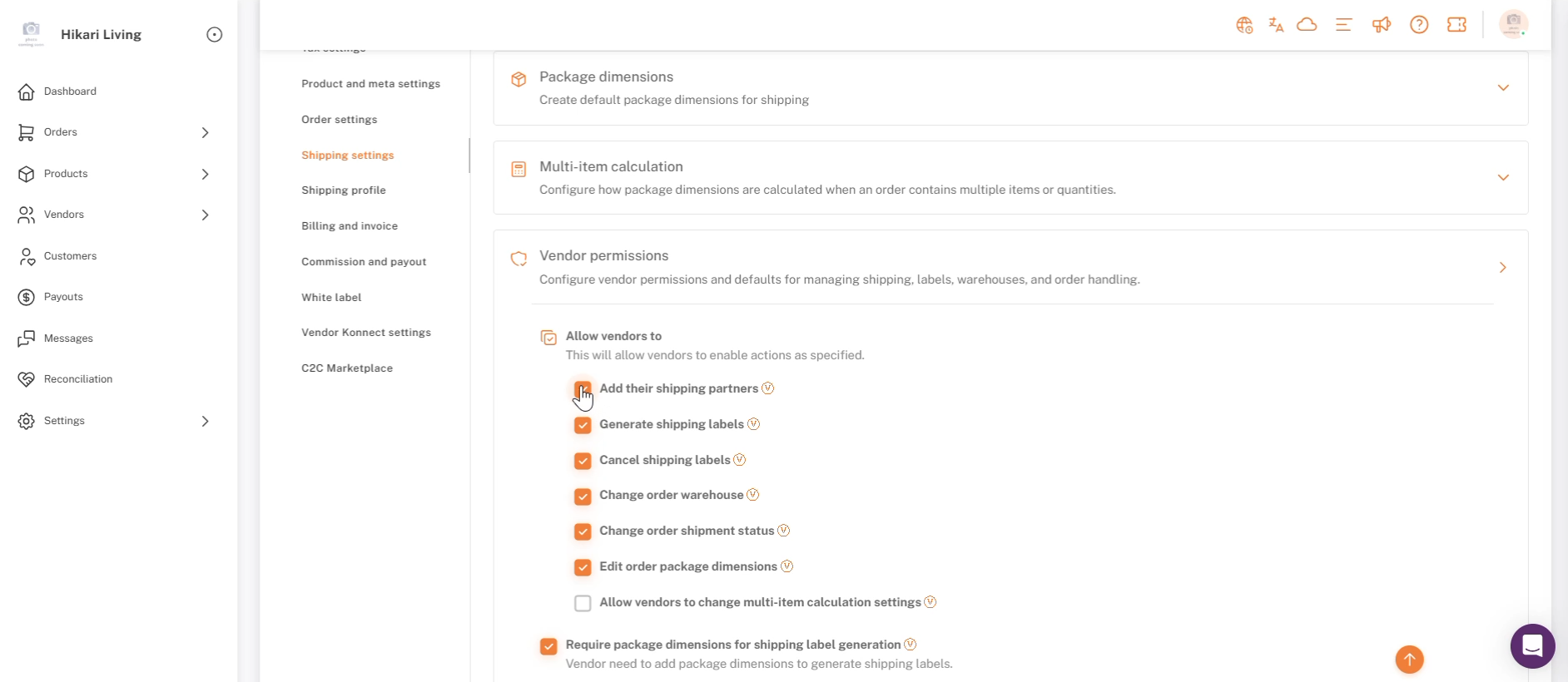
Vendor permissions — these three checkboxes control full vendor self-service.
Hybrid Model
Most merchants land somewhere in between. Two common patterns:
1. Override settings for specific vendors
The global Vendor permissions above apply to everyone by default, but you can override them per vendor:
- Go to Vendors → Manage vendors and open the vendor you want to adjust.
- Go to Custom vendor settings → Shipping settings.
- Turn on Override shipping settings, then check or uncheck each permission just for this vendor.
- Save.
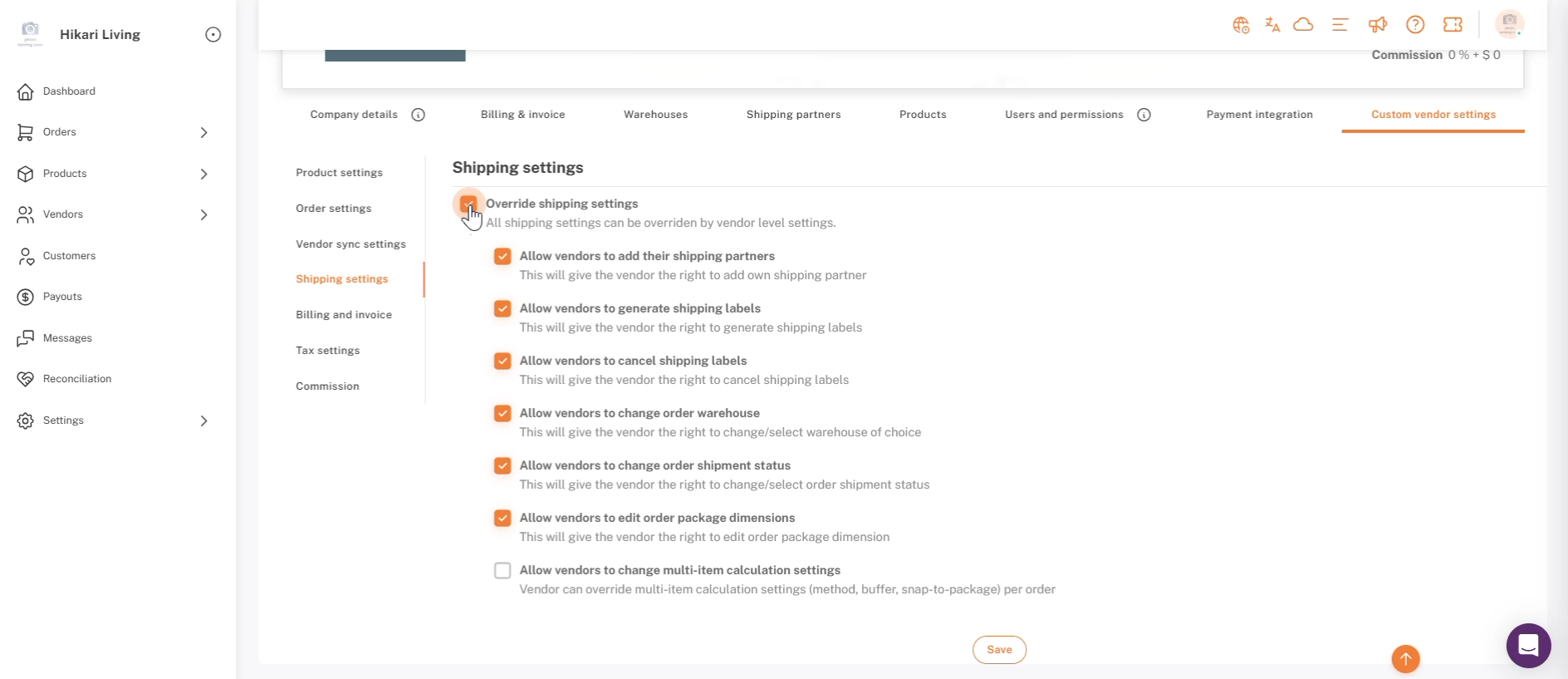
A vendor's own Shipping settings — Override shipping settings unlocks per-vendor permissions.
2. Let vendors use a shipper the merchant already set up
If the merchant configures a shipping partner but wants vendors to use it too, enable “Allow access of this shipper to vendors to generate their labels” in that shipper's own settings (Settings → Shipping partners → open the shipper).
If you're stuck, reach the Shipturtle team at team@shipturtle.com or open a ticket through the support page.