The Hyperlocal add-on restricts product visibility on your Shopify storefront to customers whose location falls within a defined delivery radius. When a customer visits your store, Shipturtle detects their zip or pin code and shows only the products that can be delivered to them — hiding everything outside the serviceable area automatically. Use it when your vendors or warehouses cover specific geographic zones and you need to prevent customers from ordering products that can't reach them.
Who this is for
- Merchant: Purchases the add-on, configures warehouse delivery radii, and enables the storefront embed.
- Vendor: Sets their own warehouse delivery radius so their products are shown only to customers within their serviceable area.
- Customer: Sees only products available at their location — no setup required on their end.
Before you begin
- Shipturtle is installed and active on your Shopify store.
- Each warehouse you want to make hyperlocal must already exist in Shipturtle, or you must be ready to create one during setup.
- The Hyperlocal add-on requires a one-time backend configuration by the Shipturtle team before it works on your storefront. Contact team@shipturtle.com as soon as you purchase the add-on to schedule this. Do not proceed to the Shopify configuration step until the team confirms backend setup is complete.
How it works (at a glance)
- You purchase the Hyperlocal add-on and the Shipturtle team completes a backend configuration.
- You (and your vendors) set a serviceable radius on each warehouse, and it fetches all zip/pin codes within that radius automatically.
- You enable the Collection Hyperlocal embed in your Shopify theme.
- A customer visits your storefront, and populate their zip/pin code.
- Only the products belonging to warehouses that service that zip/pin code are shown. Everything else is hidden.
Merchant setup
Purchase the Hyperlocal add-on
- Open Setup & Configuration → Billing and subscription.
- Find Hyperlocal Add-On in the available add-ons list.
- Click Subscribe and confirm the charge.
- Email team@shipturtle.com to notify the team so they can complete the required backend configuration for your store.
Set a serviceable radius on a merchant warehouse
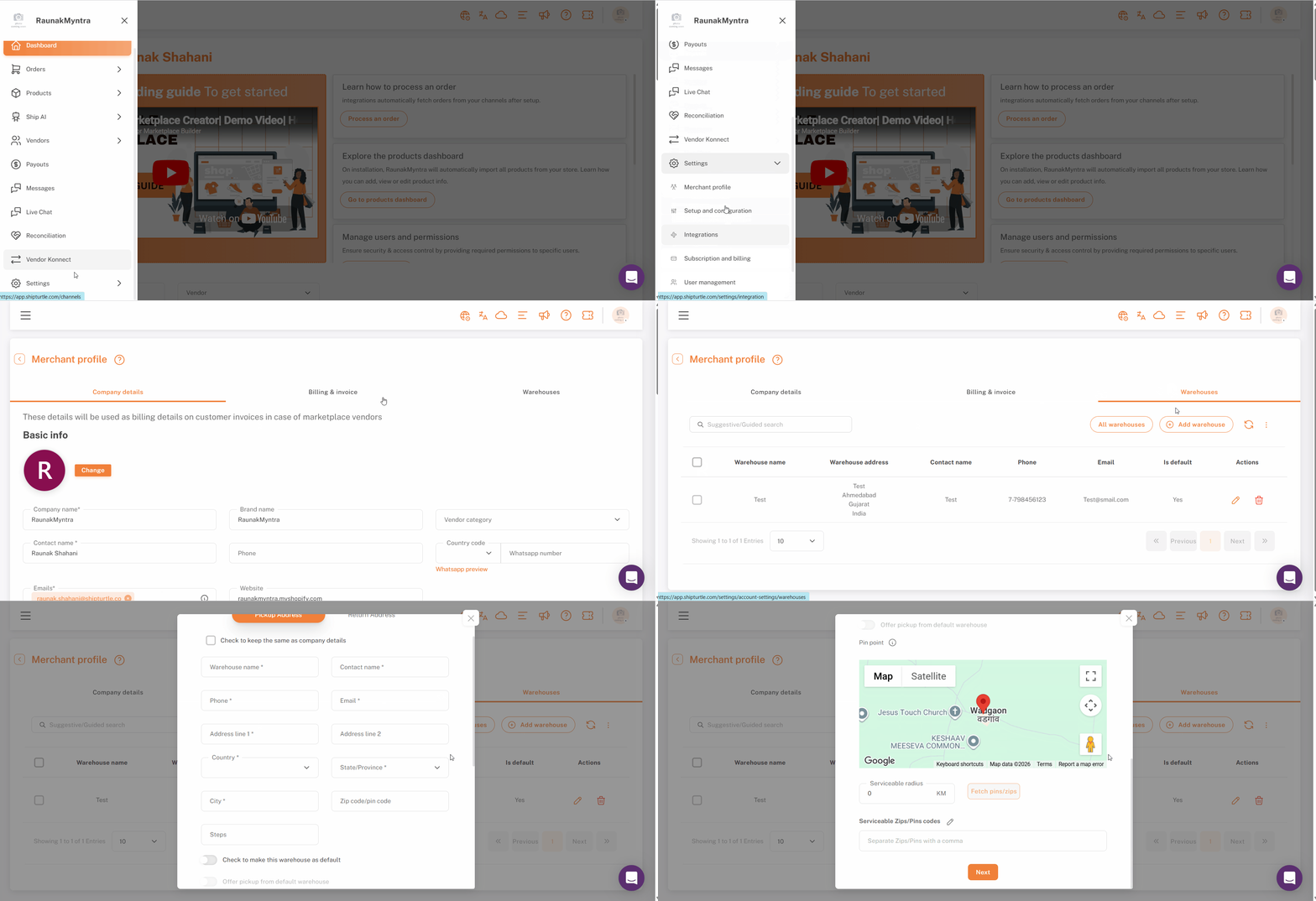
- Open Setup & Configuration → Merchant Profile → Warehouse. (Vendor Profile for vendors)
- Click Add warehouse to create a new one, or click the Edit (pencil) icon on an existing warehouse.
- Enter the Serviceable Radius in kilometres or miles.
- Click Fetch PIN/ZIP.
Note: The warehouse should be marked as the default; only then will the warehouse ZIP codes sync for it.
Shipturtle fetches all zip or pin codes within the radius and associates them with the warehouse. Products assigned to this warehouse are now only visible to customers whose detected zip/pin code appears in that list.
Shopify configuration
The storefront location detection requires a single App Embed to be enabled in your Shopify theme. Complete this step after the Shipturtle team has confirmed backend setup is done.
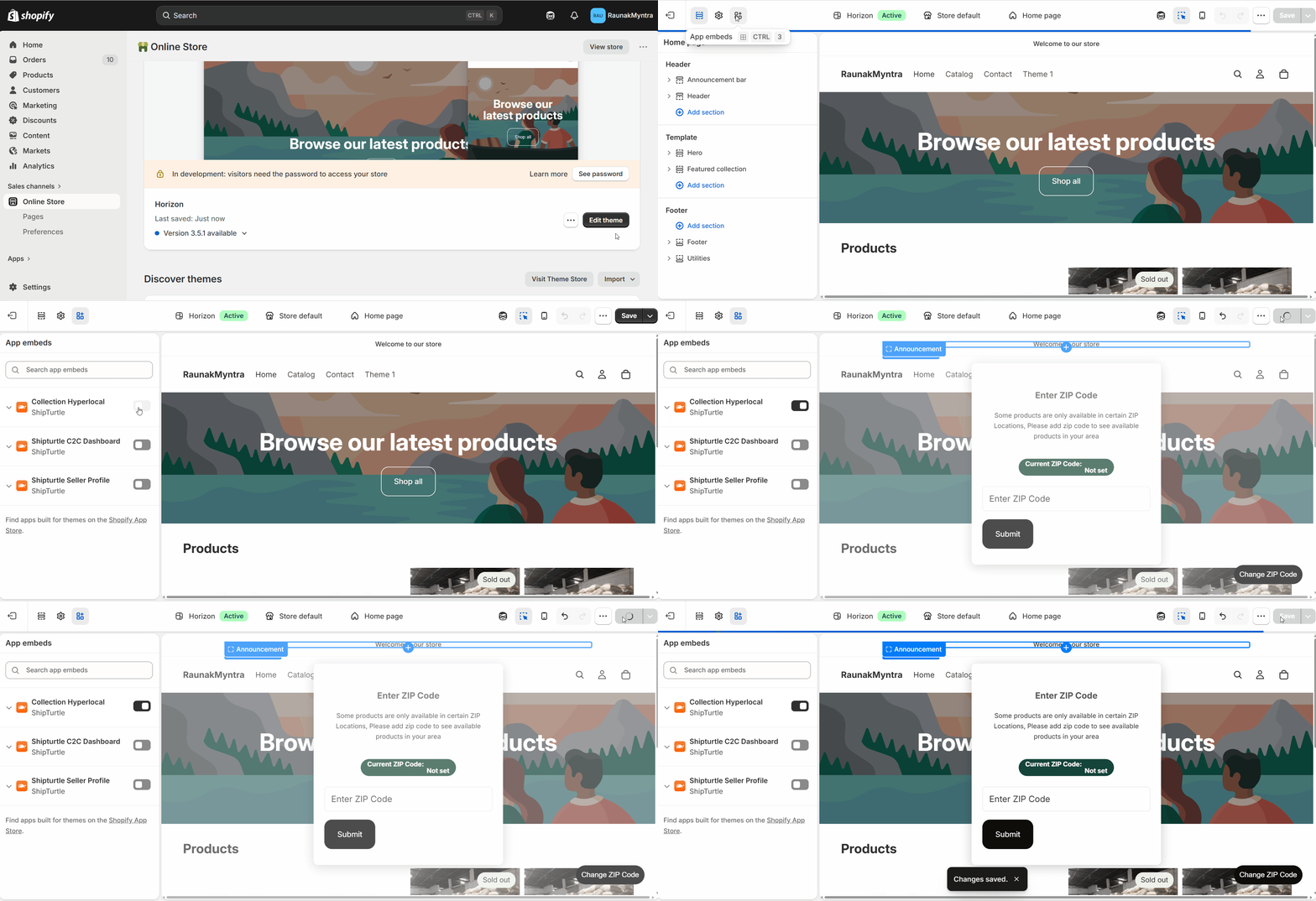
- Go to Shopify Admin → Online Store → Themes.
- Click Customize on your active theme.
- In the top-left panel, click App embeds.
- Find Collection Hyperlocal and toggle it on.
- Click Save.
From this point, the storefront automatically filters product visibility by the customer's detected location on every collection and search page.
FAQs
What happens if Shipturtle can't detect a customer's location? If location detection fails — for example, because the customer denied location permissions or their browser doesn't support it — all products are shown by default. The filter only activates when a zip/pin code can be confirmed.
Can I set different radii for different warehouses? Yes. Each warehouse has its own radius setting. A warehouse in a dense urban area might have a 5 km radius while a warehouse in a rural area might have a 50 km radius. Each is configured independently.
Can a single product be linked to multiple warehouses with different radii? Yes. If a product is stocked in more than one warehouse, it appears to any customer whose zip/pin code is covered by any of those warehouses.
Does the radius setting work with both zip codes and pin codes? Yes. Fetch PIN/ZIP retrieves the appropriate code format based on the country settings of your Shopify store.
Troubleshooting
Products aren't being filtered on the storefront even after setup. The most common cause is that the Collection Hyperlocal App Embed hasn't been saved in the theme editor, or that the Shipturtle team's backend configuration hasn't been completed yet. Confirm both before investigating further. If both are done, contact team@shipturtle.com with your store URL.
Fetch PIN/ZIP returned no results or very few zip codes. Check that the serviceable radius is set to a realistic value for the warehouse's location. A radius that's too small (e.g. 1 km in a rural area) may return no populated zip codes. Also confirm the warehouse address is correct — Shipturtle calculates the radius from the warehouse's saved address.
A customer says they can't see any products even though their location should be covered. Open the relevant warehouse in Merchant Profile → Warehouse and check the fetched zip/pin code list. Confirm the customer's zip/pin code appears in it. If it doesn't, increase the radius slightly and re-fetch.
A vendor's products aren't appearing for customers in their delivery zone. Check that the vendor has completed the serviceable radius setup on their warehouse. If the radius is set but the products are still not showing, confirm the products are correctly assigned to that warehouse in the vendor's product settings.
Related articles
- Marketplace types supported by Shipturtle — background on hyperlocal as a marketplace model.
- Vendor management — onboard and configure vendors before setting up their delivery zones.
- Shipping settings — configure shipping rates that apply within the serviceable zones.
If you’re stuck, reach us at team@shipturtle.com or open a ticket on the support page.