A tracking page lets customers check the status of their orders from your storefront and, if the Returns add-on is active, raise return requests. You generate the page code in Shipturtle, paste it into a Shopify page template, and link the page from your navigation. Use it so shoppers can self-serve order status instead of contacting you.
Who this is for
- Merchant: You generate the page code, embed it in Shopify, and publish the page.
- Vendor: Not applicable.
- Customer: Tracks orders and, where enabled, requests returns.
Before you begin
- You need access to your Shopify theme code and the ability to create pages and edit navigation.
- Return requests from this page work only if the Returns add-on is active. Without it, the page tracks orders but does not accept returns.
Merchant setup
Generate the page code
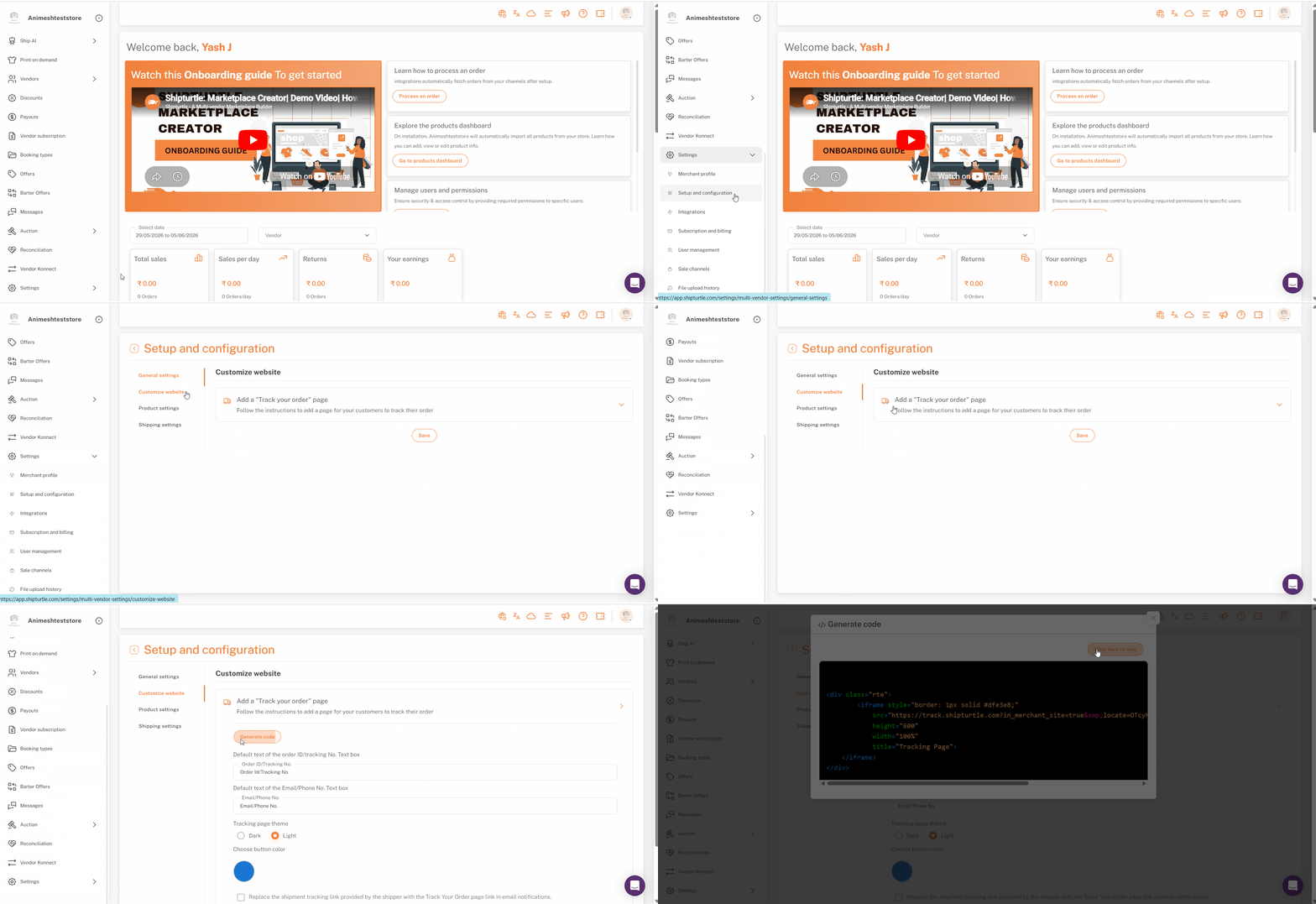
- Navigate to: Settings → Setup and configuration → Customize Website and find Add a Track your Order page.
- Click Generate Template code and copy the generated code.
Shopify configuration
The tracking page is a Shopify page template that holds the generated code and is then linked from your navigation.
Create the page template
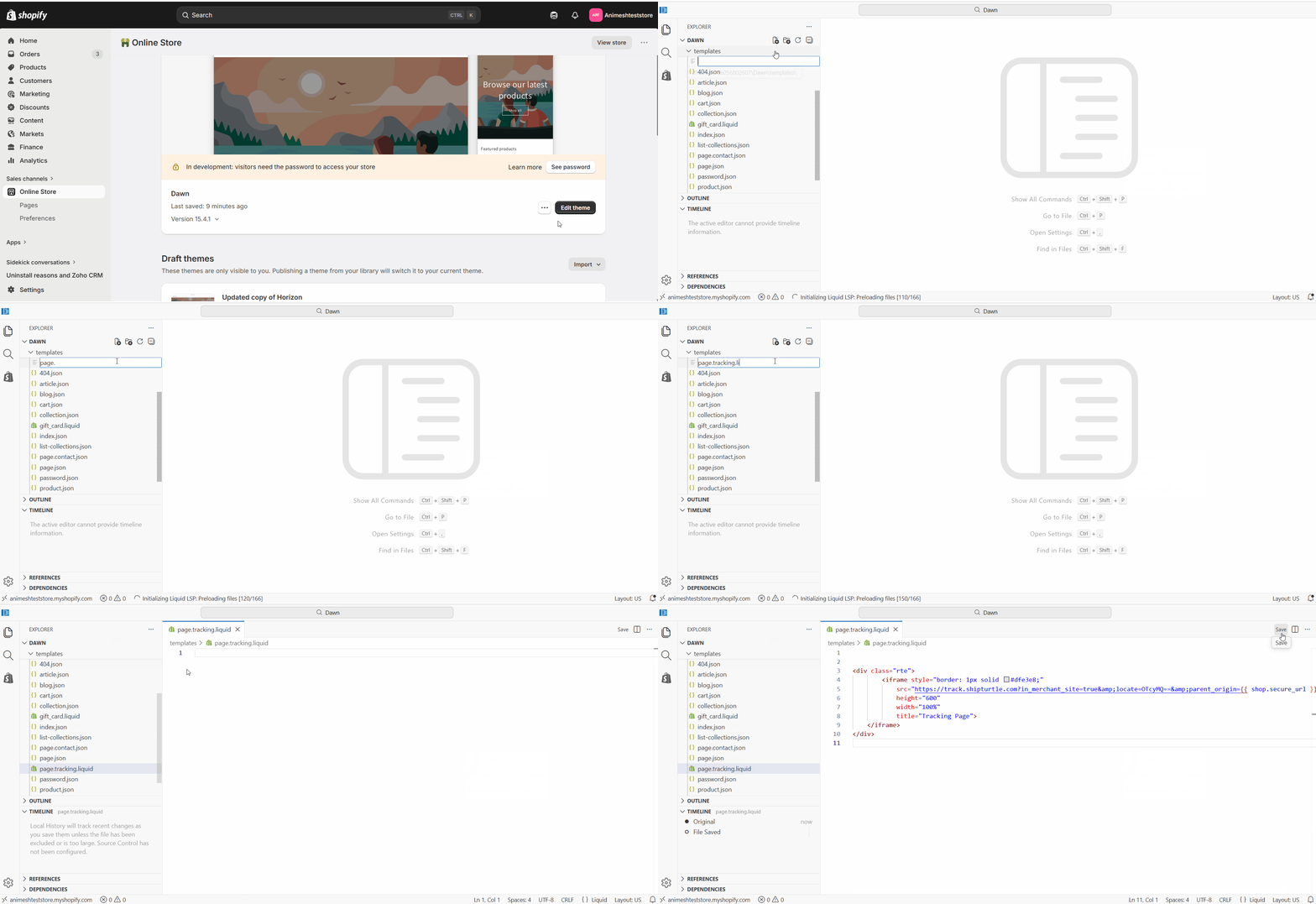
- In Shopify Admin, go to Online Store → Themes.
- Click Actions (...) next to your theme and select Edit code.
- Under Templates, select Page, enter a name following the format page.name.liquid — for example page.tracking.liquid — and press Enter. Do not use spaces in the name.
- Paste the copied code into the template and click Save.
Create the page
- Go to Online Store → Pages → Add page.
- Enter a title such as Tracking Page.
- Under Template, select the tracking template you created.
- Click Save.
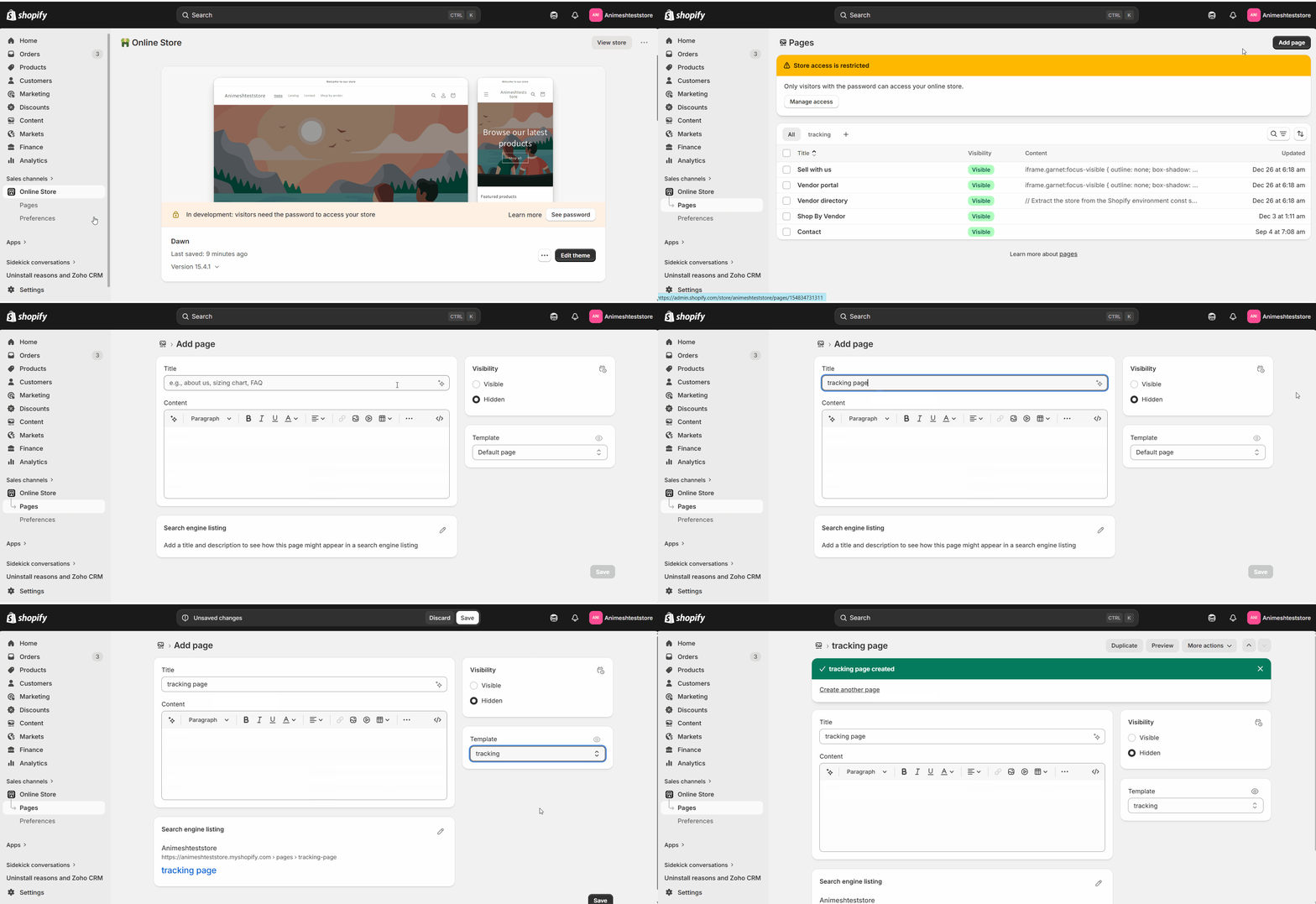
Note: Make sure to change the visibility to 'Visible'.
Add the page to navigation
- In Shopify Admin, go to Content → Menus.
- Open the menu where the link should appear, for example the main or footer menu.
- Click Add menu item, name it (for example Track your Order), and link it to the tracking page.
- Click Save.
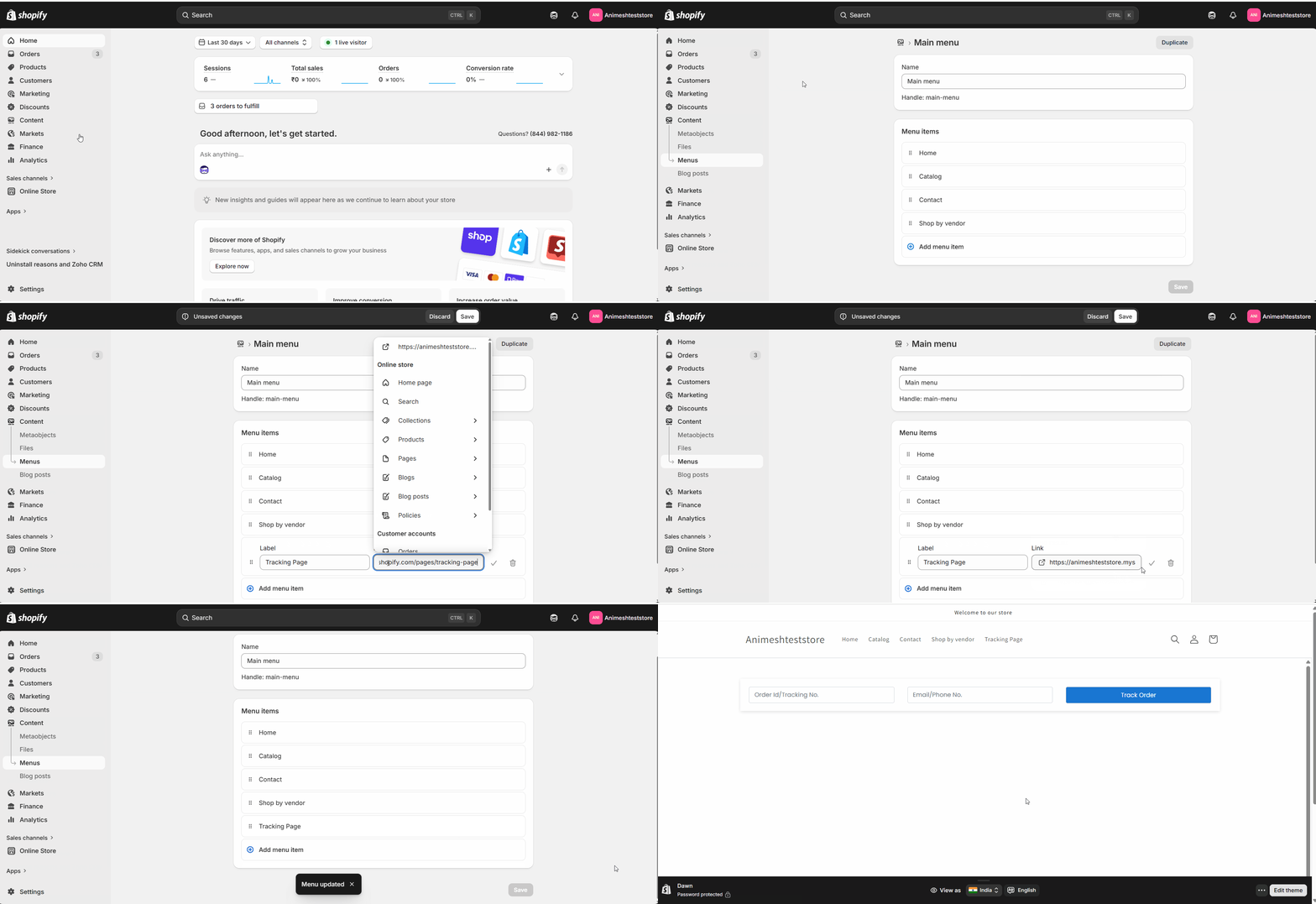
Your tracking page is now live and reachable from your navigation.
Customize the appearance
You can match the page to your theme by adjusting colors and adding a logo. For deeper styling, ask your developer to edit the page's HTML and CSS.
FAQs
Can customers request returns from this page? Only if the Returns add-on is active. With it enabled, a return request option appears alongside tracking. Without it, the page shows order status only.
What does the customer need to track an order? Customers look up their order from the tracking page, so they can check status without signing into a separate system.
Can I style the page to match my store? Yes. Adjust colors and add a logo to match your theme, and have a developer edit the HTML and CSS for larger changes.
Troubleshooting
The tracking page is blank. Confirm the page uses your tracking template and that the generated code was pasted and saved in that template. A page on the default template will not show tracking.
The return request option is missing. Return requests depend on the Returns add-on. Activate it, then reload the page to see the return option.
Related articles
- Marketplace vs dropshipment — understand which party owns the delivery and return experience.
- Vendor profile page — another storefront page you build with generated Shipturtle code.
If you’re stuck, reach us at team@shipturtle.com or open a ticket on the support page.
For detailed guidance on this module, please refer to the video tutorial here.