A practical guide to exporting vendor bank and payment details, and how the secure email download link works
Overview
Shipturtle lets you export the payment details of your vendors from the Manage vendors page as an Excel file. The export includes each vendor's payment method along with bank information such as account holder name, bank name, account number, and bank address, as well as identifiers such as UPI ID, PayPal email, and Stripe account. You can export one vendor, a selection of vendors, or all of your vendors. Small exports download straight to your browser. Larger exports are prepared in the background and delivered through an email link that expires after 15 minutes, because the file contains bank details.
In this guide, you'll learn how to:
- Check who can run the export.
- Select vendors and export their payment details.
- Understand when the file downloads directly and when it is sent by email.
- Read the columns in the exported file.
- Download the file from the email link before it expires.
- Get a new link if the old one has expired.
1. Who Can Export Payment Details
The export is available in the merchant dashboard only. Vendors do not have this action, so a vendor cannot export payment details, including their own.
- Any merchant dashboard user who can open the Manage vendors page can run the export.
- There is currently no separate role permission for the Payment details export.
- The export is run from the vendor list, not from an individual vendor's profile page.
2. Select the Vendors to Export
From the Shipturtle dashboard:
- Open Vendors from the left navigation menu.
- Select Manage vendors to view your vendor list.
- Use the search bar or filters if you want to narrow the list first.
- Tick the checkbox next to each vendor you want to export, or tick the checkbox in the table header to select every vendor on the current page. You can also tick a single vendor.
- To include every vendor matching your current filters, click Select all Vendors in the selection bar above the table. The link shows the number of vendors, for example Select all 60 Vendors.
- Click the Export icon at the top right of the vendor list.
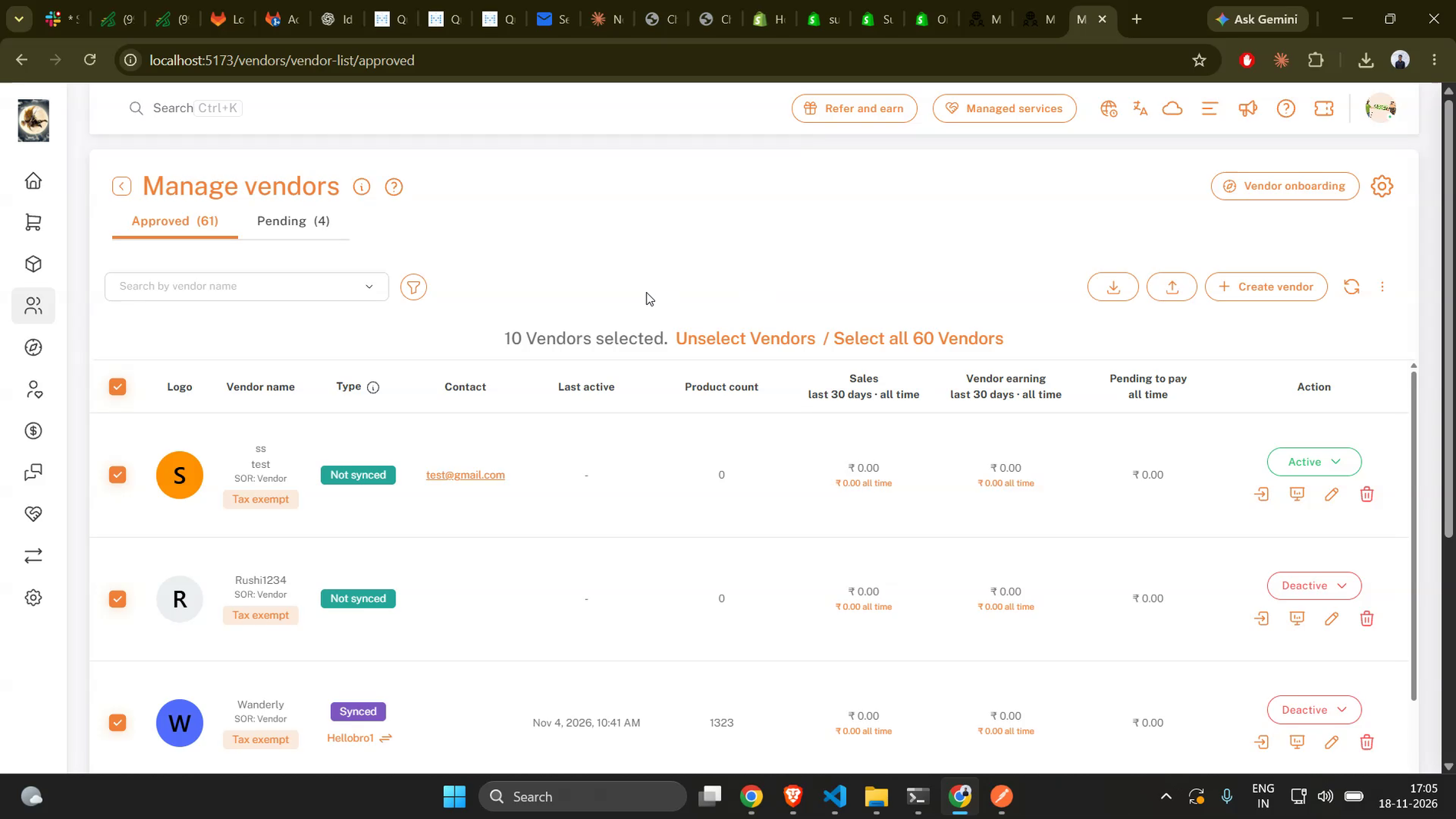
Vendors → Manage vendors: 10 vendors selected, with the Export icon at the top right
3. Choose Payment Details and Export
The Export window lists the types of vendor data you can export: Vendor details, Warehouses, Users list, and Payment details.
- Select Payment details.
- Check the email address shown next to Mail will be sent to. This is where the download link goes if the export is delivered by email.
- Click Export.
Note in the Export window
The window also mentions that if the export is taking time, you will receive the file by email once the export is complete. For payment details, this applies when more than 10 vendors are selected.
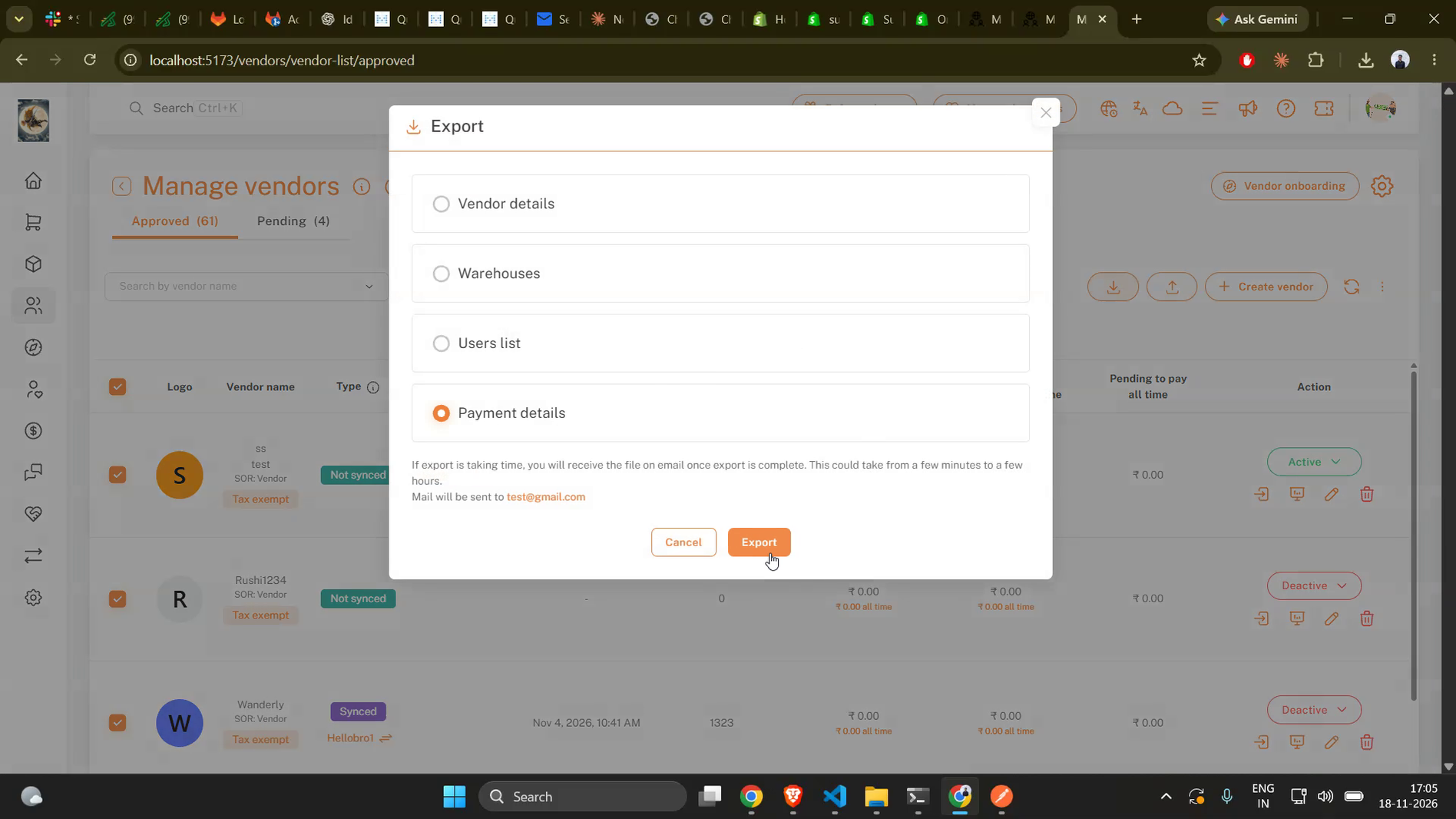
Export window with Payment details selected
4. How the File Is Delivered
After you click Export, a confirmation message reads Export of payment details has been initiated successfully. How you receive the file depends on the number of vendors selected:
- 10 vendors or fewer: the Excel file downloads directly in your browser. No email is sent.
- More than 10 vendors: the file is prepared in the background and a download link is emailed to you. Your browser does not download anything.
Same message, different delivery
The confirmation message is the same in both cases, so exporting 8 vendors one day and 40 the next will feel different. This is expected. Both exports produce the same file.
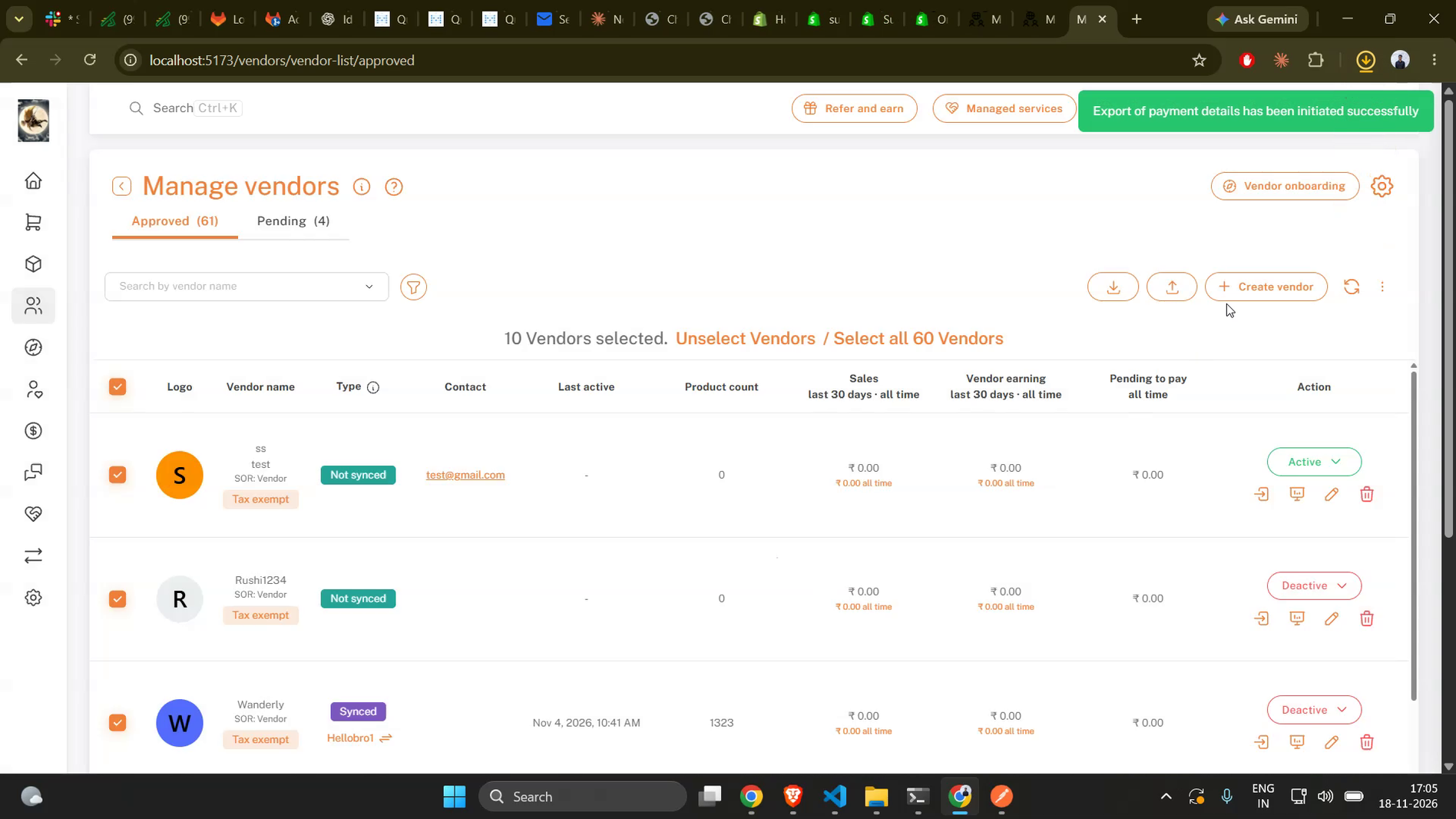
Manage vendors: confirmation message after exporting 10 vendors, with the file downloaded directly
5. Review the Exported File
Open the downloaded Excel file. The Payment Details sheet has one row for each payment method saved for a vendor, so a vendor with more than one payment method appears on more than one row. The sheet has 19 columns:
- ST Unique ID and Vendor Name
- Payment Method and Nickname
- Account Holder and Bank Name
- Account Number / IBAN
- SWIFT / BIC and Sort Code
- UPI ID
- Payment Mode
- Bank Address Line 1 and Bank Address Line 2
- Bank State, Bank Zip Code, and Bank Country
- Other Information
- Is Default
- Status
Vendors with more than one payment method
Rows are payment methods, not vendors. A vendor with both a bank account and a PayPal address has two rows. The Is Default column shows YES or NO to mark the vendor's default payment method.
Empty columns and Other Information
Many cells are empty by design, because each payout provider stores different fields. A vendor paid by bank transfer fills the bank columns and leaves UPI ID blank, while a PayPal vendor fills very few columns.
Details that do not have a column of their own, such as PayPal email, Stripe account, Ziina username, currency, and vendor notes, are collected in the Other Information column as Label: value pairs separated by a vertical bar ( | ).
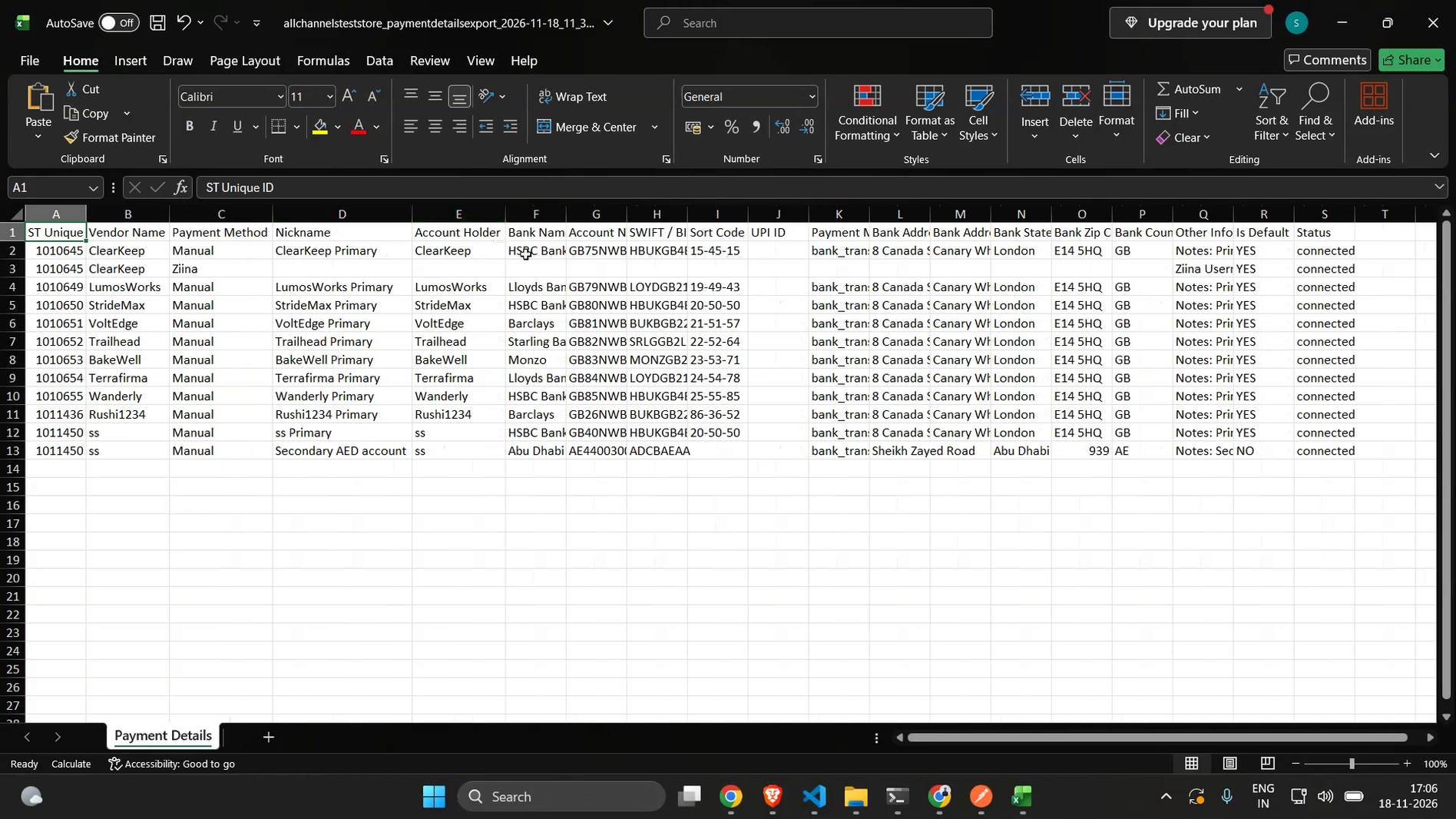
Exported Excel file: Payment Details sheet
6. Export More Than 10 Vendors by Email
When more than 10 vendors are selected, the export is delivered by email instead of downloading in your browser.
- Select more than 10 vendors, or click Select all Vendors.
- Click the Export icon, select Payment details, and click Export.
- Open the email with the subject Vendors payment details exported in your inbox.
- Click click here to download file to download the Excel file.
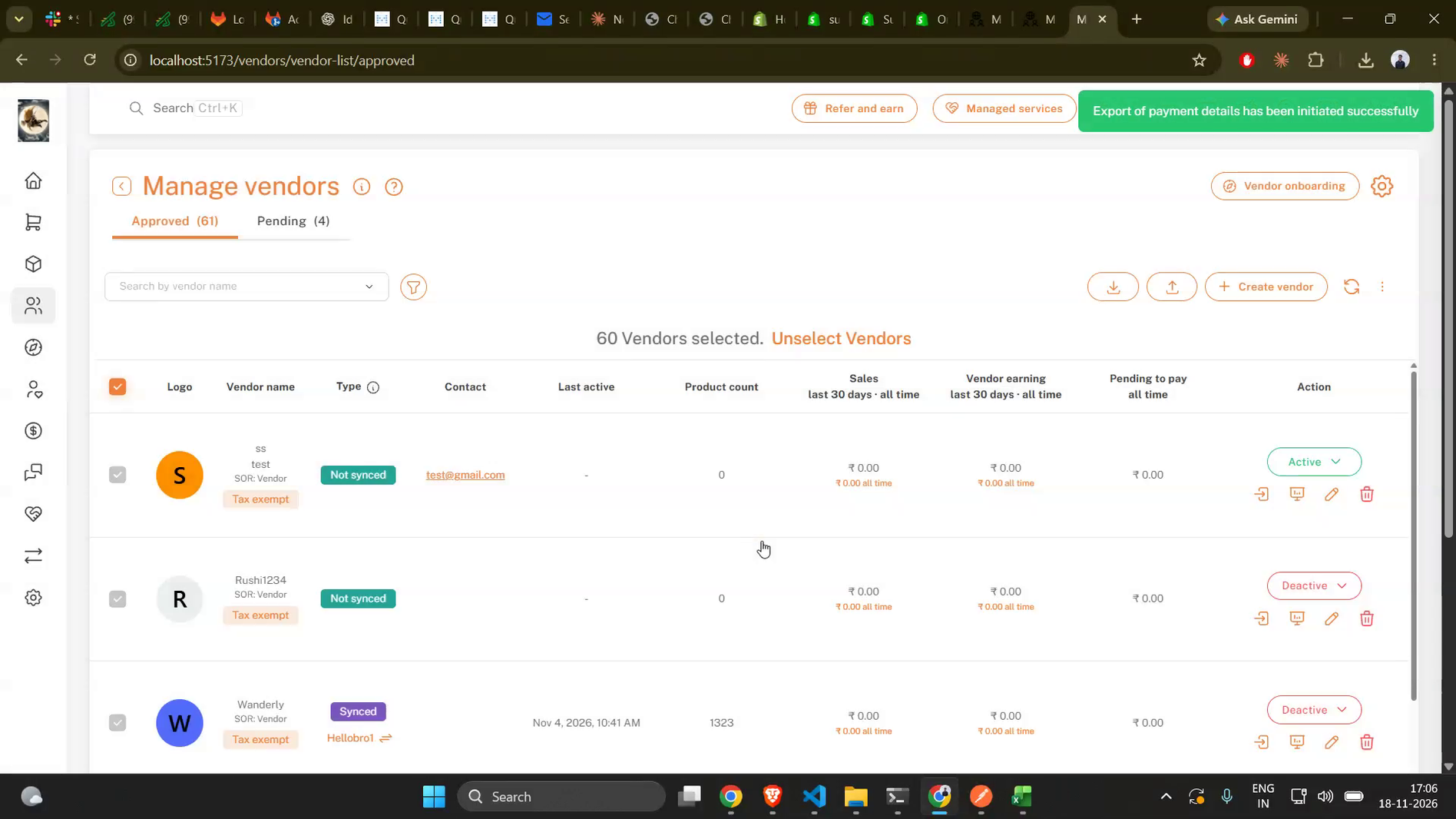
Manage vendors: all 60 vendors selected and the export initiated
7. The Export Email
The email confirms that the vendors' payment details are exported and contains the download link. It also states that the link expires in 15 minutes because the file contains bank details.
Check the email in Logs
You can also confirm that the email was generated from Settings → Logs → Email, where it is listed with the subject Vendors payment details exported. If the email does not reach your inbox, see Troubleshooting Email Issues in Shipturtle.
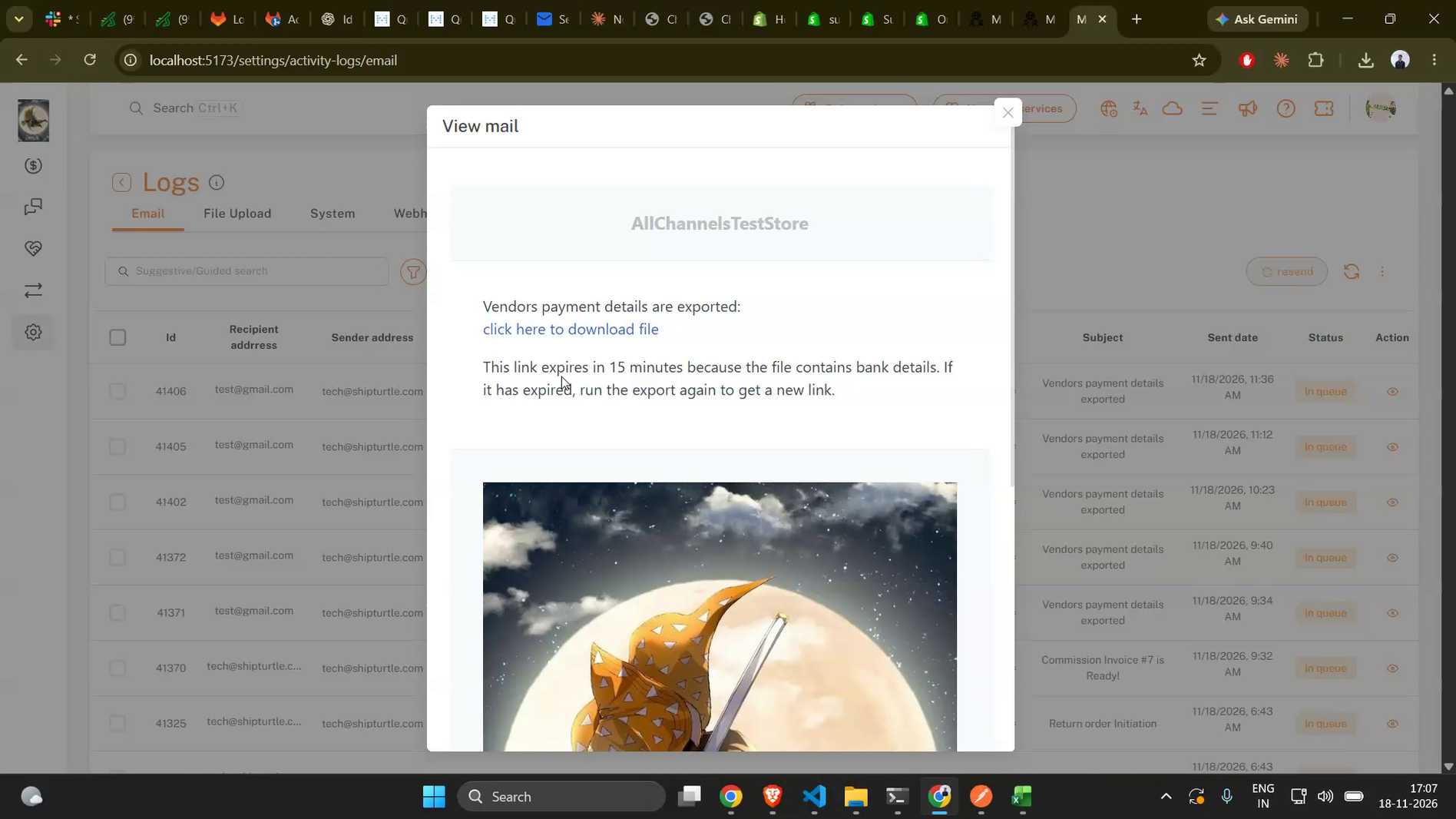
Settings → Logs → Email: preview of the Vendors payment details exported email
8. Download Link Expiry
For security, the download link in the email works for 15 minutes only. If you open the link after it has expired, the file does not download and the page shows an access denied message that reads Request has expired.
- Go back to Vendors → Manage vendors.
- Select the vendors again.
- Run the Payment details export again to receive a new email with a fresh link.
- Download the file within 15 minutes of receiving the email.
FAQs & Troubleshooting
- I clicked Export but nothing downloaded. What happened?
You selected more than 10 vendors, so the file is being prepared in the background and the download link will arrive by email. Exports of 10 vendors or fewer download straight away. - Why didn't I receive an email after exporting?
If you selected 10 vendors or fewer, no email is sent. The file downloads directly in your browser, so check your downloads folder. For larger exports, check the address shown next to Mail will be sent to in the Export window and look in your spam folder. - The download link shows an access denied or Request has expired message. What should I do?
The link has passed its 15 minute limit. Expired links cannot be reactivated. Run the Payment details export again from Manage vendors to get a new link. - Why does the link expire after 15 minutes?
The exported file contains sensitive bank details of your vendors. A short expiry limits the risk of the file being accessed if the email is forwarded or opened by someone else later. - Why does a vendor appear more than once in the file?
The file has one row per payment method. A vendor with several payment methods, for example a primary and a secondary bank account, has one row for each. The Is Default column shows which one is the default. - Why are so many columns empty?
Each payout provider uses different fields, so only the columns that apply to a payment method are filled. Anything without its own column appears in Other Information. - Which email address receives the download link?
The link is sent to the address shown next to Mail will be sent to in the Export window. - Who can run the export?
Any merchant dashboard user who can open the Manage vendors page. There is currently no separate role permission for it. - Can a vendor export their own payment details?
No. The export is available in the merchant dashboard only.
Related Articles
- Introduction to Vendors
- View or edit vendor details
- Introduction to Payouts
- Payment flow from customer to vendors
- Generate commission invoices and payouts
- Excel export for orders
- Troubleshooting Email Issues in Shipturtle
Need Help?
If you're stuck, contact the Shipturtle support team at team@shipturtle.com or raise a support ticket through the Shipturtle support page.