A practical guide to freight reconciliation, payment reconciliation, and reconciliation settings
Overview
The Reconciliation module in Shipturtle helps you check that the money and charges from your shipping partners match what you expected. Freight reconciliation compares the freight costs your shipping partners bill you against the expected cost at the time of shipping. Payment reconciliation checks whether you have received the money for all COD (cash on delivery) orders from your shipping partners. You run both by uploading files from your shipping partners and reviewing the results.
In this guide, you'll learn how to:
- Navigate to the Reconciliation page.
- Use freight reconciliation to check shipping invoices.
- Use payment reconciliation to check COD remittances.
- Turn on reconciliation and set a tolerance in Reconciliation settings.
- Use the toolbar to search, upload, download, and organize reconciliation records.
1. Navigate to the Reconciliation Page
From the Shipturtle dashboard:
- Open Reconciliation from the left navigation menu.
- Use the tabs at the top of the page to switch between Freight reconciliation, Payment reconciliation, and Reconciliation settings.
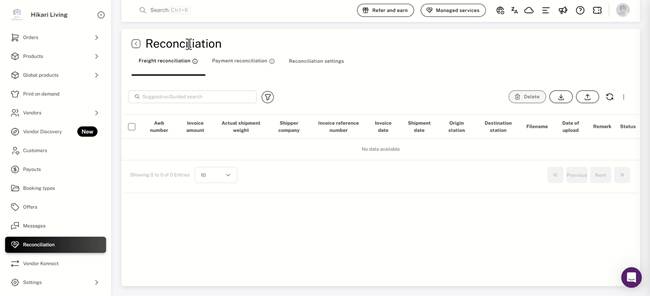
Reconciliation: Freight reconciliation tab
2. Freight Reconciliation
Freight reconciliation helps you check whether your freight costs match the expected value at the time of shipping. For example, you can find shipments where the actual packed dimensions were larger than expected, which leads to a higher freight charge. Hover over the info icon next to Freight reconciliation to see this description. Each freight record shows:
- AWB number
- Invoice amount
- Actual shipment weight
- Shipper company
- Invoice reference number
- Invoice date and shipment date
- Origin station and destination station
- Filename and date of upload
- Remark and status
Uploading freight files
Upload the invoice files you receive from your shipping partners using the upload icon in the toolbar. Each uploaded record appears as a row with the columns listed above.
If you upload more than one file containing the same AWB number, Shipturtle overwrites the earlier record with the newer one.
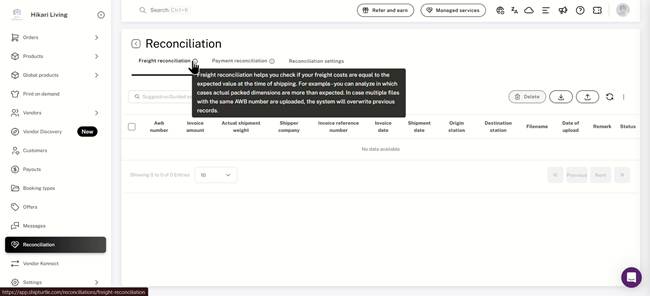
Reconciliation → Freight reconciliation: description shown in the info tooltip
For more information, see Add Shipping partners
3. Payment Reconciliation
Payment reconciliation helps you check whether you have received the money for all COD orders from your shipping partners. You do this by uploading the remittance files your shipping partners send you, in the required format. Each record shows:
- Payment number
- Payment amount
- Transaction reference number
- Remittance date
- Filename and date of upload
- Remark and status
What counts as a payment number
Hover over the info icon next to Payment reconciliation for a reminder. The payment number can be any of the following:
- The shipping label number
- The payment reference number
- The unique order reference
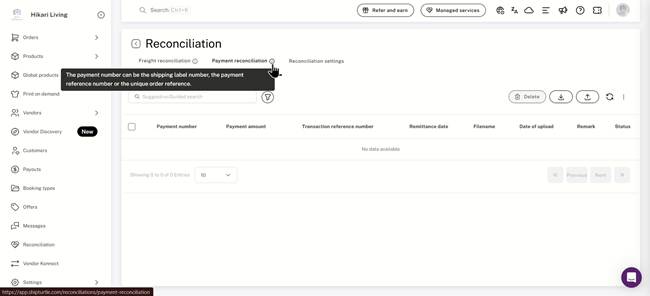
Reconciliation → Payment reconciliation: payment number info tooltip and record columns
For more information, see Payment flow from customer to vendors
4. Configure Reconciliation Settings
Turn on each type of reconciliation and set how much difference is acceptable before a record is flagged.
- Open the Reconciliation settings tab.
- Under Payment reconciliation, select Enable payment reconciliation.
- Enter a value in Set tolerance. A difference within this limit is treated as tallied (matched).
- Under Freight reconciliation, select Enable freight reconciliation and set its tolerance in the same way.
- Click Save.
How tolerance works
Small differences between what you expected and what the shipping partner reports are common, for example from rounding. The tolerance lets Shipturtle treat these small differences as matched, so only real mismatches need your attention.
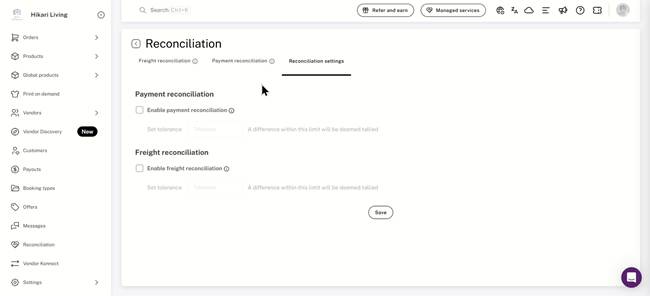
Reconciliation → Reconciliation settings: enable options and tolerance fields
5. Use the Reconciliation Toolbar
The Freight reconciliation and Payment reconciliation tabs share the same toolbar:
- Suggestive/Guided search and the filter icon: find specific records.
- Delete: remove the selected records. Select records with the checkboxes first.
- Download icon: download a file.
- Upload icon: upload a file from your shipping partner.
- Refresh icon: reload the list.
- More options (three dots): open File uploaded earlier to see your past uploads, or Organize columns to choose which columns are shown.
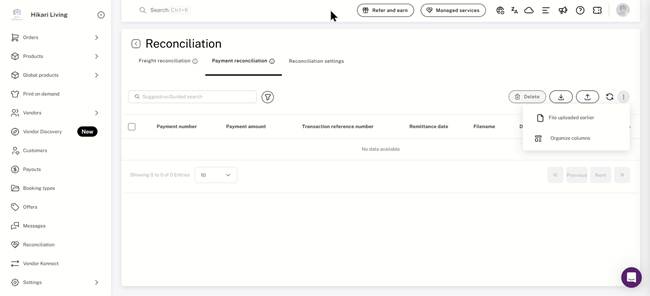
Reconciliation → Payment reconciliation: More options menu
FAQs & Troubleshooting
- I uploaded the same AWB number twice. Which record is kept?
The newer upload. When more than one file contains the same AWB number, Shipturtle overwrites the earlier record. - What should I use as the payment number in a remittance file?
Use the shipping label number, the payment reference number, or the unique order reference. - Why are small differences not being flagged?
They are probably within the tolerance you set in Reconciliation settings. Any difference within the tolerance is treated as tallied. Lower the tolerance if you want stricter matching. - The Reconciliation page shows "No data available". What should I do?
Check that the matching reconciliation type is enabled in Reconciliation settings, upload a file from your shipping partner, then click the refresh icon. Clear any active search or filters if the list is still empty. - Where can I see files I uploaded before?
Click More options (three dots) and select File uploaded earlier.
Related Articles
- Introduction to Shipping
- Add Shipping partners
- Introduction to Payouts
- Payment flow from customer to vendors
Need Help?
If you're stuck, contact the Shipturtle support team at team@shipturtle.com or raise a support ticket through the Shipturtle support page.