Who this guide is for
Merchants and vendors using Vendor Konnect to sync products from an external store into the marketplace.
Before you begin
- Vendor Konnect set up and at least one vendor store connected
- Products available to import in the vendor's external store
⚡ Quick Summary
Vendor Konnect → Unmapped. If the product is not on your store, use Add product to merchant store. If it already exists, use View mapping → Map product. Mapping links inventory without creating a duplicate.
Overview
When a vendor connects an external store, each product must be either Added (creates a new listing on your store) or Mapped (links to an existing listing). Choosing correctly prevents duplicates and keeps inventory in sync. The only question to ask: does this product already exist on my store?
Examples:
- Vendor's "Earrings" is not in your catalog → Add.
- Vendor's "Camera" is already listed on your store → Map.
1. Open Vendor Konnect and select a store
- Vendor Konnect
- Select store → choose the vendor's connected store.
- Available products — how many products the vendor's store has.
- Vendor webhook health — whether the sync connection is active.
2. Review the Unmapped tab
1. Vendor Konnect → Unmapped
- Lists every vendor product not yet linked. All show Mapping status: Unmapped.
- Columns: Product photo, Title, Category, Tags, Product status, Quantity (with variant count), Last synced, Mapping status, Action.
- Three action icons per row: Add product to merchant store, View mapping (link icon), and Sync product.
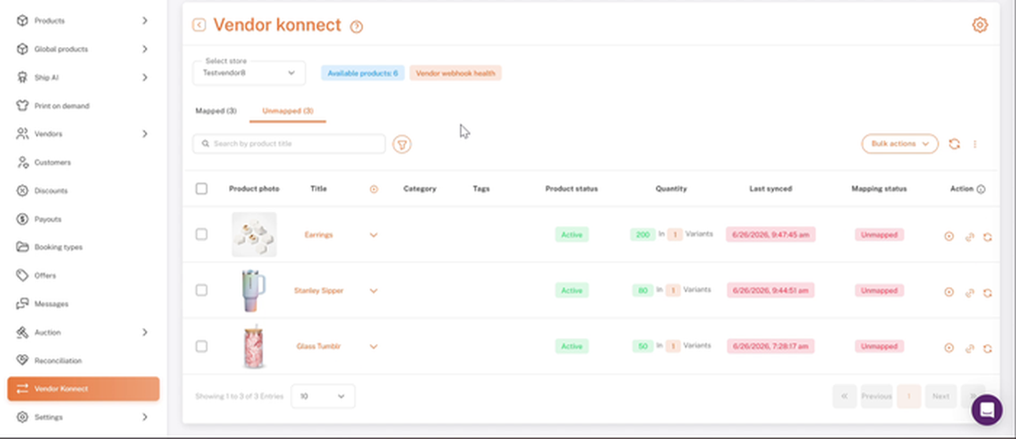
Vendor Konnect → Unmapped: vendor products not yet linked
3. Add: the product is not on your store
- Unmapped → first action icon (Add product to merchant store)
- Shipturtle creates the listing on your Shopify store and maps it automatically.
- Inventory sync starts at once, and the product moves to Mapped.
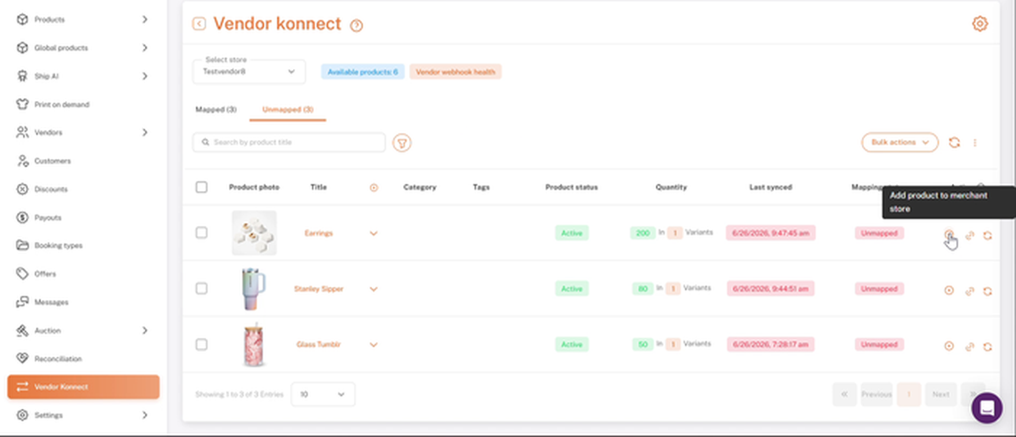
First action icon: Add product to merchant store
4. Map: the product is already on your store
- Unmapped → second action icon (View mapping). The Add/Edit mapping window opens.
- Choose merchant product → search and select your existing product.
- Check that both sides match.
- Map product
- Left panel: the vendor's product (Product ID, title, image, variants with SKU and Quantity).
- Right panel: your product. It shows Product unmapped until you select one, then fills in with its ID, title, tags, and variants.
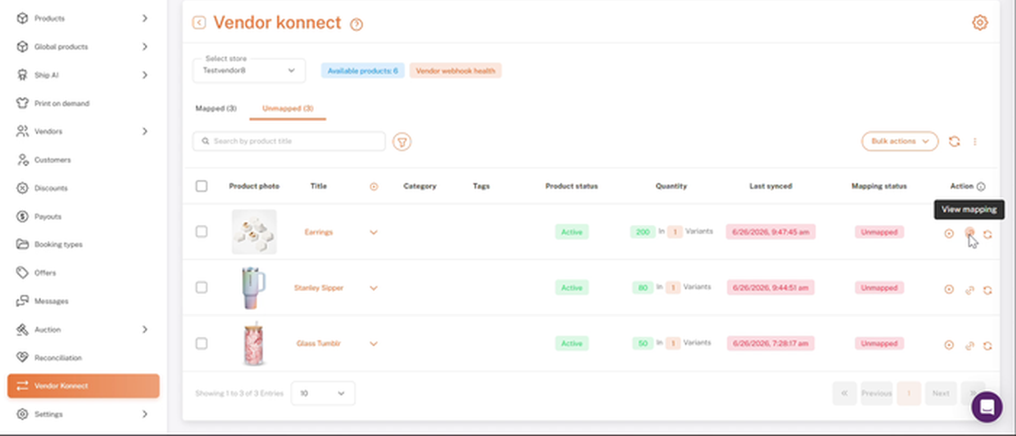
Second action icon: View mapping
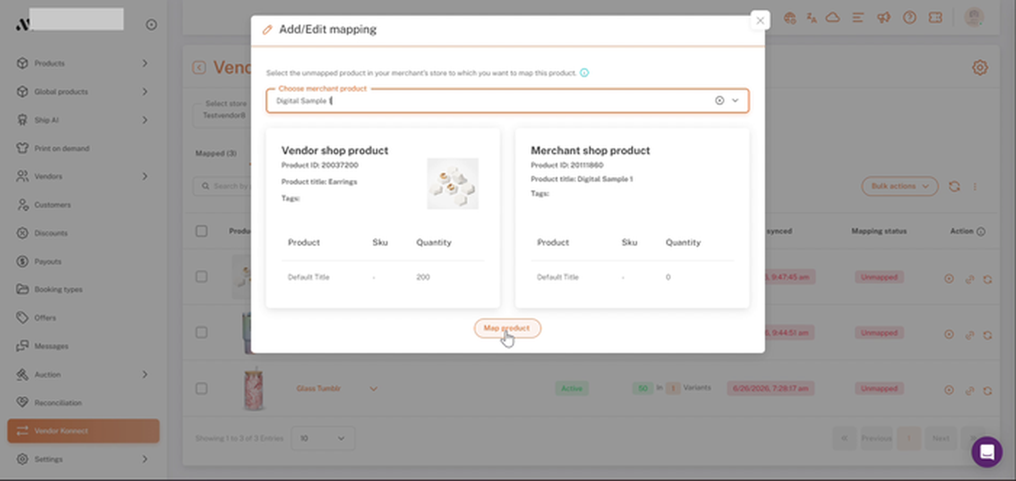
Add/Edit mapping: both panels filled, ready to select Map product
5. Check the Mapped tab
1. Vendor Konnect → Mapped
2. Confirm Mapping status shows Mapped in green.
3. View in products opens the product in Products → Manage products.
4. Use the sync icon (third action) for a manual sync if needed.
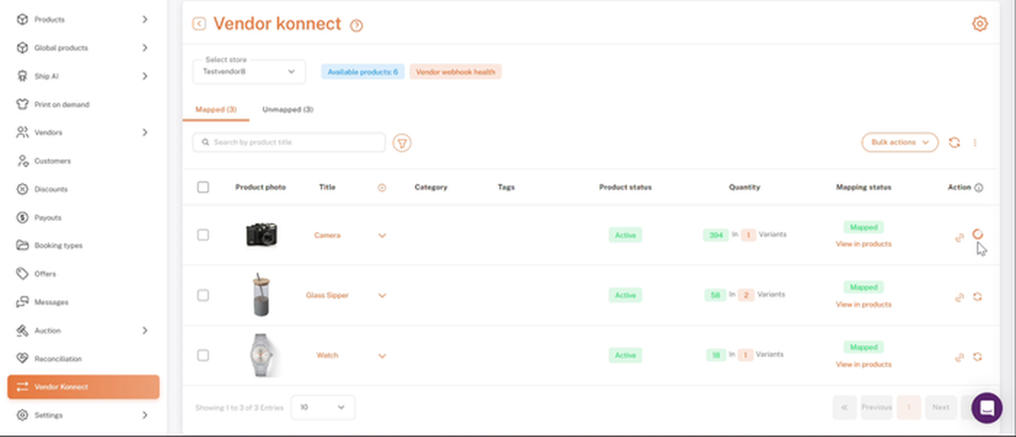
Vendor Konnect → Mapped: linked products with View in products links
6. Add vs. Map at a glance
Inventory sync starts immediately after either action.
Adding vs. Mapping Product
| Add product | Map product | |
|---|---|---|
| When to use | Product does NOT exist on the merchant store | Product ALREADY exists on the merchant store |
| What Shipturtle does | Creates a new product on the merchant store and links it to the vendor's product | Links the vendor's product to the existing merchant product. No new listing is created. |
| Inventory sync | Starts immediately after creation | Starts immediately after mapping |
| Risk if wrong choice | Product already exists: duplicate listing created | Product does not exist: nothing to link; product won't appear on storefront |
Checklist
- Vendor store selected
- Each Unmapped product checked against your catalog
- New products added with Add product to merchant store
- Existing products linked with View mapping → Map product
- All products showing in the Mapped tab
FAQs & Troubleshooting
- I used Add but the product already existed.
Shipturtle creates a second listing, so you get a duplicate on your storefront. Check the Mapped tab and your catalog before using Add. - I used Map but the product doesn't exist.
The Choose merchant product dropdown finds no match, so nothing can be mapped. Use Add product to merchant store first. It maps automatically. - Can I map to a product already mapped to another vendor?
Yes. Several vendors can map to one merchant product. Each vendor's inventory syncs independently to that single listing. Use this when vendors sell the same item. - Does mapping change my product's images or description?
No. Mapping links only the vendor's inventory (quantity). Your title, description, images, and price stay under your control. - What does Vendor webhook health mean?
It shows whether the real-time connection to the vendor's store is working. When healthy, the vendor's inventory changes reach Shipturtle automatically. If it shows an error, check the vendor's store connection. - The Unmapped tab is empty but the vendor has products.
Check Vendor webhook health. If it shows an error, ask the vendor to reconnect their store in Vendor Konnect settings. Also confirm Available products is above 0 and the vendor has at least one active product. - Map product is greyed out.
No product is selected in Choose merchant product. Search for the product name and select it first. - Mapped, but inventory isn't syncing.
Select the sync icon (third action) on the row for a manual sync. If it persists, check Vendor webhook health and ask the vendor to verify their store connection.
Related Articles
- Vendor Konnect
- Navigating the Products Page
- Add and Update Products in Shipturtle
- Introduction to Products
Need Help?
If you're stuck, contact the Shipturtle support team at team@shipturtle.com or raise a support ticket through the Shipturtle support page.