Picklists help warehouse staff gather products for confirmed orders. Scheduling a pickup hands those orders off to the carrier as a manifest. Both are bulk actions you run from the Orders panel.
Generate Picklists
From the Orders panel, open the New orders or Confirmed tab and select the orders you want a picklist for.
- Select the orders.
- Click Bulk actions.
- Under Generate, click Picklist.
- Confirm picklist generation.
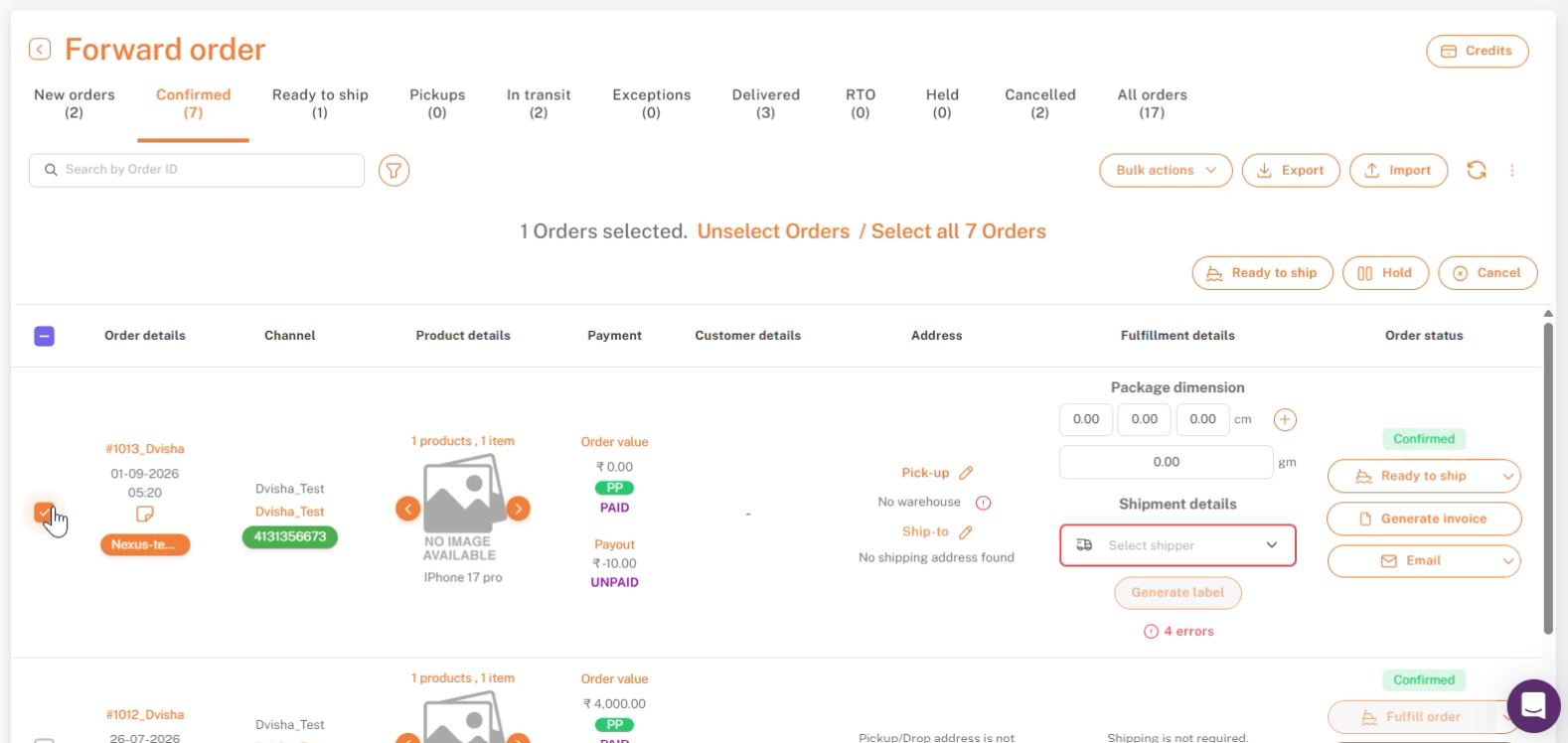
Orders selected on the Confirmed tab, ready for a bulk action.
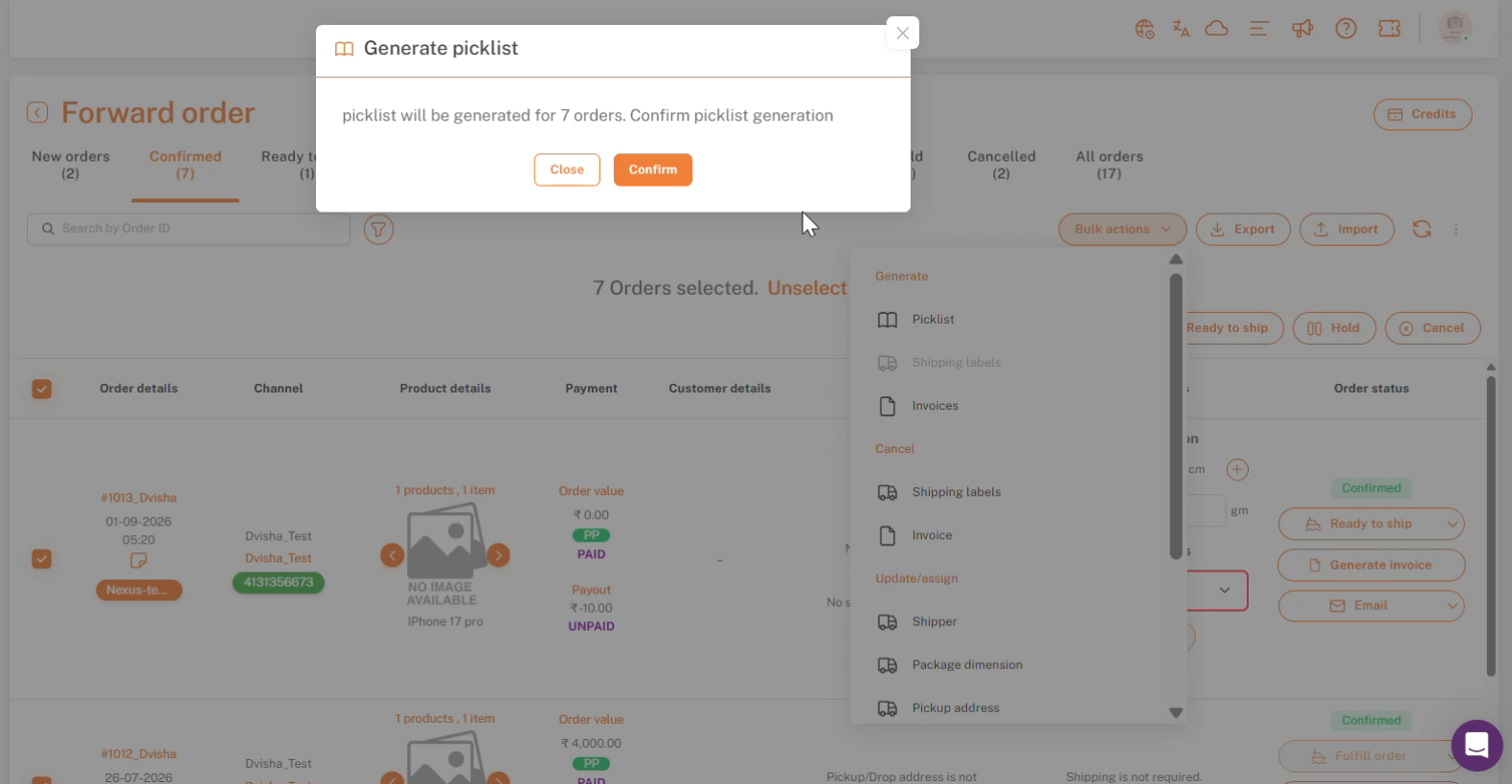
Bulk actions → Picklist, with the confirmation dialog.
Once generated, each order picks up a Pick Listed status, so you can see at a glance which orders already have a picklist.
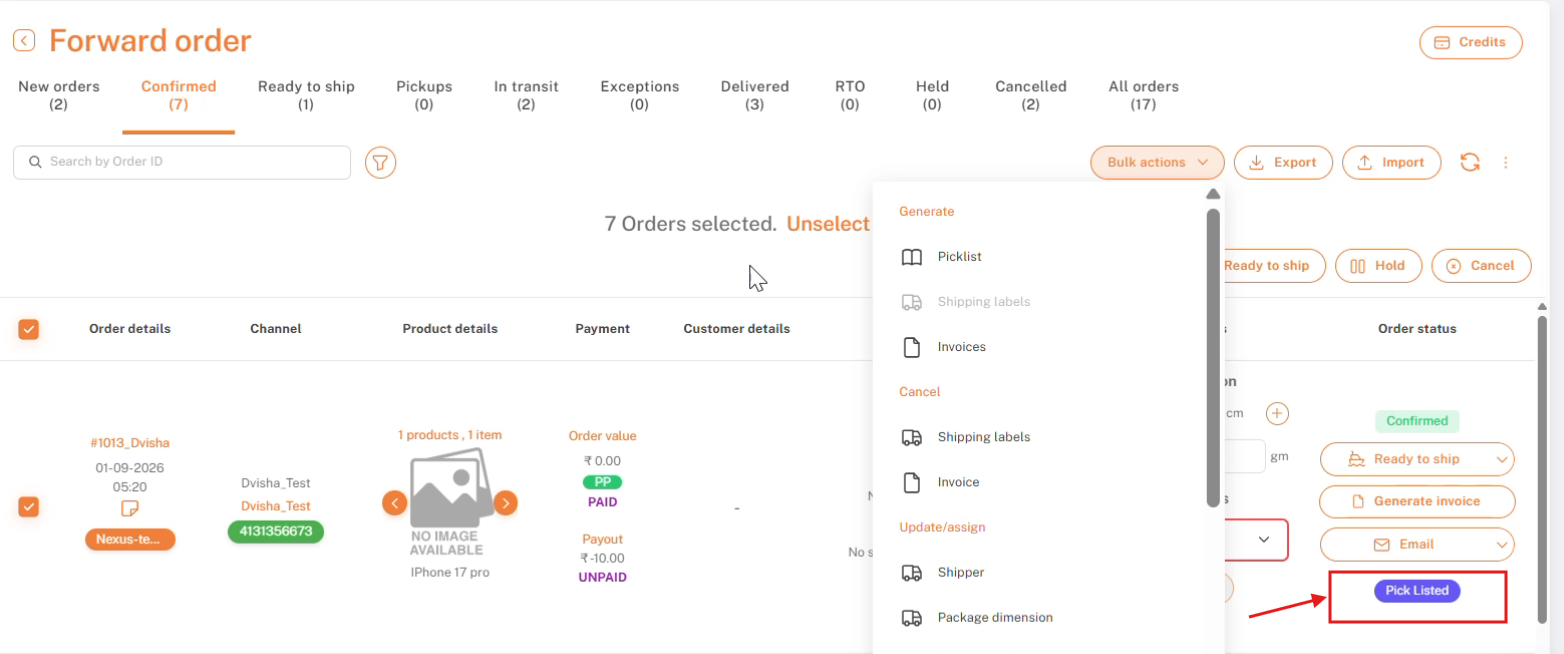
An order showing the Pick Listed status after picklist generation.
Schedule Pickups
Scheduling a pickup means generating a manifest — the document your carrier uses to pick up a batch of shipments. From the Orders panel, open the Ready to ship tab and select the orders you want to hand off.
- Select the orders.
- Click Manifest.
- Choose Manifest all to include every selected order, or Manifest pending to only include the ones not yet manifested.
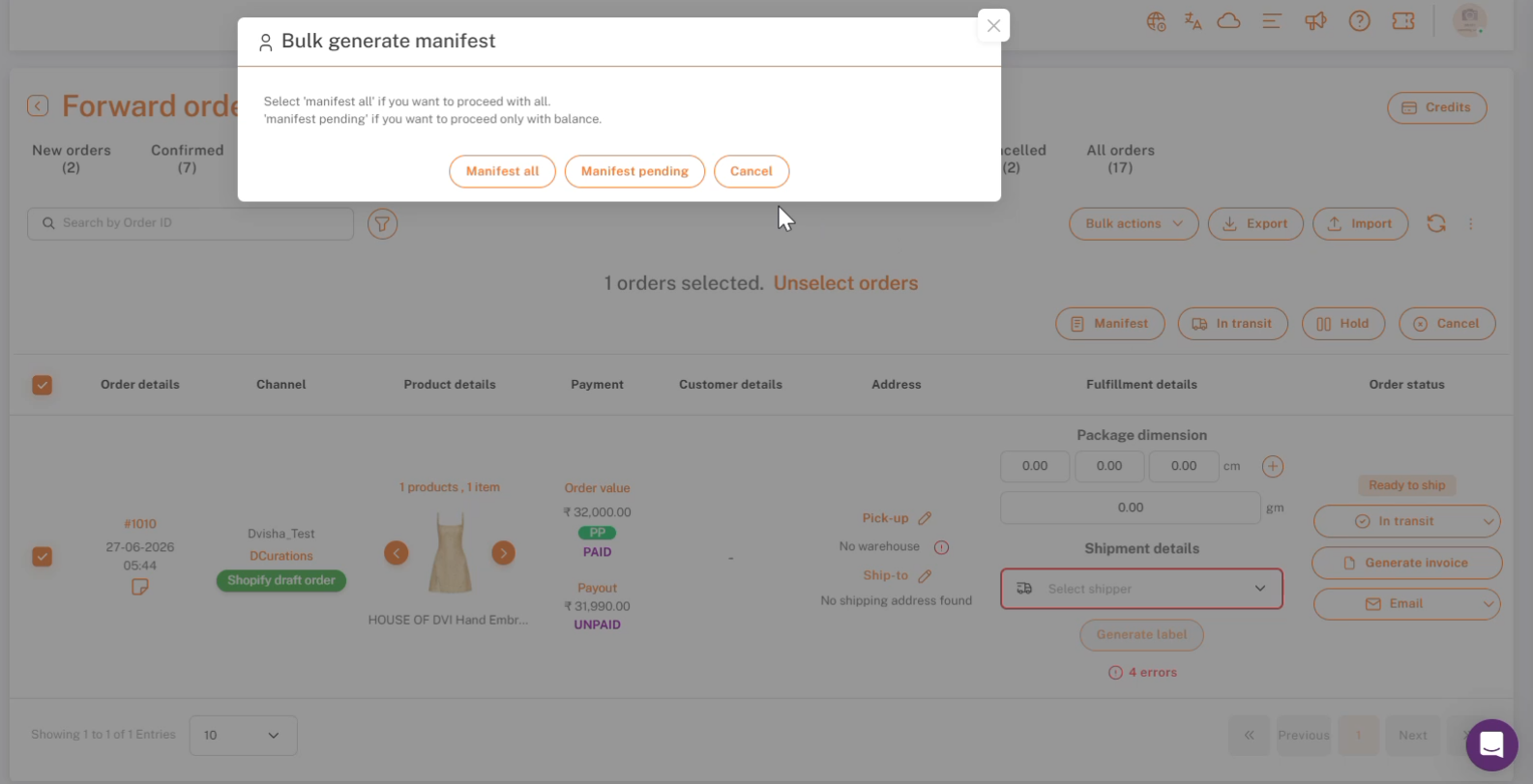
Ready to ship → Manifest — choose Manifest all or Manifest pending.
A success message confirms the manifest was generated, and the orders move forward in the fulfillment flow.
Note: manifest generation might not be available for all shippers.
For more on what a manifest actually contains, see Generate Shipping Manifests.
If you're stuck, reach the Shipturtle team at team@shipturtle.com or open a ticket through the support page.