Overview
Vendors who already sell on Wix can connect their Wix site to the marketplace through Vendor Konnect. Once connected, the products on that Wix site become available in the seller dashboard, ready to be mapped to the marketplace. The whole connection takes about a minute. This guide is for vendors on a Shipturtle-powered marketplace whose products live on a Wix site. Marketplace admins can follow the same steps when working inside a vendor's dashboard.
In this guide, you'll learn how to:
- Open Vendor Konnect and start the Wix connection.
- Confirm your password and add the Multi Vendor konnect app to your Wix site.
- Choose the right Wix site to connect.
- Check that the connection succeeded and see your products under Unmapped.
1. Before You Begin
Have the following ready:
- Your seller dashboard login and password. You'll be asked to re-enter the password to confirm the connection.
- Access to the Wix account that owns the site you want to connect.
- The name of the Wix site to connect, if your Wix account has more than one.
2. Open Vendor Konnect
From your seller dashboard:
- Expand the side menu.
- Click Vendor Konnect (the two-arrows icon, just above Settings).
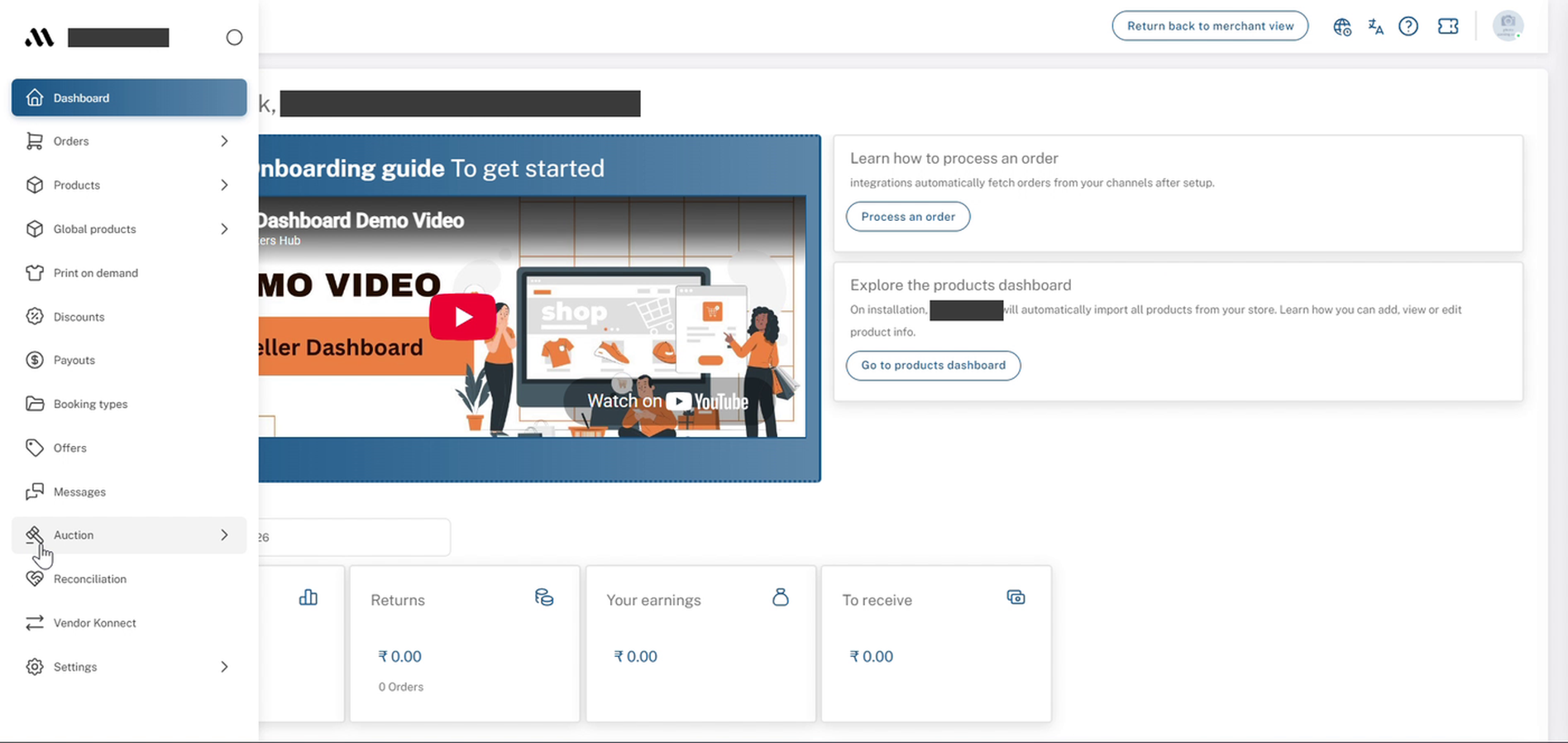
Seller dashboard: expanded side menu with Vendor Konnect
3. Click Connect on the Wix Card
The Connected channels page opens under Connect store, listing every supported channel. If nothing is linked yet, you'll see No store is connected at the top right.
- Find the Wix card in the second row.
- Click Connect under Wix.
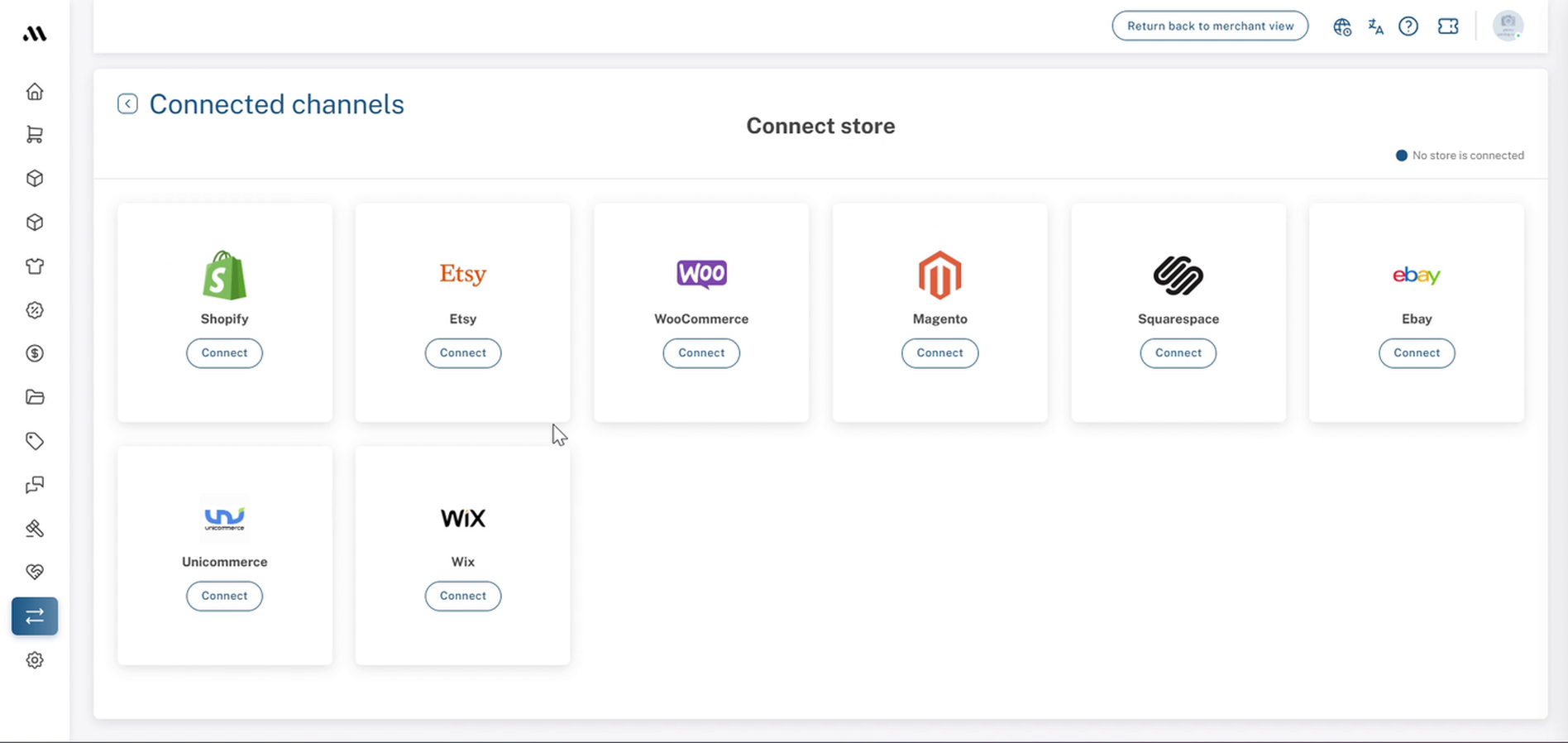
Vendor Konnect → Connected channels: Connect store page with the Wix card
4. Confirm Your Password
A Confirm password window appears with the message "You need to confirm your password for completing this action."
- Enter your seller dashboard password.
- Click Confirm.
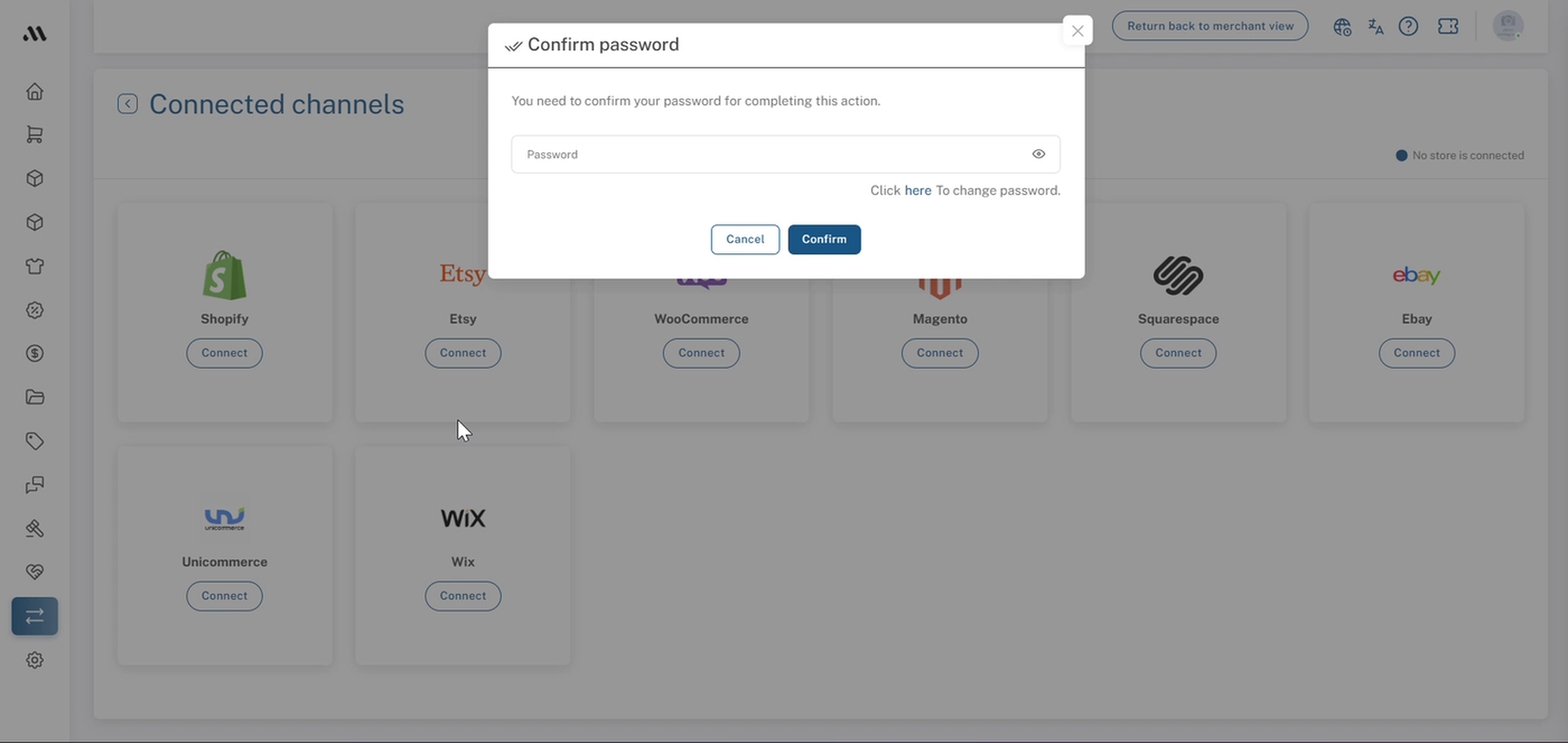
Connected channels: Confirm password window
5. Add the App to Your Wix Site
You're taken to the Multi Vendor konnect app page on Wix (by Multi Vendor Konnect, marked Free). If you aren't already signed in to Wix in this browser, Wix will ask you to sign in first. Use the account that owns the site you want to connect.
- Click Add to Site.
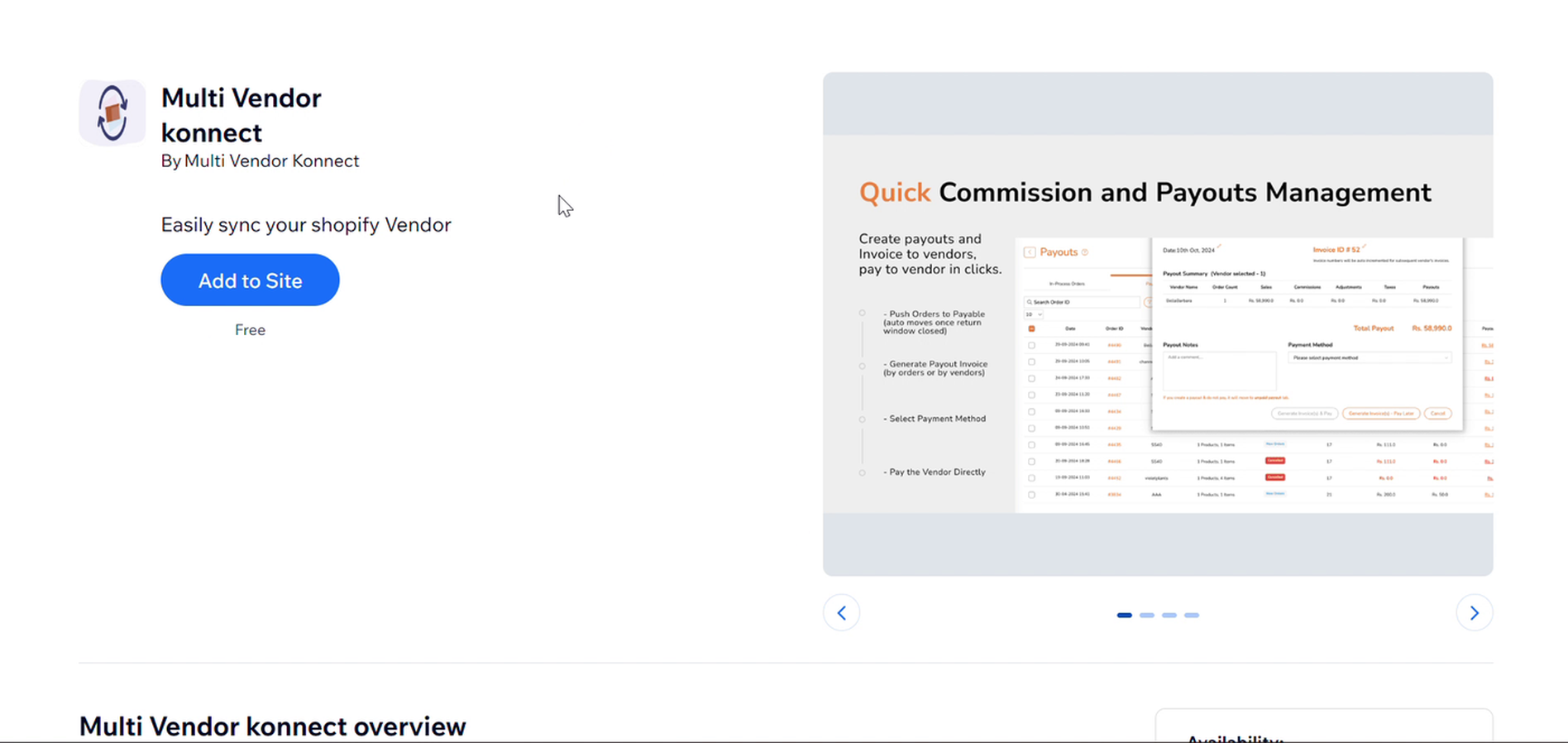
Wix: Multi Vendor konnect app listing with the Add to Site button
6. Choose Which Site to Connect
In Choose which site to add this app to, you select the Wix site whose products you want on the marketplace.
- Select the Wix site to connect. Use Search... if you have many sites.
- Click Continue. It stays greyed out until a site is selected.
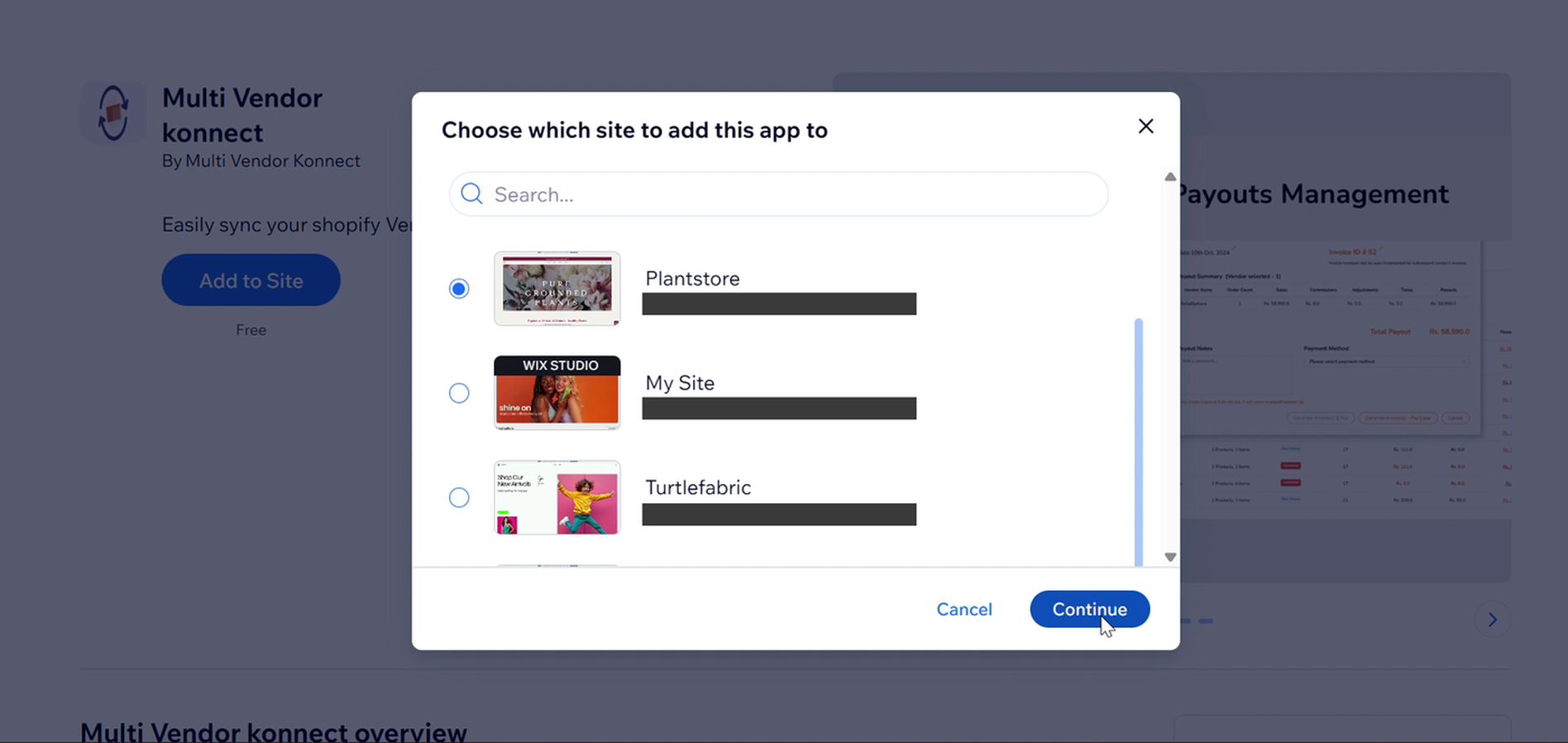
Wix: Choose which site to add this app to, with the Continue button
7. Wait While Wix Connects
You'll return to your dashboard with a Connecting wix message: "Please wait, do not refresh or leave this page..."
- Keep the tab open until the Vendor konnect page loads.
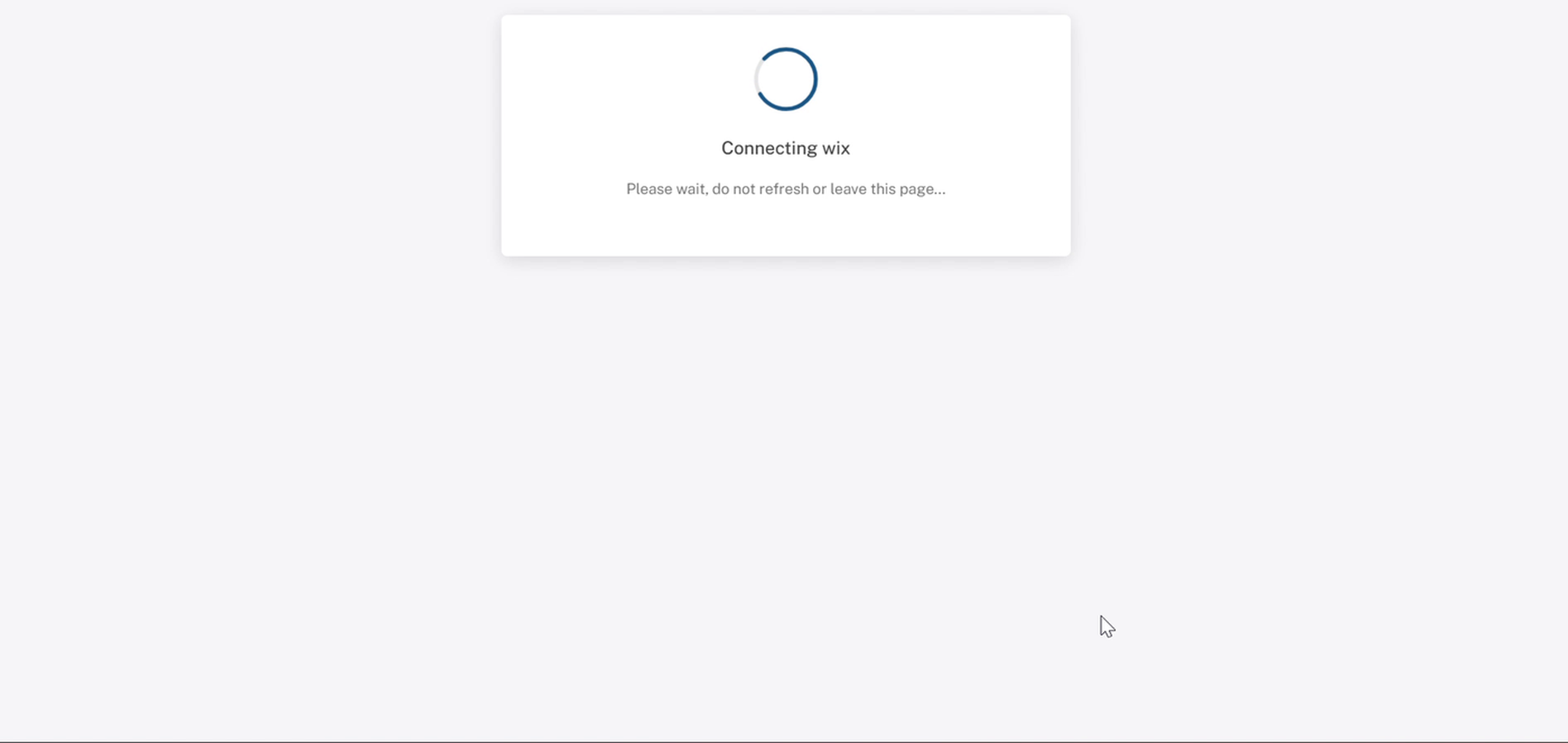
Dashboard: Connecting wix message. Do not refresh or close the tab
8. Check the Connection
The Vendor konnect page now shows your Wix site's Domain ID with a green Connected badge and a Disconnect shop button. Below it you'll see the selected store, the Available products count pulled from Wix, and a Vendor webhook health button.
Mapped and Unmapped tabs
Your products are split into two tabs: Mapped and Unmapped. Right after connecting, everything sits under Unmapped. Open that tab to see each product's status, quantity/variants, Last synced time, and Mapping status.
Mapping products to the marketplace is covered in Add and Map Products.
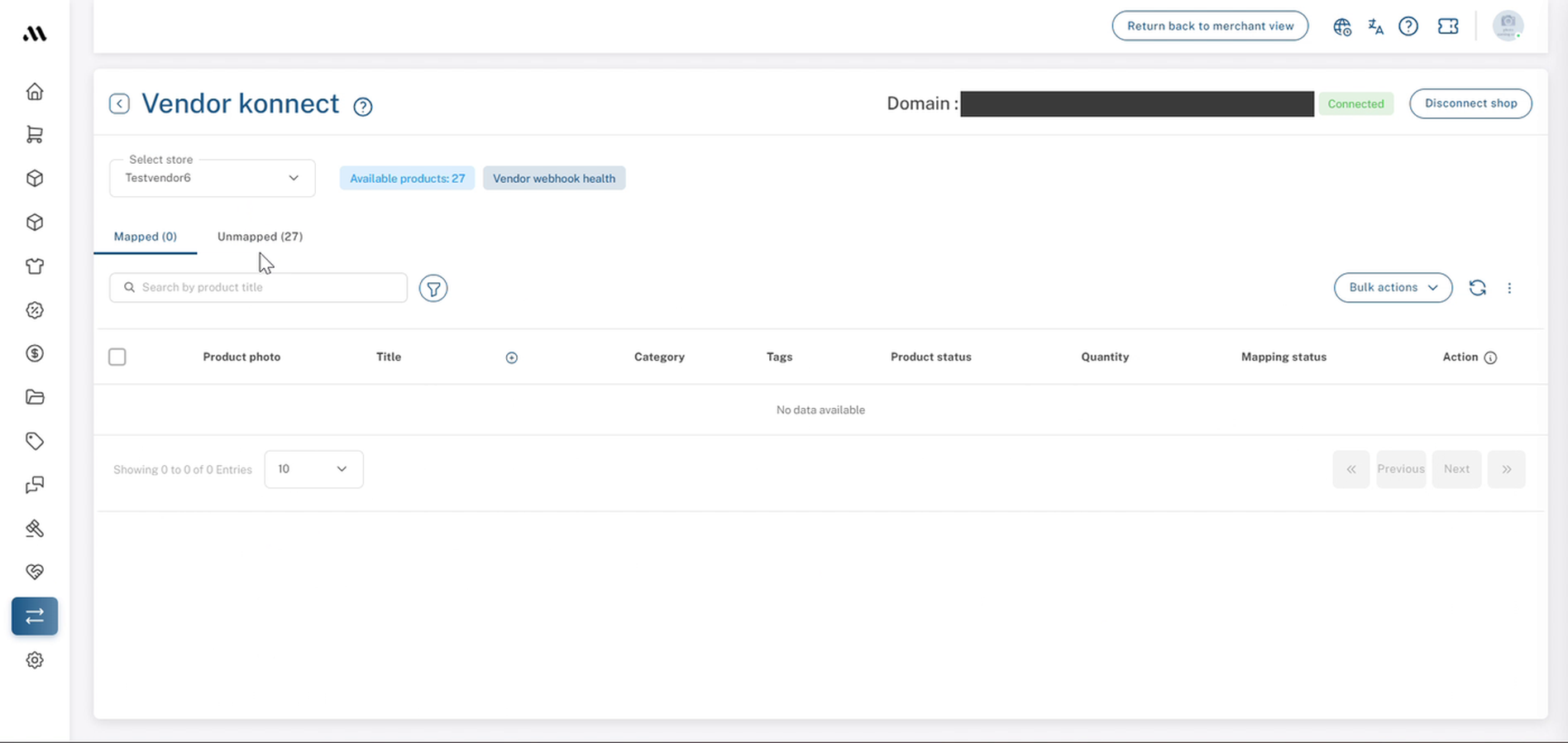
Vendor konnect: successful Wix connection with the Connected badge
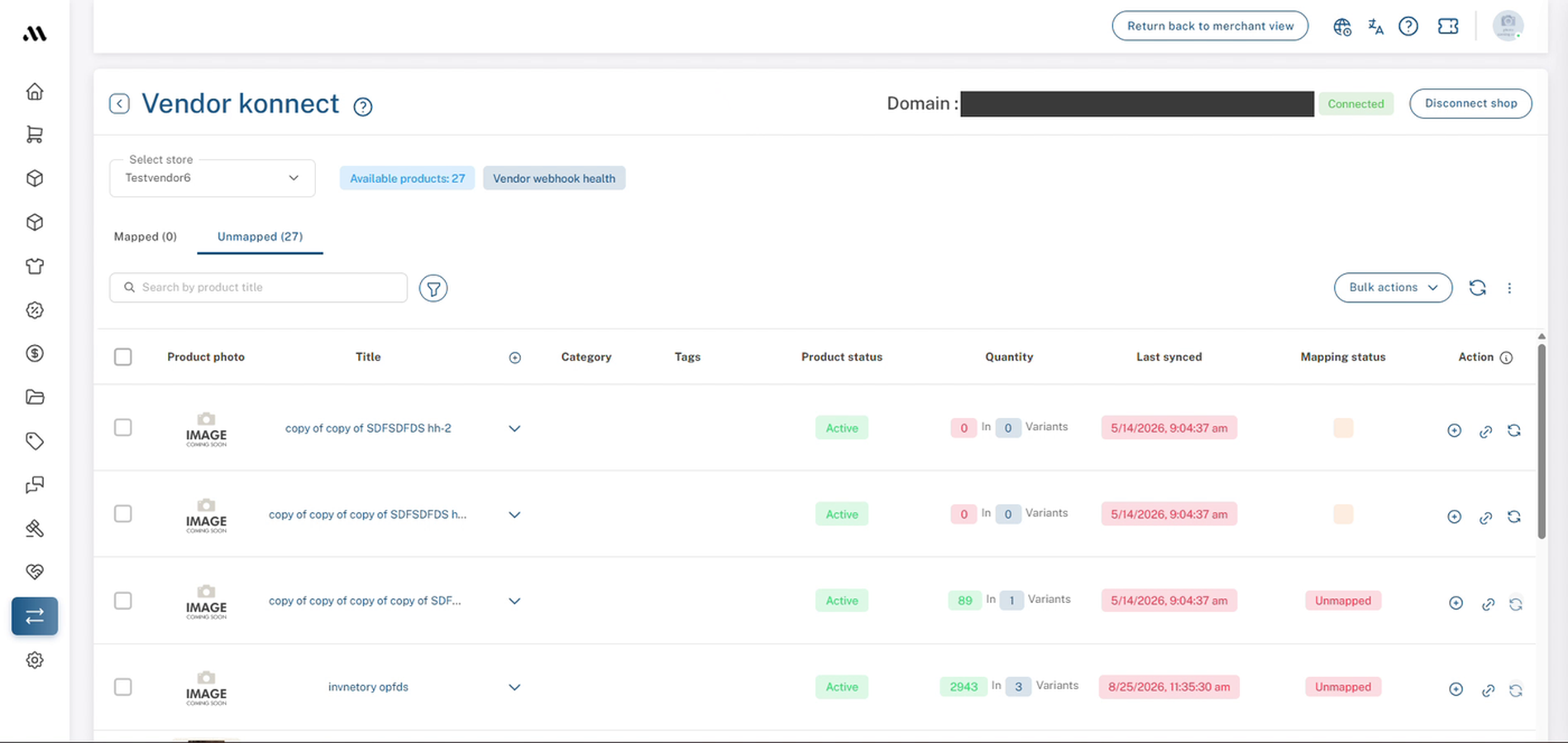
Vendor konnect → Unmapped tab after a fresh connection
9. Connection Checklist
Before you move on, confirm that you have:
- Opened Vendor Konnect.
- Clicked Connect on Wix.
- Confirmed your dashboard password.
- Clicked Add to Site in Wix.
- Selected the right Wix site.
- Seen the green Connected badge.
- Checked that the Available products count matches your Wix catalogue.
- Found your products listed under Unmapped.
10. Recommended Next Step
Check that the Available products count matches the number of products on your Wix site, then map your products so they're listed on the marketplace.
For more information, see Add and Map Products
FAQs & Troubleshooting
Why do I have to re-enter my password?
Connecting a store gives the marketplace access to your product catalogue, so the dashboard asks you to confirm it's really you before starting the connection.
Does the Wix app cost anything?
The Multi Vendor konnect app is listed as Free on Wix.
Can a marketplace admin connect Wix on a vendor's behalf?
Yes. An admin working inside the vendor's dashboard (you'll see Return back to merchant view at the top) can follow the same steps, as long as they have the dashboard password and access to the vendor's Wix account.
Why are all my products under Unmapped?
That's expected right after connecting. The products have been pulled in from Wix but haven't been mapped to the marketplace yet. Once they're mapped, they move to the Mapped tab.
How do I disconnect my Wix site?
Use the Disconnect shop button at the top right of the Vendor konnect page.
Continue is greyed out in Wix.
Select one of your sites from the list first. Continue only becomes clickable once a site is chosen.
I don't know my dashboard password.
Use Click here To change password link in the Confirm password window, reset it, then start again from Step 3.
The page is stuck on "Connecting wix".
Give it a little longer, and don't refresh or leave the page while it's connecting. If it still doesn't finish, go back to Vendor Konnect and check whether the Wix card or page now shows Connected. If it isn't connected, repeat the steps from Step 3 and contact support if the problem continues.
I connected the wrong Wix site.
Click Disconnect shop on the Vendor konnect page, then connect again and choose the correct site in Step 6.
Related Articles
- Add and Map Products
- Shopify vendor store connect
- Woocommerce vendor store connect
- Vendor Sync Troubleshooting
Need Help?
If you're stuck, contact the Shipturtle support team at team@shipturtle.com or raise a support ticket through the Shipturtle support page.