Connect a Vendor's Magento Store Using Vendor Konnect
Step-by-step guide for vendors to link their Magento store to your Shipturtle marketplace
Overview
Vendor Konnect lets vendors connect their Magento store to your Shipturtle-powered marketplace. Once connected, products, inventory, and orders sync automatically between Magento and your marketplace — no manual data entry needed.
In this guide, you'll learn how to:
- Ensure the merchant has enabled the Magento add-on.
- Generate an access token or API credentials in Magento.
- Navigate to Vendor Konnect in the vendor dashboard.
- Connect a Magento store to Shipturtle and verify the connection.
1. Prerequisites (Merchant Setup)
Before a vendor can connect their Magento store, the marketplace merchant must purchase and enable the Vendor Konnect — Magento add-on from the Shipturtle admin dashboard.
Log in to the Shipturtle admin dashboard.
Go to Settings → Subscription and billing from the left sidebar.
Scroll down to the Vendor Konnect section under Additional Features.
Find Vendor Konnect — Magento ($45/month) and click Add.
Once activated, the Vendor Konnect module becomes visible to vendors who have Magento stores.
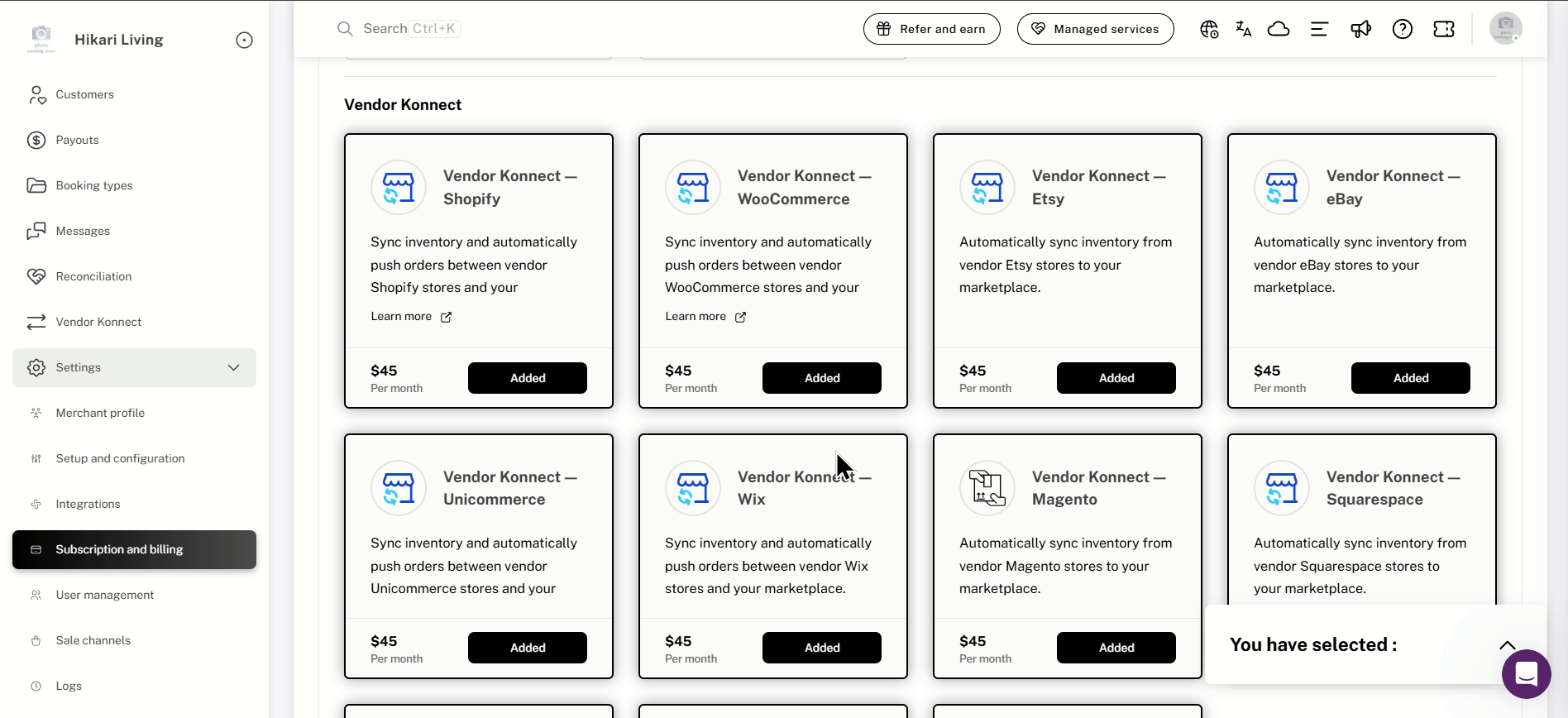
Subscription and billing → Vendor Konnect: add-on cards for each supported platform
2. Generate API Credentials in Magento
Unlike platforms that use OAuth redirects, Magento requires the vendor to generate API credentials (an access token) from the Magento admin panel before connecting.
- Log in to your Magento Admin Panel.
- Navigate to System → Integrations.
- Click Add New Integration.
- Enter a name for the integration (e.g., "Shipturtle Sync").
- Under the API tab, grant access to the resources Shipturtle needs: Products, Inventory, Sales/Orders, and Customers (at minimum).
- Click Save and then Activate the integration.
- Copy the Access Token that is generated — you will need this in the next step.
3. Open Vendor Konnect in the Vendor Dashboard
With your Magento access token ready, open the Shipturtle vendor dashboard.
- Log in to your Shipturtle vendor dashboard.
- Open Vendor Konnect from the left sidebar.
- You will see the Connected channels page with cards for each enabled platform.
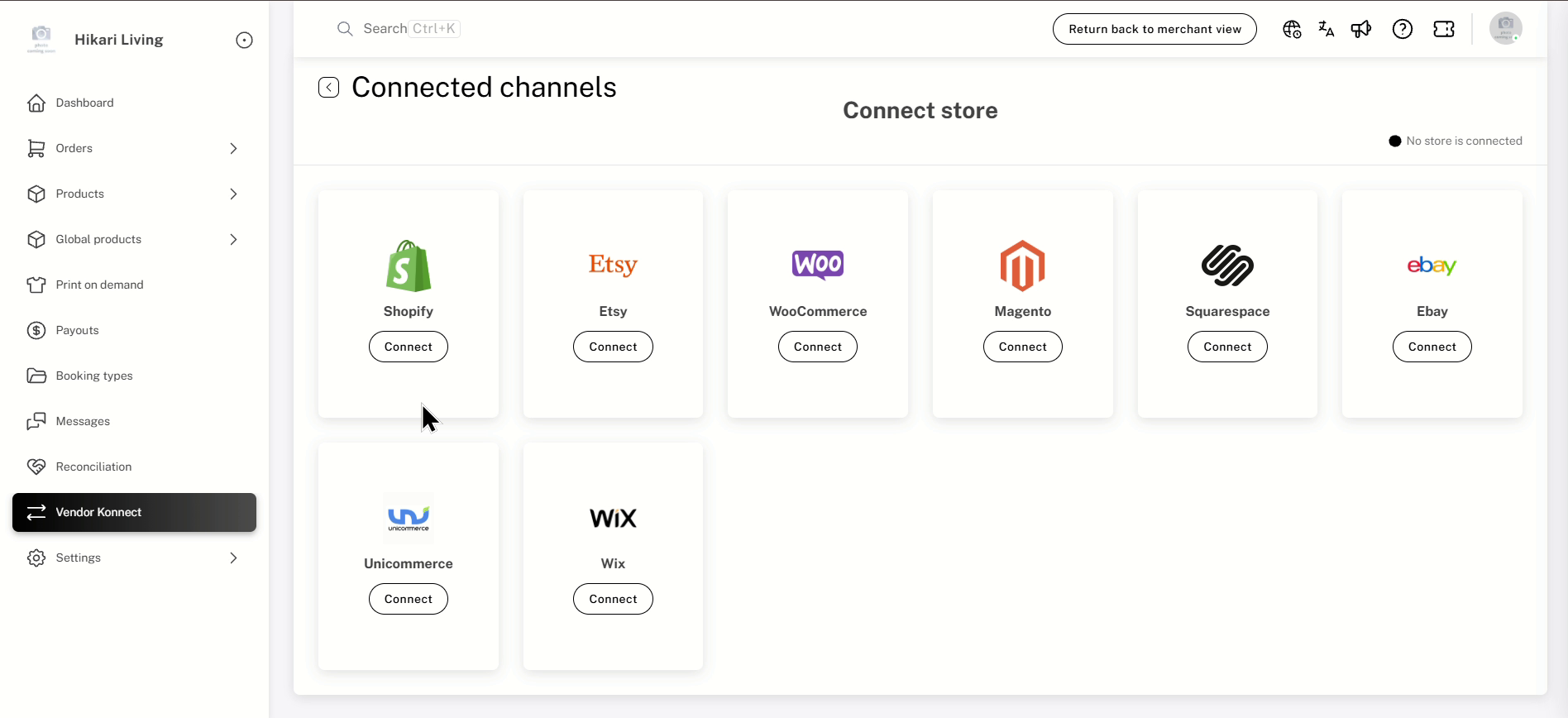
Vendor dashboard → Vendor Konnect: Connected channels showing all available platforms
4. Click Connect on the Magento Card
On the Connected channels page:
- Locate the Magento card in the list of available channels.
- Click the Connect button on the Magento card.
- A Confirm password dialog will appear. Enter your Shipturtle vendor dashboard password and click Confirm.
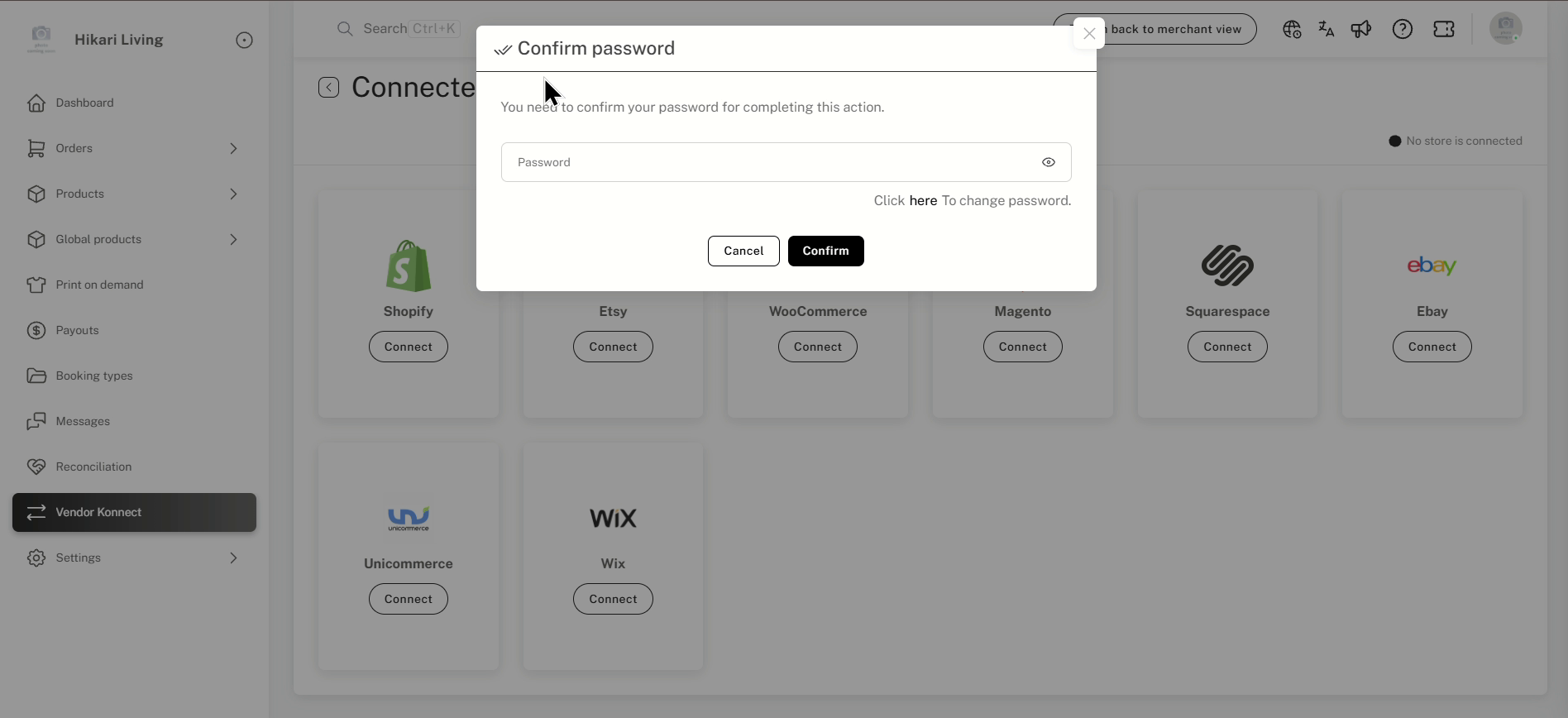
Confirm password: verify your identity before connecting a vendor store
5. Enter Your Magento Store Details
A dialog will appear asking for your Magento store details.
- Enter your Magento store domain (e.g., https://yourstore.com/).
- Enter the Access Token you generated in Step 2.
- Click Connect to authorize the connection.
6. Verify the Connection
After successful connection, you are taken back to the Vendor Konnect page in your Shipturtle dashboard.
- Confirm that the Magento card now shows a Connected label.
- Check the Connected Vendor Stores tab to see your Magento store listed.
- Your products from Magento will begin syncing to the marketplace.
7. Next Steps After Connecting
Once your Magento store is connected, you can:
- Add and map products — choose which products from your Magento store to list on the marketplace. See Add and Map Products.
- Configure product sync settings — control how product details sync between Magento and the marketplace. See Product Sync Settings.
- Enable order sync — allow marketplace orders to be pushed to your Magento store for fulfillment. See Order Sync Settings.
FAQs & Troubleshooting
What if the Magento option does not appear in Vendor Konnect?
The marketplace merchant needs to purchase and activate the Vendor Konnect — Magento add-on ($45/month) from Subscription and billing. Once enabled, the Magento card will appear in the vendor's Vendor Konnect page.
Can I connect more than one Magento store?
Currently, one Magento store can be connected per vendor. If you need to sync products from multiple stores, contact support at team@shipturtle.com.
My products are not syncing after connecting. What should I do?
Check that the connection status shows as Connected in the Vendor Konnect page. If the status shows an error, try disconnecting and reconnecting. If the issue persists, contact team@shipturtle.com with your store details.
How do I disconnect my Magento store?
Go to Vendor Konnect → Connected Vendor Stores tab, find your Magento store, and click the Disconnect button. Synced products already on the marketplace will remain unless removed manually.
Which version of Magento is supported?
Shipturtle supports Magento 2 (Adobe Commerce / Magento Open Source 2.x). If you are on Magento 1, you may need to upgrade before connecting.
Related Articles
- Introduction to Vendor Store Connect
- Add and Map Products
- Product Sync Settings
- Order Sync Settings
- Guide to Vendor Store Connect
Need Help?
If you're stuck, contact the Shipturtle support team at team@shipturtle.com or raise a support ticket through the Shipturtle support page.