Connect a Vendor's Unicommerce Account Using Vendor Konnect
Step-by-step guide for vendors to link their Unicommerce account to your Shipturtle marketplace
Overview
Vendor Konnect lets vendors connect their Unicommerce account to your Shipturtle-powered marketplace. Once connected, products, inventory, and orders sync automatically between Unicommerce and your marketplace — no manual data entry needed.
In this guide, you'll learn how to:
- Ensure the merchant has enabled the Unicommerce add-on.
- Navigate to Vendor Konnect in the vendor dashboard.
- Connect a Unicommerce account to Shipturtle.
- Verify the connection and check sync status.
1. Prerequisites (Merchant Setup)
Before a vendor can connect their Unicommerce account, the marketplace merchant must purchase and enable the Vendor Konnect — Unicommerce add-on from the Shipturtle admin dashboard.
Log in to the Shipturtle admin dashboard.
Go to Settings → Subscription and billing from the left sidebar.
Scroll down to the Vendor Konnect section under Additional Features.
Find Vendor Konnect — Unicommerce ($45/month) and click Add.
Once activated, the Vendor Konnect module becomes visible to vendors who have Unicommerce accounts.
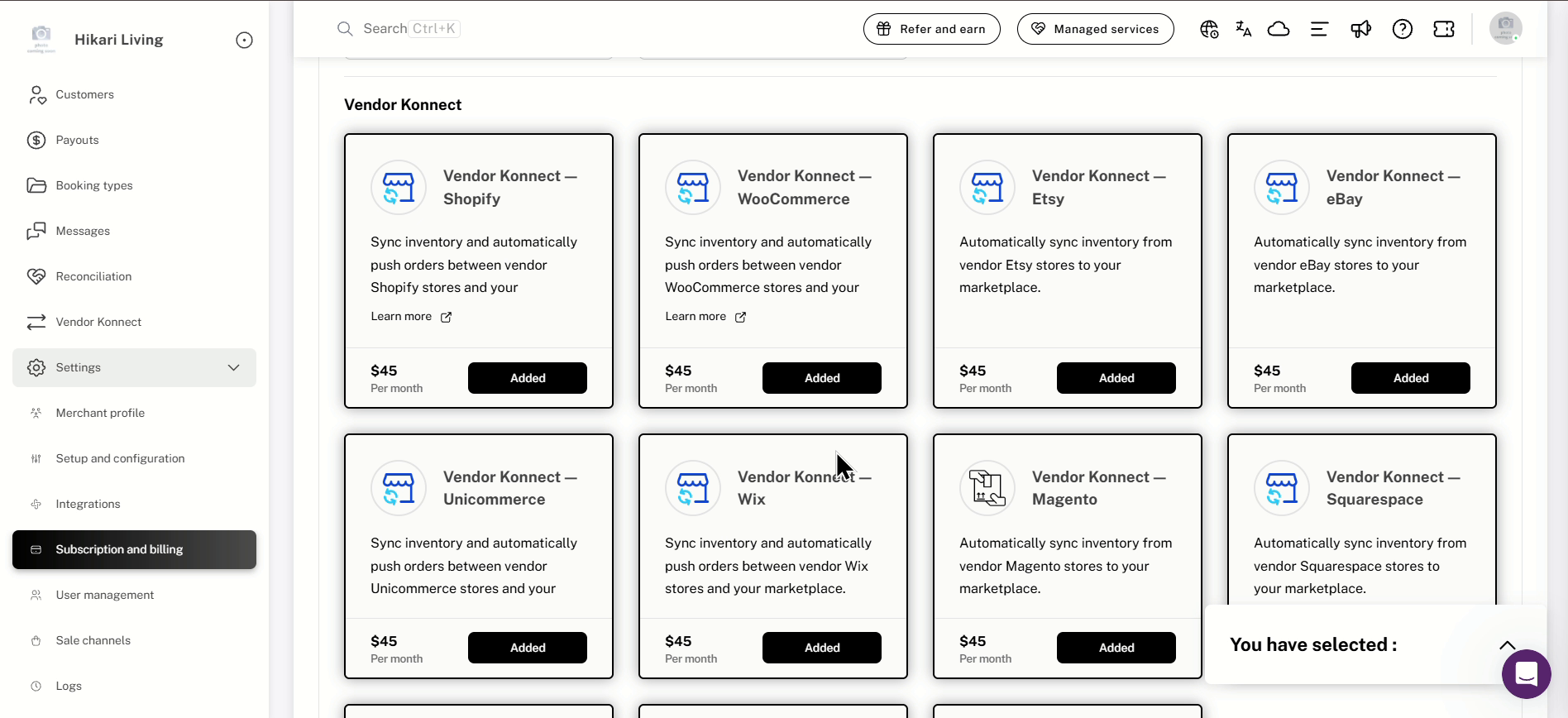
Subscription and billing → Vendor Konnect: add-on cards for each supported platform
2. Open Vendor Konnect in the Vendor Dashboard
Once the merchant has enabled the add-on, the vendor can begin the connection process.
- Log in to your Shipturtle vendor dashboard.
- Open Vendor Konnect from the left sidebar.
- You will see the Connected channels page with cards for each enabled platform.
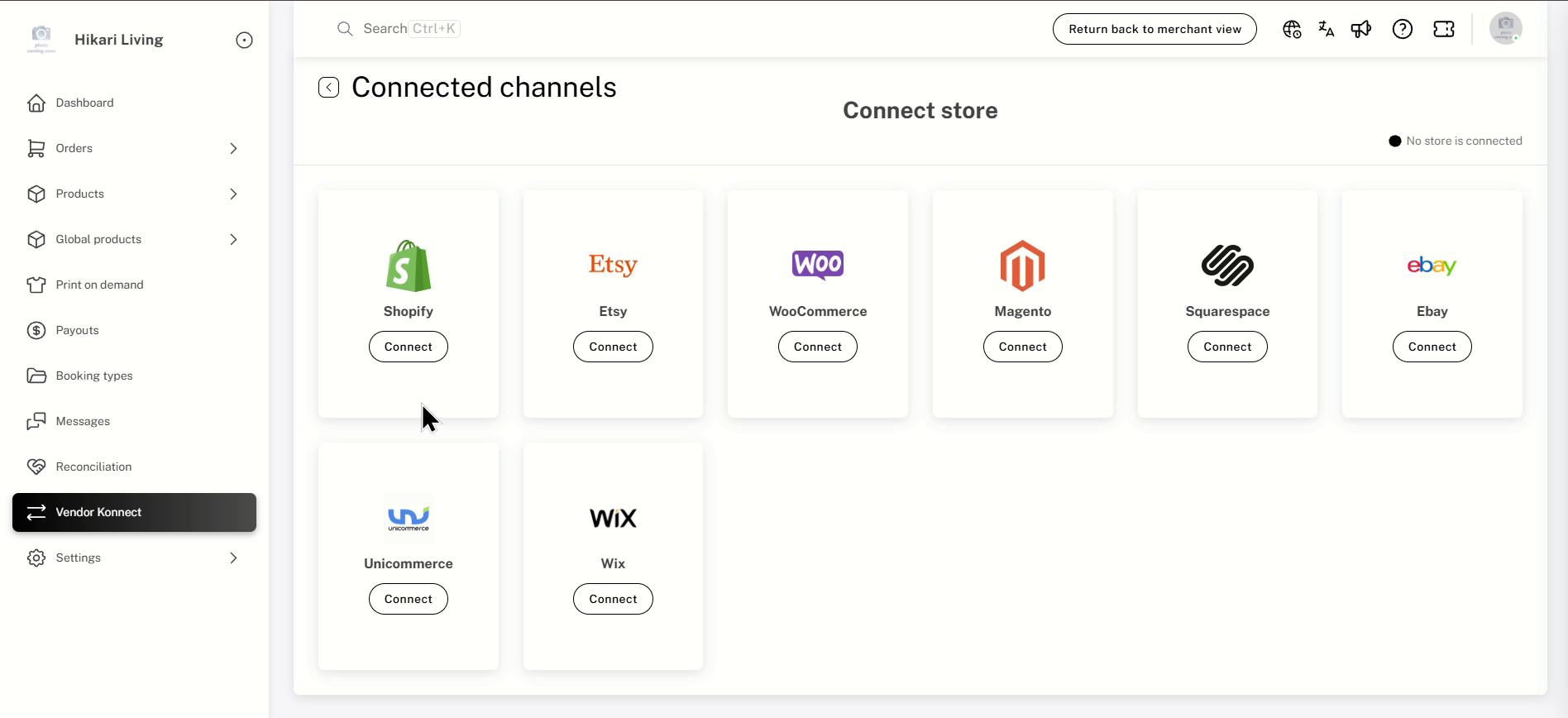
Vendor dashboard → Vendor Konnect: Connected channels showing all available platforms
3. Click Connect on the Unicommerce Card
On the Connected channels page:
- Locate the Unicommerce card in the list of available channels.
- Click the Connect button on the Unicommerce card.
- A Confirm password dialog will appear. Enter your Shipturtle vendor dashboard password and click Confirm.
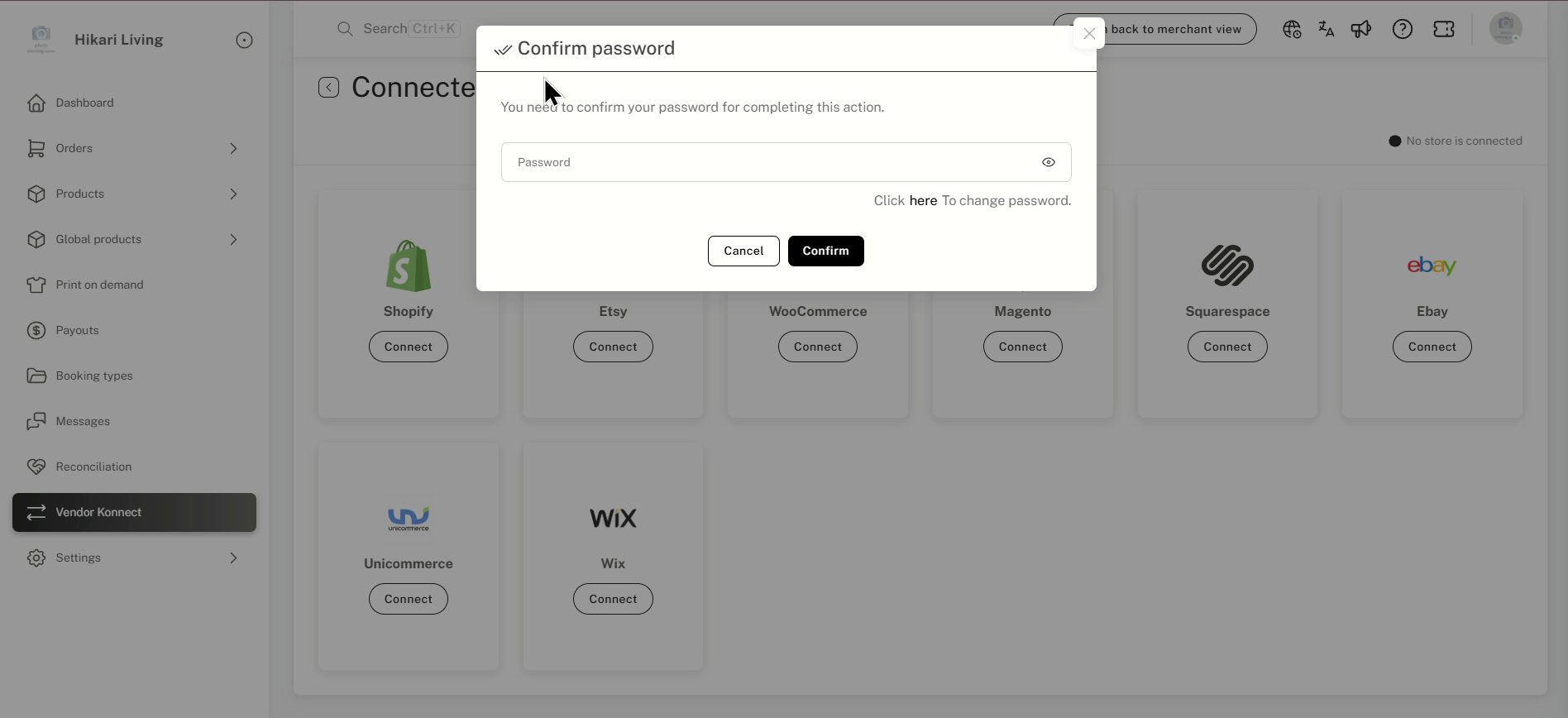
Confirm password: verify your identity before connecting a vendor store
4. Enter Unicommerce Credentials
A dialog will appear asking you to enter your Unicommerce account details to authorize the connection.
- Enter your Unicommerce username (the login email or ID you use for your Unicommerce account).
- Enter your Unicommerce password or API credentials as prompted.
- Click Connect to proceed.
5. Verify the Connection
After successful authorization, you are redirected back to the Vendor Konnect page in your Shipturtle dashboard.
- Confirm that the Unicommerce card now shows a Connected label.
- Check the Connected Vendor Stores tab to see your Unicommerce account listed.
- Your products from Unicommerce will begin syncing to the marketplace.
6. Next Steps After Connecting
Once your Unicommerce account is connected, you can:
- Add and map products — choose which products from your Unicommerce account to list on the marketplace. See Add and Map Products.
- Configure product sync settings — control how product details sync between Unicommerce and the marketplace. See Product Sync Settings.
- Enable order sync — allow marketplace orders to be pushed to your Unicommerce account for fulfillment. See Order Sync Settings.
FAQs & Troubleshooting
What if the Unicommerce option does not appear in Vendor Konnect?
The marketplace merchant needs to purchase and activate the Vendor Konnect — Unicommerce add-on ($45/month) from Subscription and billing. Once enabled, the Unicommerce card will appear in the vendor's Vendor Konnect page.
Can I connect more than one Unicommerce account?
Currently, one Unicommerce account can be connected per vendor. If you need to sync products from multiple accounts, contact support at team@shipturtle.com.
My products are not syncing after connecting. What should I do?
Check that the connection status shows as Connected in the Vendor Konnect page. If the status shows an error, try disconnecting and reconnecting. If the issue persists, contact team@shipturtle.com with your account details.
How do I disconnect my Unicommerce account?
Go to Vendor Konnect → Connected Vendor Stores tab, find your Unicommerce account, and click the Disconnect button. Synced products already on the marketplace will remain unless removed manually.
Related Articles
- Introduction to Vendor Store Connect
- Add and Map Products
- Product Sync Settings
- Order Sync Settings
- Guide to Vendor Store Connect
Need Help?
If you're stuck, contact the Shipturtle support team at team@shipturtle.com or raise a support ticket through the Shipturtle support page.