The C2C add-on lets customers on your Shopify storefront register as vendors and list their own products for sale — turning your marketplace into a peer-to-peer selling platform. Once enabled, a registration form appears on your store, new vendors verify their email and get access to their own Shipturtle seller dashboard. The merchant retains full control over approvals and publishing.
Who this is for
- Merchant: Purchases the add-on, adds the C2C registration interface to the storefront, and manages incoming vendor registrations.
- Vendor (C2C seller): Registers directly on the storefront, verifies their email, and manages their listings from their vendor dashboard.
- Customer: Not applicable to the setup steps in this article.
Before you begin
- Shipturtle is installed and active on your Shopify store.
- You have admin access to both your Shipturtle dashboard and Shopify admin.
How it works (at a glance)
- You purchase the C2C add-on from Shipturtle.
- You add the C2C registration interface to your Shopify storefront — either as a theme App Embed or as a menu link.
- A customer fills in the C2C registration form on your store and clicks Register.
- They receive a verification email and click the link inside it.
- They are redirected to their vendor dashboard on your storefront and can start listing products.
Merchant setup
Purchase the C2C add-on
- Open Settings → Billing and subscription.
- Find C2C Add-On in the available add-ons list.
- Click Subscribe and confirm the charge.
The C2C features activate on your store once the subscription is confirmed.
Shopify configuration
The C2C registration interface lives on your Shopify storefront. Add it using either method below — you only need one.
Method 1 — App Embed (recommended)
This is the fastest method. It activates the C2C dashboard embed across your store without touching any theme code.
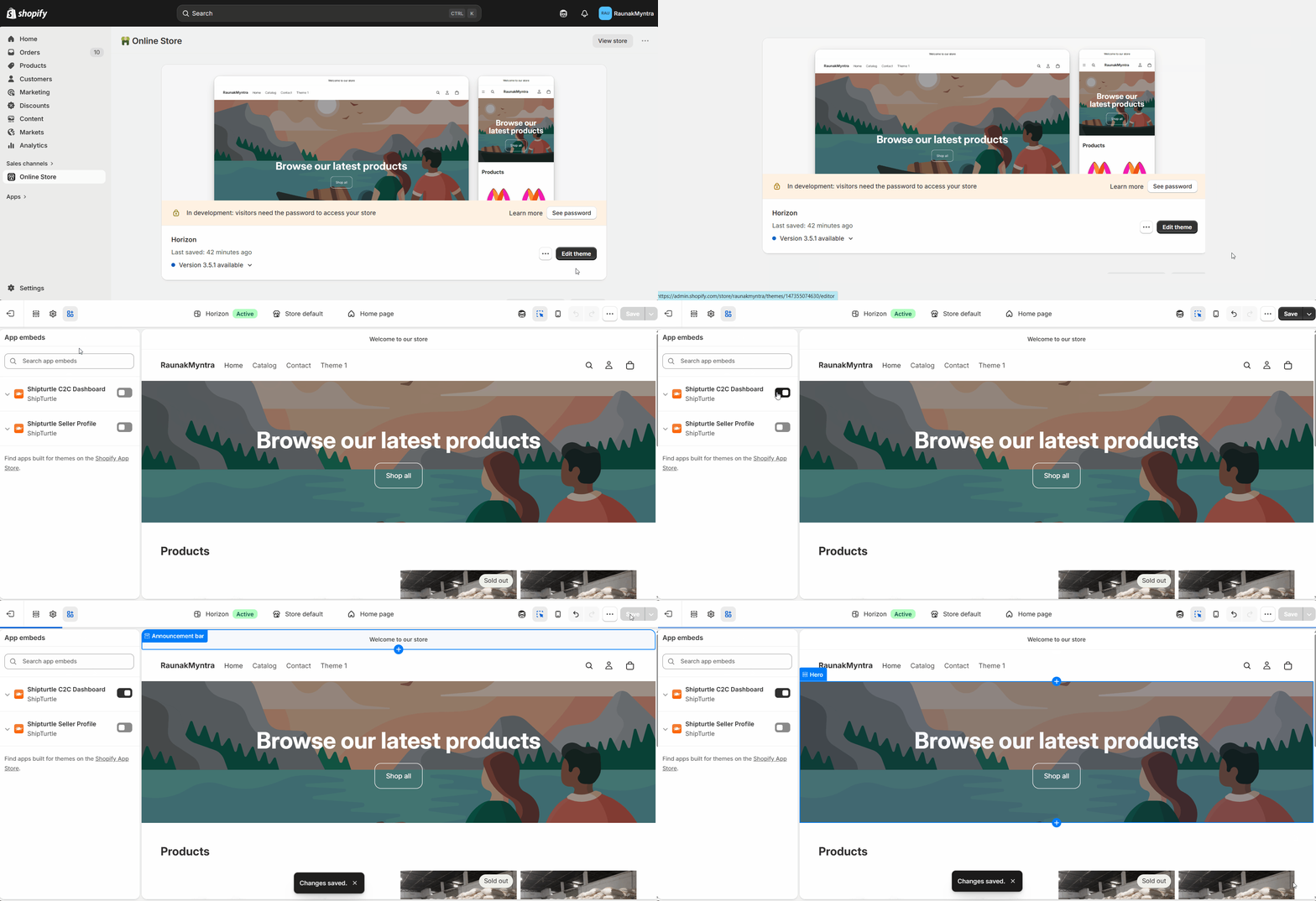
- Go to Shopify Admin → Online Store → Themes.
- Click Customize on your active theme.
- In the left panel, click App embeds (top-left of the editor).
- Find Shipturtle C2C Dashboard in the list and toggle it on.
- Click Save.
Customize the C2C theme (optional — advanced)
By default, the C2C registration pages use Shipturtle's standard template. If you want to match the look and feel of your store, you can edit the page code or apply a pre-built template.
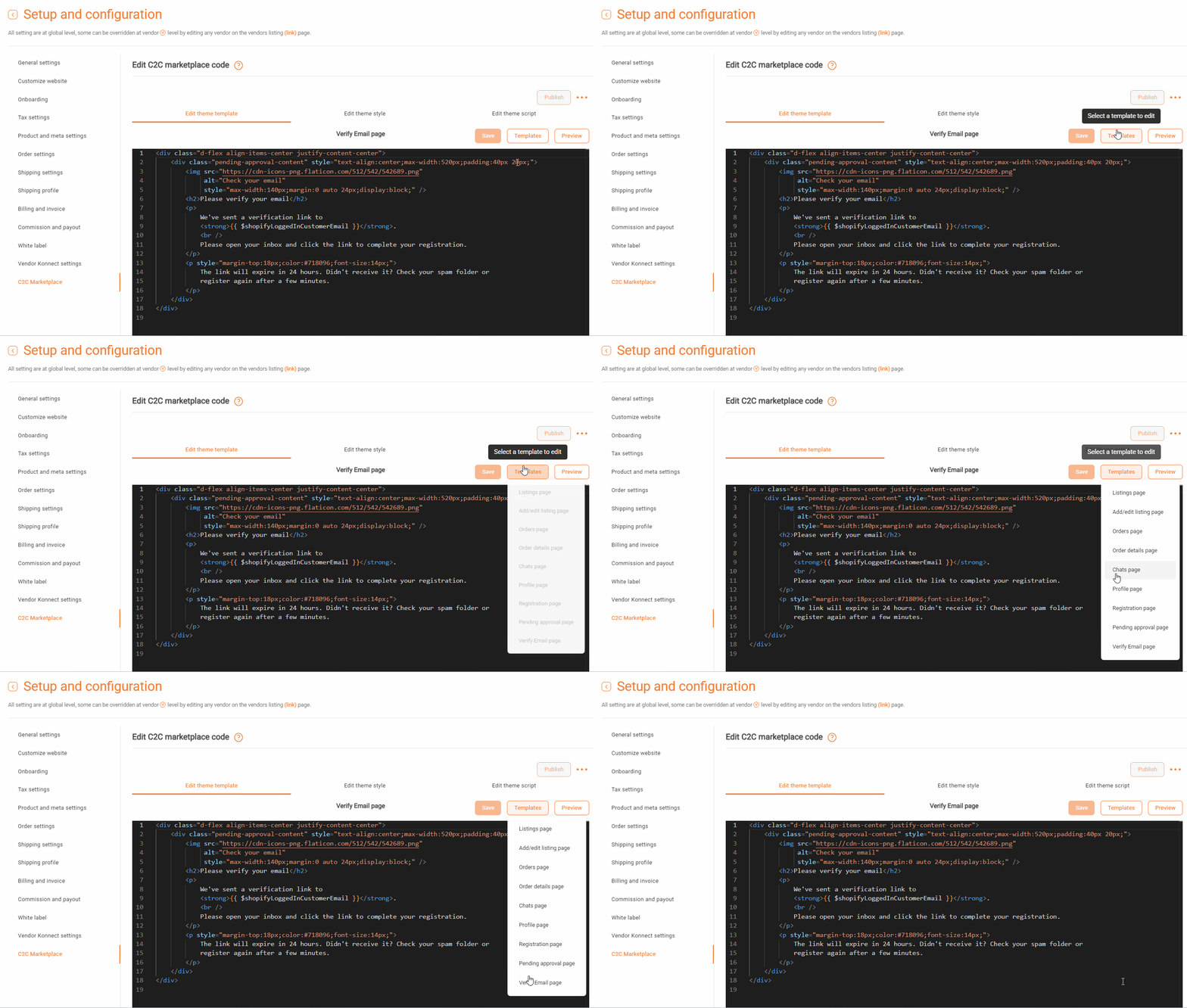
- Open Edit C2C theme template in your Shipturtle dashboard.
- To apply a ready-made layout, click Templates and select the one that fits your design.
- To write your own customization, edit the code directly in the editor.
Important: You can change text content and styling freely. Do not change the unique
idattribute on any button — this breaks the form's functionality.
Method 2 — Add a menu link
Use this method if you want the C2C registration page to appear as a specific item in your storefront navigation.
- Go to Shopify Admin → Content → Menus.
- Select Main Menu (or whichever menu you want to add it to).
- Click Add menu item.
- Enter a label for the link — for example, Sell on our store or Become a seller.
- In the Link field, enter your store's C2C dashboard URL in this format:
https://{your-shopify-domain}/a/dashboardFor example:https://mystorename.myshopify.com/a/dashboard - Click Add and then Save menu.
How to find your exact Shopify domain: In Shopify Admin → Online Store, click the Preview (eye) icon. Copy the base URL from your browser's address bar — use only the domain part, not any product or page path after it.
How vendor registration works
Once the C2C interface is live on your storefront, here is what a new vendor experiences:
- They open the C2C registration page on your store and fill in the registration form.
- They click Register.
- Shipturtle sends them a verification email automatically.
- They click the verification link in the email.
- They are redirected to their vendor dashboard on your storefront and can start adding products.
Note: Registration also includes email OTP verification as part of the sign-up flow. This is enabled by default and applies to the C2C registration form the same way it does for iframe-based registration. See How to Add a Seller Registration Page to Your Website for how to turn it off if needed.
Customize the verification email page
You can edit the page that vendors land on after clicking the verification link — for example, to add a welcome message or onboarding instructions.
- Open Edit C2C theme template.
- Select the Verification page template.
- Edit the content and save.
FAQs
Do new C2C vendors need to be approved by me before they can list products?
That depends on your product approval settings. If Require approval is enabled in Setup & Configuration → Product Settings, vendor submissions go into your approval queue before going live. If auto-approve is on, products publish immediately. Check your current setting before going live with C2C to avoid unreviewed listings appearing on your storefront.
Can I use both Method 1 and Method 2 at the same time?
Yes. They serve different purposes — the App Embed activates the C2C dashboard functionality site-wide, while the menu link gives customers a direct navigation path to the registration page. Using both is fine and in most cases recommended.
Where do new C2C vendor registrations appear in my dashboard?
Once a vendor completes verification, their account appears in Vendor Management with a Pending or Active status depending on your auto-approve settings. You can review and manage them from there.
Troubleshooting
The C2C registration form isn't appearing on my storefront. Confirm the App Embed toggle for Shipturtle C2C Dashboard is turned on and saved in the Shopify theme editor. If using Method 2 only, confirm the menu link URL matches the exact format — https://{your-shopify-domain}/a/dashboard — with no trailing slashes or extra path segments.
New vendors say they aren't receiving the verification email. Ask them to check their spam or promotions folder first. If the email isn't there, confirm the email address entered in the registration form is correct. You can also resend the verification from the vendor's record in Vendor Management.
A vendor completed verification but their dashboard is empty. This is expected on first login — the dashboard is empty until the vendor adds their first product. Point them to the Vendor view of your marketplace KB article for a walkthrough of their dashboard.
The C2C registration page styling doesn't match my store. Open Edit C2C theme template and apply one of the pre-built templates, or edit the CSS directly. Make sure not to change the id attribute on any button element.
Related articles
- Vendor view of your marketplace — share with new C2C vendors so they understand their dashboard.
- Marketplace types supported by Shipturtle — background on what a C2C model is and when to use it.
- Billing and subscription — manage your add-on subscriptions.
- Product approval process — configure whether C2C vendor submissions require your approval before going live.
If you’re stuck, reach us at team@shipturtle.com or open a ticket on the support page.