A practical guide to activating the add-on and connecting a vendor's WooCommerce store to your marketplace
Menu
3 min read
Woocommerce vendor store konnect
Overview
Vendor Konnect lets your vendors connect their WooCommerce stores to your Shipturtle marketplace for product syncing, order routing, and inventory management. Setting it up has three parts: the marketplace admin activates the WooCommerce add-on, the vendor generates API keys in WooCommerce, and the keys are entered in Shipturtle to connect the store.
In this guide, you'll learn how to:
- Activate the Vendor Konnect — WooCommerce add-on from your admin panel.
- Generate a Consumer Key and Consumer Secret in WooCommerce.
- Connect the vendor's WooCommerce store from the Vendor Konnect page.
- Check that webhooks stay active after the connection.
- Review the product requirements for syncing from WooCommerce.
1. Open Subscription and Billing (Admin)
The WooCommerce connection is an add-on. Before vendors can connect a WooCommerce store, the marketplace admin needs to activate it. From your Shipturtle admin panel:
- Click Settings in the left sidebar.
- Select Subscription and billing.
- Scroll down to Additional Features.
- Click the Vendor filter to show vendor-related add-ons.
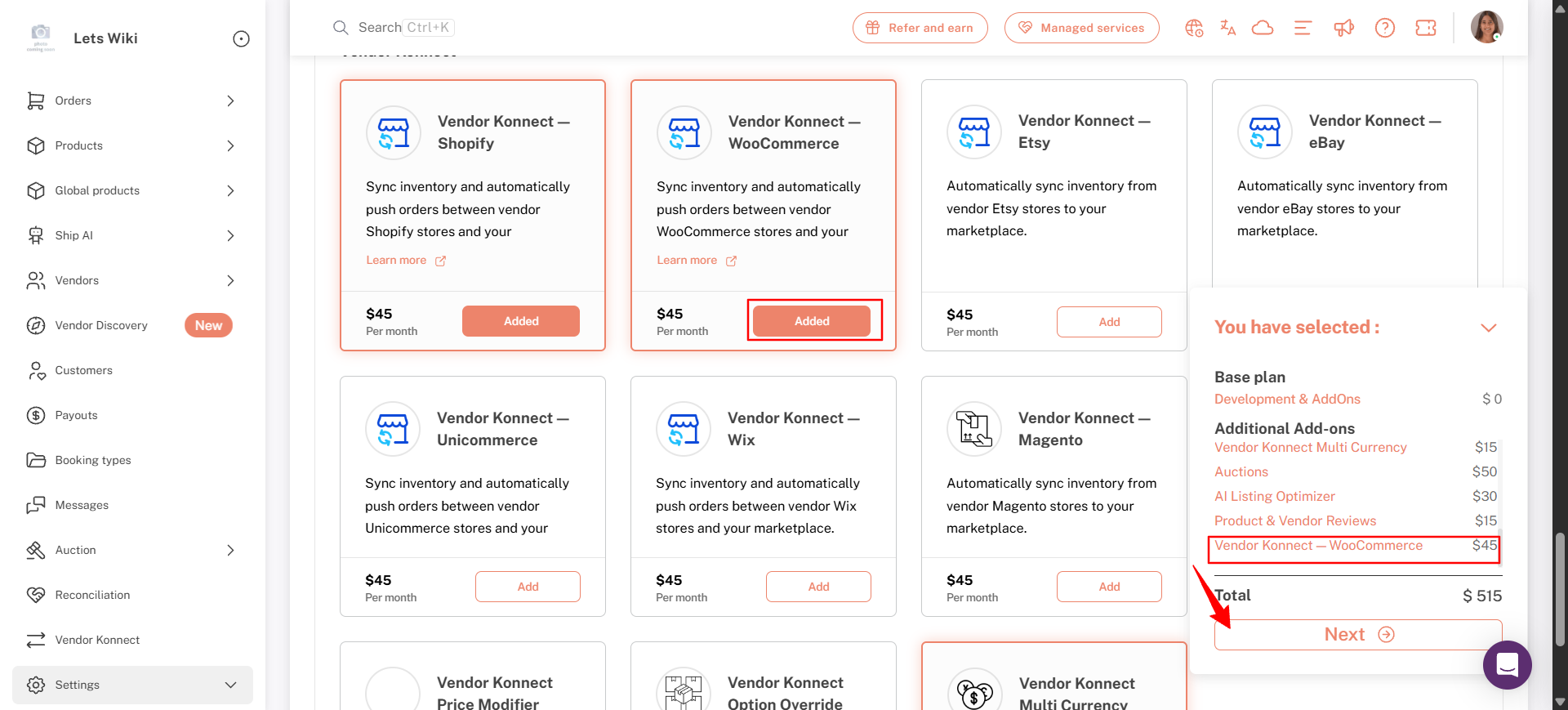
2. Add the WooCommerce Vendor Konnect Add-On (Admin)
- On the Vendor Konnect — WooCommerce card, click Add. The button changes to Added.
- Expand the You have selected panel in the bottom-right corner to review your plan, add-ons, and new monthly total.
- Click Next.
3. Approve the Subscription in Shopify (Admin)
- On Shopify's Approve subscription page, review the new subscription amount.
- Click Approve.
- Wait while Shipturtle activates the plan. Do not refresh or leave the page.
- Back in Additional Features, confirm the Vendor Konnect — WooCommerce card shows Added.
4. Log in to the Vendor's WooCommerce Store
Go to WooCommerce settings after logging in.
- Log in to the WooCommerce (WordPress) admin of the vendor's store.
- Open WooCommerce → Settings.
- Select the Advanced tab, then REST API.
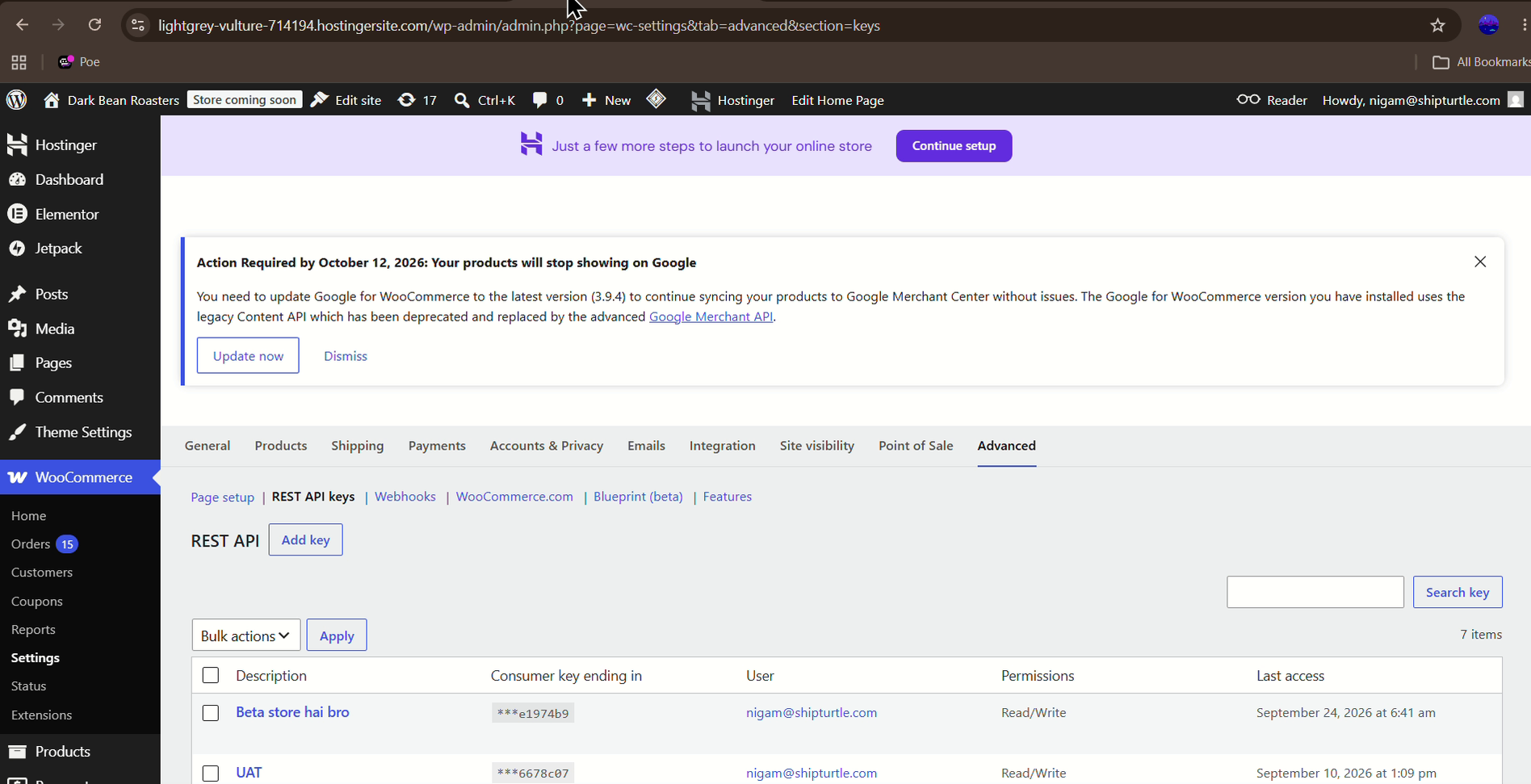
WooCommerce → Settings → Advanced → REST API: REST API keys list with the Add key button
5. Generate the Consumer Key and Consumer Secret
- Navigate to Advanced → REST API → Add Key.
- Enter a Description for the key, and select the User it belongs to.
- Set Permissions to Read/Write. The default is Read, so change it before generating the key.
- Click Generate API key to generate a consumer key and consumer secret.
- Remember to copy and securely store these keys as they are crucial for Vendor Sync.
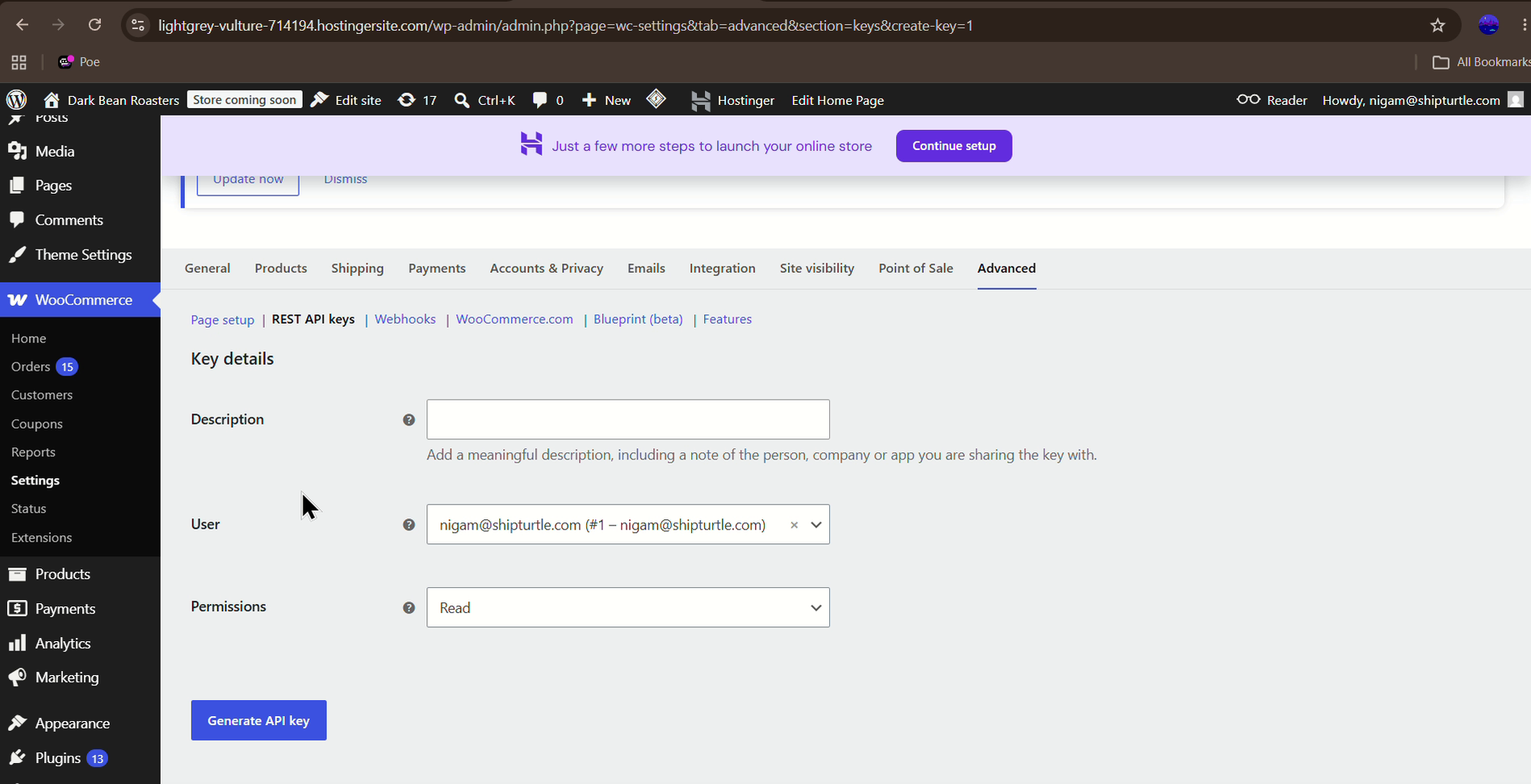
WooCommerce → Advanced → REST API → Add key: Key details form with Generate API key
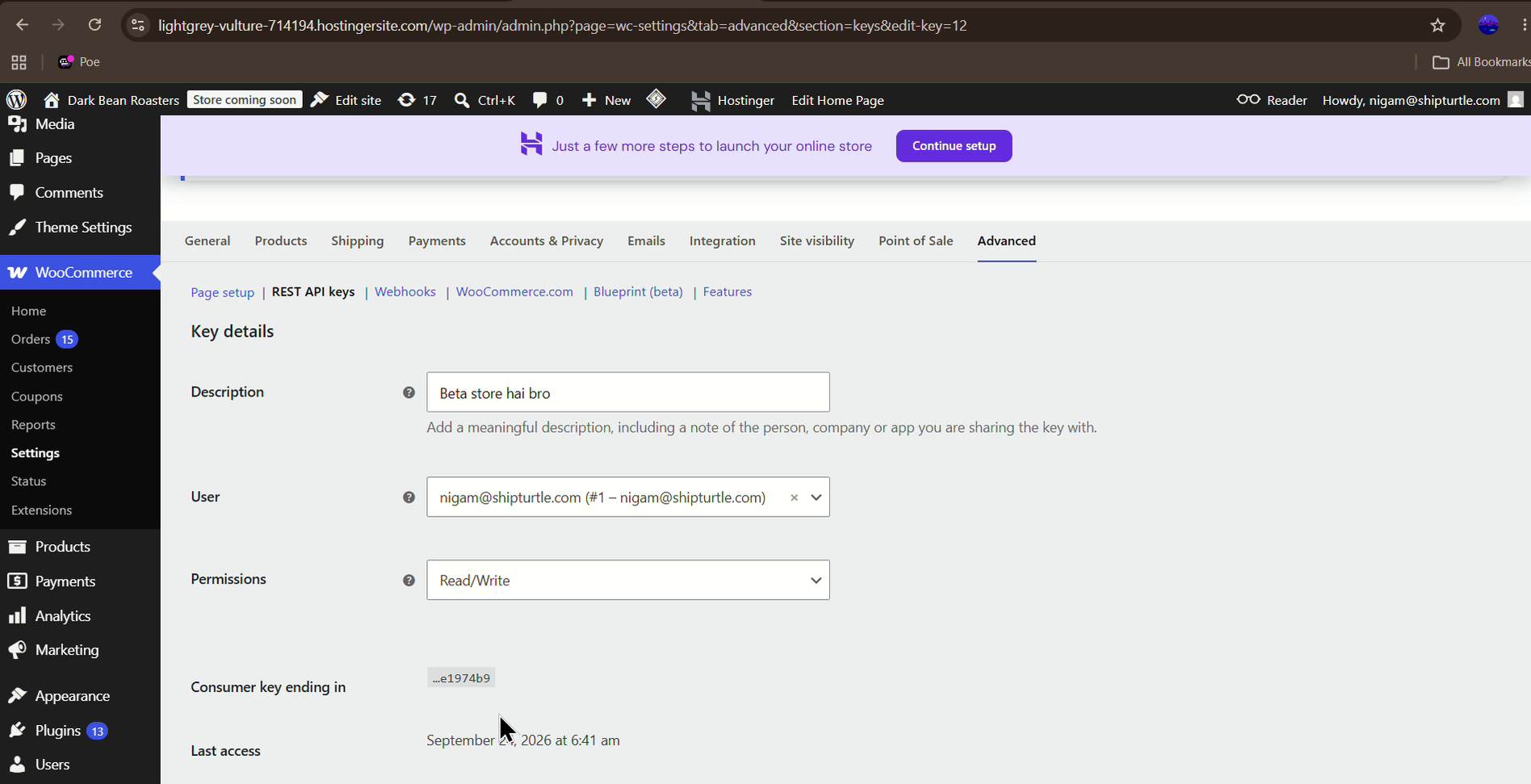
WooCommerce → Advanced → REST API: key details showing Read/Write permissions
6. Open the Shipturtle Application
- Access Shipturtle by visiting the provided URL.
- Log in with the credentials provided by the merchant.
7. Move to Vendor Konnect
Once logged in, open Vendor Konnect from the left sidebar of the vendor dashboard (earlier known as the Vendor Inventory Sync tab). The Connected channels page lists the platforms the vendor can connect, including WooCommerce. Until a store is linked, the top-right corner shows No store is connected.
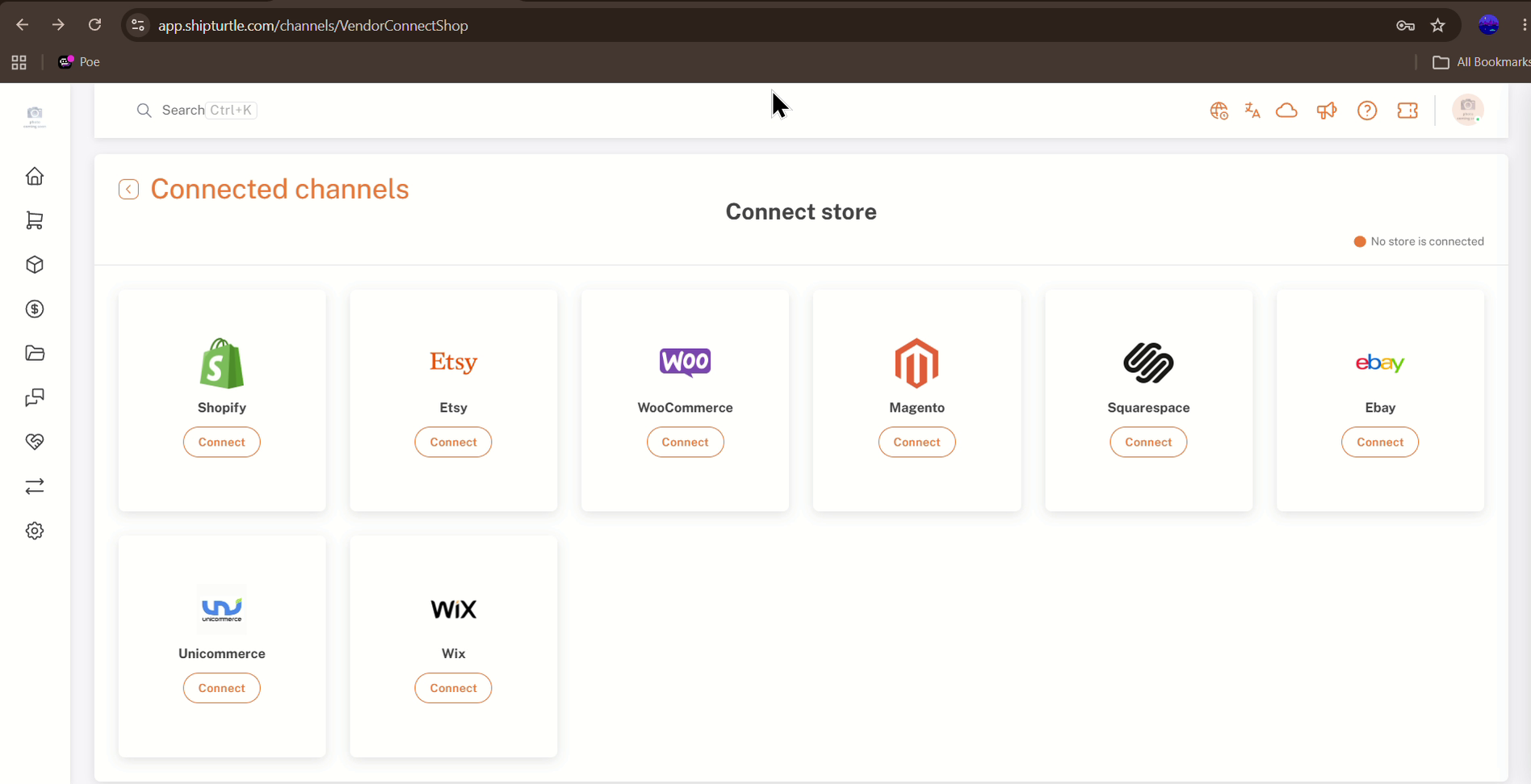
Vendor Konnect → Connected channels: the Connect store page with the WooCommerce card
8. Connect to the WooCommerce Store
- Look for the WooCommerce icon and connect button.
- Click Connect. Shipturtle asks you to confirm your password before continuing. Enter your password and click Confirm.
- On the Enter store details page, enter the WooCommerce store domain in the Domain field. For example, if your store name is "vendorsync," your domain would be https://vendorsync.com/.
- Enter the previously generated Consumer key and Consumer secret.
- Click Submit.
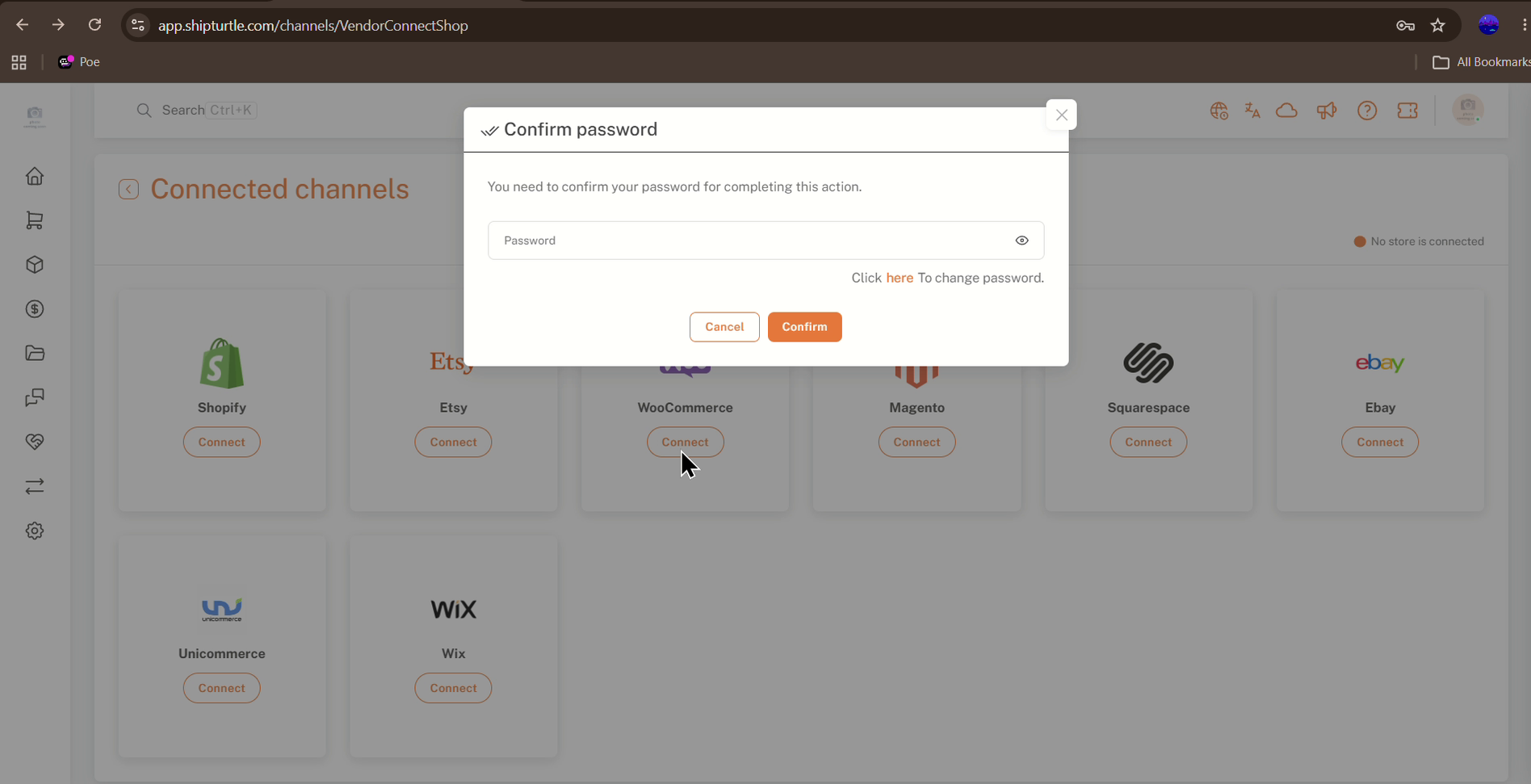
Connected channels: Confirm password prompt after clicking Connect on WooCommerce
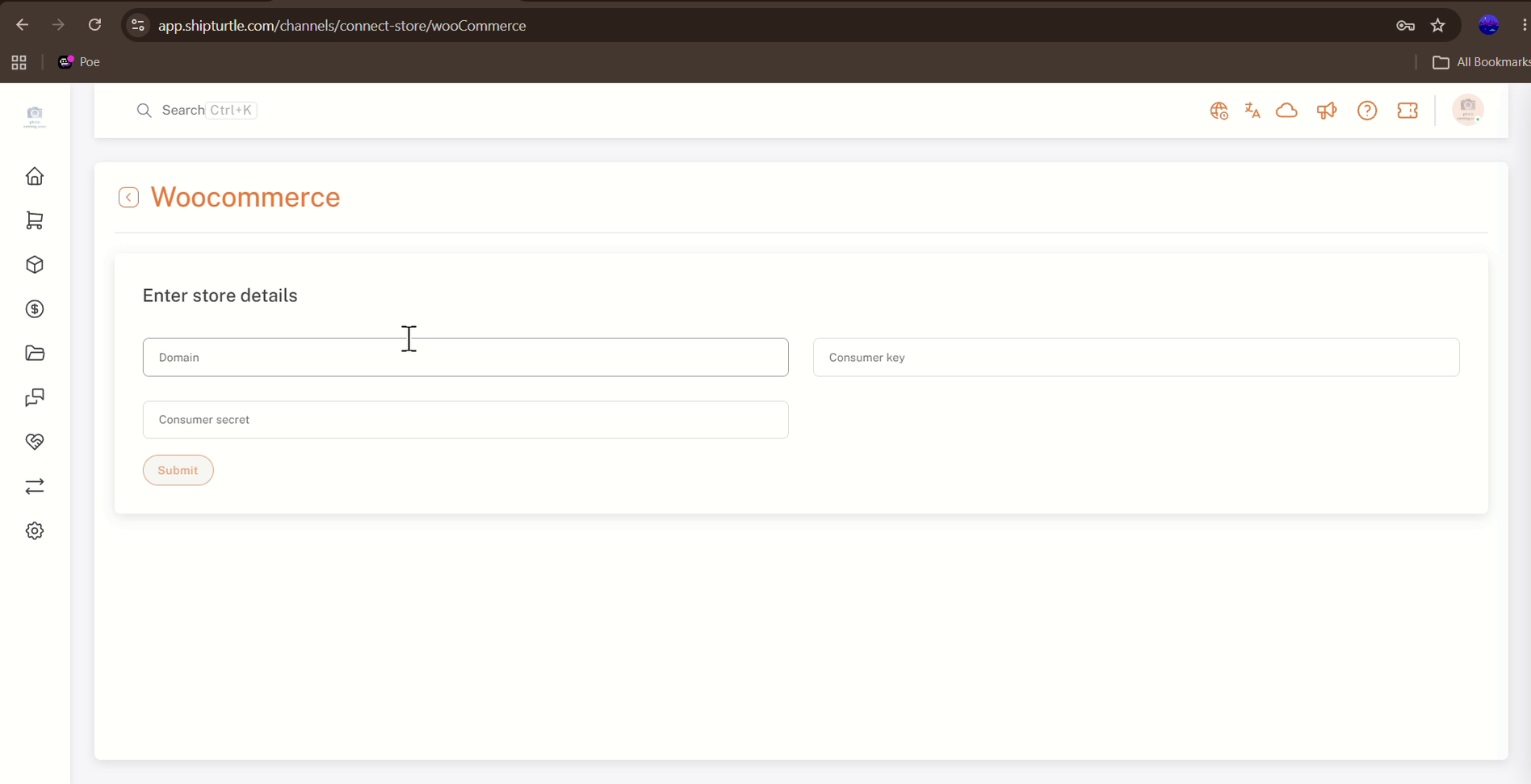
WooCommerce → Enter store details: Domain, Consumer key, and Consumer secret fields
9. Confirm the Webhooks Are Active
After a successful connection, ensure you do not disable the webhooks to avoid sync issues. Check the webhook status in the vendor's WooCommerce store (WooCommerce → Settings → Advanced → Webhooks) to confirm it is active.
10. You're All Set
That's it! You're now set up to sync your WooCommerce store with Shipturtle. If you encounter any issues during setup or syncing, feel free to reach out to our support team for assistance.
11. Product Requirements for Vendor WooCommerce Store Sync
A product syncs from the vendor's WooCommerce store only if it meets all of these requirements:
- The product should be either a "simple" or "variable" product.
- The product must be published (status) on the vendor's WooCommerce store.
- There can be no more than 3 options/attributes per product, as Shopify only allows up to 3 options for creating variants.
- The number of variants/variations cannot exceed 100, as Shopify permits only up to 100 variants.
- The product should not be "downloadable", "digital", or "virtual".
- The product must be "purchasable" (i.e., it should have quantity and price).
Not Managed quantity
In the "Connected Vendor Stores" tab for any vendor's product, if you see "Not Managed" under the quantity field, it indicates that the vendor has disabled the "Track Stock Quantity" option for that product in their WooCommerce store.
FAQs & Troubleshooting
I can't see WooCommerce on the Connected channels page.
Check that the Vendor Konnect — WooCommerce add-on shows Added in Settings → Subscription and billing → Additional Features, and that the subscription was approved in Shopify.
Why do I see "This field is required" on the Enter store details page?
The Domain, Consumer key, and Consumer secret fields are all required. The message appears under any field left empty when you click Submit. Fill in all three fields and try again.
Which permissions should the WooCommerce API key have?
Set Permissions to Read/Write. The Add key form defaults to Read, so change it before you click Generate API key.
I lost the Consumer Secret. What should I do?
Generate a new key in WooCommerce → Settings → Advanced → REST API → Add key with Read/Write permissions, copy the new Consumer Key and Consumer Secret, and use them to connect the store again.
Why isn't a product syncing from the vendor's WooCommerce store?
Check the product against the Product Requirements in section 11: it must be a published simple or variable product with a price and quantity, no more than 3 options and 100 variants, and not downloadable, digital, or virtual.
What does "Not Managed" under quantity mean?
The vendor has disabled the "Track Stock Quantity" option for that product in their WooCommerce store.
Why did product or order sync stop working after the store connected?
Make sure the webhooks in the vendor's WooCommerce store have not been disabled, and that their status is active.
Related Articles
- Introduction to Vendor Store Connect
- Guide to Vendor Store Connect
- Add and Map Products
- Product Sync Settings
- Vendor Sync Troubleshooting
Need Help?
If you're stuck, contact the Shipturtle support team at team@shipturtle.com or raise a support ticket through the Shipturtle support page.