Overview
This article explains how to let vendors sync their Squarespace store with your marketplace. It covers activating the Vendor Konnect — Squarespace add-on as a marketplace admin, and then connecting a vendor's Squarespace store from the vendor dashboard. The add-on automatically syncs inventory from vendors' Squarespace stores to your marketplace.
Setting it up has two parts:
- Part A (admin): add the Vendor Konnect — Squarespace add-on to your Shipturtle subscription and approve the charge in Shopify.
- Part B (vendor): from the vendor dashboard, open Vendor Konnect and connect the Squarespace store. Vendors can do this themselves, or you can do it for them by logging in to their dashboard.
1. Open Subscription and billing (Part A: admin)
In the left sidebar of your admin panel, click Settings, then click Subscription and billing.
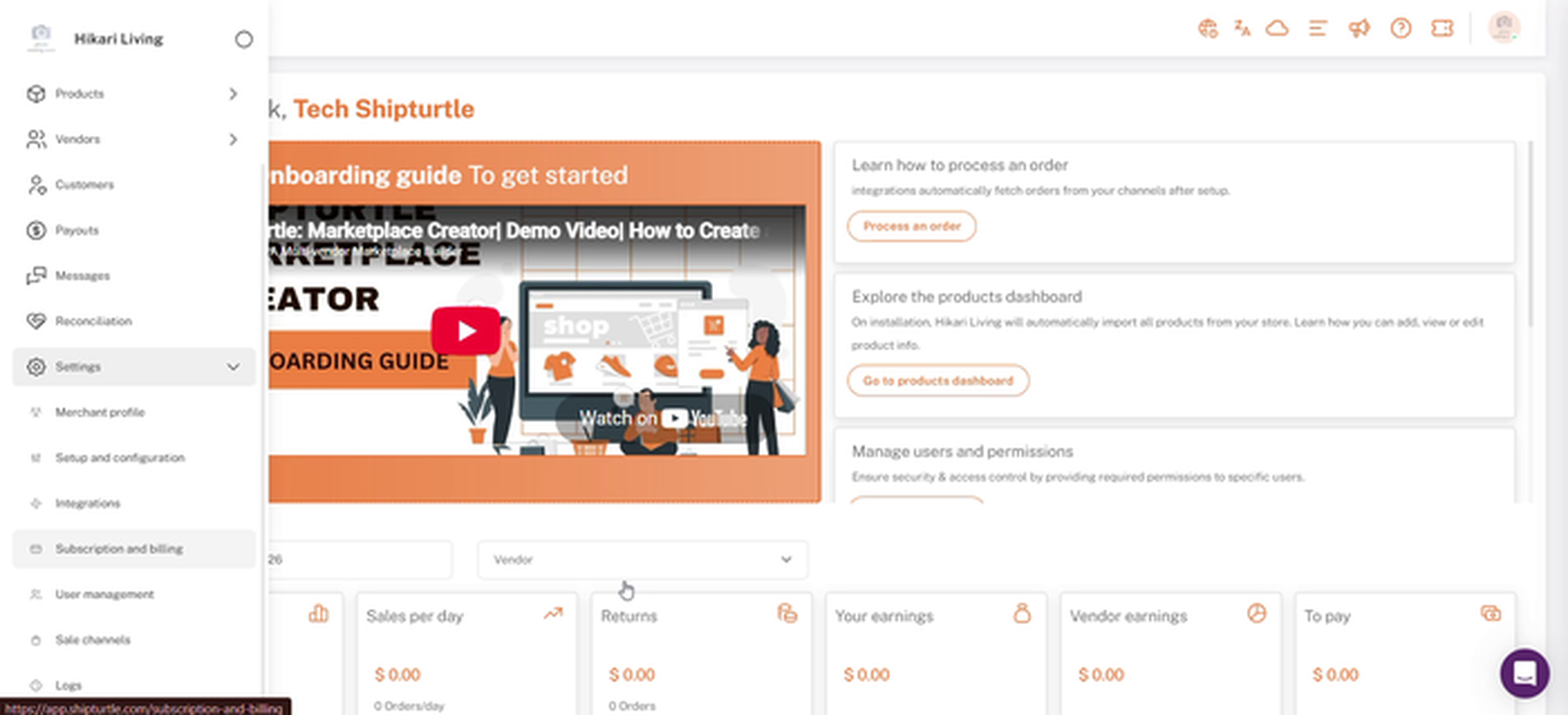
Subscription and billing under Settings in the admin sidebar
2. Find the Vendor Konnect add-ons
Scroll down to Additional Features. Click the Vendor filter to show vendor-related add-ons, or scroll through All.
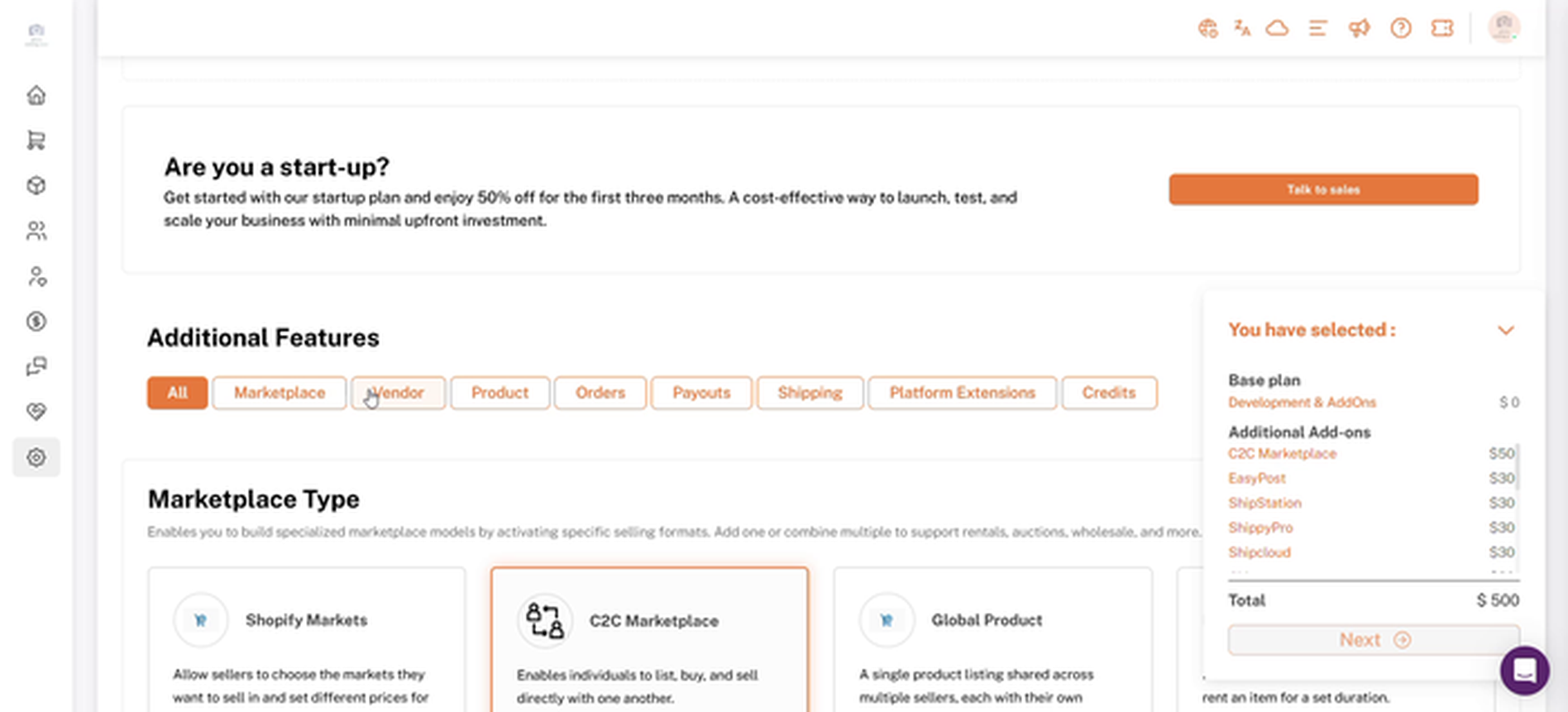
Additional Features filters, with the Vendor filter
3. Add Vendor Konnect — Squarespace
On the Vendor Konnect — Squarespace card, click Add. The button changes to Added, and the add-on is included in the You have selected summary in the bottom-right corner.
If the You have selected panel covers the card's Add button, click the arrow at the top of the panel to collapse it.
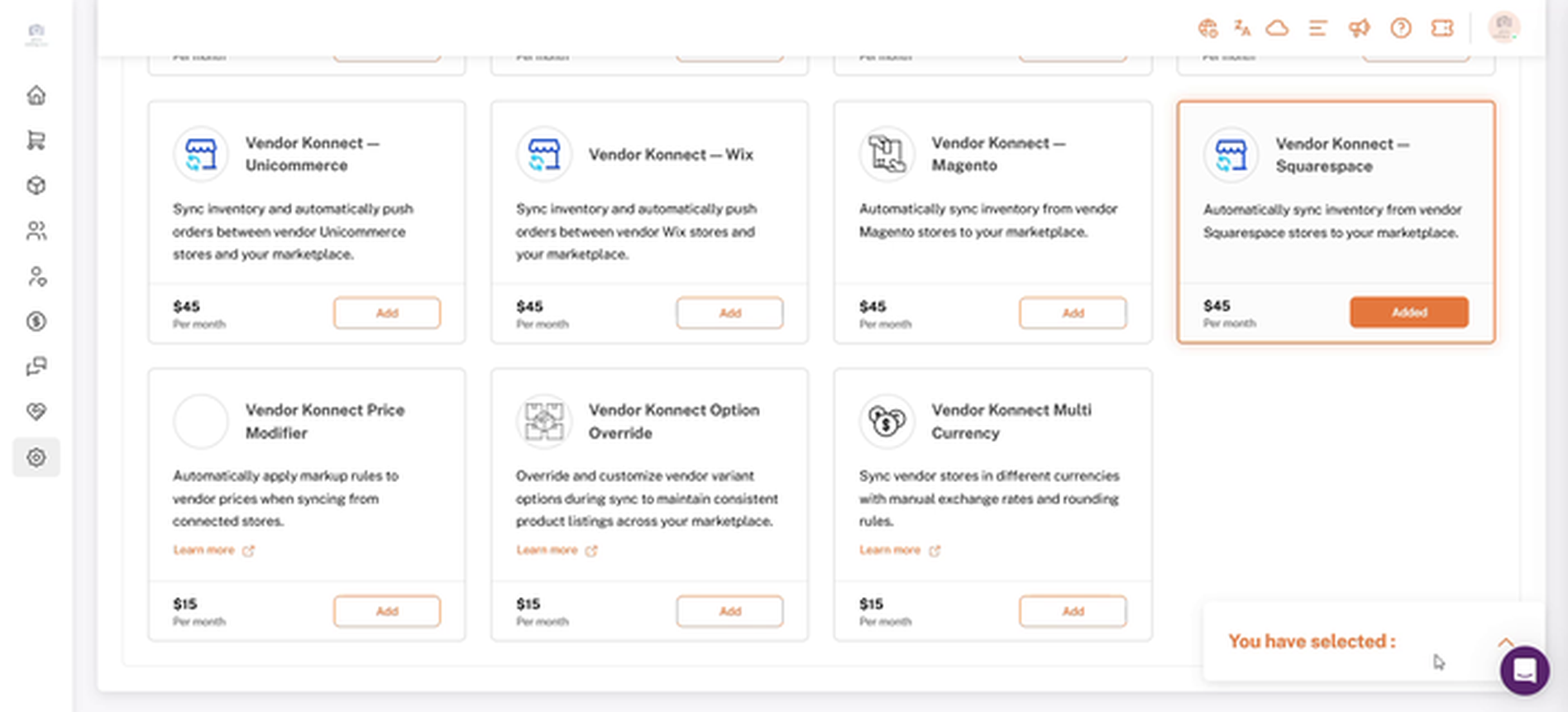
The Vendor Konnect — Squarespace card after clicking Add
4. Review your total and click Next
Expand the You have selected panel to check your base plan, add-ons and new monthly total, then click Next.
Note: At the time of writing, Vendor Konnect — Squarespace is listed at $45 per month. Check the card for current pricing on your plan.
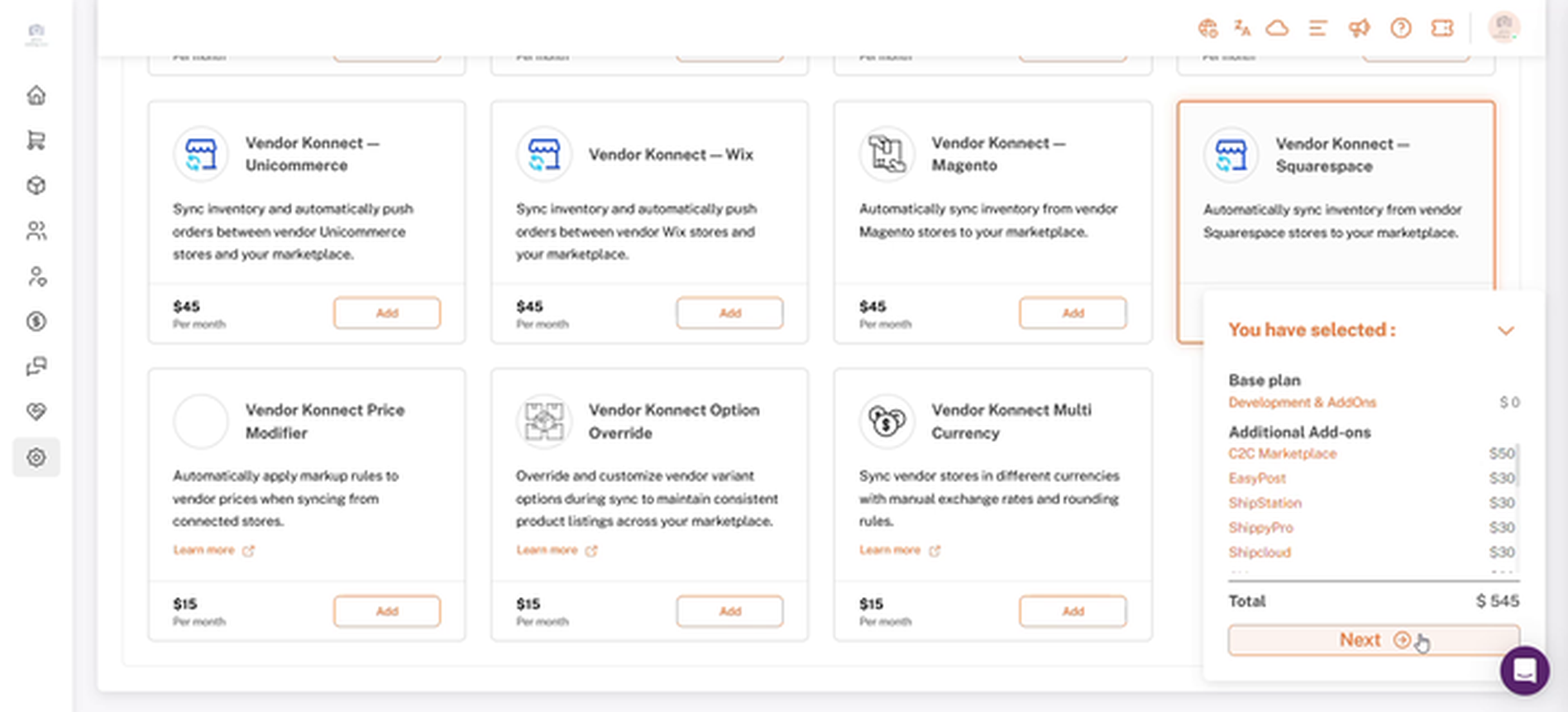
The You have selected panel with the updated total and the Next button
5. Approve the subscription in Shopify
You are taken to Shopify's Approve subscription page, which shows the new subscription amount and the subscription it replaces. Review the details and click Approve.
Wait for Shipturtle to finish activating the plan after approval. The screen asks you not to refresh or leave the page while this happens.
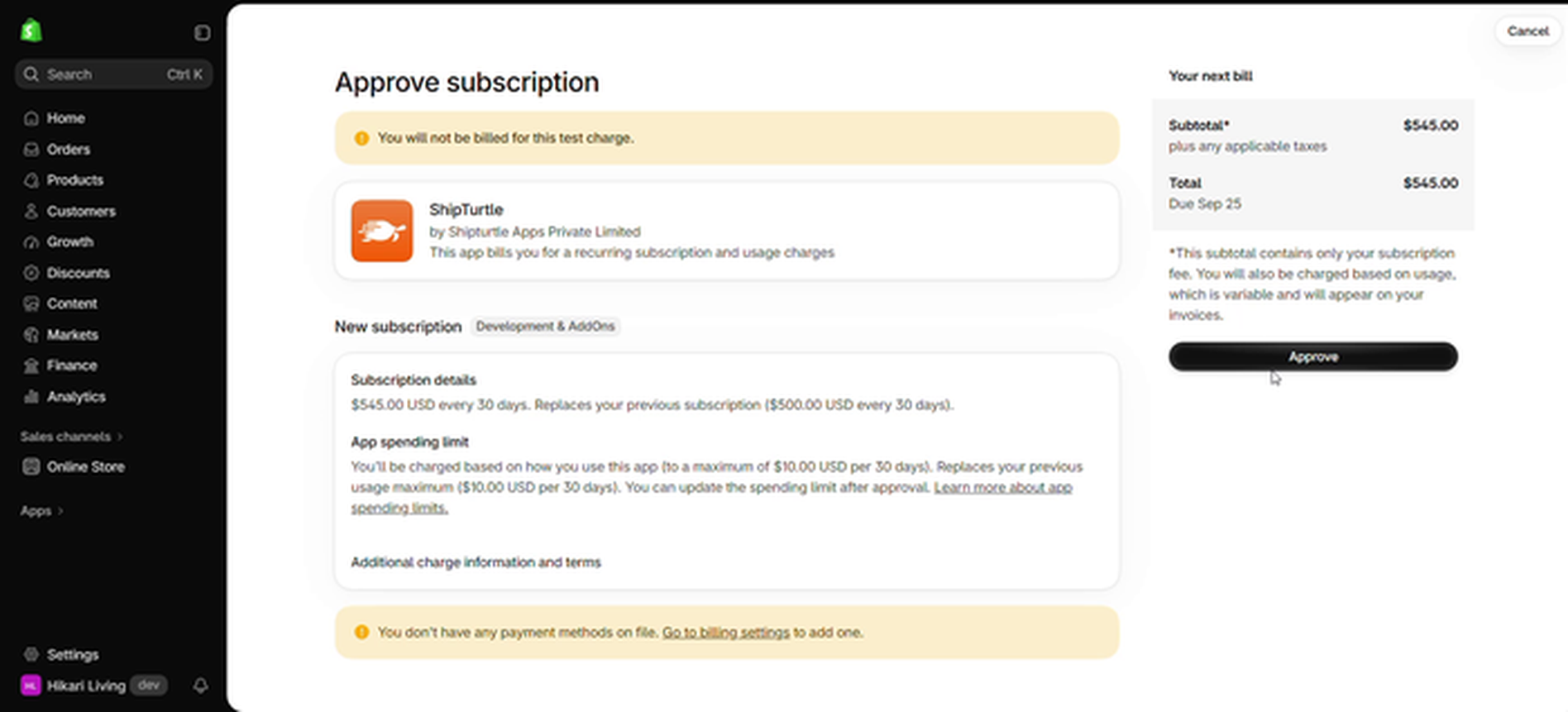
Shopify's Approve subscription page
6. Confirm the add-on is active
You return to Manage subscriptions, which shows your current plan and updated price. Back in Additional Features, the Vendor Konnect — Squarespace card now shows Added.
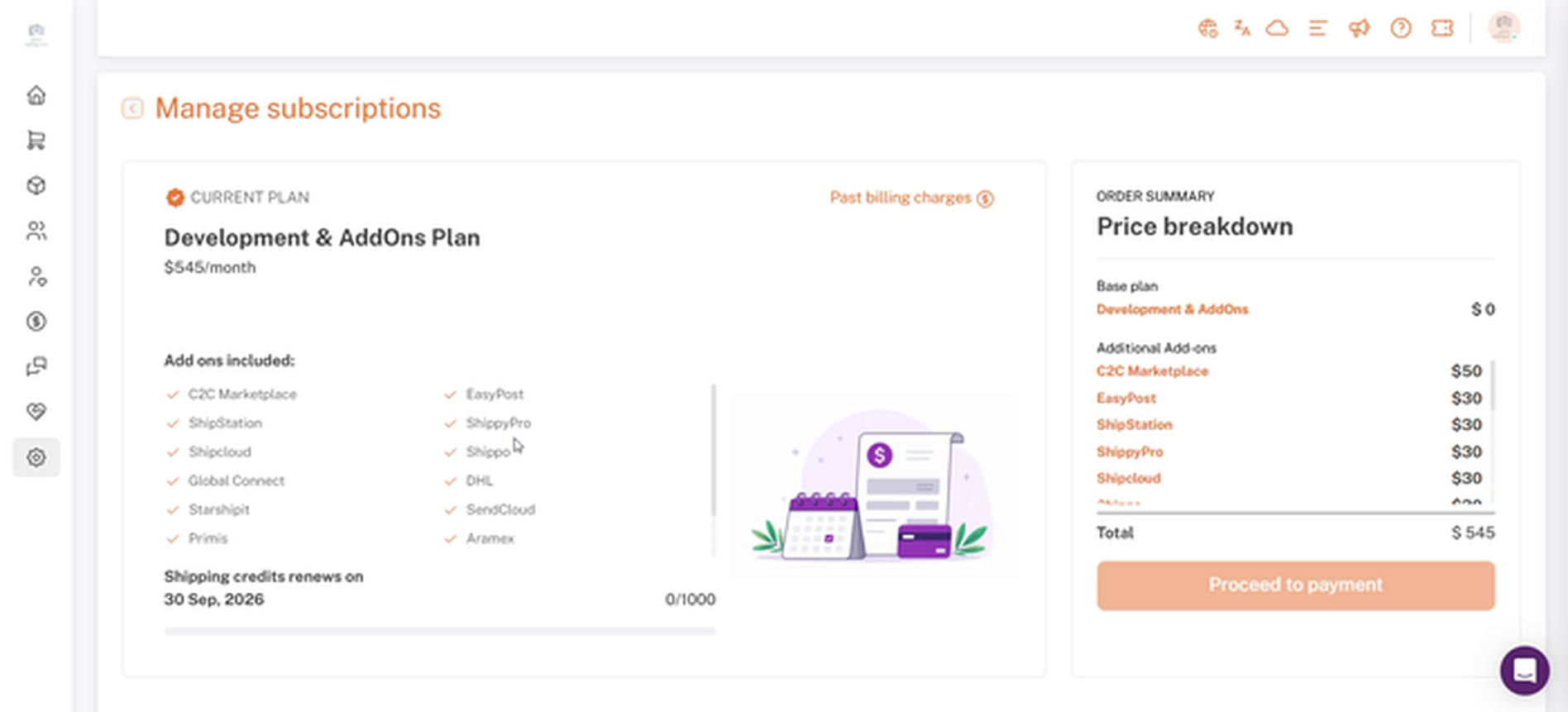
Manage subscriptions showing the updated plan and price breakdown
7. Open the vendor's dashboard (Part B: vendor)
Vendors can log in to their own dashboard and skip to step 8. To do it on a vendor's behalf, click Vendors → Manage vendors in the admin sidebar, find the vendor and click the Login to this vendor's dashboard icon in the Action column.
While you are logged in to a vendor's dashboard, click Return back to merchant view in the top bar to go back to your admin panel.
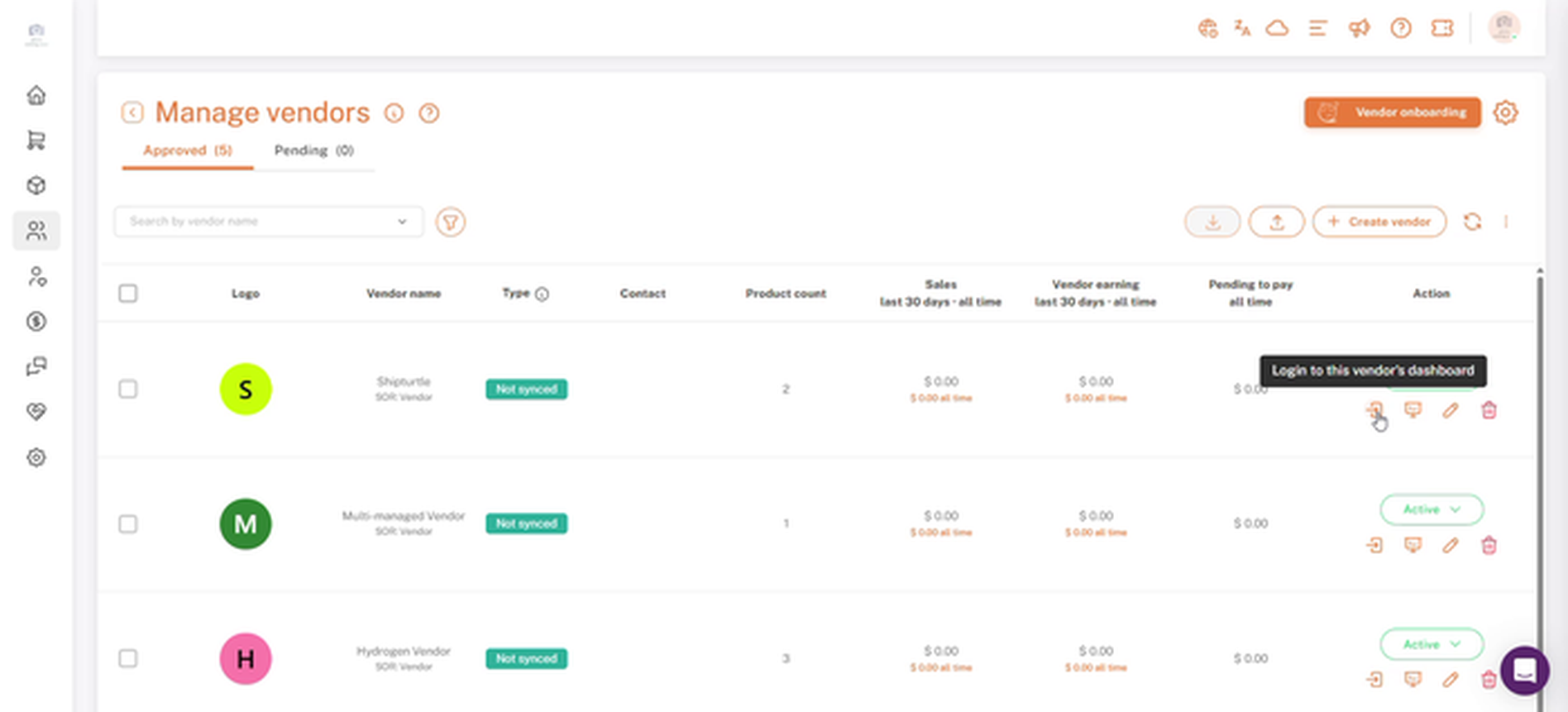
The Login to this vendor's dashboard icon on the Manage vendors list
8. Open Vendor Konnect
In the vendor dashboard's left sidebar, click Vendor Konnect.
Vendor Konnect in the vendor dashboard sidebar
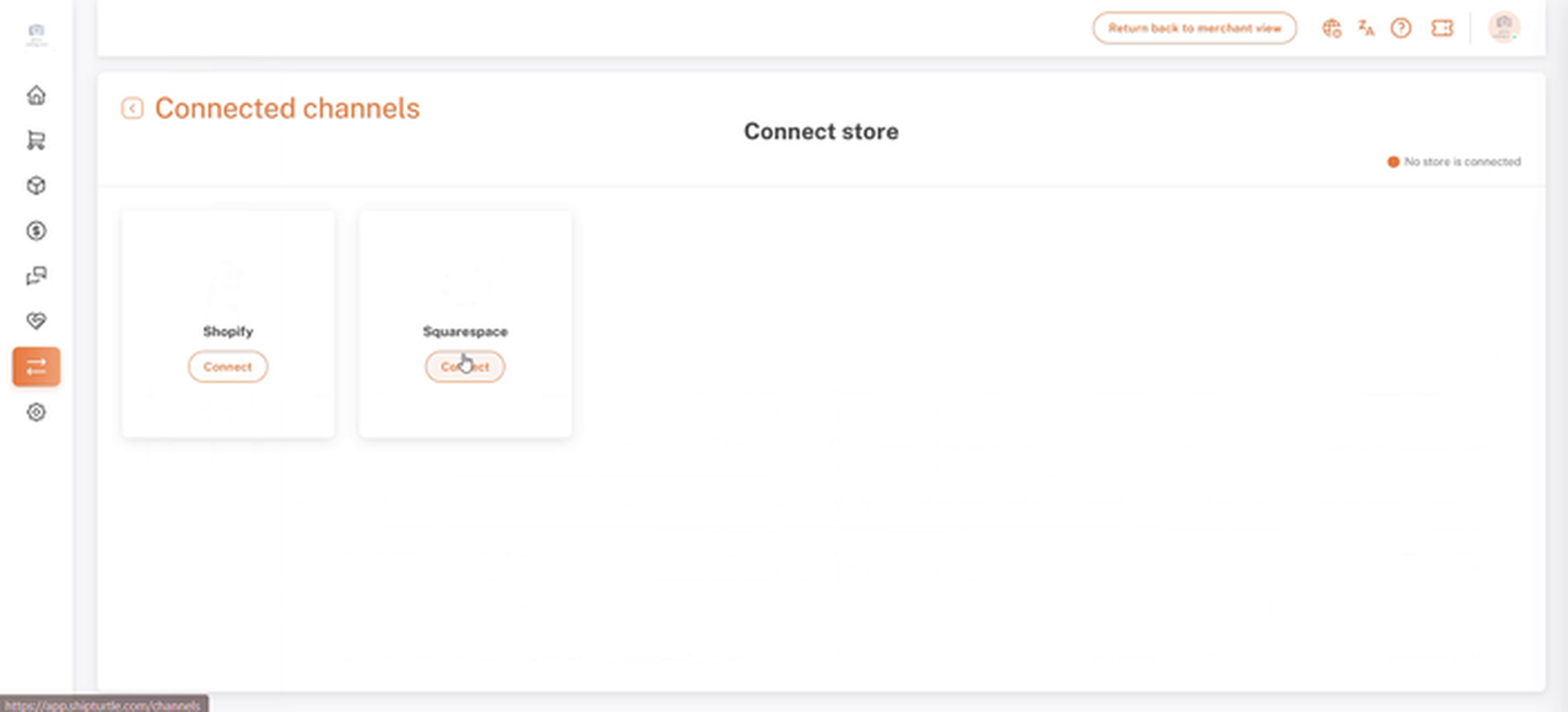
9. Click Connect on Squarespace
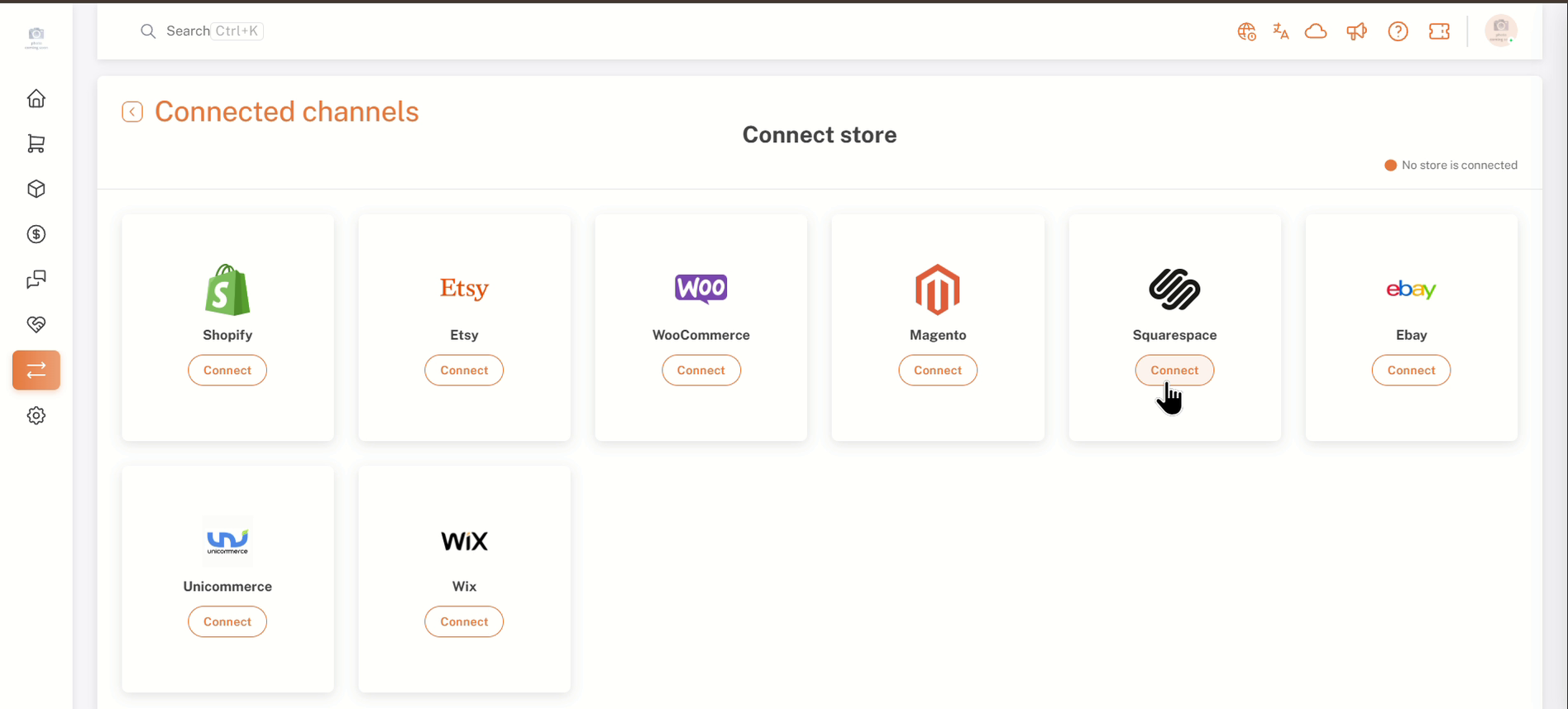
The Connected channels page lists the stores the vendor can connect, including Squarespace. The top-right corner shows No store is connected until a store is linked. On the Squarespace card, click Connect.
Squarespace appears on this page only after the Vendor Konnect — Squarespace add-on is active (Part A). Other channels shown on this page depend on the add-ons active on your plan.
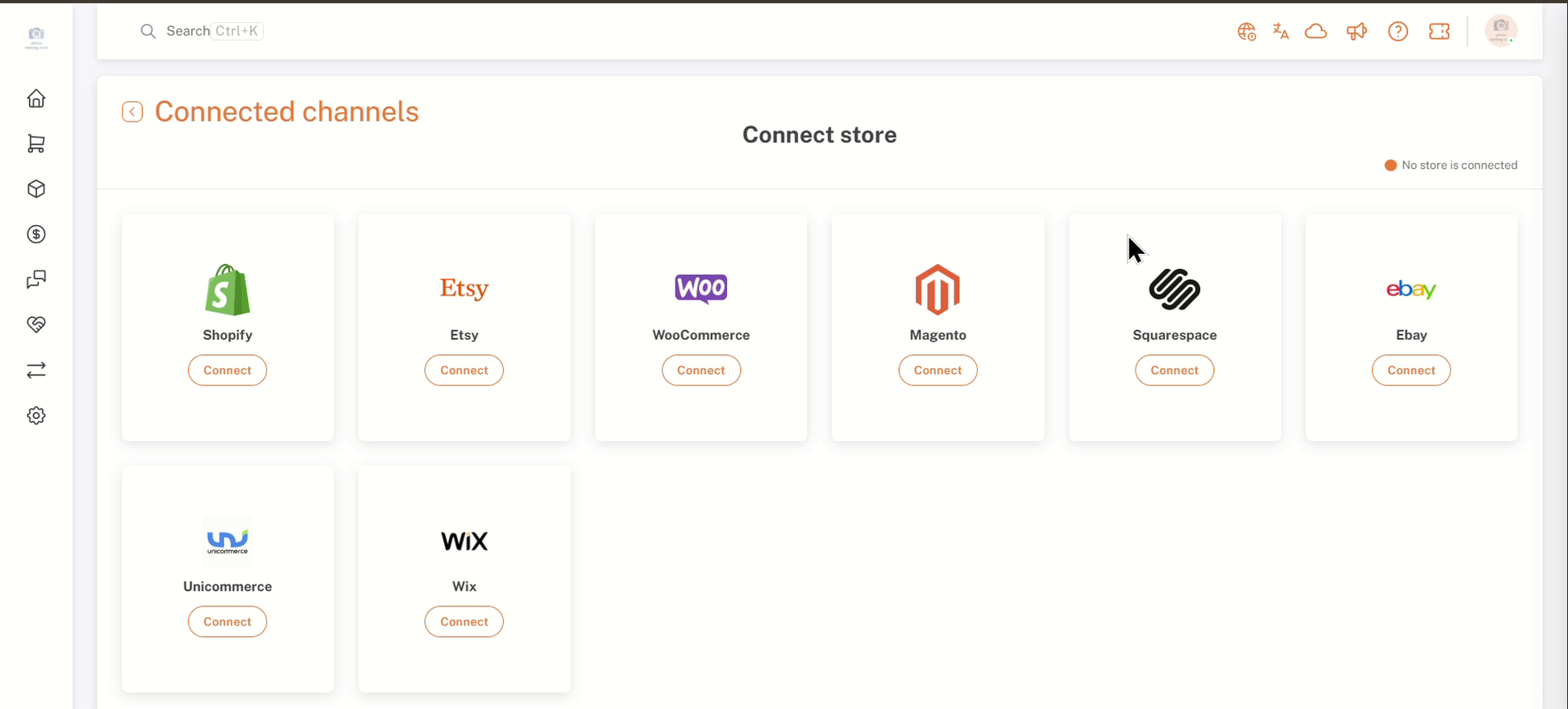
Connected channels page with the Squarespace card
10. Confirm your password
Shipturtle asks you to confirm your password before connecting. Enter the password for the account you are logged in with and click Confirm.
Note: If you click Confirm with the field empty, the prompt shows This field is required. Enter your password and try again.
Confirm password prompt after clicking Connect
11. Authorise the connection in Squarespace
You are redirected to Squarespace, where a Connect Vendor Store Sync page lists the permissions Shipturtle is requesting for the store. Sign in to the vendor's Squarespace account if prompted, review the permissions and the Logged in as and Site details at the bottom, then click Allow. Click Cancel to stop without connecting.
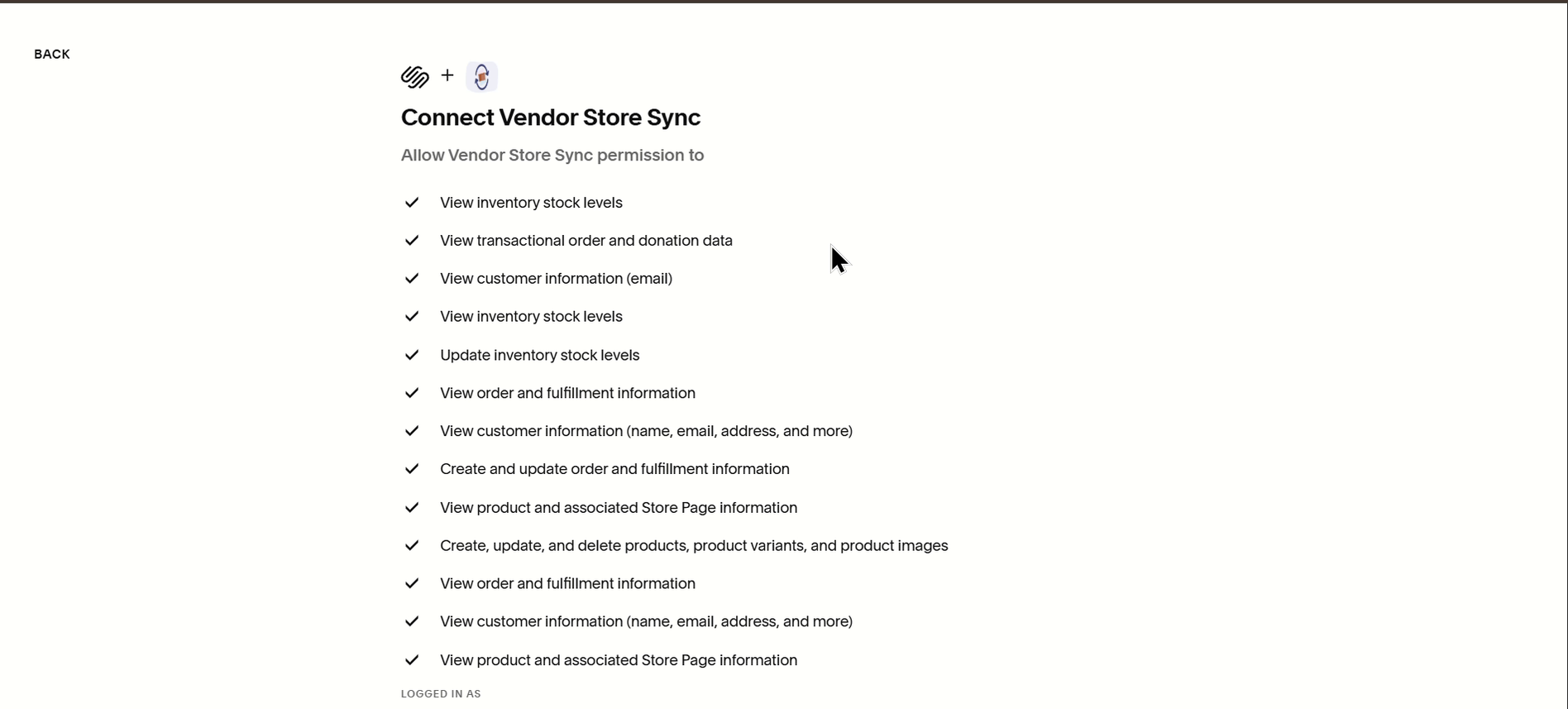
Squarespace: Connect Vendor Store Sync permissions
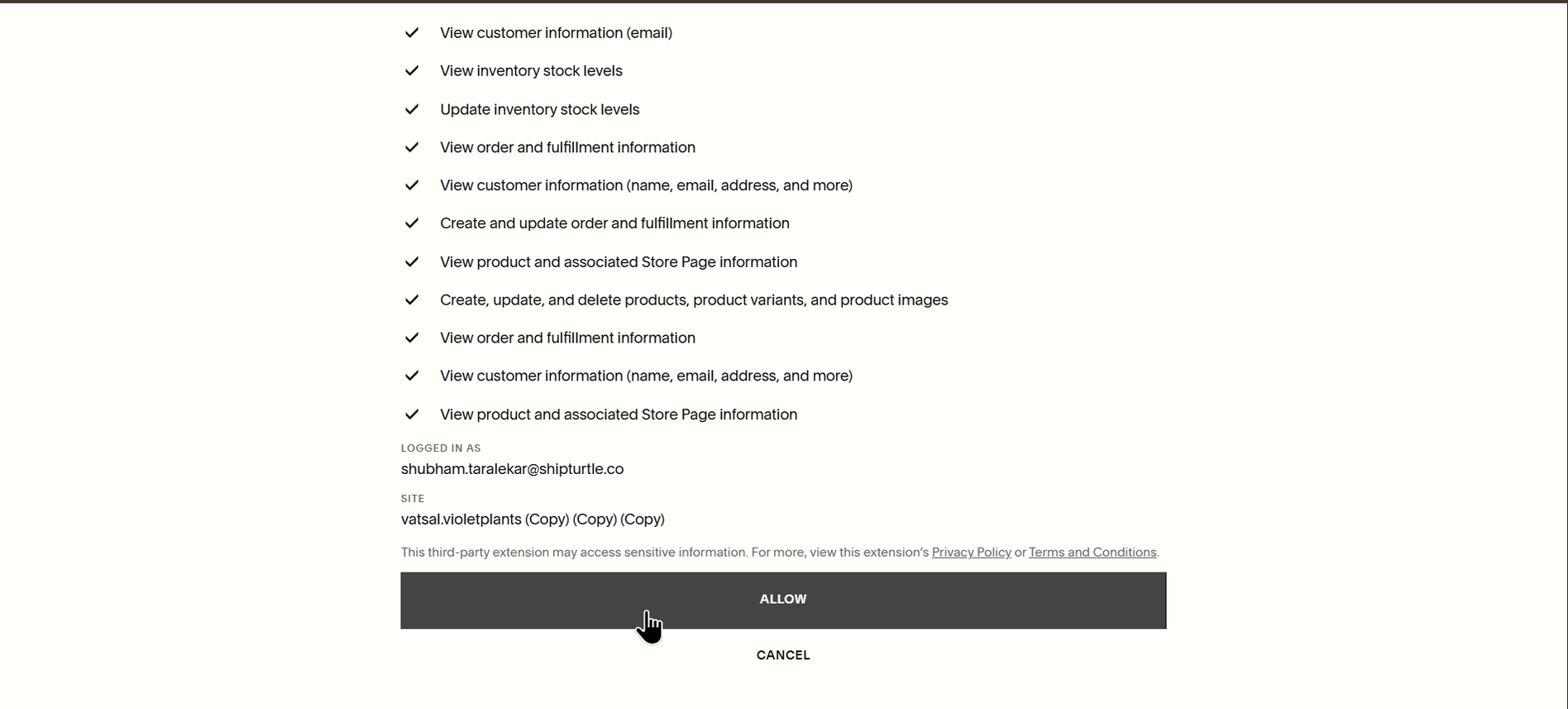
Squarespace: Logged in as and Site details with the Allow button
12. Review the connected store
After you click Allow, you are returned to the Vendor Konnect page in the vendor dashboard. The top of the page shows the store Domain with a Connected label and a Disconnect shop button. Below it, the Select store dropdown, the Available products count and the Vendor webhook health label summarise the connection.
- Products from the Squarespace store are listed under the Mapped and Unmapped tabs, each with a count.
- Each row shows the product photo, title, category, tags, product status, quantity and variants, last synced time and mapping status.
- Use the search bar, filter icon, Bulk actions menu and refresh icon above the list to find and manage products.
- Use the icons in the Action column on a row; hovering over the plus icon shows Add product to merchant store.
- Inventory syncs to your marketplace according to your Vendor Konnect sync settings.
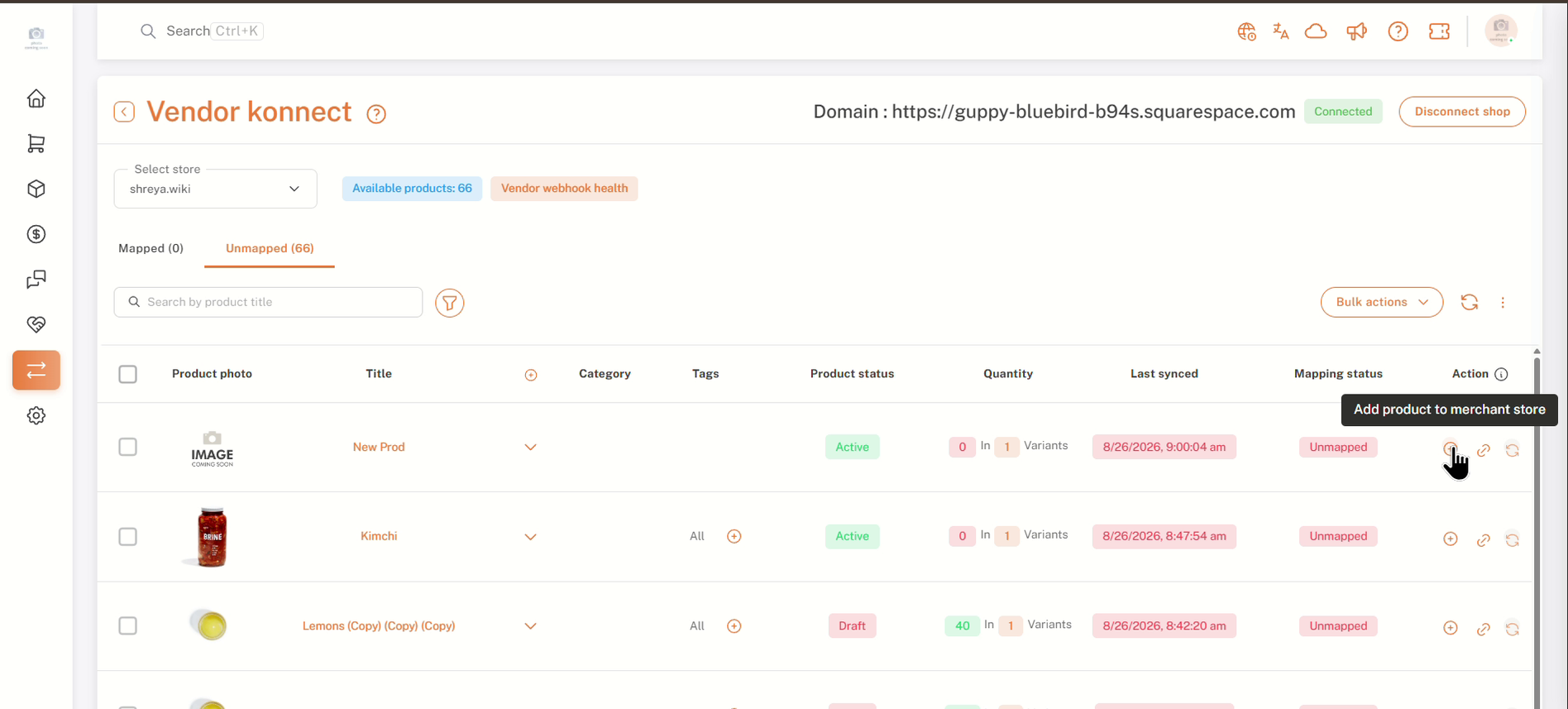
Vendor Konnect: connected Squarespace store with the Unmapped products list
13. Where to find the settings
These are the places used in this article:
- Vendor Konnect — Squarespace add-on: Settings → Subscription and billing → Additional Features. Enables Squarespace as a connectable channel for vendors.
- Connected channels: Vendor dashboard → Vendor Konnect. Where vendors connect Squarespace (or Shopify) stores.
- Sync settings: Settings → Setup and configuration → Vendor Konnect settings. Controls which product and order data syncs.
For more information, see Vendor Shop Sync Settings
FAQs & Troubleshooting
I can't see Squarespace on the vendor's Connected channels page.
Check that the Vendor Konnect — Squarespace add-on shows Added in Subscription and billing, and that you approved the subscription in Shopify. If the approval page was closed before you clicked Approve, the add-on won't be active.
Which password do I enter in the Confirm password prompt?
The password for the Shipturtle account you are currently logged in with. You can use the here link in the prompt if you need to change it.
Can I connect the store on behalf of a vendor?
Yes. Log in to the vendor's dashboard from Vendors → Manage vendors using the Login to this vendor's dashboard icon, then follow Part B.
What does the Squarespace add-on sync?
The add-on card describes it as automatically syncing inventory from vendor Squarespace stores to your marketplace. Which fields sync is controlled in your Vendor Konnect sync settings.
What happens if I click Cancel on the Squarespace permissions page?
The store is not connected. Go back to Vendor Konnect → Connected channels and click Connect on Squarespace again to restart.
How do I disconnect the store?
Open Vendor Konnect in the vendor dashboard and click Disconnect shop at the top right of the page.
Related Articles
- Vendor Shop Sync Settings
- Product Sync Settings
- Order syncing with vendor store
- Add and Map Products
- Login to vendor dashboard
If you’re stuck, reach us at team@shipturtle.com or open a ticket on the support page.