A practical guide to viewing email, file upload, system, webhook, order, and payout logs
Overview
Logs in Shipturtle give you a record of what has happened in your marketplace: which emails were sent, which files were uploaded and processed, who changed settings or ran bulk actions, which store webhooks were received, and how individual orders and payouts changed over time. Use logs to audit activity, confirm that an action went through, and troubleshoot issues before contacting support.
In this guide, you'll learn how to:
- Open the Logs page from Settings and understand how long each log type is kept.
- Review email logs and file upload logs.
- Browse system logs by category, including bulk actions, vendors, setup and configuration, Vendor Konnect, and product templates.
- Check webhook health for your connected store.
- View the change history of a single order and a single payout.
1. Navigate to the Logs Page
From the Shipturtle dashboard:
- Open Settings from the left navigation menu.
- Select Logs at the bottom of the Settings submenu.
- Use the tabs at the top of the page to switch between Email, File Upload, System, and Webhook Health Check.
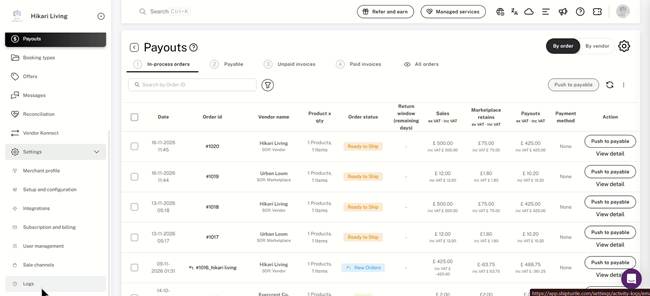
Settings → Logs: location of Logs in the Settings submenu
2. Understand Log Retention
Hover over the info icon next to the Logs title to see how long each log type is kept:
- Email: logs are kept for 7 days, then deleted automatically.
- File Upload: logs are kept for a lifetime.
- System: logs are kept for 30 days, then deleted automatically.
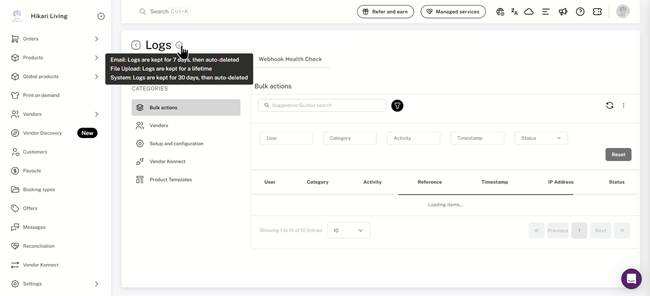
Logs: retention period shown in the info tooltip
3. View Email Logs
The Email tab lists the emails Shipturtle has sent on behalf of your marketplace, such as customer messages, welcome emails, and Global Product opt-in requests. Each row shows:
- Email ID
- Recipient address
- Sender address and sender name
- Subject
- Sent date and time
- Status (for example, Sent)
- Action: click the eye icon to view the email
Search, filter, and resend emails
Use the Suggestive/Guided search bar and the filter icon to find a specific email. To resend emails, select them with the checkboxes and click resend. Click the refresh icon to load the latest entries.
If emails are not reaching recipients, see Troubleshooting Email Issues in Shipturtle.
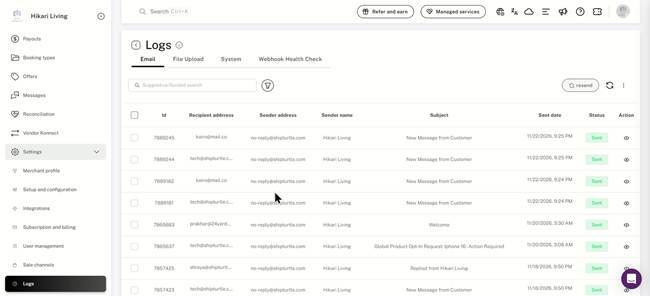
Settings → Logs → Email: list of sent emails
4. View File Upload Logs
The File Upload tab records every file uploaded to Shipturtle, such as product upload spreadsheets. Each row shows:
- Upload ID
- Upload type (for example, Add New Products)
- Uploaded at (date and time)
- Filename
- Records uploaded and records processed
- Status (for example, Processed)
- Action: download the file or delete the log entry
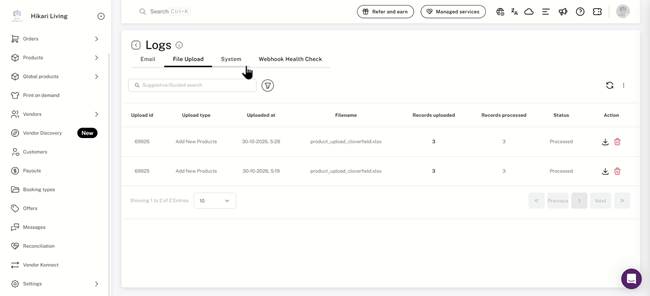
Settings → Logs → File Upload: uploaded files and processing status
For more information, see Add and Update Products in Shipturtle
5. View System Logs
The System tab records activity in your account, grouped by category. Select a category from the Categories panel on the left to see its logs.
Bulk actions
Shows bulk actions performed in the account, with columns for User, Category, Activity, Reference, Timestamp, IP Address, and Status.
Vendors
Shows vendor-related activity, with columns for User, Category, Activity, Source, Record, Timestamp, IP Address, and Status.
Setup and configuration
Shows changes made to settings, with columns for User, Section, Subcategory, Timestamp, IP Address, and Action. Use the Select company dropdown to choose which company's changes to view.
Vendor Konnect
Shows sync events with connected vendor stores, with columns for User, Category, Event, Reference, Method, Timestamp, IP Address, Status, and Reason.
For more on vendor store syncing, see Guide to Vendor Store Connect.
Product Templates
Shows activity on product templates, with columns for User, Activity, Reference, Timestamp, IP Address, and Status.
Search and filter system logs
1. Type in the Suggestive/Guided search bar to find a specific entry.
2. Click the filter icon to show the filter fields, such as User, Category, Activity, Timestamp, and Status.
3. Click Reset to clear all filters.
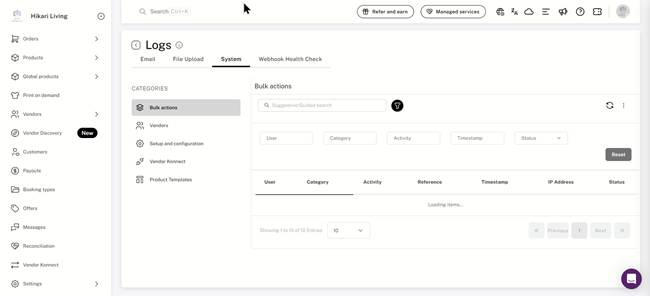
Settings → Logs → System → Bulk actions: category list and filter fields
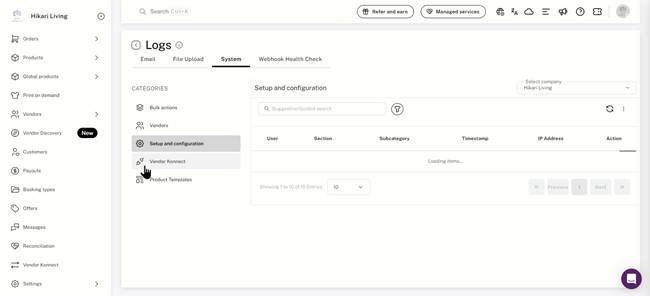
Settings → Logs → System → Setup and configuration: settings change log with company selector
6. Check Webhook Health
The Webhook Health Check tab shows whether your connected store is sending events to Shipturtle. The page shows the store name and today's date (IST), followed by a list of webhook events and how many of each were received today. Events include:
- shop/update
- refunds/create
- products/create, products/update, and products/delete
- orders/updated and orders/paid
Read the results
A count of 0 means no event of that type was received today. This is normal if nothing changed in the store; but if you made a change (for example, updated a product) and the count stays at 0, the store may not be sending webhooks to Shipturtle. Click the refresh icon to load the latest counts.
For more on the store connection, see Shopify <> Shipturtle.
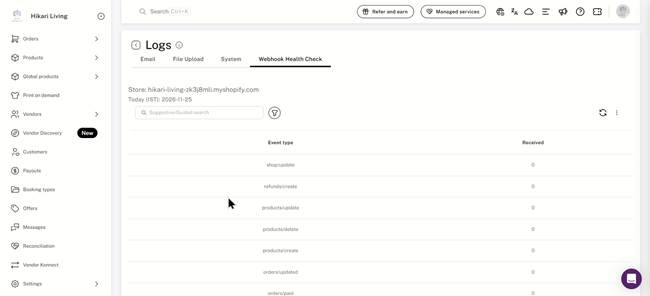
Settings → Logs → Webhook Health Check: events received today for the connected store
7. View Order Logs
Each order has its own change history, shown on the Order details page.
- Open Orders from the left navigation menu and select Forward order.
- Click the order ID (for example, #1004) to open the Order details page.
- Scroll to the bottom of the page and click show order logs.
- Review the Order logs list. Click hide order logs to collapse it.
- Each entry shows who made the change (for example, The app or a team member's name) and the date and time.
- Under each entry, every changed field is listed with its old and new value, such as shipping partner, shipment label, order payment, package dimensions, warehouse, and order status.
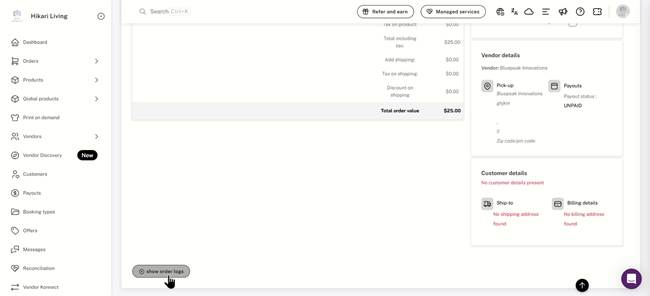
Orders → Order details: show order logs button at the bottom of the page
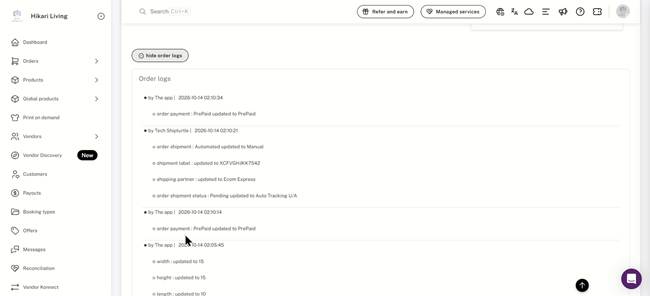
Orders → Order details: order logs expanded
For more information, see Navigating the orders page
8. View Payout Logs
Each payout has its own log, shown in the Payment breakdown window.
- Open Payouts from the left navigation menu.
- Find the order and click View detail in the Action column.
- In the Payment breakdown window, select the Payout logs tab.
- Review each entry: who created it (for example, By App), the date and time, the event (for example, New Order Created), and the payout amount. Click the arrow on the right of an entry to expand it.
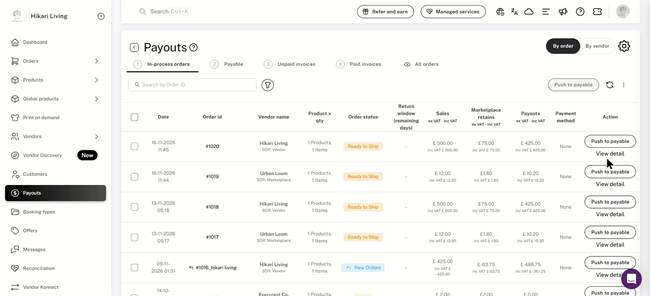
Payouts: View detail link in the Action column
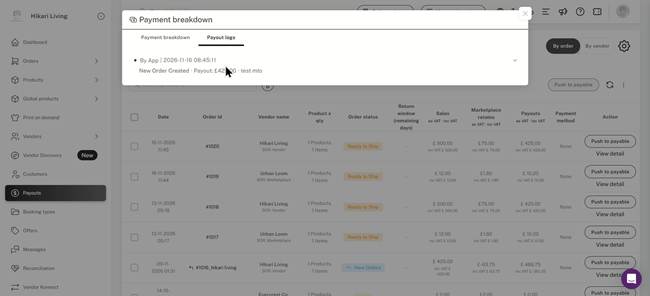
Payouts → Payment breakdown → Payout logs
For more information, see Generate commission invoices and payouts
FAQs & Troubleshooting
- Why can't I find an older email in the Email logs?
Email logs are kept for 7 days and then deleted automatically. Emails sent more than 7 days ago will no longer appear. - How long are system logs kept?
System logs are kept for 30 days and then deleted automatically. File upload logs are kept for a lifetime. - A system log category shows "Loading items..." or no entries. What should I do?
Click the refresh icon, clear any active filters with Reset, and check that the right company is selected (for Setup and configuration). If there has been no activity in that category in the last 30 days, the list will be empty. - Webhook Health Check shows 0 for every event. Is something wrong?
Not necessarily. Counts are for today only, so 0 can simply mean nothing changed in the store today. If you made a change in your store and the matching event still shows 0 after refreshing, contact support so the team can check the store connection. - Who is "The app" in order logs?
"The app" marks changes made automatically by Shipturtle or the connected store. Changes made by a person show that user's name instead. - Can I resend an email from the logs?
Yes. On the Email tab, select the emails with the checkboxes and click resend.
Related Articles
- Introduction to Order
- Introduction to Payouts
- Troubleshooting Email Issues in Shipturtle
- Vendor Sync Troubleshooting
- Configure your General Settings
Need Help?
If you're stuck, contact the Shipturtle support team at team@shipturtle.com or raise a support ticket through the Shipturtle support page.