A practical guide to automatically tracking shipments you add manually
Overview
Universal Shipment Tracking is for orders where the shipping label is created outside Shipturtle and the tracking details are added manually. Once you add the carrier and AWB number, Shipturtle automatically tracks the shipment and moves the order through its statuses, such as Ready to ship, In transit, and Delivered. It works with over 600 shipping partners, so you never need to check each order's status by hand.
In this guide, you'll learn how to:
- Activate the Smart Tracking add-on.
- Choose the shipping partners you want to track.
- Add tracking details manually to an order.
- Follow status updates as the shipment moves.
1. Activate Smart Tracking
Smart Tracking is an add-on. Turn it on first:
1. Go to Settings → Subscription and Billing.
2. Find the Universal Shipment Tracking add-on and activate it.
2. Open the Smart Tracking Settings
1. Go to Settings → Shipping settings.
2. Scroll to the Smart tracking card.
3. Click the card to expand it and show the shipping partner list.
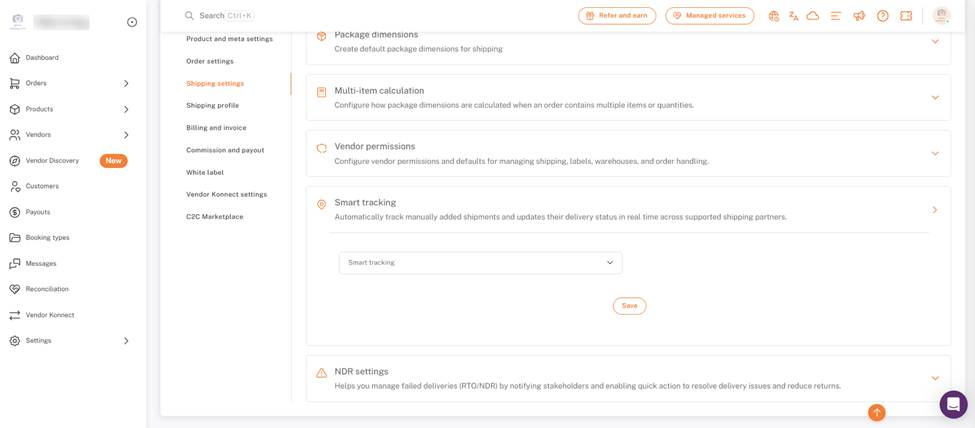
Settings → Shipping settings: Smart tracking card expanded
3. Select Your Shipping Partners
Choose the carriers you and your vendors use to ship manually added orders.
1. Click the Smart tracking dropdown.
2. Type a carrier name to search, then select it. Repeat for every carrier you use.
3. Check the selected carriers, shown as tags in the field. Use the clear icon (x) to remove the selection and start again.
4. Click Save.
Why this list matters
Only the carriers you select here appear when you add tracking manually to an order. If you haven't selected any carriers, Shipturtle shows its default carrier list. Example: select Fedex and Bluedart if those are the only carriers your vendors use.
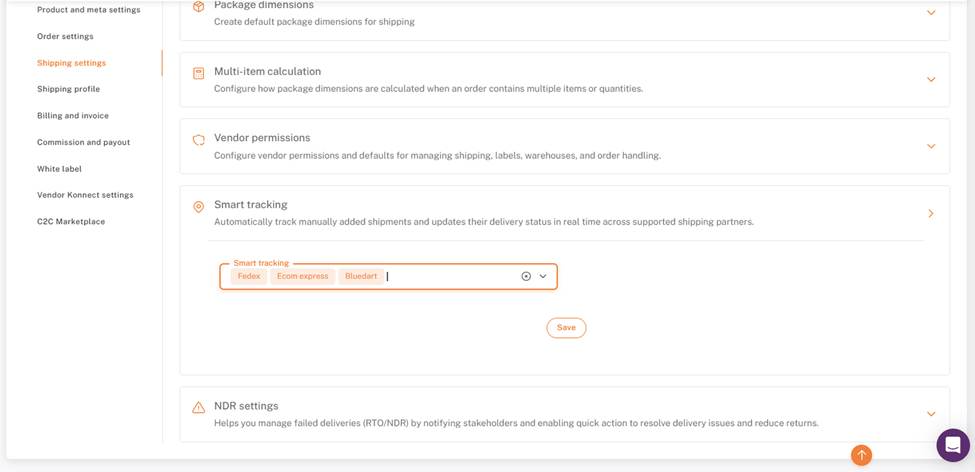
Settings → Shipping settings → Smart tracking: carriers selected
4. Add Tracking Manually to an Order
1. Go to Orders → Forward order.
2. Find the order and, under Fulfillment details → Shipment details, open the Select shipper dropdown.
3. Choose Add Tracking Manually.
4. In the popup, select the shipper and enter the AWB (Air Waybill) number.
5. Fill in the optional fields if needed, then save.
Optional fields
- Estimated Cost: the cost of the shipment.
- Tracking URL: a link customers can use to track the shipment.
5. Follow Status Updates
Once tracking is added, Shipturtle fetches updates from the carrier and moves the order to the right tab on the Forward order page, with no manual changes needed. For example:
- Ready to ship: tracking added, waiting for the carrier to collect the package.
- In transit: the carrier has picked up the package.
- Exceptions: the carrier reported a problem, such as a failed delivery attempt.
- Delivered: the package reached the customer.
- RTO and Returned: the package couldn't be delivered and is going back, or has gone back, to the pickup location.
Handle failed deliveries
Use the NDR settings card on the same Shipping settings page to notify the right people when a delivery fails, so they can act quickly and reduce returns.
For more information, see Non-delivery report.
For more information, see Track Shipments
FAQs & Troubleshooting
I can't see the Smart tracking option in my account. What should I do?
Make sure the Smart Tracking add-on is active under Settings → Subscription and Billing. Then select your carriers under Settings → Shipping settings → Smart tracking.
Can I manually add tracking for all orders?
Yes. Go to Orders → Forward order, open the Select shipper dropdown on the order, and choose Add Tracking Manually. Then enter the AWB number and any optional details.
A carrier is missing from the Add Tracking Manually list.
Add it under Settings → Shipping settings → Smart tracking and click Save. Only carriers selected there appear in the list.
I added tracking manually, but the status isn't updating.
Check that the AWB number is correct and that the carrier is selected under Settings → Shipping settings → Smart tracking.
The status shows incorrect information.
Verify the AWB number and shipper you entered. If they're correct, ask the shipping partner to confirm the tracking number is valid in their system.
My order is stuck at one status, such as Ready to ship.
Check whether the carrier has posted an update for that stage. Carrier delays can hold up status changes. You can also refresh the Forward order page to load the latest status.
The tracking URL I entered isn't working.
Double-check the link and make sure it's the URL the shipper provided. Some shipping partners don't support external tracking links.
Will I see when the order status changes?
Yes. The order moves to the matching tab on the Forward order page automatically, and you can see the current status in the order details.
Related Articles
- Add tracking page for shipments
Need Help?
If you're stuck, contact the Shipturtle support team at team@shipturtle.com or raise a support ticket through the Shipturtle support page.