Track Shipments
A practical guide to following every shipment from new order to delivery on the Forward order page
Overview
Shipturtle tracks your shipments automatically and moves each order to the right status tab as the carrier sends updates. Shipments are tracked whether the label is generated in Shipturtle or added manually: labels generated in Shipturtle are tracked through integrated carrier APIs, and manually added tracking details are tracked through Universal Smart Tracking.
In this guide, you'll learn how to:
- Open the Forward order page and find any shipment.
- Understand what each order status tab means.
- Generate a label so tracking starts automatically.
- Track shipments whose labels were created outside Shipturtle.
- Share live tracking with your customers.
1. Open the Forward Order Page
All outgoing shipments are tracked from one place.
1. Go to Orders → Forward order.
2. Pick a status tab at the top to see the orders in that stage. The number under each tab is the order count.
3. Use Search by Order ID to jump to a specific order, or the filter icon to narrow the list.
4. Click the refresh icon to load the latest tracking statuses.
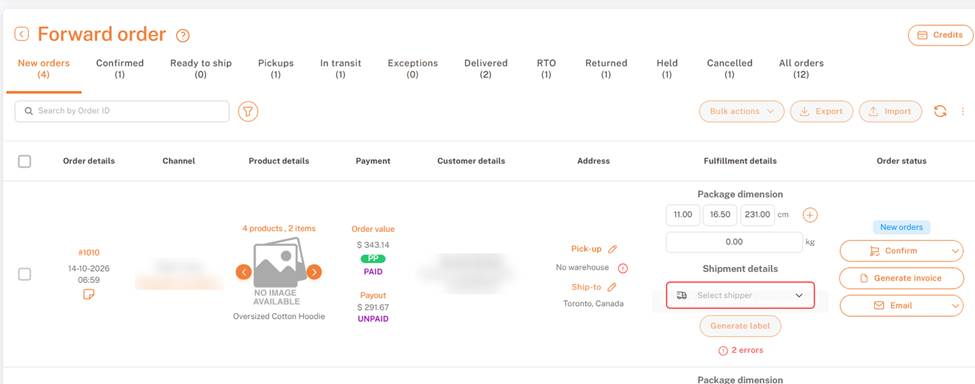
Orders → Forward order: status tabs and order list
2. Understand the Order Status Tabs
Each tab is a stage in the shipment's journey. Orders move between tabs automatically as tracking updates come in.
- New orders — Orders just received and not yet confirmed.
- Confirmed — Orders confirmed and ready for a shipper and label.
- Ready to ship — Label generated; the package is packed and waiting to be handed over.
- Pickups — Pickup scheduled; waiting for the carrier to collect the package.
- In transit — Picked up by the carrier and on its way to the customer.
- Exceptions — The carrier reported a problem, such as a failed delivery attempt, an address issue, or a delay.
- Delivered — Successfully delivered to the customer.
- RTO — Return to Origin: the shipment couldn't be delivered and is heading back to the pickup location.
- Returned — The shipment has reached the pickup location again.
- Held — The order is on hold and won't move forward until it's released.
- Cancelled — The order was cancelled.
- All orders — Every forward order, whatever its status.
Keep an eye on Exceptions and RTO
These two tabs need action. Check them daily, contact the carrier or customer to fix the issue, and update the address or reschedule where needed. Example: a wrong apartment number moves an order to Exceptions until it's corrected.
3. Read the Order Row
Every order row shows what you need to follow the shipment:
- Order details — Order number, date, and time. Click the order number to open it.
- Channel — The sales channel and vendor for the order.
- Product details — Number of products and items, with product images.
- Payment — Order value and payment status, plus the vendor Payout and its status.
- Customer details — Customer name, email, and phone number.
- Address — Pick-up location (warehouse) and Ship-to address. Use the pencil icon to edit either one.
- Fulfillment details — Package dimension, Shipment details, and the Generate label button.
- Order status — The current status, plus quick actions: Confirm, Generate invoice, and Email.
4. Generate a Label to Start Tracking
Tracking starts automatically as soon as you generate a label in Shipturtle.
1. In the order row, go to Order status → Confirm to confirm the order.
2. Under Fulfillment details → Package dimension, enter length, width, and height (cm) and weight (kg). Use + to add another package.
3. Under Shipment details, open Select shipper and choose a carrier.
4. Click Generate label.
If you see errors under Generate label
A red error count (for example, 2 errors) means something is missing before a label can be created. Click it to see what needs fixing. Common fixes:
- No warehouse under Pick-up: assign a pickup location with the pencil icon. See Add and Assign Warehouses.
- No shipper selected: choose one in Select shipper. If the list is empty, add a shipping partner first.
- Missing package details: fill in all dimensions and the weight.
For more information, see Generate Shipping Labels
5. Track Manually Added Shipments with Universal Smart Tracking
Created the label outside Shipturtle? Shipturtle still tracks it. When you or your vendors add tracking details manually, Universal Smart Tracking fetches status updates from the carrier and moves the order through the same tabs, with no manual status changes.
- Works with labels generated on a carrier's website or any other shipping tool.
- Supports 600+ shipping carriers.
- Updates the order automatically: In transit, Exceptions, Delivered, RTO, and more.
- Just add the carrier and the tracking number (AWB) to the order using Add Tracking Manually.
For more information, see Universal Smart Tracking
6. Share Tracking with Your Customers
Let customers check their own order status on your website by adding a tracking page. It shows the same live status you see in Shipturtle.
For more information, see Add tracking page for shipments
FAQs & Troubleshooting
I added tracking details manually. Will the status update?
Yes. Manually added shipments are tracked with Universal Smart Tracking. If the status doesn't update, check that the tracking number is correct and the right carrier is selected.
Why is my order still in Ready to ship or Pickups?
The status changes to In transit only after the carrier scans the package. Confirm the pickup happened, then click the refresh icon. To schedule pickups, see Generate Picklists & Schedule pickups.
What's the difference between RTO and Returned?
RTO means the undelivered shipment is on its way back to the pickup location. Returned means it has arrived back.
Why can't I generate a label?
Click the red error count under Generate label to see what's missing. Usually it's the pickup warehouse, the shipper, or the package dimensions.
Where do I find orders with delivery problems?
Open the Exceptions tab. Orders there need attention, such as a failed attempt or an address issue.
Can vendors track their own shipments?
Yes. Vendors with dashboard access see the same status tabs for their own orders.
Related Articles
- Generate Picklists & Schedule pickups
- Add tracking page for shipments
- Guide to setting up shipping in a marketplace
Need Help?
If you're stuck, contact the Shipturtle support team at team@shipturtle.com or raise a support ticket through the Shipturtle support page.